Update Google Sheets via API: A Step-by-Step Guide
Learn how to update Google Sheets via API with OAuth authentication, key Sheets API endpoints, and best practices for reliable, scalable updates across apps.


According to How To Sheets, you can update Google Sheets via API by authenticating with OAuth, selecting the target spreadsheet, and writing values to cells or ranges. This guide unpacks the necessary permissions, API endpoints, and batching strategies to keep updates reliable and efficient. Whether you’re syncing a CRM, logging survey results, or automating dashboards, this flow saves time.
Why update google sheets via api matters
In modern workflows, updating Google Sheets via API unlocks automation, reduces manual data entry, and enables real-time syncing with external systems. For students, professionals, and small business owners, API-driven updates let you push data from apps, dashboards, and CRMs directly into sheets without opening the UI. This approach also supports batch operations, so you can apply changes to many cells in a single call, which improves consistency and reduces the risk of human error. As you scale, APIs help enforce data quality by validating inputs before they reach your spreadsheet. According to How To Sheets, adoption of API-driven updates is rising as teams seek reproducible, auditable data pipelines across tools and platforms.
Prerequisites and authentication basics
Before you can update sheets via API, you need a Google Cloud project with the Sheets API enabled and proper credentials. Choose between OAuth 2.0 user credentials for interactive apps or a service account for server-to-server tasks. The authentication flow ensures that your requests have the right scopes (permissions) to read or write data. In practice, you’ll acquire an access token and include it in the Authorization header of each API call. For production apps, store credentials securely and rotate them regularly. The How To Sheets team emphasizes keeping credentials out of source code and using secret managers where possible.
Core API endpoints you’ll use
The primary endpoint for updating values is spreadsheets.values.update, which writes data to a specific range. For more complex edits, spreadsheets.values.batchUpdate lets you write multiple ranges in one request. If you need to alter sheet properties, formatting, or insert rows/columns, use spreadsheets.batchUpdate with a series of Request objects. When planning your payloads, remember that the API accepts values as a two-dimensional array aligned to the target range. You should also set the majorDimension (ROWS or COLUMNS) to match how you structure your data.
Reading and writing data: ranges, values, and data types
Ranges are expressed in A1 notation, such as 'Sheet1!A2:D10'. Your data payload is a nested array, where each inner array represents a row. The API handles several data types, but consistency is key: keep cells typed consistently (text, numbers, booleans) to avoid formatting surprises in Sheets. If your sheet uses headers, place them in the first row of the range. When writing, consider whether to overwrite or append; update calls replace existing values in the target range unless you specify otherwise. Testing in a staging sheet helps catch type mismatches before production.
Handling errors, quotas, and retries
APIs enforce quotas and can return errors for permissions, invalid ranges, or malformed payloads. Implement robust error handling with status checks and descriptive logs. Use exponential backoff in retry logic to respect quota limits and reduce risk of throttling. If a call fails due to permissions, verify sharing and scopes; for invalid ranges, double-check the sheet name, tab, and cell coordinates. Monitoring retries and success rates helps you tune the update cadence for production workloads.
End-to-end example workflow
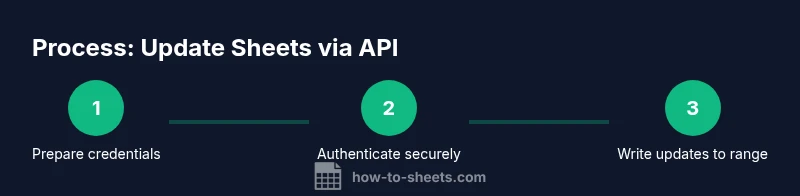
Create a small, repeatable workflow: (1) authenticate and obtain tokens, (2) identify the spreadsheet ID and range, (3) build the values payload (a 2D array that matches the target range), (4) call spreadsheets.values.update, (5) verify by reading back the updated range, (6) log results and handle any errors. This pattern scales: swap in batchUpdate for multi-range edits or use a service account for background processes. A well-structured example acts as a living template for your other automation tasks.
Security and governance considerations
Treat sheet permissions as a security control. Use least-privilege access and avoid exposing API keys in client-side code. For teams, implement role-based access and rotate credentials periodically. Maintain an audit trail of updates, including who triggered the write and when. If you’re integrating with broader data pipelines, enforce data governance rules and validate data against schema or validation rules before pushing to Sheets.
Optimizing for production: batching and monitoring
In production, batching is your friend. Group updates into logical batches to minimize network calls, but avoid oversized payloads that exceed request limits. Use idempotent operations where possible so repeated requests don’t create duplicate data. Add monitoring dashboards that show update latency, success rate, and error distributions. Alerts for failures or quota spikes help you respond quickly and keep data fresh in your sheets.
Tools & Materials
- Google Cloud project with Sheets API enabled(Enable Sheets API in Google Cloud Console and create OAuth credentials or a service account)
- OAuth 2.0 credentials(OAuth client ID and secret or a service account key)
- Spreadsheet ID(Find in the sheet URL: https://docs.google.com/spreadsheets/d/{SPREADSHEET_ID}/edit)
- Range notation (e.g., Sheet1!A1:C10)(Define the target cells for the update)
- HTTP client or Google Sheets API client library(Examples: curl, Python google-api-python-client, Node.js googleapis)
- API scopes(https://www.googleapis.com/auth/spreadsheets (and possibly read-only scopes for certain flows))
- Sample dataset (JSON payload)(Optional payload example to validate structure before sending)
Steps
Estimated time: 45-90 minutes
- 1
Set up a Google Cloud project and enable Sheets API
Create a new project in Google Cloud Console and enable the Sheets API. This step establishes the environment for authentication and request routing.
Tip: Document your project ID and enable billing if your usage grows. - 2
Create OAuth 2.0 credentials or a service account
Choose interactive OAuth for user-driven apps or a service account for server-to-server workflows. Save the credentials securely.
Tip: Do not embed secrets in code; use environment variables or secret managers. - 3
Install a client library or prepare HTTP requests
Install the Google API client library for your language or prepare REST calls with a trusted HTTP client. This standardizes request formatting.
Tip: Use the library if possible to simplify authentication and payload construction. - 4
Authenticate and obtain an access token
Implement the OAuth flow to obtain an access token and include it in the Authorization header of requests.
Tip: Securely refresh tokens and handle expiry gracefully. - 5
Build and send the update request
Construct a spreadsheets.values.update request with the target range and a 2D array of values. Set majorDimension to ROWS or COLUMNS as needed.
Tip: Validate the payload shape before sending to avoid partial writes. - 6
Run, verify, and handle errors
Execute the request, read back the updated range to confirm changes, and log any errors for debugging.
Tip: Implement exponential backoff for retryable errors and monitor quotas. - 7
Consider production hardening
Introduce batching, idempotent writes, and monitoring to keep updates reliable in environments with changing data.
Tip: Implement alerting for failures and performance regressions.
FAQ
What permissions are required to update a Google Sheet via API?
You need the Sheets API scope (e.g., https://www.googleapis.com/auth/spreadsheets) and access to the target sheet via OAuth consent or a service account. Ensure the sheet is shared with the service account if used.
You need the Sheets API scope and access to the sheet, via OAuth or a service account.
Can I update multiple ranges in a single request?
Yes, use spreadsheets.values.batchUpdate to apply edits to several ranges in one call, or batchUpdate for more complex edits.
Yes—batch updates let you modify multiple ranges at once.
Is it safe to store API credentials in code?
No. Store credentials securely using environment variables or secret managers and rotate them regularly.
No—keep secrets out of code and rotate them periodically.
Do I need a paid Google Cloud project for API usage?
Basic API usage is subject to quotas. If your usage exceeds the free tier, enable billing and monitor quotas.
Quotas apply; billing may be needed for higher usage.
What are common errors when updating Sheets and how can I handle them?
Permissions, invalid ranges, and data type mismatches are common. Validate inputs, check sheet names, and implement exponential backoff for retries.
Common errors include permissions and invalid ranges; validate inputs and retry with backoff.
Are there alternatives to API for updating Sheets?
Yes, Google Apps Script provides server-side scripting to interact with Sheets, though API offers more scalable, external integration options.
Apps Script is an alternative, but API scales better for external apps.
Watch Video
The Essentials
- Start with secure credentials and proper scopes
- Batch updates to improve efficiency and consistency
- Validate ranges and payload structure before sending
- Monitor quotas, implement backoff, and log outcomes