What to Do If Google Docs Isn’t Working: A Practical Troubleshooting Guide
Learn practical steps to diagnose and fix Google Docs not working issues, including connectivity checks, service status, browser tweaks, and prevention tips to keep documents flowing smoothly.


Most Google Docs issues boil down to connectivity or service status, or browser-side interference. Start by checking your internet connection and Google Workspace status, then try reloading Docs in a private window. If problems persist, disable extensions, clear cache, and try another browser or signing out and back in. If you use multiple accounts, switch to the primary.
Why Google Docs Isn’t Working
When Google Docs stops responding, it can derail your work in minutes. According to How To Sheets, the most common failure modes are connectivity issues, Google service status outages, and browser- or device-related problems. The How To Sheets team found that starting with the simplest checks often resolves the problem quickly, preserving data and momentum. A calm, methodical approach separates transient glitches from real outages, letting you focus on what matters most: getting your document back online.
Quick Checks You Should Do Right Now
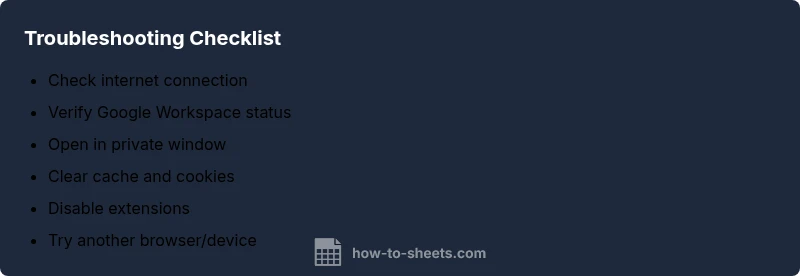
- Check your internet connection and verify you can load other websites. A brief network hiccup can make Docs appear unavailable. If you’re on a flaky network, consider moving to a more stable connection or restarting your router. - Look up the Google Workspace Status Dashboard to confirm whether Google Docs or Drive is experiencing an outage in your region. If the service shows an outage, you may just need to wait it out. - Try loading Google Docs in an Incognito/Private window to rule out issues caused by cached data or extensions. If Docs loads there, your normal browser profile is likely the source of the problem. - Sign out of all Google accounts and sign back in. This can resolve sign-in or permission glitches that prevent editing or viewing documents. - Attempt to access Docs from another device or network to quickly isolate whether the issue is device- or network-specific.
Diagnostic Flow: Symptom→Diagnosis→Solutions
This flow helps you map symptoms to likely causes and then apply targeted fixes. Start with the simplest explanations (internet, status, sign-in) and move toward less likely issues (permissions, extensions, browser compatibility). If the symptom persists across devices and networks, the problem is likely on Google’s side or tied to your account configuration. Document your steps to avoid repeating checks and to speed up escalation if needed.
Step-by-Step Fixes for the Most Common Cause
In many cases, the root problem is a browser or cache issue. The following fixes walk you through practical actions to restore Google Docs access without data loss. Begin with the easiest steps and progressively test after each change. Each fix doubles as a prevention measure you can reuse in the future.
Safety, Warnings, and Common Pitfalls
Never panic if a single document won’t load—often the issue is transient. Avoid disabling security features for long periods, and remember to re-enable any extensions or settings you temporarily turned off. If you rely on shared documents, coordinate with teammates to avoid conflicting edits while you troubleshoot. Always save work frequently and consider enabling offline access as a fallback when cloud services are unstable.
How to Prevent Future Issues
Proactive habits save time during outages. Keep your browser up to date, enable automatic updates, and periodically clear cache to prevent build-ups that slow down pages. Maintain a stable network environment and consider having a secondary device or network ready for testing. If you rely on Google Docs for critical work, enable Drive offline or export copies to a local drive as a contingency.
When to Reach Out for Professional Help
If problems persist across multiple devices, networks, and accounts, you’re likely dealing with a deeper outage or account configuration issue that requires assistance from Google Support or your organization’s IT admin. Collect logs, error messages, and the steps you’ve tried to speed up resolution. The How To Sheets team recommends documenting your troubleshooting flow to provide clear context to any support agent.
Steps
Estimated time: 25-40 minutes
- 1
Verify Internet Connection
Ensure you’re online and that other sites load normally. If your Wi-Fi is unstable, switch to a more reliable network or use a wired connection. This step prevents chasing issues that aren’t related to Google Docs.
Tip: Tip: run a quick speed test to confirm bandwidth adequacy for collaborative editing. - 2
Check Google Workspace Status
Open the Google Workspace Status Dashboard and look for any active incidents related to Docs or Drive in your region. If there’s an outage, your best option is to wait for Google to restore service.
Tip: Tip: bookmark the dashboard for quick reference during future outages. - 3
Open Docs in Private/Incognito Window
This helps determine if the problem is caused by cached data or extensions. If Docs loads normally, the issue is likely in your browser profile.
Tip: Tip: if it works in private mode, you can disable specific extensions to identify the culprit. - 4
Clear Cache and Cookies
Clear cached data for your browser, then restart it and try Docs again. This removes corrupted cache that can cause loading issues.
Tip: Tip: back up your settings or bookmarks if you’re worried about losing preferences. - 5
Disable Extensions Temporarily
Disable all extensions, then reload Docs. If it works, re-enable extensions one by one to identify the offender.
Tip: Tip: test in a clean profile if the browser supports separate user profiles. - 6
Try Another Browser/Device
If Docs loads in another browser or device, the original environment is the problem. Compare settings to narrow down the cause.
Tip: Tip: ensure the alternative browser is up to date. - 7
Sign Out and Back In
Sign out of all Google accounts and sign back in to refresh access tokens and permissions that may block editing.
Tip: Tip: perform this on a device you use for work to avoid data loss. - 8
Check Document-Specific Issues
If the problem is with a single document, verify you have the correct permissions and that the document isn’t restricted. Consider downloading a local copy if urgent.
Tip: Tip: check Version History to recover unsaved changes if needed.
Diagnosis: Docs won’t load or respond, slow performance, or blank screens
Possible Causes
- highInternet connectivity issues
- mediumGoogle Workspace service outage
- lowBrowser compatibility or outdated version
- mediumBrowser extensions interfering
Fixes
- easyCheck network connection and run a speed test; switch networks if unstable
- easyCheck the Google Workspace Status Dashboard for outages
- easyReload Docs in an Incognito/Private window to bypass caches
- easyClear browser cache and cookies, then restart the browser
- easyDisable extensions or run in a clean profile, then reload
- easyTry a different browser or device to determine if the issue is environment-specific
- easySign out of all Google accounts and sign back in
- easyCheck document permissions and whether offline mode is affecting syncing
FAQ
Why is Google Docs not loading even after refreshing?
Common causes include an outage, network issues, or browser problems. Follow the diagnostic flow: check status, test another browser, and clear cache if needed.
If Docs won’t load after refreshing, check for outages and try a different browser or network.
How can I check if Google Docs is down?
Visit the Google Workspace Status Dashboard and look for any active incidents related to Docs or Drive. If an outage is reported, wait for Google to fix it.
Go to the Google Workspace Status Dashboard to see if Docs is down.
What should I do if a document won’t save or sync?
First verify your connection and permissions. Check Version History for unsaved changes, and try signing out and back in. If the issue persists, export a local copy to avoid data loss.
Check your connection and permissions, then try signing out and back in.
Is it safe to disable browser extensions for troubleshooting?
Yes, temporarily disable extensions to identify conflicts. Re-enable them after testing, and avoid leaving them disabled long-term due to security risks.
Temporarily disable extensions to test, then re-enable them.
What if I can’t edit a shared document?
Check your permission level with the document owner. If you don’t have edit rights, request access or request a change in sharing settings.
Ask the owner to adjust your permissions if you can’t edit.
When should I contact Google Support?
Reach out if the issue persists across devices, networks, and accounts. Gather error messages and steps tried before contacting support.
If it still fails after trying basic steps, contact Google Support with details.
Watch Video
The Essentials
- Start with network and service checks.
- Rule out caches and extensions with private mode.
- Follow the diagnostic flow before escalation.
- Escalate to support if issues persist across devices.