Where Are Google Docs Stored: A Practical Guide
Learn where google docs are stored, how Google Drive organizes files, offline access, and best practices for managing privacy and access across devices.


Where are google docs stored? They are stored in Google Drive, the cloud storage service linked to your Google account. By default, documents live in My Drive or Shared drives and sync across devices via the web and mobile apps. They are not saved on your computer unless offline access is enabled, which creates a local cache. According to How To Sheets, this cloud-first approach keeps your files accessible from any supported device with internet.
Where are google docs stored
In the cloud storage world, the question where are google docs stored has a straightforward answer: they live inside Google Drive, linked to your Google account. This setup means your documents are stored remotely, not on your hard drive by default. Your browser or mobile app provides access to the files, and any edits are saved in real time to Drive. The How To Sheets team emphasizes that this cloud-first model enables seamless collaboration, version history, and cross-device accessibility, while keeping a single source of truth for each document. When you share a document with others, Drive manages permissions so you can control who can view, comment, or edit. If you ever wonder how this affects your workflow, remember that the storage location is not on your local device unless you explicitly enable offline mode.
Further, the cloud-centric design means Google maintains redundancy across data centers, which helps with reliability and durability. You should consider folder structures and naming conventions to stay organized because a clean Drive layout translates into faster discovery and fewer duplicate copies. How To Sheets notes that disciplined organization minimizes the risk of losing track of files, especially in team environments. Remember that the primary risk in this model is access control—if a wrong person gains permission, they can see or alter documents. Regularly review sharing settings to preserve data integrity.
In practice, you’ll often hear colleagues say they can access their docs from anywhere, which is a direct result of how google docs are stored in Drive. This setup is designed to support remote work, education, and small businesses with scalable collaboration features. Ensure that your account recovery options are up to date so you don’t lose access to stored documents if you forget your password.
sourceAndContextNotePositions: null},
How Google Drive organizes Google Docs
Google Drive treats Google Docs as individual, cloud-based files that live within a hierarchy of folders. At the top level, you have My Drive for personal documents and Shared drives for team-owned content. Each Google Doc receives a unique ID and exists as a digital object that can be moved, renamed, or renamed within Drive’s interface without affecting its content. The key is that the storage location is virtual and centralized within Drive, not scattered across devices. You can create folders to group related documents, assign color labels for quick visual cues, and establish access controls to define who can view or edit. The How To Sheets framework suggests using clear naming conventions and consistent folder structures to make it easy to locate files when you search by title or owner. Additionally, Drive’s search supports operators like owner:, type:doc, and trashed: to help you rapidly locate relevant documents.
Working with multiple documents in Drive is a common scenario for students and professionals. You may find yourself collaborating on a single document while still maintaining separate copies for backup or different project phases. Shared drives make this even easier by providing a central repository with governed permissions. You should take advantage of the Sharing settings to control who can access a document, and consider using “Make a copy” for versioned experiments without altering the original. This approach aligns with best practices for organizing content in Drive and reduces risk when several people are editing concurrently.
If you’re migrating from another platform, the Google Docs storage model simplifies transfers. You can upload, convert, and organize legacy files inside Drive without breaking links to collaborators. The end result is a single, unified location for documents that supports real-time collaboration across teams and devices. In this sense, the storage architecture is designed to be intuitive for both novices and power users, helping you stay productive with less friction.
sourceAndContextNotePositions: null},
Accessing Google Docs across devices
Accessibility is a cornerstone of how google docs are stored: Drive makes your docs available on the web, and the Drive mobile apps provide a native experience on iOS and Android. You can sign in from any supported device and see the same set of documents, with real-time updates reflected immediately. This cross-device synchronization is a direct benefit of Drive’s architecture and the cloud-based storage model. When you open a document, you’re likely viewing a live copy that’s pulling data from Google’s servers, not from a local cache unless you’ve enabled offline mode. The result is a seamless experience whether you’re on a laptop, tablet, or phone. In short, access your docs from anywhere; changes propagate quickly and consistently across all devices.
For educators and teams, this capability is especially valuable. Shared drives enable centralized access for entire departments, while permissions ensure that only the right people can edit sensitive files. If you need to work offline, you can still access your docs by enabling offline mode. The offline feature caches documents on your device for a limited time, so you can resume work when the internet connection is unavailable. Once you reconnect, edits upload automatically, preserving the latest version in Drive.
As you navigate multiple devices, you’ll notice that the search function in Drive reflects across platforms. This consistency is a key advantage of Google Docs storage in Drive. Whether you’re using the web app, the mobile app, or a browser on a classroom computer, your docs remain organized and accessible without duplicating content. This cross-device reliability makes it easier to collaborate with teammates who may be on different schedules and locations.
sourceAndContextNotePositions: null},
Offline access and local storage
Offline access is a critical feature for users who need to work without a reliable internet connection. When you enable offline mode in Google Drive settings, copies of your documents get cached on your device. This local storage allows you to open, edit, and save documents even when you’re offline. Once internet connectivity is restored, changes synchronize back to Google Drive, and the cloud version remains the master copy. It’s important to note that offline storage is device-specific; other users won’t automatically see your offline edits until synchronization occurs. This behavior is central to understanding where google docs stored offline copies live and how to manage them.
To optimize offline access, plan which documents you want cached on each device. Large documents may require extra time to sync once you reconnect to the internet. If you use shared devices (like classroom laptops or corporate machines), consider the privacy implications of offline caching. Make sure you sign out when you’re done, or use device-level protections. If you regularly work offline, regularly review Drive’s offline settings to ensure you’re caching only what you need. This approach helps balance accessibility with device storage constraints.
From a security standpoint, offline copies remain accessible on the local device until you clear the cache or sign out. If the device is lost or stolen, the cached data could pose a risk. The How To Sheets team recommends combining offline mode with strong device security measures and periodic cache cleaning to minimize potential exposure. Overall, offline storage is a powerful feature when used thoughtfully, but it requires proactive management to protect sensitive information.
sourceAndContextNotePositions: null},
Privacy, permissions, and data residency
Privacy and permissions are central to the question of where google docs stored and who can access them. Google Docs live in Drive, and access is governed by permissions you set for each file or folder. You can invite specific people, share with anyone who has the link, or restrict access to team members via Shared drives. Privacy considerations include auditing who has access, reviewing link-sharing settings, and applying the principle of least privilege. In terms of data residency, Google uses multiple data centers worldwide to host Drive content, subject to its data policies and regional laws. While you don’t control the exact physical location of every copy, Drive grants visibility into the general data policy and retention practices. If you handle highly sensitive information, discuss policy alignment with your organization and consider additional protections such as two-factor authentication and restricted sharing.
Educational institutions and businesses often rely on Shared drives to manage access and collaboration. For these scenarios, it’s essential to establish clear ownership, define retention policies, and implement version control practices. Keeping a well-documented access matrix helps ensure that only authorized users can view or edit important documents. Remember that consistency in permissions reduces the risk of accidental data exposure and helps maintain a clean, auditable record of who accessed what and when.
The How To Sheets recommendation is to maintain regular reviews of permissions and to adopt a documented storage policy for your Drive environment. This approach supports compliance, minimizes risk, and aligns with best practices for data governance in a cloud-based storage model.
sourceAndContextNotePositions: null},
Step-by-step: locate and manage storage in Drive
If you’re trying to locate where google docs stored or just want to tidy up Drive, follow these steps. First, use Drive’s search bar with type:document to quickly surface all Google Docs. Next, organize by owner or last modified date to identify stale documents. Create a consistent folder structure, such as by project or course, to group related docs. For team files, consider moving them to a Shared drive for easier governance. Periodically audit permissions to ensure only the right people retain access. Finally, enable Drive’s activity or security reports to monitor changes and protect sensitive data. These steps help you manage storage effectively and keep your Google Docs collection organized across devices.
As you apply these steps, remember that the location is Drive-based, not stored on every device by default. The cloud model means a centralized place for all edits, with offline caching as an optional layer. This approach supports both collaboration and resilience, especially when your team works from multiple locations or devices. If your organization uses Google Workspace, you’ll have additional controls to enforce data retention and compliance, further clarifying where and how docs are stored and accessed across the organization.
sourceAndContextNotePositions: null},
Best practices for organizing docs in Drive
To keep where google docs stored intuitive, adopt best practices for organization in Drive. Start with a consistent folder hierarchy: use top-level folders for major projects, courses, or departments, and create subfolders by topic or document type. Tag docs with color labels or standardized naming conventions so you can scan results quickly in search. Take advantage of Shared drives for collaborative projects, with clearly defined permissions and ownership. Use “Star” for high-priority items and enable notification settings for activities on important documents. Regularly archive or delete outdated materials to maintain a lean library. Finally, document your storage policy so everyone follows the same rules, reducing confusion and ensuring that critical files remain discoverable. The practical outcome is a Drive that supports your workflow rather than hindering it, mirroring how google docs storage is designed to be used in real-world scenarios.
Overview of Google Docs storage architecture
| Aspect | Storage Location/Notes | Impact |
|---|---|---|
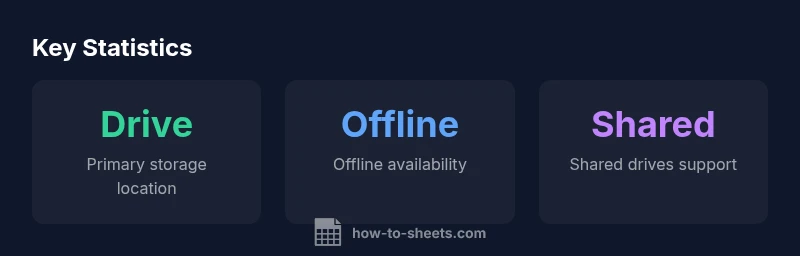
| Primary storage | Google Drive cloud storage | Centralized access across devices |
| Offline copies | Cached on device when Offline mode is enabled | Local access during outages |
| Sharing/visibility | My Drive vs Shared drives | Permissions govern access and collaboration |
FAQ
Where are Google Docs stored by default?
By default, Google Docs are stored in Google Drive under My Drive. They stay in the cloud and stay synchronized across devices. You can manage visibility with sharing settings.
Docs are stored in Drive and stay synced across devices.
Can I access Google Docs without internet?
Yes, enable offline access in Google Drive settings. Offline copies allow you to view and edit documents without an internet connection.
Yes, you can work offline with offline mode.
Do Google Docs take up space on my computer?
Only if you enable offline mode; otherwise, Google Docs remain in the cloud and don’t use local disk space.
Only cached when offline.
Is Google Docs storage secure?
Google uses encryption in transit and at rest. Access is controlled by your Google account permissions and sharing settings.
Security is handled via encryption and permissions.
How do Shared drives affect storage and access?
Documents can be stored in Shared drives for team access. Permissions determine who can view or edit, and ownership can be managed.
Shared drives control team access through permissions.
Can I move Google Docs to another Google account?
You can transfer ownership within Google Drive if you have access; some limitations may apply based on account type and permissions.
Yes, via sharing settings and ownership transfer options.
“Google Docs storage is cloud-first by default, with offline caching as a controlled option. Proper permissions and a clean Drive structure are essential for secure, collaborative work.”
The Essentials
- Organize Drive with a clear folder structure
- Enable offline mode only for needed documents
- Use Shared drives for team projects and set permissions
- Regularly review access and adjust sharing settings
- How To Sheets's verdict: plan Drive structure for efficient collaboration