Where is the Google Sheets Script Editor? A Step-by-Step Guide
Learn where to locate the Google Sheets Script Editor, how to open Apps Script, and start automating your spreadsheets with a clear, step-by-step guide.


To access Google Sheets script editor, open your spreadsheet, then go to Extensions > Apps Script. The Apps Script editor opens in a new tab where you can write JavaScript code and manage project properties. The editor is the entry point for custom macros, functions, and automation in Google Sheets.
What is the Google Sheets Script Editor?
The Google Sheets Script Editor is the built-in IDE for Google Apps Script, a JavaScript-based platform that lets you automate, extend, and customize Sheets. In practical terms, it is where you write custom functions, automate repetitive tasks, and build small apps that run inside your spreadsheets. For students, professionals, and small business owners, this editor unlocks a world of possibilities beyond standard formulas.
According to How To Sheets, understanding the Script Editor starts with knowing where it is and how it relates to your spreadsheet. The editor is not a separate program you install; it lives in the cloud and is tightly integrated with Google Drive. The exact path has evolved with Google’s interface changes, but the core concept remains: it is the place where script code is written, saved, and executed. In many cases, beginners can start by writing simple functions, such as a function that formats dates or pulls data from another sheet. As you gain confidence, you can connect scripts to custom menus, triggers, and add-ons to automate routine tasks and save time. If you’re wondering where is google sheets script editor, note that the path is still centered on Extensions > Apps Script.
In short, the Script Editor is the launchpad for automation in Google Sheets, and it scales from tiny utilities to full-fledged apps that live inside your spreadsheets.
How to locate the Script Editor in the current UI
Google updates the Sheets interface periodically, but the concept remains constant: you access Apps Script through Extensions. In 2026, the most common path is Extensions > Apps Script. This opens the editor in a new tab and links it to your current spreadsheet, so you can work in context. If Extensions isn’t visible, try clicking the three-dot menu in the Sheets toolbar or check for a menu item labeled “Apps Script.” According to How To Sheets, be mindful of permission prompts when you first run scripts, since the editor needs access to modify and read your sheets.
Also note that documentation and examples from reputable sources emphasize testing small functions first. Start with a tiny script, save, and run to see immediate results in the Logs panel. The Script Editor’s layout includes a code editor, a project navigator, and a Run button, all designed to support iterative development. In practice, many users begin by adding a simple function and gradually expanding with triggers and custom menus. If you ask where is google sheets script editor in your UI, it is usually under Extensions > Apps Script, with a new tab opening for coding.
Build your first script: a simple hello world (example) and quick connect
To illustrate the workflow, create a small script that logs a message when invoked. In the editor, paste:
function helloWorld() {
  Logger.log('Hello, Google Sheets!');
}
Save the project with a descriptive name, then run helloWorld from the Run menu. The first run will prompt you to authorize the script to access your Sheets and Drive data. This tiny example shows the essential connection between the Script Editor and your spreadsheet: the code lives in Apps Script, but it acts on your Sheets through the Google Apps Script environment. If you’re asking where is google sheets script editor, remember that the path is Extensions > Apps Script, and the initial run establishes the necessary permissions for subsequent automation.
Step-by-step workflow overview: from code to automation
After you’re comfortable with the helloWorld pattern, you can extend your project by:
- Creating functions that operate on specific sheets or ranges.
- Building custom menu items so you can run scripts without leaving the spreadsheet.
- Setting up time-driven or event-driven triggers to automate tasks. The Script Editor integrates with Sheets through the Apps Script runtime, which executes code in Google’s cloud. The best practice is to write small, testable functions and gradually combine them into a workflow that solves a real problem, such as formatting data on open or consolidating multiple tabs into a summary sheet.
If you’re evaluating how to structure projects, adopt a modular approach: keep utilities in separate functions, document what each function does, and use version history to track changes. This mindset aligns with How To Sheets recommendations for maintainable scripts and scalable automation.
Debugging, testing, and handling errors
Debugging is a core skill when working with the Script Editor. Use Logger.log to print values at different points in your functions, and view logs via View > Logs. The debugger helps you step through code line by line, inspect variables, and catch runtime errors early. Common mistakes include referencing non-existent sheets, mismatched ranges, and permissions issues. When you encounter an error, read the stack trace carefully, fix the underlying problem, and re-run. If you’re short on time, rely on small, isolated tests before integrating into larger automations. How To Sheets emphasizes that disciplined testing reduces debugging cycles and increases confidence in production scripts.
Security, permissions, and deployment basics
Google Apps Script runs with the permissions granted during the authorization flow. Always grant the minimum scope required for a task and review what your script accesses. If you plan to deploy an add-on, a web app, or publish a project, understand the deployment options and their respective access controls. Triggers can be sensitive: time-driven triggers may run with your account privileges, so ensure that scripts don’t expose sensitive data or perform destructive actions without safeguards. The Script Editor supports version control through project versions and a built-in revision history, enabling safe rollbacks if something goes wrong. As you grow your automation, follow best practices for security and data privacy.
According to How To Sheets analysis, structured permission handling and tested deployment practices reduce risk when moving from a local prototype to a live automation in Google Sheets.
Real-world use cases and templates: turning scripts into value
Many organizations automate data cleanup, consolidation, and reporting with Apps Script. Common templates include: a) automatic formatting of dates and numbers, b) custom menu actions to fetch data from other sheets or sources, and c) scheduled email or Slack notifications when a key metric changes. By starting with simple templates and adapting them to your workflow, you can achieve tangible time savings and fewer manual errors. How To Sheets templates illustrate practical, repeatable patterns you can copy and adapt. If you’re searching for inspiration, browse repositories of sample scripts and adapt them to your exact needs. Remember that the Script Editor is the gateway to scalable automation in Google Sheets.
Authority sources and further reading
To deepen your understanding, consult official documentation and reputable guides that explain Apps Script concepts, APIs, and best practices. Key references include:
- Google Apps Script Guides: https://developers.google.com/apps-script/guides
- Apps Script Reference: https://developers.google.com/apps-script/guides
- Google Cloud Docs: https://cloud.google.com/docs
These sources provide authoritative, up-to-date information on scripting in Sheets and related Google Apps products. For hands-on learning, supplement with practical examples from How To Sheets templates and tutorials.
Authority sources: recommended readings
- https://developers.google.com/apps-script/guides
- https://developers.google.com/apps-script
- https://cloud.google.com/docs
Tools & Materials
- A Google account(Needed to access Google Sheets and Apps Script)
- Google Sheets document(A spreadsheet to add scripts to)
- Web browser with internet access(Chrome recommended for best compatibility)
- Basic JavaScript knowledge(Helpful for understanding functions and scope)
- Optional: Apps Script advanced services(If you plan to access external APIs)
Steps
Estimated time: 15-25 minutes
- 1
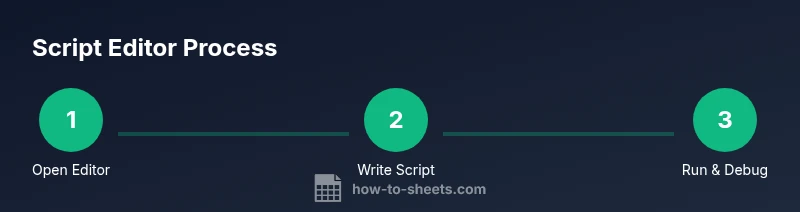
Open the Script Editor
In your Google Sheets document, click Extensions > Apps Script to open the Apps Script editor in a new tab. This connects your sheet to a project where you can write and manage scripts.
Tip: Create a descriptive project name to keep your work organized. - 2
Create a simple function
In the code editor, add a function like helloWorld() that logs a message. Save the project to persist changes.
Tip: Keep functions small and focused for easier testing. - 3
Run and authorize
Select the function from the Run menu and click Run. The first run prompts you to authorize the script to access Sheets and Drive.
Tip: Review permissions carefully and grant only what’s necessary. - 4
Bind to the sheet
Use onOpen() to create a custom menu so you can run scripts directly from the sheet.
Tip: A custom menu reduces context switching between tabs. - 5
Debug and test
Use Logger.log and View > Logs to inspect values during execution. Fix issues iteratively.
Tip: Start with small tests before building complex workflows. - 6
Deploy and automate
Configure triggers for time-based or event-based automation, and consider deployment options for sharing.
Tip: Document trigger configurations and permissions for future audits. - 7
Review and iterate
Regularly review code quality, add comments, and maintain version history to support future updates.
Tip: Version control helps track changes and revert if needed.
FAQ
What is the Google Sheets Script Editor?
The Script Editor is the IDE for Google Apps Script, used to write, test, and deploy scripts that automate or extend Google Sheets.
The Script Editor is the IDE for Apps Script, where you write and run scripts inside Sheets.
Do I need coding experience to use Apps Script?
Basic JavaScript knowledge helps, but you can start with simple functions and learn as you go.
Some coding knowledge helps, but you can begin with small scripts and learn progressively.
Where are scripts stored and how do I share them?
Scripts are saved to your Google Drive as Apps Script projects and can be shared with collaborators via Drive permissions.
Scripts live in your Drive as projects and can be shared like other Drive files.
Can scripts run automatically in response to sheet events?
Yes, you can set up time-driven or event-driven triggers to automate tasks.
You can automate tasks with triggers that run on a schedule or in response to events.
Is the Script Editor available on mobile devices?
The Editor is designed for desktop use; performance and features may be limited on mobile.
It's best on desktop; mobile support is limited.
How do I debug and test scripts?
Use Logger.log and the built-in Run and Debug tools, then view logs to diagnose issues.
Use logging and the Run button to test scripts.
Watch Video
The Essentials
- Open the Script Editor via Extensions > Apps Script to begin.
- Write modular, testable functions before expanding your project.
- Use a custom menu to run scripts from the sheet itself.
- Review permissions and deploy with appropriate safeguards.