Why Does Google Docs Keep Crashing? A Practical Troubleshooting Guide
Urgent, practical steps to diagnose and fix Google Docs crashes across browsers and devices. Learn checks, fixes, and best practices to stay productive.


When Google Docs keeps crashing, start with ruling out the basics: update your browser, disable extensions, and clear cache. If it still fails, try another device or network, then check storage and service status. According to How To Sheets Analysis, browser health is a leading factor in Docs performance, so tackle the basics first.
Why Google Docs Keeps Crashing: Quick Overview
Google Docs can be incredibly reliable, but crashes disrupt your workflow. If you're wondering why does google docs keep crashing, the short answer is usually environment and resource pressure—your browser, extensions, or network are often the culprits. In most cases, a few simple checks restore stability: update software, refresh the session, and test in a clean environment. According to How To Sheets Analysis, browser health is a leading factor in Docs performance, so the first step is to address the basics before digging into complex settings. This section outlines the core ideas behind crashes and sets up the practical steps you’ll use throughout this guide. You’ll learn to distinguish between a browser problem, a document-specific issue, and a connectivity hiccup, then apply targeted fixes that work on Windows, macOS, and mobile boards.
Common Causes of Crashes in Google Docs
Crashes don’t happen by accident. The most frequent causes are straightforward: an outdated browser or Docs app, conflicting extensions, or a very large document that taxes a device’s memory. Less obvious are problems caused by insufficient local storage or RAM, weak network connectivity, or antivirus interference that blocks saving changes. In some cases, a corrupted copy of a document or a stale Chrome profile can produce repeated freezes. If you routinely edit heavy documents with many images, charts, or real-time collaboration, you’re more likely to encounter instability. Understanding these causes helps you quickly test hypotheses and avoid chasing phantom issues.
Reproduce the Issue and Gather Clues
To troubleshoot effectively, reproduce the crash in a controlled way. Note when it happens (on open, during typing, while saving, or after a long edit). Try a minimal document with the same actions to see if the problem still appears. Use a different browser, an incognito/private window, or another device to identify whether the fault lies with your main setup. Collect details such as your browser version, OS, extensions enabled, and any error messages. This evidence makes it possible to pick the right fix and reduces back-and-forth troubleshooting.
Quick Fixes You Can Try Right Now
Start with the easiest, safest fixes first:
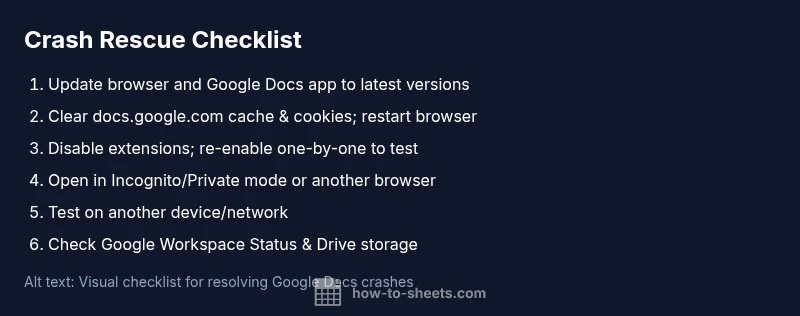
- Update your browser and the Google Docs app (if applicable) to the latest version.
- Clear the browser cache and cookies for docs.google.com, then restart the browser.
- Disable all extensions, then re-enable them one by one to identify conflicts.
- Open the document in an incognito/private window or a different browser.
- Try editing on a different device or network to rule out local issues.
- Check the Google Workspace Status Dashboard for outages and verify you have enough Drive storage.
These steps resolve the majority of crashes without needing advanced tools and align with best practices discussed by the How To Sheets team.
When to Worry: Browser, Network, and System Factors
Some crashes indicate deeper problems. If you notice the issue only on one device, it’s likely browser or OS-related. If it happens on multiple devices on the same network, your router or ISP could be to blame, or a Google Drive outage. In rare cases, hardware limitations—low RAM, exhausted CPU, or running dozens of tabs—can cause Docs to freeze. Keep an eye on resource usage in Task Manager (Windows) or Activity Monitor (Mac). For teams, shared drives and real-time collaboration can also introduce delays that feel like crashes; in those cases, limit simultaneous edits or switch to a smaller file. Finally, avoid long editing sessions on unstable networks, which increases the risk of unsaved changes.
Best Practices to Prevent Future Crashes
Preventive habits save time and keep your documents accessible. Regularly update your browser, OS, and the Docs app; clear cache periodically to reduce stale data buildup; and keep extensions to a known-good list. Prefer working with smaller documents or split large files into sections for heavy edits. Use Incognito mode to test if new features or plugins cause problems, and always verify that you have a stable internet connection during critical saves. Maintain backup copies and enable offline editing where appropriate so you can continue working even when connectivity falters. Finally, monitor the Google Workspace Status Dashboard for any outages and plan workarounds in advance. The combination of proactive maintenance and quick triage keeps crashes rare and your workflow uninterrupted.
Steps
Estimated time: 20-45 minutes
- 1
Update browser and Docs app
Open the browser menu, check for updates, install any available updates, then restart your device to apply changes. This ensures compatibility with current Docs features and fixes known crashes tied to older software.
Tip: Restart the device after updating to ensure all components load fresh. - 2
Clear cache and cookies for docs.google.com
Go to your browser settings, clear site data specifically for docs.google.com, then reopen Docs. A clean cache avoids stale files that can cause unexpected behavior.
Tip: Consider clearing cache in a private window to test with a clean slate. - 3
Disable extensions and test
Temporarily disable all extensions and reload Docs. If the crash stops, re-enable extensions one by one to identify the conflicting one.
Tip: If testing in Incognito, extensions are typically disabled by default—use this mode to isolate quickly. - 4
Try Incognito/Private mode or another browser
Open the same document in an incognito window or a different browser to determine if the issue is browser-related. This helps isolate extensions and profile data as the source.
Tip: If it works in incognito, systematically reintroduce your normal profile elements to pinpoint the culprit. - 5
Test on another device or network
Open the document on another device or network. If it behaves normally there, you’ve isolated the problem to your device or network configuration.
Tip: Try a mobile hotspot or different Wi-Fi network for a quick check. - 6
Check status and resources
Review the Google Workspace Status Dashboard for outages and ensure there’s enough Drive storage. Free up local RAM by closing unused apps if you still see instability.
Tip: Sign out and back in to refresh credentials when testing storage or status changes.
Diagnosis: Google Docs crashes or freezes during editing or saving
Possible Causes
- highOutdated browser or Docs app
- highConflicting browser extensions or plugins
- mediumInsufficient RAM or local storage
- lowNetwork issues or Google Drive outages
Fixes
- easyUpdate browser and Google Docs app to latest versions
- easyDisable all extensions, then re-enable one-by-one to identify the culprit
- easyClear cache and cookies for docs.google.com and restart the browser
- easyTest on another device or network to isolate device/network factors
- easyCheck Google Workspace Status Dashboard and ensure sufficient Drive storage
FAQ
What causes Google Docs to crash?
Most crashes are caused by an outdated browser or Docs app, conflicting extensions, or network issues. Hardware limits can also play a role if you run many tabs or large documents at once.
Crashes are usually due to browser, extension, or connectivity problems.
Should I use Incognito mode to troubleshoot?
Yes. Incognito mode disables most extensions by default, making it a clean environment to test whether an add-on is causing the crash.
Incognito helps isolate extension-related issues quickly.
Why does a large Google Docs file crash more often?
Large or media-heavy documents strain memory and CPU, especially on older devices. Break large files into parts when editing and consider exporting sections separately.
Large files can tax memory; split them if crashes persist.
Can offline mode help with crashes?
Offline mode can reduce online sync loads, but only enable it if you have stable offline editing needs and proper setup. It’s not universal for all documents.
Offline mode can help in unstable networks when configured correctly.
When should I contact support?
If crashes continue after trying the steps above across devices and networks, contact Google Workspace support or your IT department for a deeper look.
If it keeps crashing after steps, seek support.
Watch Video
The Essentials
- Start with basics: update, clear cache, and test in a clean session.
- Use incognito or alternate browsers to isolate issues.
- Check network and Google Drive storage before deep troubleshooting.
- Test across devices to identify device- or network-specific causes.
- Document issues clearly to speed up support or escalation.