Why Is Google Docs So Slow? A Troubleshooting Guide
Struggling with why is google docs so slow lag? This urgent, step-by-step guide helps you diagnose and fix performance issues in Google Docs—fast. Learn quick checks, diagnostic flow, and proven remedies from How To Sheets.


Start by ruling out browser issues: run Google Docs in an incognito window, disable unnecessary extensions, and clear cache. If Docs still lag, check network reliability and Google Workspace status. Then try a different browser or device. This troubleshooting flow walks you through a methodical path to restore speed quickly.
Why Google Docs Slows Down: Common Causes
If you're asking why is google docs so slow, understand that most lag originates from your local environment rather than the service itself. The usual suspects include resource-heavy extensions, stale cache, and a congested network. According to How To Sheets analysis, client-side factors are more often the bottleneck than Google's backend during typical slowdowns. You may notice lag with large documents, many images, or real-time collaboration on a crowded network. The How To Sheets Team emphasizes starting with quick, low-risk checks before diving into deeper fixes.
Quick Checks You Can Do Right Now
Try these quick, no-risk checks to establish a baseline and reduce friction:
- Open an incognito/private window and load your Google Docs file to see if performance improves.
- Disable unnecessary browser extensions and reload the document.
- Clear your browser cache and cookies, then restart the browser.
- Verify network stability and test different networks (wired, Wi‑Fi, or mobile hotspot).
- Try a different browser or device to isolate whether the problem is device-specific.
Diagnostic Flow: Symptom to Diagnosis
A clear diagnostic path helps you identify the root cause fast. Start with the symptom: Is editing lag limited to one document or across all Google Docs? If it’s document-specific, examine content like large images or complex formatting. If it’s broad, focus on browser, extensions, and network. Each step narrows the diagnosis and guides your fixes.
Step-by-Step: Fix for the Top Culprit (Browser Extensions and Cache)
- Close other tabs and open the document in an incognito window to rule out extensions. 2) Disable every non-essential extension, then reload Google Docs. 3) Clear cache and cookies, then restart the browser. 4) Update the browser to the latest version and enable hardware acceleration if supported. 5) Reopen the document and test performance with a lightweight document. 6) If needed, re-enable extensions one by one to identify the culprit. Tip: keep extensions to a minimum to avoid future slowdowns.
Step-by-Step: If The Issue Persists (Network & Cloud Status)
If the issue persists after the browser fixes, check network health: run a speed test and inspect VPNs or proxies that might throttle traffic. Temporarily disable VPNs and use a different network to see if Docs speeds up. Check the Google Workspace Status Dashboard or your admin’s reports for any outages in your region. In many cases, a mere network hiccup is the root cause.
Speed-Boost Techniques for Shared Drives and Large Documents
For documents with many collaborators or embedded media, performance can suffer. Consider:
- Splitting very large documents into smaller files and linking them.
- Reducing embedded images, using linked images, or compressing media.
- Turning off real-time sync indicators while editing large sections.
- Using the Outline tool and document structure to improve navigation and reduce rendering load.
- Keeping a clean version history to avoid heavy diffs during edits.
Prevention Tips: Maintain Fast Docs in the Future
Proactive maintenance helps prevent slow Google Docs sessions. Regularly review installed extensions, keep browser and OS updated, and perform periodic cache cleanup. Use lightweight font sets and avoid heavy formatting where possible. Schedule routine checks during peak hours to spot latency patterns early. The How To Sheets Team recommends documenting your testing steps so you can measure improvements over time.
When to Seek Help or Consider Alternatives
If performance issues persist after implementing all fixes, contact your IT admin or Google Workspace support for a deeper analysis of network and policy configurations. The How To Sheets Team recommends a structured escalation: verify local fixes first, then seek official support if the lag continues across devices and networks. In some cases, switching to offline mode or using alternative editors for large edits can prevent workflow disruption.
Steps
Estimated time: 60-90 minutes
- 1
Prepare baseline test
Open Docs in a clean session and note the baseline speed on a simple document. This creates a reference point for your fixes.
Tip: Document the baseline timing for comparisons. - 2
Disable extensions
Turn off non-essential extensions and reload the document to observe changes in performance.
Tip: Disable extensions one at a time to identify the culprit. - 3
Clear cache and update
Clear the browser cache/cookies and ensure the browser is up to date with hardware acceleration enabled when available.
Tip: Restart after clearing cache to apply changes. - 4
Test on another browser/device
Open the same document on a different browser or device to see if the issue is environment-specific.
Tip: If it works on another device, focus on the original device config. - 5
Analyze document content
Check for very large images or heavy formatting within the doc that could slow rendering.
Tip: Consider removing or replacing heavy media. - 6
Re-enable items gradually
Re-enable extensions or features one by one to isolate the problematic component.
Tip: Document which combination caused lag.
Diagnosis: Google Docs slow or laggy during editing
Possible Causes
- highHeavy browser extensions and plugins
- highOutdated cache and cookies
- highSlow or unstable network connection
- mediumLarge document with images or complex formatting
- mediumGoogle Docs service status or regional latency
Fixes
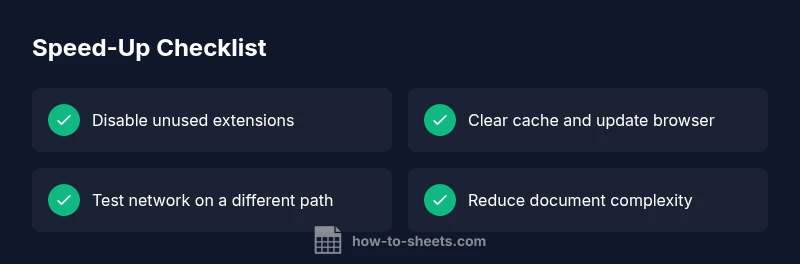
- easyDisable unnecessary extensions and try incognito mode
- easyClear cache and cookies, then update the browser
- easyTest on a different network or device
- mediumReduce document complexity or split into smaller files
- easyCheck Google Workspace Status and admin settings
FAQ
Why does Google Docs slow down only on some documents?
Some documents are heavier due to images, embedded media, or complex formatting. In most cases, performance improves after cleaning media, simplifying formatting, and testing on a lighter version.
Some docs are heavier due to images and complex formatting. Clean media or simplify formatting to speed things up.
Why does using Incognito help with performance?
Incognito disables most extensions and stores fewer cookies, reducing interference and giving a cleaner baseline to measure performance.
Incognito turns off most extensions and cookies, giving a clean test baseline.
Does offline mode improve performance?
Offline mode can reduce sync overhead but may limit real-time collaboration. Use it for heavy edits, then re-enable online syncing when ready.
Offline mode can cut sync overhead, but you lose real-time edits.
How does collaboration affect speed?
Many editors can slow rendering if the document or network is strained. Stagger edits or limit simultaneous changes during heavy edits.
Many editors can slow things; stagger edits during heavy work.
Does hardware acceleration matter?
Hardware acceleration can improve graphics rendering but may cause issues on older GPUs. Enable it if available and test performance.
Hardware acceleration helps, but test if it causes issues on older hardware.
When should I contact support?
If lag persists across devices and networks, contact Google Workspace or Google Support and provide diagnostic steps you’ve tried.
If it still lags after fixes, contact support with your tests.
Watch Video
The Essentials
- Start with quick, low-risk checks to identify the bottleneck
- Browser extensions and cache are common lag sources
- Network health and service status can cause cross-device lag
- Split large documents and reduce media to speed edits