Why Google Docs Formatting Messes Up and How to Fix It
Learn practical steps to diagnose and fix formatting issues in Google Docs. This urgent, solution-focused guide covers common causes, quick fixes, and prevention tips to keep your documents consistent in 2026.


In Google Docs, the most common cause is mixed styles and pasted content carrying hidden formatting. Start by clearing formatting in the target area, pasting as plain text, and reapplying the 'Normal text' style. If issues persist, check document defaults and page setup.
Why formatting goes off in Google Docs
Why does google docs mess up formatting? This question pops up often when users paste content from emails, web pages, or other apps. According to How To Sheets, the root cause is usually a clash between direct formatting and the document's defined styles. When you edit, insert, or paste text, Google Docs tries to reconcile with the existing style hierarchy. If the source data carries hidden or inconsistent styles, your document can jump between fonts, line spacing, margins, and indentation without warning. In 2026, many users report that even small edits can trigger reflow across sections. By understanding the interaction of styles, defaults, and pasted content, you gain a reliable way to keep formatting stable across devices and collaborators.
formatContentNoteOnlyForSEOKept
wordCountBlock1HiddenTip
Steps
Estimated time: 60-90 minutes
- 1
Identify the problematic area
Locate the section where formatting is inconsistent. Note font, size, spacing, and alignment differences. This helps you target the exact region for a fix.
Tip: Use the document outline to quickly jump between headings and suspect areas. - 2
Clear formatting in the suspect region
Select the text and use Format > Clear formatting. This removes direct formatting while preserving the chosen style. Recheck how it looks.
Tip: If the issue is global, apply the fix to the entire document. - 3
Paste as plain text
Copy the content you want to insert, then choose Edit > Paste without formatting (Ctrl+Shift+V or ⌘+Shift+V). This prevents hidden styles from copying over.
Tip: Always reapply the document’s default style afterward. - 4
Reapply consistent styles
Apply the appropriate heading and body text styles (Normal text, Heading 1, etc.) to restore a uniform look across sections.
Tip: Avoid mixing direct formatting with styles in the future. - 5
Check document defaults and page setup
Review File > Page setup and the default font, margins, and line spacing. Align these with your template to prevent drift.
Tip: Create a template to lock in your preferred defaults. - 6
Review collaborative edits
If multiple people edit the doc, check version history and revert any conflicting changes that affect formatting.
Tip: Communicate style guidelines to collaborators. - 7
Test across devices
Open the document on another device or browser to ensure formatting is consistent. If it differs, reapply styles with a standardized template.
Tip: Sync across devices by using cloud-based templates.
Diagnosis: Google Docs formatting issues when typing or pasting content.
Possible Causes
- highDirect pasted content carries conflicting or hidden styles
- mediumInconsistent default styles or theme settings in the document
- lowManual overrides or mixed use of headings and normal text
Fixes
- easyClear all formatting in the affected region and reapply the Normal text style
- easyPaste as plain text to strip source formatting, then reapply document styles
- easyReset document defaults (font, size, spacing) and recheck page setup
FAQ
What commonly causes Google Docs to mess up formatting after pasting?
Most formatting problems come from pasted content that carries hidden styles or from inconsistent defaults. Clearing formatting and pasting as plain text helps neutralize these styles. Reapply the document’s standard styles to restore consistency.
Pasted content often brings hidden styles, so start by clearing formatting and pasting as plain text, then reapply your normal styles.
How can I prevent formatting drift in new Google Docs documents?
Set a clean template with predefined styles for headings and body text. Use ‘Clear formatting’ when needed and stick to the template’s fonts and spacing to maintain consistency as you work.
Use a template with fixed styles and stick to it to prevent drift.
Is there a quick fix if my document looks different on another computer?
Check the default styles and page setup on both machines, and ensure you’ve opened the same template. Clearing formatting and reapplying styles often resolves cross-device discrepancies.
If it looks different on another device, reset the styles and reapply the template to sync formatting.
When should I contact support for Google Docs formatting issues?
If formatting problems persist after trying the standard fixes, there may be a account or browser extension conflict. Review versions, try incognito mode, and contact support if needed.
If issues persist after trying the fixes, consider contacting support after checking browser and account settings.
Do add-ons or plugins affect Google Docs formatting?
Yes. Some add-ons can modify text or layout unexpectedly. Disable or remove recent add-ons to see if formatting improves.
Some addons can mess with formatting; try disabling recent ones and rechecking the document.
Watch Video
The Essentials
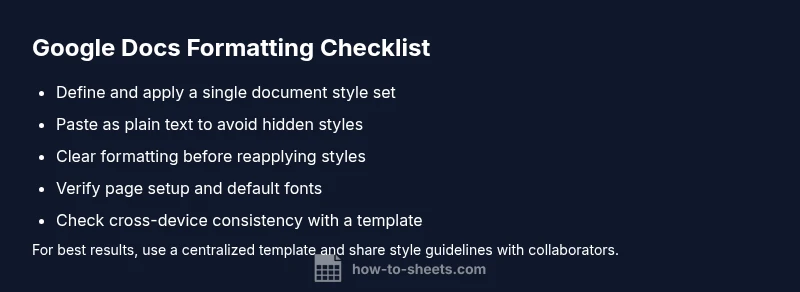
- Define and use styles consistently
- Paste as plain text when possible
- Reset defaults before heavy editing
- Use a single template for consistency
- Check across devices to ensure uniformity