Why Google Docs Can’t Open PDFs: Troubleshooting Guide
Urgent, step-by-step troubleshooting for why google docs can t open pdf. Learn to diagnose file integrity, browser issues, and Drive settings with actionable fixes and prevention tips.


PDFs failing to open in Google Docs is a common issue, most often due to corrupted files, password protection, or Drive-viewer mismatches. Try the simplest fixes first: refresh, switch browsers, and re-upload the PDF to Drive, then open with Google Docs. If it still won’t load, view or convert it locally.
Why PDFs sometimes won't open in Google Docs
If you’re wondering why google docs can t open pdf, the root causes typically fall into a few broad categories: the file itself may be corrupted or password-protected, Google Drive’s viewer may be having a hiccup, or the document content (images, fonts, and complex layouts) exceeds what Google Docs can gracefully render. According to How To Sheets, many issues stem from file integrity or temporary service glitches, which are usually fixable with quick, repeatable steps. This section lays out the practical realities you’ll face and sets the stage for the diagnostic flow that follows. The goal is to empower you to act quickly, recover access, and prevent recurrence on future files.
Quick checks you can perform right now
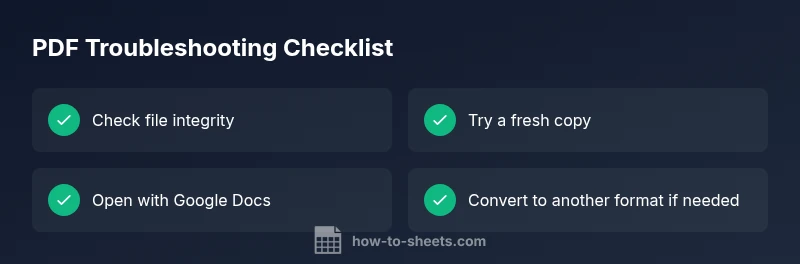
Begin with low-friction fixes to rule out simple problems. Refresh the page, clear your browser cache, or try a different browser/incognito mode to eliminate extension interference. If you’re dealing with Drive, re-upload the PDF and attempt to open it again via Open with Google Docs. Keep expectations modest: many PDFs open successfully after re-upload or browser refresh, but some files won’t convert or render perfectly due to their internal structure or security settings. If these quick checks don’t resolve the issue, proceed to the diagnostic flow for a deeper look.
How file integrity affects opening PDFs in Docs
A PDF file can become corrupted during transfer, download, or storage. Even a minor corruption can prevent Google Docs from parsing the content, leading to errors or an empty document when attempting to open. If you suspect corruption, compare the file size against a known-good copy, or request a fresh version from the sender. In many cases, simply obtaining a new copy resolves the problem without further troubleshooting. For password-protected PDFs, only authorized users with the correct password can unlock the content, which Google Docs cannot bypass.
Password protection and permission barriers
If a PDF is password-protected or restricted by permissions, Google Docs may refuse to open it or offer limited conversion options. Verify you have the right to access the document and obtain an unlocked version if necessary. If you’re the author, remove password protection before sharing or provide a password-friendly version to collaborators. Remember, never bypass security controls on confidential files.
Drive viewer vs. local previews: where the bottleneck lies
Google Drive uses multiple renderers to preview PDFs. Occasionally, the Drive viewer may fail to render a particular file, especially if it contains heavy imagery, unusual fonts, or embedded media. In such cases, downloading the PDF and opening it with a dedicated PDF reader, or converting the file to another format (e.g., a Google Doc or an image-based PDF) can bypass the issue. If you rely on real-time collaboration, consider sharing a link to a view-only version of the file while you troubleshoot.
When a PDF won’t convert cleanly in Google Docs
Google Docs attempts to convert many PDFs into editable formats, but not all content translates perfectly. Complex layouts, vector graphics, or raster images may lose fidelity during conversion. If fidelity matters for your work, use the PDF as-is for viewing purposes or export to a more compatible format before attempting conversion. When conversion fails, using a dedicated PDF editor or a trusted conversion tool can be a safer alternative.
Practical alternative workflows
If Google Docs won’t open your PDF, consider these alternatives:
- Open the PDF in a desktop viewer and use screenshots or page extraction for essential content.
- Use a trusted online converter to generate a new PDF or a Word/Google Docs version, then re-upload and verify the result.
- Break large or image-heavy PDFs into smaller parts and retry opening each portion in Google Docs.
- Share the PDF via Google Drive with view or comment permissions, then collect input without forcing conversion.
Prevention: reducing future PDF access friction
To minimize future issues, establish a simple checklist: ensure you’re using the latest browser, keep PDFs unencrypted when collaboration is required, and verify file integrity before sharing. Regularly clear cache and cookies, and maintain clean Drive folders to avoid corruption risks during transfers. If you’re in a managed environment, align with IT policies to prevent policy-based access blocks.
Steps
Estimated time: 20-30 minutes
- 1
Verify file accessibility
Confirm you can download and open the PDF in a desktop PDF reader. If the file won’t open locally, the issue is the file itself, not Google Docs. Request a fresh copy if possible.
Tip: Ask the sender for a new copy or a non-password-protected version. - 2
Refresh and isolate browser issues
Refresh the page, clear cache, and try another browser or an incognito window to rule out cache or extension interference. This helps identify if the problem is browser-specific.
Tip: Disable browser extensions temporarily if the issue persists. - 3
Re-upload to Drive and retry
Upload the PDF again to Google Drive and use Open with > Google Docs to initiate a fresh conversion attempt. Sometimes a clean upload invites proper rendering.
Tip: Ensure the file name has no special characters that could disrupt processing. - 4
Check for protection or permissions
If you’re prompted for a password or the file owner restricts access, obtain an unlocked copy or proper permissions before attempting another conversion.
Tip: Never bypass password protection on sensitive documents. - 5
Try an alternative path
If Docs still can’t handle the PDF, download it and open with a dedicated reader, or convert to another format (e.g., Word) and re-upload.
Tip: Convert to PDF/A or another stable variant if you must preserve visuals. - 6
Assess file size and complexity
For very large or image-heavy PDFs, Google Docs may struggle. Break the file into smaller chunks or strip nonessential elements before retrying.
Tip: Split multi-page documents into individual pages if needed.
Diagnosis: PDF won't open in Google Docs
Possible Causes
- highThe PDF is corrupted or damaged
- mediumPDF is password-protected or restricted
- lowBrowser cache or Drive viewer glitch
- lowFile too large or content too complex for conversion
Fixes
- easyRefresh the page, clear browser cache, and try a different browser or incognito mode
- easyRe-upload the PDF to Google Drive and open with Google Docs again
- easyCheck for password protection; request an unlocked version or remove protection if you’re the owner
- mediumAttempt a local opening or use a dedicated PDF tool to convert/export to a Google-friendly format
- mediumIf the file is large/complex, split into parts or convert to images or a plain text alternative
FAQ
Why can't Google Docs open my PDF?
Common causes include file corruption, password protection, and viewer compatibility. Use the diagnostic steps above to identify the root cause.
The PDF might be corrupted or password-protected; follow the troubleshooting steps to fix.
Can I still view a PDF in Google Docs after an error?
Google Docs can sometimes convert PDFs to editable documents, but formatting may shift. If fidelity matters, view the PDF directly or use a dedicated converter.
Docs can convert some PDFs, but formatting may change; view or convert if needed.
How can I tell if a PDF is password-protected?
If opening prompts for a password or access is blocked, the PDF is protected. Obtain the password or an unlocked version from the sender or owner.
If you’re asked for a password, it’s protected; get the correct password or an unlocked copy.
What should I do if the PDF is large or complex?
Large and content-rich PDFs can overwhelm the converter. Try splitting the file or removing heavy elements before retrying the open/convert process.
Split the file or remove heavy content, then retry opening or converting.
When should I escalate to IT or professional help?
If the document is sensitive, highly regulated, or essential for work and the problem persists, involve IT or a document management expert.
If the issue persists or involves sensitive data, contact IT for assistance.
Watch Video
The Essentials
- Start with simple checks before deep troubleshooting
- PDF integrity and permissions are common blockers
- Drive and Docs offer multiple paths (open, convert, download)
- When in doubt, view or convert locally or with alternate tools