Why Won't Google Docs Work? Practical Troubleshooting for Immediate Relief
Urgent guide to diagnose and fix why Google Docs won't work, with practical steps, safety checks, and quick workarounds to get your documents back online fast.


According to How To Sheets, Google Docs failures usually come from a weak internet connection, browser issues, or conflicts with offline editing. Start with a quick check: verify you’re online, refresh the page, and sign out and back in if needed. If the problem persists, try a different browser or disable offline mode temporarily to restore syncing.
Why won't google docs work: common culprits
Google Docs can stall or fail to save for several reasons, ranging from network problems to browser quirks. In most cases, the root cause sits at the intersection of connectivity, browser performance, and Google Drive sync. How To Sheets analysis notes that connectivity and browser settings are the most common culprits. Start with a stable internet connection, then proceed to browser-level checks. If you rely on offline editing, temporary conflicts with the offline cache can also cause issues. Finally, consider account permissions and sharing settings, which can block edits for collaborators or guests. By focusing on these areas first, you’ll narrow down the root cause quickly and avoid chasing ghosts.
Quick checks you can do right now
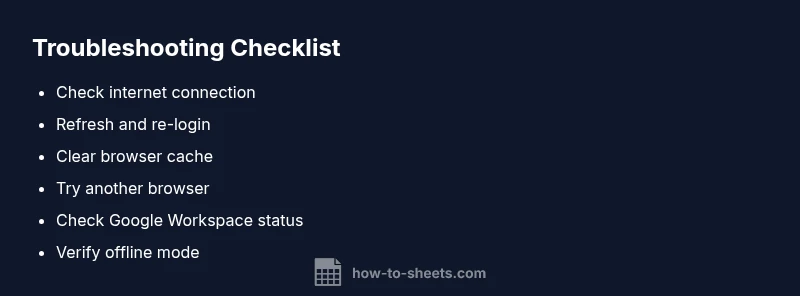
Before diving into complex fixes, perform these fast checks:
- Confirm your device is online and other sites load normally.
- Try opening a new Google Docs document or a different Google service (Gmail, Drive) to gauge service status.
- Refresh the page, sign out, then sign back in. If you’re using offline editing, disable it temporarily to see if syncing resumes.
- Consider trying a different browser or device to isolate browser-specific issues. If the problem persists, proceed to network and status checks.
Network and Google status checks
A stable network is essential for Google Docs. If you see slow loading or intermittent save prompts, test your connection speed and try a wired connection or a different network. Check the Google Workspace Status Dashboard for outages or degraded service in your region; if Google Docs is down, there’s little you can do locally besides waiting. If others in your organization report issues, coordinate with your IT team.
Browser, cache, and extensions troubleshooting
Outdated caches, cookies, or conflicting extensions can break live editing. Clear the browser cache and cookies, disable unnecessary extensions, and update to the latest browser version. Then re-open Google Docs in an incognito/private window to see if the problem persists. If it works in incognito, a browser extension is the likely culprit and can be re-enabled one by one.
Google Docs offline mode and Drive syncing
Offline mode is designed for interruptions, but it can cause syncing conflicts when you regain online access. Check the Google Drive settings and the Docs offline option to ensure they’re configured correctly. Ensure there is sufficient storage in Google Drive and that the Drive app is up to date. Disable offline mode briefly to re-sync, then re-enable if you still need offline access.
Permissions, accounts, and sharing issues
Sometimes edits are blocked because you don’t have edit rights or the document is owned by someone else. Verify you’re signed in with the correct Google account and that you have the necessary permissions. If you’re collaborating, request edit access or ask the owner to adjust sharing settings. Misconfigured access can masquerade as a failure to load or save.
How to run a systematic diagnostic flow
If the issue persists, follow a structured flow: verify connectivity, test a different browser, check for outages, then test in a fresh user profile or device. Each step should confirm a cause or rule out options. By the end, you should either fix the issue or know exactly which component (network, browser, account) needs professional help.
Steps
Estimated time: 30-45 minutes
- 1
Reproduce the issue
Start by noting when the problem occurs (startup, during edits, or when saving). Check if other Google services behave normally. This helps isolate whether the issue is document-specific or system-wide.
Tip: Document the exact error messages and timestamps for reference. - 2
Check network and sign-in
Verify your internet connection is stable. Open another site, run a speed test, and ensure you’re signed into the correct Google account used for the docs.
Tip: If using work or school Wi‑Fi, try a mobile hotspot to rule out network-level blocks. - 3
Test in a clean environment
Open Google Docs in an incognito window or a different browser. If the issue disappears, a browser extension or cache is the culprit.
Tip: Disable all extensions temporarily before re-testing. - 4
Clear caches and reset settings
Clear your browser cache and cookies, reset site data for docs.google.com, and ensure there are no stale credentials.
Tip: Backup any unsaved work before clearing cookies. - 5
Check Drive and offline settings
Review Google Drive settings, verify offline mode state, and confirm enough storage; ensure the Drive app is up to date.
Tip: If offline mode is off, re-enable it briefly and test syncing again. - 6
Validate access and permissions
Make sure you have edit rights to the document and verify you’re on the correct Google account.
Tip: If you’re not the owner, request access or ask the owner to adjust sharing. - 7
Call the status and retry
Check the Google Workspace Status Dashboard; if there’s an outage, wait and retry later. If not, retry on a different device and monitor for changes.
Tip: Document any outages and keep trying at intervals.
Diagnosis: Google Docs won't load or save; editing fails to synchronize
Possible Causes
- highPower or network issues causing unstable connection
- mediumBrowser cache, cookies, or extensions interfering
- lowGoogle Drive service outage or regional disruption
- lowOffline mode configuration causing sync conflicts
Fixes
- easyCheck internet connection and switch networks if possible
- easyClear browser cache and cookies, disable extensions, and update browser
- easyCheck Google Workspace Status Dashboard for outages in your region
- easySign out, then sign back in; try a new browser or private/incognito window
- easyTemporarily disable offline mode and re-sync, then re-enable if needed
FAQ
Why won't Google Docs load?
Load problems are usually due to connectivity, browser issues, or outages. Start with a quick network check, try another browser, and review the Google Workspace Status Dashboard.
If Google Docs won't load, check your network, try a different browser, and see if Google is having outages.
Is Google Docs down in my area?
Check the Google Workspace Status Dashboard for outages in your region. If downtime is reported, you’ll need to wait until service is restored.
Check the Google status dashboard for outages in your area and wait if there is downtime.
Why do I keep signing out of Google Docs?
Frequent sign-ins can occur due to browser cookies, conflicting extensions, or multiple active accounts. Sign out, clear cookies, and sign back in with the correct account.
Frequent sign-outs can happen due to cookies or multiple accounts; re-sign in with the right account.
How can offline mode affect Docs?
Offline mode is helpful when offline, but it can cause sync conflicts after you reconnect. Disable offline mode briefly to reset syncing, then re-enable if you need offline work.
Offline mode can create sync conflicts; try turning it off briefly to reset syncing.
What if nothing works?
If issues persist after all checks, reach out to your IT admin or Google Support with details of steps taken and any error messages. This helps escalate efficiently.
If nothing works after trying these steps, contact support with details of what you did.
Can I recover unsaved edits after a crash?
Google Docs typically auto-saves, but a crash can lose edits. Check version history and autosave versions to recover past work.
Docs usually autosave; you can check version history to recover past edits.
Watch Video
The Essentials
- Diagnose in order: network, browser, then account.
- Test in incognito to isolate extensions.
- Check Google Workspace status before touching settings.
- Follow a step-by-step flow for consistent results.