Why Is Google Docs So Zoomed Out? Practical Fixes
Discover why Google Docs appears zoomed out and learn safe, step-by-step fixes—browser, OS, and Docs settings—to restore a comfortable viewing scale for students, professionals, and small business owners.


If Google Docs looks zoomed out, the most likely culprits are your browser zoom, OS display scaling, or Docs’ own zoom setting. Start by resetting your browser to 100% and Docs view to 100%, then check your operating system’s display scale. If needed, disable conflicting extensions and update your browser. How to fix quickly for most users: reset zoom, verify OS scaling, and re-open Docs.
Understanding why google docs zooms out
When you ask, “why is google docs so zoomed out,” the root cause is almost always a mismatch between browser zoom, OS scaling, and the document view in Google Docs itself. The phrase appears frequently in user forums, tutorials, and support threads because most people rely on a single setting to control their entire screen experience. In practical terms, a zoom misalignment makes text appear smaller, icons harder to tap, and margins feel unbalanced. The How To Sheets team analyzed common configurations across Windows, macOS, and Chrome OS to identify the quickest way to regain comfortable readability. By starting with the simplest checks, you can often resolve the issue without changing anything about your documents or templates.
Common causes of a zoomed-out Google Docs view
There are several frequent culprits behind a zoomed-out Google Docs view. The most common is an out-of-spec browser zoom level (for example, 90% or 110%), which affects all web pages, including Docs. Next, operating system display scaling can override browser rendering, especially on high-DPI screens where 125% or 150% is common. Additionally, a Google Docs zoom setting may have been altered in the View menu, temporarily shrinking the document canvas. Finally, browser extensions—ad blockers, accessibility tools, or UI enhancers—can interfere with how Docs renders. If you’ve recently updated your browser or OS, a compatibility change might also be the culprit.
Quick checks you can do in your browser now
Start with the simplest fixes. First, reset your browser zoom to 100% using Ctrl+0 (Windows/Linux) or Cmd+0 (Mac). Then, open Google Docs and verify the View > Zoom is at 100%. If the issue persists, try another browser or open an Incognito/Private window to rule out extensions. Clear the browser cache and restart the browser to apply any pending updates. Finally, confirm the problem remains on a new, blank document to rule out document-specific formatting.
How OS display settings interact with Google Docs
Display scaling on your computer can dramatically affect how Docs renders content. On Windows, a non-100% scale (like 125% or 150%) can shrink page content in fine-grained ways that feel like a zoom-out. On macOS, the Display settings under System Preferences > Displays control scaling and can produce similar effects. If OS scaling is not at 100%, Docs may appear too small even when your browser is at 100%. Adjusting scaling back to 100% often resolves the issue, and some users find that setting a custom DPI (like 100% or 125% depending on their display) provides a better balance between readability and screen real estate.
Step-by-step verification workflow (for most common cause: browser/docs zoom misalignment)
When you suspect a simple misalignment, follow this checklist to confirm and fix the issue without guessing. First, check browser zoom, then confirm Docs zoom, and finally validate OS scaling. If the problem persists, proceed to test extensions and browser updates. This flow ensures you cover all common touchpoints in a logical order, with clear next steps if the issue remains.
Preventing this issue in the future
To avoid recurring zoom problems, create a quick habit of checking zoom levels after software updates or new extensions install. Document viewers often default to 100% zoom, but your browser or OS can drift. Maintain a standard operating profile for browser settings and OS display scaling that you apply across devices. Consider using a lightweight, distraction-free browser profile for heavy editing tasks like Google Docs work, which helps maintain a consistent zoom setting.
Testing your fixes and confirming readability
After applying fixes, open a few different Docs files (including a blank document) to verify consistency. Check with and without Office-style add-ons, compare on both dark and light themes, and test across multiple devices if possible. Your goal is a stable, readable zoom that remains constant across documents and sessions. If any inconsistency appears, repeat the steps above or consult IT support for deeper system-level checks.
Steps
Estimated time: 15-25 minutes
- 1
Reset browser zoom to 100%
Open your browser settings or use keyboard shortcuts to reset the zoom. Confirm that all pages, including Google Docs, render at standard scale.
Tip: If you frequently adjust zoom, set a quick shortcut or bookmark for 100% zoom. - 2
Verify Google Docs Zoom setting
In Google Docs, go to the View menu and ensure Zoom is set to 100%. If it’s not, select 100% and refresh the Doc.
Tip: You can also try 90% or 110% temporarily to test readability. - 3
Check OS display scaling
On Windows, go to Display settings and set Scaling to 100% for that monitor. On macOS, open System Preferences > Displays and choose 100% (Default).
Tip: If you use multiple displays, test with each connected monitor. - 4
Disable extensions and test in Incognito
Disable browser extensions that modify pages (ad blockers, UI enhancers) or run Docs in an Incognito/Private window to see if extensions are the cause.
Tip: If Incognito fixes it, re-enable extensions one by one to identify the culprit. - 5
Update or switch browsers
Ensure your browser is up to date. If the issue persists, try a different browser to determine if the problem is browser-specific.
Tip: Keep a backup of essential bookmarks and passwords before changing browsers. - 6
Clear cache and restart
Clear the browser cache, restart the browser, and reopen Google Docs. Re-test on multiple documents to confirm consistency.
Tip: Only clear cache if you’re comfortable re-entering login credentials.
Diagnosis: Document appears zoomed out in Google Docs across multiple documents and devices
Possible Causes
- highBrowser zoom not at 100%
- highOS display scaling not at 100%
- mediumDocs View zoom setting altered
- lowConflicting browser extensions
Fixes
- easyReset browser zoom to 100% (Ctrl/Cmd+0)
- easySet Google Docs Zoom to 100% under View menu
- easyAdjust OS display scaling to 100% (Windows: Display settings; macOS: Displays panel)
- easyDisable extensions or try Incognito/Private mode to test for interference
- easyUpdate or switch to a different browser and re-test
- easyClear cache and restart browser, then re-test on a blank doc
FAQ
What causes Google Docs to appear zoomed out?
The most common causes are browser zoom not at 100%, OS display scaling not at 100%, or Docs’ Zoom setting being altered. Extensions can also interfere with rendering. Confirm each factor in order to isolate the culprit.
Typically, it's browser or OS zoom. Check Docs’ Zoom setting as well.
How do I reset the zoom in Google Docs?
In Google Docs, open the View menu and set Zoom to 100%. You can also reset the browser to 100% zoom with Ctrl/Cmd+0. Refresh the document to apply changes.
Go to View > Zoom and choose 100%. Then reset your browser zoom with Ctrl/Cmd+0.
Can extensions cause the Docs zoom to look wrong?
Yes. Extensions that modify page rendering or accessibility features can affect how Docs displays. Try disabling extensions or using an Incognito window to test.
Extensions can affect display; try disabling them to test.
Does OS display scaling affect Google Docs?
Absolutely. Non-100% OS scaling (125%, 150%, etc.) can shrink UI elements in Docs. Reverting to 100% often restores proper size.
Yes, OS scaling can change Docs sizing; set it back to 100%.
When should I contact IT or Google support?
If you’ve tried the standard fixes and the issue persists across devices and browsers, consult IT support or Google Docs Help for deeper diagnostics.
If fixes don’t work across devices, seek support.
Will this affect other apps or documents?
Display scaling and browser zoom changes affect most web apps. If Docs is fixed, other pages should follow; test a few sites to confirm.
It can affect other sites; test broadly after fixes.
Watch Video
The Essentials
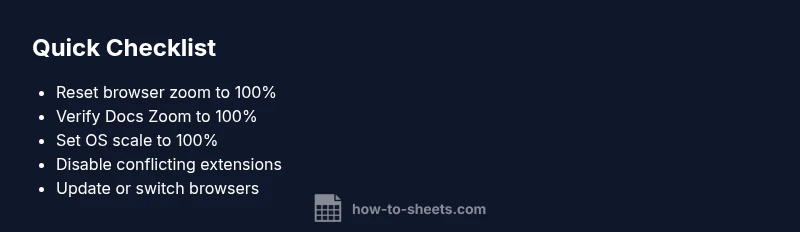
- Reset browser zoom to 100%
- Ensure Docs view is at 100% zoom
- Align OS display scaling to 100%
- Disable extensions that affect rendering
- Test across documents and browsers for consistency