Why Are My Google Docs So Big? Quick Troubleshooting Guide
Struggling with oversized Google Docs? This urgent troubleshooting guide from How To Sheets walks you through common causes, diagnostic steps, and practical fixes to shrink large documents quickly.


Most Google Docs balloon in size due to embedded media, dense formatting, and old revision data. The fastest fix is to paste the content into a new document, remove large images and media, and simplify formatting before reinserting essential visuals at lower resolution. If it still grows, export and re-import to reset the structure.
Why Google Docs Files Grow in Size
Google Docs files often creep larger than expected, even when the visible text seems modest. The root causes are typically embedded media with high resolution, charts and drawings, and long strings of formatting metadata that Google Docs generates to render the document correctly. When you share a doc with collaborators, people may insert high‑res images or copies of complex sections, multiplying file size quickly. The phenomenon isn't a bug; it's a combination of how Google Docs stores content and formatting. According to How To Sheets, the fastest path to shrinking a bloated document is to strip nonessential media, simplify styling, and start a fresh copy when needed. This section explains how these factors accumulate and what you can do right away to prevent future bloat while preserving readability and the document’s intent.
Quick Intro for Readers
If your Google Docs are slow to load or take longer to save than normal, the size factor is often the culprit. This guide is designed for students, professionals, and small business owners who need fast, practical steps to shrink large documents without losing content. According to How To Sheets, a disciplined approach—audit media, prune formatting, and reset with a clean copy—delivers reliable results. You’ll learn how to assess the real size drivers and apply fixes that stick across collaboration scenarios.
Steps
Estimated time: 30-60 minutes
- 1
Create a lean, fresh copy
File > Make a copy, choose a descriptive name like 'Lean Version of Doc.' This preserves the original and gives you a clean slate to work from. Pro tip: always work from a copy when attempting size reductions.
Tip: Saving a backup ensures you can revert if you remove essential content. - 2
Remove or compress large media
Identify the biggest media items first. Replace high‑resolution images with smaller versions, or delete nonessential media entirely. After replacing, recheck the file size and performance.
Tip: Use external hosting for large media when possible and link to it rather than embedding. - 3
Replace heavy visuals with lightweight alternatives
If charts or drawings are embedded, consider exporting them as static images at lower resolution or replacing with concise summaries. This reduces the document’s load while preserving key data.
Tip: Aim for one image per key data point to avoid clutter. - 4
Paste content as plain text, then reformat
Copy sections from the original, then use Paste without formatting (Ctrl+Shift+V) to strip hidden metadata. Reapply a clean, consistent style to keep formatting lightweight.
Tip: Limit the number of different styles to a single heading and body style. - 5
Tidy up formatting and styles
Consolidate fonts and paragraph spacing. Remove excessive heading levels and nested lists. A uniform style set reduces metadata and improves performance.
Tip: Use the Paint Format tool to copy a single, clean style across the doc. - 6
Check add-ons, scripts, and sharing options
Disable any third‑party add-ons or scripts temporarily to see if they contribute to size or slow performance. If the file improves, re-enable individually to identify the culprit.
Tip: Only keep essential tools enabled; previously loaded scripts can bloat a doc over time.
Diagnosis: Document size is unexpectedly large and affects load/save times.
Possible Causes
- highEmbedded media (high-resolution images, charts, videos) inside the document
- mediumDense formatting and excessive use of styles, fonts, and nested lists
- lowVersion history or copied content that brought over legacy data
Fixes
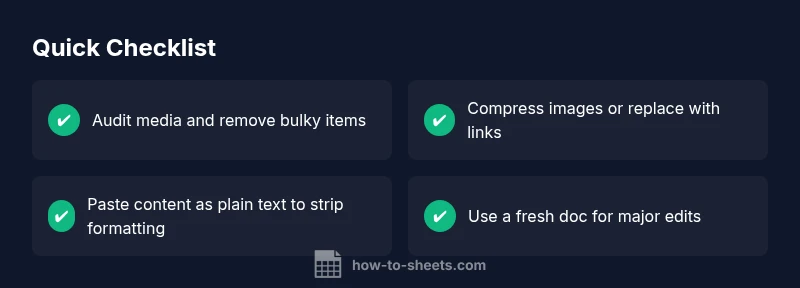
- easyCreate a clean copy and remove media before reinserting essential visuals
- easyCompress images or replace them with smaller versions
- easyReplace complex visuals with links or textual summaries where possible
- mediumPaste content as plain text into a new doc, then reapply formatting sparingly
FAQ
Why is my Google Docs file size so large?
A large file is usually driven by embedded media, dense formatting, and long version histories. Reducing media, simplifying formatting, and creating a fresh copy typically resolves the issue.
A large Google Doc is usually caused by media, formatting, and version history. Start by removing or compressing media, then simplify formatting and use a fresh copy.
Do images really make Google Docs bigger?
Yes. High-resolution images consume more space. Compressing or replacing them with smaller versions, or hosting them externally, can significantly reduce doc size.
Yes—high‑resolution images are a common cause. Compress or host externally to shrink the file.
Can I delete version history to reduce size?
Google Docs keeps version history automatically. You can create a copy to start fresh, but you cannot selectively delete history within the original doc; starting a new copy is usually the best workaround.
You can't selectively delete history in the original doc; creating a fresh copy is often the simplest fix.
Will exporting to another format decrease size permanently?
Exporting can help in some cases by stripping certain embedded data and formatting. However, re-imported documents may reconstitute similar structures, so combine export with a fresh copy and media cleanup for best results.
Exporting can help, but pair it with a fresh copy and media cleanup for lasting results.
Does collaboration increase doc size?
Collaborative edits can add media, charts, and formatting over time. Regularly auditing recurring contributors and using a lean template helps keep sizes manageable.
Yes, collaboration can add elements that bloats the doc; auditing and templates help.
How can I prevent bloating in the future?
Adopt a media‑lean workflow: compress images, limit embedded objects, use plain text where possible, and keep a clean template with consistent styles.
Prevent bloating by keeping media lean, using plain text, and standardizing styles.
Watch Video
The Essentials
- Start by creating a lean copy to avoid data loss.
- Remove or compress large media first for the biggest impact.
- Replace heavy visuals with lightweight alternatives when feasible.
- Paste content as plain text to strip hidden formatting data.
- Keep formatting simple and reduce reliance on custom styles.