Budget Google Sheets: A Practical Step-by-Step Guide
Learn to build a practical budget in Google Sheets with templates, formulas, and dashboards. This guide covers setup, automation, visuals, and common pitfalls for students, professionals, and small business owners.


Discover how to create a practical budget in Google Sheets from scratch. This step-by-step guide covers income tracking, expense categorization, and lightweight dashboards, using built-in formulas and templates. You’ll learn a repeatable workflow for monthly budgets, annual forecasting, and sharing your sheet with teammates. All you need is a Google account and a basic spreadsheet routine.
Why budgeting with Google Sheets matters
Budgeting with Google Sheets is a practical solution for students, professionals, and small business owners who need flexibility and accessibility. A well-designed budget sheet puts income, expenses, and savings goals in one place, making it easier to spot variances and adjust spending quickly. The How To Sheets team emphasizes that a cloud-based approach offers real-time collaboration, version history, and free access for most users. You can work from anywhere, share with teammates, and maintain a living document that adapts to changing circumstances. The result is greater financial clarity, improved discipline, and a foundation you can reuse for different projects, from personal budgets to project or department budgets. The emphasis is on building templates you can customize over time rather than buying specialized software that locks you into a fixed workflow.
Core tools and templates for budget planning
Google Sheets provides a powerful toolkit for budget planning without requiring expensive software. Start with a simple monthly budget template or design your own structure using clear categories (Income, Housing, Utilities, Groceries, Transportation, Personal, Savings, and Debt). Use built-in functions like SUM, SUMIF, and AVERAGE to calculate totals and variances automatically. Data validation keeps category names consistent, and conditional formatting highlights overspending. Named ranges simplify formulas and improve readability when you copy the structure across months or projects. The combination of templates, formulas, and cloud access makes it easy to scale your budget from a personal exercise to a collaborative planning tool for a small team. As you grow, you can add dashboards, charts, and automation to reduce manual data entry.
Step-by-step: setting up a basic monthly budget
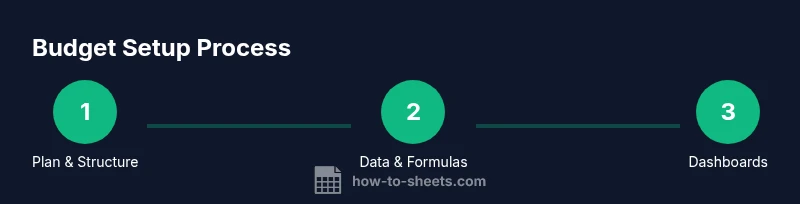
A clear setup matters as soon as you create a new sheet. Begin with a header row that defines sections: Month, Income, Expenses, and Net Save. Create subcategories under Expenses to maintain consistency. Populate a few real-world data points to validate your structure, then build formulas to total income and expenses. A monthly budget should show variance between actuals and the plan. Use SUM to compute totals, SUMIF to aggregate by category, and simple subtraction for net savings. Keep the sheet organized with color-coded sections and readable fonts so you can quickly interpret results during reviews. The goal is a living document you can reuse every month with minimal tweaks.
Automating calculations with formulas and data validation
Automation reduces manual errors and saves time. Use SUM to get category totals, and SUMIF or SUMIFS to compute spending by category or date range. Data validation ensures only recognized categories are entered, preventing misclassification. Conditional formatting can flag overspending or negative cash flow, making issues obvious at a glance. Consider naming key cells (for example, totalIncome or totalExpenses) to simplify complex formulas, and use relative vs. absolute references to copy formulas across months. When you import bank transactions, a basic QUERY or FILTER formula can help segment data automatically into your budget categories. The objective is a robust, self-checking system that requires minimal manual maintenance.
Visualizing your budget: charts and dashboards
Dashboards translate numbers into insights. Create a dedicated dashboard tab with charts that compare actual spending against budgeted amounts, track cumulative savings, and show category-level variances. Bar charts work well for monthly totals, while pie charts illustrate category distribution. A line chart can display cash flow across several months, helping you spot trends. Use slicers or filters to switch between months or scenarios. Remember to keep visuals simple and focused on decisions, not just aesthetics. The end result is a quick, actionable overview for stakeholders or your future self.
Common budgeting pitfalls and how to avoid them
Many budgets falter due to inconsistent categories, outdated data, or over-reliance on a single template. Establish a stable template with fixed categories and a regular update cadence—monthly is a good starting point. Revisit assumptions at least quarterly, adjust targets, and document any changes to maintain transparency. If you share the budget, set permission levels to protect formulas and sensitive data. Finally, remember that a budget is a tool for decision-making, not a rigid rulebook; keep it flexible enough to reflect real-world changes while remaining consistent enough to provide meaningful insights.
Tools & Materials
- Google account(Your primary login to access Google Sheets)
- Google Sheets (web or mobile)(Use a blank sheet or a budget template)
- Budget template file (Google Sheets)(Start from a simple monthly budget template or create your own structure)
- Currency format and locale settings(Set correct currency and decimal places for accuracy)
- Calculator or calculator app(Optional for quick math when offline)
- Receipts or bank statements(Useful for data entry and validation)
- Access to shared drive (optional)(If collaborating with others)
Steps
Estimated time: 60-90 minutes
- 1
Define budgeting goals
Set the budgeting period (monthly vs yearly) and identify primary goals (savings target, debt payoff, or discretionary spending limits). Document these goals in a short section of your sheet to guide category decisions and future adjustments.
Tip: Write down target amounts and timing to anchor your budget decisions. - 2
Create the sheet structure
Establish a clean layout with headers for Month, Income, Expenses by category, Net, and Variance. Use separate tabs or a well-structured single tab to separate monthly data from annual summaries.
Tip: Use bold headers and adjustable column widths to keep the layout readable. - 3
Set up income and expense categories
Choose consistent category names (Income, Housing, Food, Transportation, Utilities, Personal, Savings, Debt). Avoid duplications and group small recurring expenses under a single category to reduce clutter.
Tip: Limit categories to what you actually track to maintain clarity. - 4
Enter baseline data and formulas
Input your expected income and expense values for the first month. Create formulas to total income and expenses, and calculate net savings. Add a variance column to compare actuals against the plan.
Tip: Use SUM for totals and relative references to copy formulas across months. - 5
Build monthly budget template
Duplicate the month tab or create a single tab with a Month column. Ensure you copy formulas and formats so each month remains consistent. Test with dummy data before updating real numbers.
Tip: Lock critical cells or protect formulas to prevent accidental edits. - 6
Set up dashboards and visuals
Create a dedicated dashboard showing actual vs budget, category variances, and cash flow. Add charts for quick insights and use conditional formatting to highlight overspending.
Tip: Keep dashboards focused on decisions, not every detail. - 7
Share and review regularly
If collaborating, share the budget with teammates and assign editing rights. Schedule a monthly review to adjust targets and capture learnings from actual spending.
Tip: Document changes to maintain a clear audit trail.
FAQ
What is the first step to create a budget in Google Sheets?
Start with a simple template and define your budgeting period. List income sources and essential expense categories to establish a baseline.
Begin with a simple template and set your budgeting period; list income sources and essential expenses to create a solid baseline.
Which formulas are most useful for a budget in Sheets?
SUM totals for income and expenses, SUMIF or SUMIFS for category totals, and basic subtraction for net savings. Consider AVERAGE to track trends over time.
Use SUM for totals, SUMIF for category totals, and simple subtraction for net savings. AVERAGE helps you spot trends.
How can I prevent data entry errors in my budget sheet?
Apply data validation for category fields, use consistent naming conventions, and lock critical formulas. Regularly audit variances to catch mismatches early.
Use data validation for categories, keep consistent naming, and lock key formulas to avoid accidental edits.
Is it better to maintain one sheet or separate months?
Both work. A single monthly sheet with a Month column keeps everything in one place, while separate tabs can reduce clutter and simplify copying formulas.
Either keep everything on one sheet with a month column, or use separate tabs to reduce clutter depending on your needs.
How do I share a budget sheet securely?
Use Google Sheets sharing settings to restrict access, enable link sharing only with trusted people, and review access periodically.
Limit access via sharing settings and review permissions regularly.
Watch Video
The Essentials
- Begin with a simple, repeatable budget template
- Automate totals and variances to reduce errors
- Visualize spending with charts for quick decisions
- Review and adjust monthly to stay aligned with goals