Budget Template Google Sheets: A Practical Guide
Learn to build, customize, and manage a budget template in Google Sheets with practical steps, essential formulas, and tips for students, professionals, and small business owners.


You will build a reusable budget template in Google Sheets that tracks income, expenses, and savings. Start by defining main categories, setting date ranges, and applying basic formulas for totals and variances. You’ll learn how to customize for personal, family, or small-business needs.
What is a budget template in Google Sheets?
A budget template in Google Sheets is a preformatted spreadsheet designed to help you plan, track, and review your money over a defined period. With Google Sheets, you get the benefits of real-time collaboration, automatic saving to the cloud, and easy sharing with family, teammates, or clients. A well-built budget template focuses on essential components such as income, fixed expenses, variable expenses, and savings goals, all organized in a way that is easy to read and update. By using a template, you avoid starting from scratch each month and you ensure consistency in how you record transactions, compare actuals to plan, and visualize progress. Inspired by practical, hands-on guidance from How To Sheets, this approach keeps setup approachable even for beginners while remaining scalable for more complex budgets.
As you begin, remember that a budget template is a living tool. It should adapt to your changing income, priorities, and goals. The goal is not perfection but steady visibility into where money comes from and where it goes. The template should save you time, reduce manual data entry, and make it easier to answer questions like “Did I stay on track this month?” and “Where can I trim expenses without sacrificing essentials.”
Key benefits of using Google Sheets for budgets
- Real-time collaboration: multiple people can edit and comment at once, which is ideal for households, small teams, or business owners.
- Cloud-based access: access your budget from any device with an internet connection.
- Version history: revert to previous versions if an entry was made in error or if you want to compare past periods.
- Customizable formulas: tailor totals, variances, and dashboards to your exact needs.
- Free to use: Google Sheets provides a robust budgeting platform without software costs.
In short, a budget template in Google Sheets helps you maintain clarity and accountability, while giving you room to grow as your financial situation evolves.
Core components of a robust budget template
A solid budget template typically includes:
- Income section: sources, expected amount, and actual received.
- Fixed expenses: rent/mortgage, utilities, insurance, loan payments.
- Variable expenses: groceries, transportation, entertainment, discretionary spending.
- Savings and debt: contributions to emergency funds, retirement accounts, debt payoff.
- Totals and variances: monthly subtotals, year-to-date totals, and variance between plan and actuals.
- Timeframe: month-by-month columns (Jan to Dec or a custom period).
- Assumptions and notes: space to record rationale for numbers or changes.
To keep the template practical, organize sections in a logical flow, use consistent naming, and provide clear headings. When done well, you can run quick analyses like “this month’s savings rate” or “which category exceeded the budget” with a single glance.
Designing for flexibility: personal vs business templates
People often start with a personal monthly budget but later adapt a template for family or small business use. To enable this versatility:
- Create a master categories list that includes both personal and business lines, then allow the user to toggle visibility.
- Use color coding to differentiate income, expenses, and savings with a clear legend.
- Employ separate sheets or distinct sections for multiple entities, while reusing the same formulas and structure.
- Keep a separate “notes” column for non-recurring items and one-time adjustments.
The design should prioritize readability and modularity. If you anticipate growth, structure the template so you can add new categories or months without breaking existing formulas.
Setting up categories and accounts: practical layout
A pragmatic layout places all categories on the left with monthly amounts in subsequent columns. A typical approach:
- Column A: Category or account name (Income, Rent, Utilities, Groceries, Entertainment, Savings, Debt, Misc).
- Columns B–M: Monthly values for each category (or week-by-week if you prefer a more granular view).
- A separate row for totals and for variances (Actual vs. Planned).
Use named ranges for income, expenses, and savings to simplify formulas and reduce errors. Add a small key at the top to explain abbreviations. If you maintain more than a dozen categories, consider grouping related rows with outline levels or collapsible sections for easier navigation.
Formulas and automation to save time
Core formulas create the backbone of a budget template:
- Totals per category: =SUM(B2:M2) which sums a row across all months.
- Monthly totals: =SUM(B2:B12) to compute the total for a column across all categories.
- Variance: =C2-B2 to show the difference between actual (C) and planned (B).
- Overall balance: =SUM(B2:B12) + SUM(C2:C12) - SUM(D2:D12) if you track income and expenses separately.
Automation tips:
- Use conditional formatting to highlight overspending.
- Create a dashboard sheet with charts that reference these formulas to visualize trends.
- Protect critical formulas to avoid accidental edits.
If you want to keep things lean, start with the simplest possible setup and gradually add complexity as you become more comfortable.
Data validation and structure: keeping data clean
Data validation helps maintain clean, usable data:
- Category dropdowns: create a list on a hidden sheet and apply Data Validation (List from a range).
- Currency formatting: apply the correct locale and currency symbol to all money cells for consistency.
- Date handling: use a consistent monthly header format (MMM-YYYY) and ensure date-based formulas reference the right cells.
- Protected cells: lock cells that house formulas or important constants to prevent accidental changes.
A clean structure with controlled inputs makes audits, sharing, and future updates much smoother. It also reduces the risk of misinterpreting numbers when you review the budget later.
Visualizing your budget: charts and dashboards
A dashboard offers quick insight into how you’re performing against your plan. In Google Sheets:
- Create a line chart showing monthly income vs. expenses to spot trends.
- Use a stacked column chart to display the composition of spending by category.
- Build a gauge or KPI card for savings rate or monthly under/overspend.
- Add a date slicer if you’re using Google Sheets with data connected to Google Data Studio for deeper insights.
Keep charts simple and labeled clearly. Dashboards should answer questions at a glance, such as “am I on track for this month?” or “which category is growing fastest?”
How to reuse templates: duplicating and templating
Reuse is the advantage of templates. To reuse effectively:
- Create a master budget template with all formulas intact.
- Make a copy for each new period or project (File > Make a copy).
- Rename sheets to reflect the period or scenario and update only the inputs.
- Preserve the master sheet connection so your formulas pull from the right data when you copy.
Document any changes so teammates understand the reasons for adjustments. Over time, you’ll develop a library of templates tailored to different needs.
Common pitfalls and how to avoid them
Budgets fail when numbers drift or data gets stale. Common traps include:
- Not updating regularly: set a recurring reminder to review budget data weekly or monthly.
- Overly complex templates: simplicity beats complexity; start with essential categories and expand later.
- Inconsistent categorization: keep a single taxonomy for categories and subcategories.
- Ignoring currency and locale settings: ensure consistent currency formatting across the sheet.
Prevent these by establishing a routine, keeping your template lean, and validating data before saving.
Step-by-step: Create a basic budget template from scratch
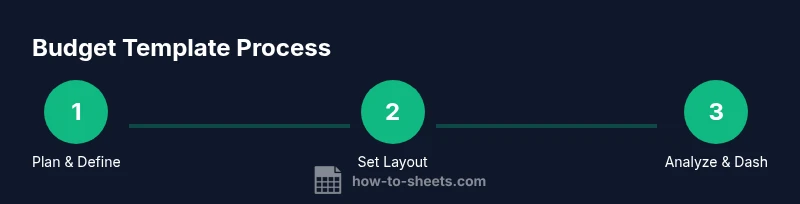
Follow these high-level steps to implement a lean budget template you can expand later. Start with a clear goal: track income, expenses, and savings across a single calendar year or a rolling 12-month period. Build the layout with a left-aligned category column and monthly columns to the right. Enter standard formulas for totals and variances, add basic data validation, and set up a simple dashboard for at-a-glance insights. Finally, test the template with a sample month to ensure everything updates correctly when you adjust inputs. This approach keeps setup approachable while remaining scalable as needs evolve.
Real-world example: 3-month personal budget scenario
Imagine a student planning a 3-month budget. Income comes from a part-time job and a small stipend, while expenses include rent, utilities, groceries, and transportation. The template would show monthly totals, a running savings balance, and a variance column to highlight overspending. By the end of the 3 months, you can analyze which categories consistently overrun and adjust the plan for the next quarter. This concrete scenario demonstrates how a budget template Google Sheets can translate numbers into actionable decisions.
Conclusion: why a budget template in Google Sheets is worth building
A well-crafted budget template in Google Sheets provides transparency, control, and scalability. It aligns with practical, step-by-step guidance that is easy to follow, even for beginners, while remaining powerful for advanced users through custom formulas and dashboards. By using a template, you gain a reliable framework to manage cash flow, improve financial habits, and support decision-making in daily life or small business. The How To Sheets team recommends starting with a simple, proven template and then customizing it to fit evolving needs.
Tools & Materials
- Google account with Google Sheets access(Needed to save, edit, and share the budget template)
- Computer or tablet with internet access(For editing, collaborating, and accessing the template from anywhere)
- Template starter file (optional)(Use a pre-built budget template as a starting point if desired)
- Smartphone or tablet (optional)(Useful for quick updates on the go via the Google Sheets app)
- Sample transaction data (optional)(Helpful for demonstration or testing scenarios)
- Data sources for imports (optional)(CSV or bank statements if you plan to import transactions)
Steps
Estimated time: 60-90 minutes
- 1
Define budgeting goal
Clarify what you want to achieve with the budget (e.g., save for emergencies, reduce discretionary spending). Write a short, specific objective to guide your setup.
Tip: Document the goal in a note cell so it remains visible as you enter data. - 2
Create a new Google Sheet and name it
Open Google Sheets, start a new blank workbook, and give it a descriptive name like 'Personal Budget 2026'.
Tip: Consider a naming convention that includes year and purpose for easy future retrieval. - 3
Set up the layout (Income, Expenses, Savings)
In column A list income sources first, followed by fixed expenses, variable expenses, and savings/debt items. Add a separate row for totals and variances.
Tip: Keep a consistent row order so formulas remain stable when you add new categories. - 4
Create monthly columns
Add one column per month (e.g., Jan, Feb, Mar) and a final column for year-to-date totals. Use an extra header row for currency and date labels.
Tip: Use a consistent date format (MMM) to keep headers compact. - 5
Enter sample data or real data
Input your anticipated or actual income and expense figures for each category. Start with a small test month to validate your formulas.
Tip: Label the month clearly and separate test data from actual data when you start using the template seriously. - 6
Add core formulas for totals and variances
Implement summation formulas for each row and variance formulas comparing planned vs. actual. Confirm that totals update automatically as you edit numbers.
Tip: Test each formula by changing a value and verifying the result updates as expected. - 7
Build a simple dashboard
Create a separate sheet with key metrics like total income, total expenses, savings, and a quick visual chart. Link charts to the monthly totals for dynamic updates.
Tip: Keep the dashboard readable—avoid overcrowding with too many charts. - 8
Add data validation and protections
Set up dropdowns for category selection and lock cells that contain formulas to prevent accidental edits.
Tip: Protect the critical cells and share with view-only access when sharing with others. - 9
Create a template copy workflow
Save a master budget sheet and use File > Make a copy for each new period or project. Ensure constants and formulas remain intact.
Tip: Document any changes you make to the template for future users. - 10
Test your template with a scenario
Run through a month where you intentionally overspend or miss a category. Check how the dashboard reflects the scenario and whether alerts trigger as intended.
Tip: Adjust thresholds in conditional formatting if you want tighter or looser signals. - 11
Review, refine, and share
Review the template with a teammate or family member. Incorporate feedback and refine the structure for clarity and accuracy. Share via link or export.
Tip: Maintain a version history to track changes over time. - 12
Maintain and update regularly
Schedule periodic updates (weekly or monthly). Update actuals, refine categories, and adjust goals as needed to stay on track.
Tip: Treat the template as a living document that evolves with your finances.
FAQ
What is a budget template in Google Sheets?
A budget template in Google Sheets is a ready-made layout that helps you plan and track income, expenses, and savings. It uses built-in formulas and charts to show how your actuals compare to your plan, and it can be shared and edited in real time.
A budget template in Google Sheets helps you plan and track money with built-in formulas and charts, and you can share it for real-time collaboration.
Can I customize a budget template for a family?
Yes. You can add family-specific categories, adjust monthly periods, and tailor dashboards. The template’s structure supports multiple users and different goals within a single file.
Yes, you can customize it for your family by adding categories and adjusting the periods and dashboards.
Do I need advanced formulas to use a budget template effectively?
Basic budgets can operate with simple sums and subtractions. If you want more automation, you can add SUMIF, VLOOKUP, and simple IF statements to automate category totals and alerts.
No, you can start with basic sums; you can add more automation later with SUMIF and similar formulas.
Is Google Sheets suitable for business budgets?
Google Sheets is suitable for collaborative, small-business budgets with shareable access and real-time updates. For sensitive data, apply access controls and consider data protection practices.
Yes, for small teams, with proper access controls and data protection.
How can I import transactions into the budget template?
You can paste transactions directly, or import CSV data into a designated sheet and map columns to your budget template. Clean data alignment is key for accurate totals.
You can paste or import CSV data and map columns to your template for accurate totals.
How often should I update the budget?
Update regularly—ideally weekly or monthly—to keep the plan aligned with actual spending and income. Consistency helps you catch variances early.
Update weekly or monthly to stay aligned with actuals.
Watch Video
The Essentials
- Define clear budgeting goals and categories
- Use core, scalable formulas for totals and variances
- Create a lightweight dashboard to visualize progress
- Validate data and protect critical cells
- Treat the budget as a living document you update regularly