Google Sheets Savings Tracker: A Step-by-Step Guide
Learn to build a practical Google Sheets savings tracker that logs income, expenses, and goal progress. Includes templates, formulas, visuals, and sharing ideas for individuals and teams.


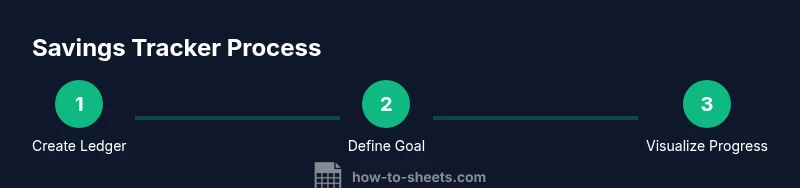
With Google Sheets, you can create a practical savings tracker in minutes to monitor income, expenses, and progress toward a goal. Set up a simple ledger, use SUM and SUMIF formulas to total categories, and add a progress chart to visualize milestones. This approach works for students, professionals, and small businesses seeking a transparent, repeatable system for personal or team savings.
Why a savings tracker matters
A dedicated savings tracker in Google Sheets helps you see where your money goes, set an explicit goal, and stay accountable. According to How To Sheets, a simple, transparent system can improve savings outcomes for students, professionals, and small business owners. By recording income, fixed expenses, and variable spending, you create a living dashboard you can review weekly. The beauty of Sheets is that you can start from scratch or adapt a template, and everything updates automatically as you add new data. In addition, you can customize categories, goals, and timeframes to fit personal finance or team budgeting. This approach turns vague intentions into concrete numbers you can monitor, adjust, and celebrate when milestones are reached.
When done well, a savings tracker becomes a repeatable habit rather than a one-off project. You’ll gain clarity on where to cut back, how quickly you’re accumulating toward your goal, and when you might need to adjust expectations. This clarity is essential for students balancing loans, professionals saving for major purchases, and small teams managing a shared fund. By starting with a clear structure, you unlock ongoing momentum and accountability.
To keep motivation high, couple your tracker with a simple review routine. Schedule a weekly check to log new transactions, compare actual progress against your target, and celebrate small wins. A well-maintained tracker reduces financial stress and increases confidence in making intentional choices.
Core components of a savings tracker
A successful savings tracker combines several key elements. First, a clear ledger where every inflow and outflow is recorded. Second, a defined savings goal with a target date or milestone. Third, categorized income and expense lines to reveal spending patterns. Fourth, formulas that automatically total rows and compute progress. Fifth, visual elements such as charts or dashboards to communicate status at a glance. Finally, sharing and permissions controls if you work in a team or household setting. With these pieces, you can see not only how much you save but also how consistently you save, which is often the biggest predictor of long-term success.
Beyond basics, consider adding a dedicated “Notes” column for receipts or explanations. This helps with auditing and keeps future you from second-guessing why a transaction occurred. A clean data validation rule on the Category column reduces mislabeling and stabilizes trend analysis. Think of the tracker as an evolving asset that grows more valuable as you populate it over weeks and months.
Different users may want different views. A student might focus on a short-term goal, while a family or team could track multiple goals in parallel. The right combination of ledger, goal, and visuals scales from a single user to a small group, preserving readability and actionability.
To maximize longevity, design your sheet with modular sections. A dedicated data-entry area, a reusable formula block, and a compact dashboard make it easy to copy, share, and adapt for new goals without rewriting formulas. A well-structured sheet is the backbone of reliable financial progress.
Security and privacy matter too. If you plan to share the tracker, enable protected ranges for formulas and restrict editing access to sensitive sections. Keeping a clear audit trail through version history helps you recover from mistakes without losing weeks of data.
Data layout and starter template structure
A practical template uses a clean table layout with columns like Date, Description, Category, Income, Expense, Savings, and Balance. You might also include a Monthly Target column and a Cumulative Savings row. Start with a Few example rows to demonstrate how data flows through the sheet. Use data validation on the Category column to keep categories consistent (e.g., Income, Rent, Groceries, Transportation, Entertainment, Savings). Named ranges for key totals simplify formulas once your sheet grows. Keep currency formatting consistent and set your locale to reflect your country’s currency. This structure makes it easy to copy, reuse, and share with teammates without reworking formulas each time.
To improve readability, separate data input from analysis. A dedicated “Dashboard” section can summarize totals and show charts without scrolling through rows. If you anticipate multiple projects or people, consider adding a separate tab for each sub-goal while keeping a master ledger for overall progress.
A practical starter template should also include a clear header with the goal, target date, and current status. As soon as you plug in a couple of months of data, you’ll begin to see patterns and opportunities for adjustment, which is the essence of financial momentum.
Automations and formulas to save time
Leverage core formulas to automate totals and insights. SUM and SUMIF quickly total income, expenses, and overall savings by category. Use IF statements to flag months when you meet or miss targets. VLOOKUP or XLOOKUP (where available) lets you pull category details or descriptions into summaries. For ongoing automation, consider named ranges for totals, dynamic date ranges, and conditional formatting to highlight progress. Add a small script or Google Sheets add-on if you want reminders or automatic data imports. These techniques reduce manual entry and keep your tracker current with minimal ongoing effort.
As you grow more comfortable, you can layer in more advanced techniques. For example, dynamic named ranges that expand as you add rows ensure formulas always cover the right data range. You can also create a monthly rollover section that carries forward balances, which is particularly helpful if you’re forecasting longer-term goals. Avoid over-automation early on; it can obscure results if data isn’t clean.
Testing formulas in a dedicated test area helps you validate logic before dropping them into your main sheet. A small error in a single SUMIF can throw off months of history, so adopt a cautious, incremental approach to enhancements.
Visualizing progress with charts and dashboards
A chart is worth a thousand lines of data. Create a line chart showing Cumulative Savings versus Monthly Target to visualize momentum. Add a bar chart by Category to reveal where your money is going and identify opportunities to adjust. A compact dashboard at the top of the sheet can display key metrics like Total Savings, Monthly Saving Rate, and Days to Target. Use conditional formatting to animate progress toward milestones, such as turning green when you’re on track. Remember to keep visuals simple and directly tied to your goals so the tracker remains actionable.
Dashboards should be treated as living documents. Update the visuals as you refine your categories or adjust targets, and ensure the dashboard remains readable on mobile devices as well as desktops. For team use, consider a separate dashboard page that aggregates data from individual entries and presents a consolidated view.
To maintain clarity, avoid overcrowding charts. Limit the number of series and use consistent colors to help users quickly interpret the data. A well-designed dashboard makes it easy to see whether you’re on pace and where you should focus your efforts in the coming weeks.
Real-world scenarios: student, freelancer, family budgeting
-
Student: a college student saving for a laptop or emergency fund can use a lean template that tracks weekly allowances and part-time income. Keep categories simple and review weekly to adjust goals as grades, hours, or expenses change.
-
Freelancer: irregular income requires flexible targets. Track invoices, expenses, and savings separately, and use a rolling 3-month target to smooth fluctuations. Use charts to show earnings vs. savings pace.
-
Family budgeting: share a sheet with a partner, assign roles, and set a shared monthly goal. Use a single ledger with household income and recurring expenses, then allocate any surplus to the family savings pool. Regular family reviews ensure accountability.
These scenarios illustrate how a single tool adapts to different financial realities. The core logic remains the same: capture data, set a goal, automate totals, and visualize progress for better decision-making.
Common pitfalls and how to avoid them
Avoid creating too many categories; keep it focused to prevent data fragmentation. Always update the sheet after every transaction to keep numbers reliable. Misclassifying income or expenses skews totals; enforce category rules with data validation. Don’t forget to adjust currency settings if you move to a new locale. Finally, don’t share sensitive balances in public links—use protected ranges and restricted access when collaborating.
Another pitfall is treating the tracker as a static snapshot. Savings progress should be dynamic; set a recurring reminder to input data and review trends. Regular maintenance reduces the risk of stale data leading to misinformed decisions. If you collaborate, establish a simple process for updating, auditing, and approving changes so everyone stays aligned.
Finally, avoid overcomplicating the sheet with too many features at once. Start with a clean ledger and one chart, then gradually add automation as you gain comfort. Simplicity promotes consistency and long-term adherence to your savings plan.
Quick-start templates and customization ideas
If you want to jump in fast, start from a ready-made Google Sheets template and adapt it. Customize colors, fonts, and charts to align with your brand or personal style. Add automation such as monthly email summaries or reminders to review progress. Consider adding a simple dashboard page that aggregates key metrics in one view. As you grow, you can expand to multi-sheet dashboards for teams or households.
Templates can be a bridge to consistency, especially when you’re first learning. Use them to establish best practices for categories, goals, and data entry. Over time, you’ll learn which tweaks improve motivation and clarity, then tailor the tracker to your exact needs.
If you’re sharing with others, include an instruction tab with quick how-tos and terminology. A well-documented sheet reduces questions and keeps everyone aligned on the same path to savings success.
Tools & Materials
- Google account with Google Sheets access(Needed to save to Drive and share with collaborators)
- Starter ledger template (Google Sheets)(Can be created from scratch or adapted from a template)
- Budget categories list(Predefine key categories to keep data consistent)
- Currency and locale settings(Set to your country for correct formatting and calculations)
- Named ranges for totals(Simplifies maintenance as the sheet grows)
Steps
Estimated time: 25-40 minutes
- 1
Create the ledger table
Set up the main table with columns Date, Description, Category, Income, Expense, Savings, and Balance. Enter a few sample transactions to verify formatting and formulas. This establishes the data structure your tracker will rely on.
Tip: Use a consistent date format (MM/DD/YYYY) and validated Category values. - 2
Define your savings goal
Add a Goal section with Target Amount and Target Date. This gives you a concrete milestone to aim for and drives progress visuals.
Tip: Anchor the goal in a named range so charts update automatically when values change. - 3
Set up totals and balance formulas
Create totals for Income, Expenses, and Savings using SUM. Add a running Balance and Cumulative Savings column to show current status.
Tip: Place formulas in a dedicated header row to reduce row-by-row errors. - 4
Add data validation and formatting
Implement data validation for Category, Currency, and Date. Apply currency formatting and conditional formatting to flag underperforming months.
Tip: Lock formulas with absolute references and protect critical ranges. - 5
Create a simple dashboard
Place a compact dashboard on the sheet that highlights Total Savings, Progress toward Goal, and a small chart.
Tip: Use named ranges for dashboard data to simplify formula maintenance. - 6
Test, share, and refine
Test with mock data, share with collaborators, and adjust categories, thresholds, and visuals as needed.
Tip: Set sharing permissions and review access to protect sensitive data.
FAQ
What is a Google Sheets savings tracker and why should I use one?
A savings tracker records income and expenses in Google Sheets to monitor progress toward a savings goal. It provides visibility, accountability, and an editable, shareable template.
A savings tracker logs your money and shows progress toward a goal so you stay accountable.
What data should I collect in a savings tracker?
Key data include date, description, category, income, expenses, savings, and a running balance. Add a goal target and date for motivation.
Collect date, description, category, and amounts, plus a goal.
How do I automate totals in Google Sheets?
Use SUM for column totals and SUMIF for category totals. Optional: set up named ranges and simple scripts if needed.
Sum formulas add up totals automatically.
Can I share this tracker with others?
Yes. Google Sheets supports sharing with view or edit permissions. Protect important ranges to prevent accidental edits.
Yes, you can share with permissions.
Are there ready-made templates I can start from?
There are templates you can adapt for savings tracking. You can also build from scratch to tailor categories and goals.
Yes, start from a template or build from scratch.
How should I secure my financial data in Sheets?
Use access controls, avoid sharing links publicly, and consider protected ranges for formulas and sensitive totals.
Secure data by limiting access and protecting ranges.
Watch Video
The Essentials
- Set up a ledger with clear categories and goal.
- Use SUM and SUMIF for automatic totals.
- Create a progress chart for motivation.
- Protect sensitive data with permissions.
- Review categories monthly to stay aligned with goals.