Google Sheets Zero Balance Budget: Step-by-Step Guide
Master a zero-balance budget in Google Sheets with a practical step-by-step guide, ready-made templates, and tips for students, professionals, and small business owners.


A google sheets zero balance budget assigns every dollar of income to a category before spending, leaving a zero balance at month’s end. You’ll set up an income ledger, expense categories, and sinking funds, then reconcile actuals against planned allocations. This guide shows how to build it with formulas, templates, and practical tips in Google Sheets.
What is a zero-balance budget and why it works in Google Sheets
A google sheets zero balance budget is a planning method where every dollar of income is assigned to a category before spending. The goal is to end the month with a zero balance, which forces intentional choices about what to spend and what to save. In practice, you’ll create income lines, allocate amounts to expenses, savings, and debt payments, and update actuals as you go. This approach reduces waste and increases financial clarity by matching spending to priorities. Google Sheets shines here because you can design a flexible template, reuse it month to month, and share it with collaborators. It also makes it easy to run what-if scenarios, adjust for irregular income, and visualize how small changes ripple through the budget. The google sheets zero balance budget aligns with practical budgeting philosophies such as zero-sum budgeting and envelope-style control, but it leverages Sheets’ formulas and templates to stay scalable and collaborative.
Core components of a zero-balance budget template
A robust zero-balance budget template in Google Sheets typically includes sections for income, expenses, allocations, actuals, and a reconciliation line. At minimum you should have: an income ledger listing all sources, a categorized expense table (fixed and variable), a monthly allocation area that assigns amounts to each category, and a balance cell that tracks remaining funds. Add sinking funds for periodic expenses, a savings target, and a separate debt payments area. Use a dedicated tab for each month or a single tab with month-specific sections. Data validation, named ranges, and protection help maintain accuracy as your team updates the sheet. Finally, include a compact summary region with key metrics and a chart to visualize how closely you hit the zero balance each month. With these components, your google sheets zero balance budget becomes a living document that adapts as income and needs change.
Setting up your template: columns, rows, and formulas
Start with a clean sheet and decide on a consistent layout. A common approach uses separate sections for income, allocations, and actuals, with clear labels across the top row. Column A lists categories; Column B holds planned amounts; Column C records actuals; Column D shows the difference. Create a total row that uses SUM to aggregate income and expenses. Use SUMIF to total amounts by category, and IF statements to flag variances. Named ranges like incomeTotal, expenseTotal, and balanceMake it easier to copy the template from month to month. Enable data validation on the category column to prevent typos, and protect formula cells so collaborators can’t accidentally overwrite essential calculations. Finally, set up one or two simple charts to visualize how your allocations compare to actuals at a glance.
Planning for irregular income, windfalls, and sinking funds
Irregular income complicates budgeting, but you can accommodate it by creating a dedicated line item for windfalls or bonuses and by buffering with a sinking fund for irregular expenses. In a google sheets zero balance budget, treat income that isn’t guaranteed as flexible and adjust allocations in the next cycle rather than mirroring it exactly. Sinking funds are reserved accounts for future expenses like auto repairs or holidays; allocate a small monthly amount to each fund so when the expense hits, you already have the cash. This reduces month-to-month volatility and keeps the balance near zero, even if cash inflows are uneven. By planning for variability, you maintain discipline without sacrificing readiness for expected or surprise costs.
Reconciliation and month-to-month workflow
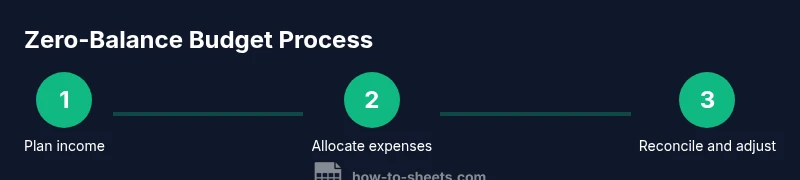
Reconciliation is the process of comparing planned allocations to actual spending and adjusting the rest of the month to satisfy the zero balance condition. At the end of the week or month you should review variances, mark off completed bills, and reallocate any remaining funds to savings or debt payments. A simple workflow in Google Sheets is to copy the previous month’s template, update income, adjust expense amounts, and recalculate the balance. This keeps your process predictable and teachable for teams or students learning google sheets zero balance budget. The more you practice, the faster you’ll spot anomalies and correct course.
Data quality, automation, and collaboration
To keep your budget reliable, use data validation for input fields, drop-down menus for category choices, and cell protections to avoid accidental edits. Consider conditional formatting to highlight overspending or negative balances. If you work with others, use Google Sheets’ sharing and commenting features to track changes and assign responsibilities. Automation ideas include linking income changes from a separate sheet, generating monthly copies, and using simple scripts to refresh charts. By building a scalable foundation, your google sheets zero balance budget becomes a repeatable, shared financial plan rather than a one-off worksheet.
Template design and reuse across months
Create a reusable template instead of starting from scratch each month. Build a master sheet with inputs for income, categories, and allocations, then duplicate it for new periods. Use named ranges for critical totals to reduce errors when you copy or paste. Save a finalized copy for audit trails and reference. With a clean, reusable structure, updating your budget for the new month requires only minor tweaks rather than rebuilding the entire sheet.
Example workbook layout and sample formulas
Workbook layout might include: 1) Income tab with columns A (Source), B (Planned), C (Actual). 2) Budget tab with A (Category), B (Planned), C (Actual), D (Difference). 3) Summary tab with Net Available, Total Income, Total Expenses, and a Zero-Balance indicator. Suggested formulas include: Total Income in B2: =SUM(Income!B:B); Variance in D2: =C2-B2; Balance remaining: =IncomeTotal-SUM(Expenses!B:B). For a complete, working model, customize ranges and categories to fit your situation. This practical structure aligns with google sheets zero balance budget concepts while staying flexible.
Tools & Materials
- A computer with internet access(You can access Google Sheets via any modern browser.)
- Google account(Needed to access Google Sheets and save templates.)
- Budget template file or starting sheet(Optional: start from a blank sheet or reuse a template.)
- Optional: mobile device with Google Sheets app(Use on the go for quick updates.)
Steps
Estimated time: 45-75 minutes
- 1
Create a new Google Sheet
Open sheets.google.com, create a new blank workbook, and name it 'Zero Balance Budget - Month'. This file will house income, expenses, and allocations.
Tip: Use a descriptive name; you can duplicate for other months. - 2
Define income streams
List all income sources in a dedicated tab or section with expected amounts. This ensures every dollar has a plan.
Tip: Include irregular income or transfers to prevent gaps. - 3
Set up expense categories
Create a categorized list of fixed and variable expenses to improve visibility and control.
Tip: Group similar expenses to simplify reconciliation. - 4
Create allocation areas
Design a section where you allocate income to each category before spending begins.
Tip: Keep allocations non-overlapping to avoid double-counting. - 5
Add formulas for totals and balance
Implement sums and basic reconciliation formulas so the sheet computes automatically.
Tip: Use named ranges for readability and portability. - 6
Record actuals as you go
Update the Actual column during the month to reflect real spending and income.
Tip: Update regularly to prevent drift from the plan. - 7
Review and adjust before month-end
Compare planned vs. actuals, adjust remaining categories, and finalize the zero balance.
Tip: Aim to close the month with a near-zero or zero balance. - 8
Save, duplicate, and share
Save a template for future months, duplicate for new periods, and share with collaborators as needed.
Tip: Protect essential formulas to avoid accidental edits.
FAQ
What is a zero-balance budget?
A zero-balance budget assigns all income to expenses and savings so nothing is left unallocated. The goal is to end the month with a zero balance, ensuring intentional spending and savings.
A zero-balance budget means every dollar is assigned to a category, ending with zero balance for the month.
How do I handle irregular income?
Include irregular income as a separate line item and allocate it in the next cycle so it doesn’t distort month-to-month planning.
Treat irregular income as a separate line item and adjust allocations in the following month.
How often should I update the budget in Sheets?
Update at least weekly or after notable spending events to maintain accuracy and momentum.
Update it weekly or after big purchases to stay on track.
What Sheets features help improve accuracy?
Use SUM, SUMIF, data validation, named ranges, and cell protections to keep numbers accurate and sheets reliable.
Key features are formulas, data validation, and protections to keep data clean.
Is zero-balance budgeting suitable for teams?
Yes. A shared ledger with clear categories and permissions can scale zero balance budgeting for groups.
It can work for teams with a shared ledger and defined responsibilities.
Where can I find ready-made templates?
Look for Google Sheets budget templates in the Sheets Gallery or from reputable sources like How To Sheets.
Yes, templates exist that you can customize for your needs.
Watch Video
The Essentials
- Allocate every dollar to a category
- Reconcile weekly to stay on target
- Use data validation to prevent typos
- Protect formulas to avoid accidental edits
- Duplicate a master template for consistency