How to manage money on Google Sheets: A practical guide
Learn how to manage money on Google Sheets using templates, formulas, and dashboards. Build a simple budget, track income and expenses, and review monthly variances with practical, step-by-step guidance.


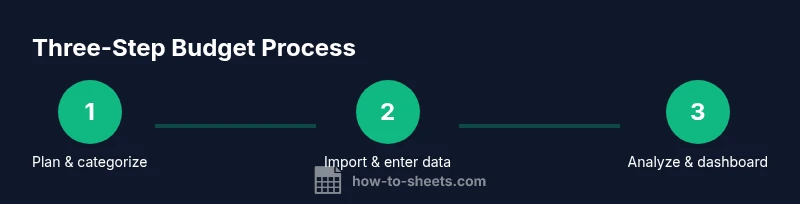
Steps to manage money on Google Sheets: 1) gather banking data or receipts, 2) create a simple monthly budget template, 3) use formulas to total income and expenses, 4) balance accounts and generate a dashboard to monitor variances. This approach keeps money management fast, transparent, and ready for collaboration across teams.
Why use Google Sheets for money management
Using Google Sheets for money management offers flexibility, collaboration, and cost efficiency. The How To Sheets Team emphasizes that spreadsheets adapt to your workflow, whether you track a personal budget, a student project, or a small business cash flow. A well-designed sheet centralizes income, expenses, savings goals, and debt repayments in one place, with live calculations that update as you enter data. By starting with a clean template, you reduce duplication and confusion. According to How To Sheets, starting with a solid budget template in Google Sheets sets the foundation for accurate tracking. You’ll benefit from currency formatting, data validation, and simple formulas that auto-sum totals as you go. This section helps you decide what you want to track and how you’ll measure success, so you can build a template that grows with your financial plan.
Setting up a money-management template in Sheets
Begin by creating a new Google Sheet and naming it with your period, for example “Personal Budget – 2026.” Create a header row with essential columns: Date, Source, Category, Description, Income, Expense, Balance, and Notes. Apply currency formatting to Income, Expense, and Balance columns, and set numbers to two decimal places. Use a drop-down list for Category to maintain consistency; data validation keeps you from creating new, inconsistent categories on the fly. Enable protected ranges for critical formulas or headers to prevent accidental edits. If you have existing data, import it via File > Import or copy-paste, then map the fields to your template. This approach ensures a clean baseline you can update monthly.
Designing a budget categories framework
Identify core categories that reflect your life or business needs. Common categories include Housing, Utilities, Groceries, Transportation, Dining Out, Entertainment, Health, Savings, Debt, and Miscellaneous. Consider using subcategories for more detail (e.g., under Housing: Rent, Insurance, Maintenance). Create a separate tab that lists all categories with a short description and a color. This organization makes your later formulas simpler and your dashboards clearer. As you refine your plan, you can fold new categories into the existing structure without changing formulas. This approach also makes it easier to compare planned budgets with actuals across months.
Tracking income and expenses with formulas
A strong budget automatically totals income and expenses and calculates the month’s balance. Use SUMIF or SUMIFS to compute totals by category, source, or month. Example: to total expenses in a given month, you could use a formula that sums the Expense column where the Date column falls within that month and the Category is not empty. For ongoing tracking, set a running balance: Balance_next = Balance_previous + Income - Expense. Conditional formatting can highlight overspending in red and under-budget in green. By anchoring calculations to the same columns, you minimize errors if you add new rows.
Automating with simple scripts and data validation
Keep data clean with data validation rules for Category, Date, and Currency. Create named ranges for common lists and re-use them in multiple sheets. If you’re comfortable with Apps Script, you can automate monthly rollover, import bank statements from CSV, or send you an email summary on a specified date. A small script can trigger when you open the sheet to recalculate totals or reset the Balance column for a new month. Start with basic protections and test scripts on a copy of your sheet.
Building a monthly dashboard and variance analysis
A dashboard gives you a quick read on how you’re performing against your plan. Create charts comparing Income vs Expenses by month and a line chart showing the Balance trend. Use a gauge or color-coded indicator to show progress toward savings goals. Add a variance analysis section that compares actuals to budgeted amounts, highlighting where you’re over- or under-spending. Data validation and named ranges keep the dashboard reliable as you add more months. How To Sheets analysis shows that structured budgets in Sheets improve consistency and reduce manual errors.
Best practices for data integrity and collaboration
Share the sheet with teammates or family members using Google Drive permissions, and set editing rights carefully with protected ranges for critical cells. Always enable version history so you can recover earlier data if needed. Use comments to discuss entries and decisions, rather than changing data in place. Maintain a single source of truth by storing all bank imports in a dedicated tab and mapping fields consistently. Regular maintenance—weekly quick checks and monthly reviews—helps prevent drift.
Common pitfalls and how to avoid them
Avoid creating duplicate transactions by enforcing unique identifiers or using consistent date formats. Don’t mix currencies; pick one currency and format all relevant cells the same way. Don’t rely on manual totals for long periods; automate sums with formulas and cross-check with a simple audit copy. If you export bank data, ensure the date, amount, and description fields map correctly to your template. Finally, back up your sheet to prevent loss due to accidental edits or accidental deletes.
Next steps: maintaining and growing your budget in Sheets
As your needs evolve, expand your budget with additional tabs, more detailed dashboards, and linked data sources. Consider creating separate templates for personal, family, or small business budgets, and keep a master file that feeds the others. Schedule monthly reviews and adjust categories based on actual spending patterns. If you want more automation, explore Apps Script or add-ons that integrate with Sheets while maintaining data privacy and security.
Tools & Materials
- Google account with access to Google Sheets(Essential for creating and editing sheets in the cloud.)
- Bank statements or CSV exports(Used to import transactions and start balancing.)
- A computer or mobile device with internet(Required for editing and syncing changes.)
- Currency-ready budget template(Optional starter templates from How To Sheets that you can customize.)
- Backup plan(Regular backups of your budget data.)
Steps
Estimated time: 60-90 minutes
- 1
Create a new sheet and set currency
Open Google Sheets and create a new document. Rename it to reflect the period (e.g., Personal Budget – 2026). In the template, set the currency formatting for Income, Expense, and Balance to your local currency. This ensures consistency from the start.
Tip: Use a single currency across all relevant cells to avoid confusion later. - 2
Define header and base template
Create a header row with columns for Date, Source, Category, Description, Income, Expense, Balance, and Notes. Freeze the header row so it remains visible as you scroll. Format numbers to two decimals and apply borders for readability.
Tip: Lock the header row early to keep the structure stable as you add data. - 3
Set up categories with data validation
List your categories on a separate tab and use Data validation to create a drop-down for the Category column. This ensures consistent categorization and simplifies future analysis.
Tip: Use named ranges for category lists to simplify formulas across sheets. - 4
Import starter data or enter manually
If you have existing records, import them via File > Import or paste data carefully. Map each field to the corresponding column in your template and verify dates and amounts.
Tip: Review the first 20 rows for anomalies after import. - 5
Add core formulas for totals and balance
Create running totals for Income and Expense using SUMIF/SUMIFS. Implement a running Balance with Balance = Balance_previous + Income - Expense. Add conditional formatting to highlight overspending.
Tip: Test formulas with sample data to ensure accurate results before full use. - 6
Build a basic dashboard for review
Insert charts for income vs. expenses by month and a balance trend line. Include a small variance table that compares actuals to budgeted amounts. Ensure the dashboard refreshes automatically with data updates.
Tip: Use named ranges to keep dashboard formulas simple and robust.
FAQ
Can I use Google Sheets for personal budgeting?
Yes, Google Sheets is suitable for personal budgeting. You can track income, expenses, and balances with templates and built-in formulas.
Yes, Google Sheets is great for personal budgeting; you can track income and expenses with templates.
Do I need advanced formulas to manage a budget?
Most budgets can be managed with basic formulas like SUM and SUMIF. You can add VLOOKUP or QUERY for more complex datasets.
Most budgets can be managed with SUM and SUMIF; advanced lookups can help with larger data.
Can I share the budget with teammates or family?
Yes, Google Sheets supports real-time collaboration. Use protected ranges to limit edits on crucial cells.
Yes, you can collaborate in real-time, but protect important cells.
How do I import bank transactions?
Export your bank data as CSV and import into Sheets, then map the fields to your template.
Export your bank data as CSV and import into Sheets, map the fields.
How should I handle currency in Sheets?
Set the currency in the sheet and format all relevant cells the same way to avoid mismatches.
Set the currency format consistently across the sheet.
Can I automate budgeting tasks with Apps Script?
Yes, Apps Script can automate imports, updates, and alerts, but it requires basic coding knowledge.
Apps Script can automate tasks, but it takes some coding.
Watch Video
The Essentials
- Define a clear budget structure before tracking.
- Automate totals with SUMIFS and conditional formatting.
- Link external data sources to reduce manual entry.
- Build a dashboard for at-a-glance insights.
- Review monthly and adjust categories.