Personal Finance Google Sheets: Budgeting Made Simple
Learn to build a practical, template-driven personal finance system in Google Sheets. Track income, expenses, budgets, debt, and savings with a clear, step-by-step approach.


You will learn to build a practical personal-finance dashboard in Google Sheets: set a monthly budget, track income and expenses, manage debt, and forecast savings. This guide uses a template-driven approach with clear steps you can follow. According to How To Sheets, keeping inputs on one tab and a dynamic dashboard on another makes finances transparent and actionable.
Why Google Sheets for personal finance
Using Google Sheets for personal finance offers a flexible, cost-effective solution that scales from a student budget to a small business cash flow. Sheets is accessible from any device with an internet connection, supports real-time collaboration for households or partners, and integrates easily with other tools you already use. A well-structured sheet reduces the chaos of receipts and bank statements into a single source of truth. The How To Sheets team notes that a template-driven approach helps you start quickly and adapt as your finances evolve. With careful setup, you can track income, expenses, debt, and savings without buying expensive software. You’ll gain visibility into where money goes each month and where you can improve, without sacrificing privacy or control.
Core idea: inputs, calculations, and a dashboard
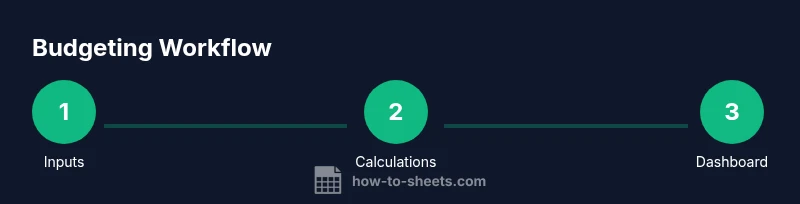
A robust Google Sheets setup separates data entry (inputs) from calculations and visual summaries (dashboard). Start with three tabs: Inputs (income, expenses, debt, savings), Calculations (totals, variances, and forecasts), and Dashboard (charts and key metrics). Use data validation to prevent invalid entries, currency formats for money values, and date formats for timing. Keeping a clean separation makes it easier to audit, tweak, and scale. As you grow, you can add categories, nesting, or regional tax considerations. The approach aligns with best practices from financial education resources and demonstrates how a simple sheet can replace scattered spreadsheets.
Template-driven setup and common templates
Begin with a starter template that includes: a budget by category, actuals vs. budget, cash-flow forecast, and a debt payoff planner. If you’re starting from scratch, create a basic structure and layer on formulas gradually. Consider naming ranges for inputs (e.g., income_total, expenses_total) to simplify formulas and future automation. In practice, template-driven systems save time and reduce errors by reusing proven structures for different periods or projects, a strategy endorsed by budgeting educators and practical guides from How To Sheets.
Forecasting cash flow and goal setting
Forecasting helps you see the impact of current spending on future savings. Use simple time-based formulas to project monthly cash balance, cumulative savings, and debt payoff timelines. Pair forecasts with clear goals (e.g., save $5,000 in a year, pay off $10,000 of debt) and track progress toward those targets each month. Visual cues, like progress bars and trend lines, provide at-a-glance feedback, which keeps you motivated and aligned with long-term objectives. This practical approach, advocated by financial education resources, makes it easier to adjust habits as income or expenses change.
Visuals, dashboards, and automation tips
A well-designed dashboard translates data into insight. Combine line charts for cash balance, stacked bars for expenses, and pie charts for category shares. Use conditional formatting to highlight overspend, and create filters to view data by month or category. When you’re ready to add automation, set up simple triggers to pull data from the Inputs tab into Calculations, then refresh dashboards automatically. The result is a living, interactive snapshot of your financial health that’s easy to share with a partner or advisor.
Data integrity, privacy, and best practices
Protect data integrity by backing up your sheet regularly, using protected ranges for sensitive fields, and limiting sharing permissions to trusted collaborators. Start with a change log to track additions or edits, and enable Google Drive version history for recovery. Keep backups offline periodically and consider exporting critical reports as PDFs for archival. If you publish or collaborate, ensure nobody can alter formulas unintentionally; a small amount of caution now saves debugging time later. As you implement, How To Sheets recommends documenting your assumptions and formulas so future you can understand the model.
Tools & Materials
- Google account with Google Sheets access(Account with Google Drive; ensures cloud-based, accessible editing)
- Starter personal finance template(Copy-ready Google Sheets template or a blank file you customize)
- Device with internet access(Laptop, tablet, or smartphone for editing on the go)
- Reference financial statements (optional)(Bank statements or receipts to import figures if available)
- Backup storage(External drive or cloud backup in addition to Drive)
Steps
Estimated time: 60-90 minutes
- 1
Define financial goals
List short-term and long-term goals (e.g., weekly budget adherence, debt payoff timeline, emergency fund target). Write SMART goals with target dates and quantifiable amounts to guide the rest of the setup.
Tip: Document goals in a dedicated section so dashboards can reference progress automatically. - 2
Set up the Inputs tab
Create sections for Income, Expenses, Savings, and Debt. Use clear labels, currency formats, and date fields to keep data clean and consistent.
Tip: Use named ranges like income_total and expenses_total to simplify downstream formulas. - 3
Create core calculations
Add totals for income, expenses, savings, and debt. Build variances (Actual minus Budget) and simple cash-flow projections using SUM, SUMIF, and basic IF logic.
Tip: Verify calculations with sample data to ensure accuracy before populating real data. - 4
Design the Dashboard tab
Create summary cards for net income, total expenses, and savings rate. Add charts that visualize cash flow and category spending trends.
Tip: Keep dashboard lean—link only essential cells to avoid clutter and slow sheets. - 5
Add budgeting rules and alerts
Define monthly budgets by category and implement conditional formatting to flag overspending. Consider simple thresholds (e.g., 90% of budget triggers a warning).
Tip: Use data validation to prevent accidental budget misentries. - 6
Forecast and scenario planning
Create scenarios (e.g., best case, base case, worst case) using dropdowns and simple formulas. Compare scenarios to understand potential outcomes.
Tip: Lock scenario selection with data validation to keep analyses consistent. - 7
Automate backups and sharing
Enable Google Drive backups, adjust sharing permissions, and set version history for recovery. Document access levels to protect sensitive data.
Tip: Limit editors and use view-only links when sharing with non-owners. - 8
Test, validate, and iterate
Run test data, check sums, and review edge cases like zero income or negative balances. Iterate on layout, labels, and formulas based on feedback.
Tip: Maintain a changelog and snapshot templates after each major update.
FAQ
What is the best way to start a personal-finance Google Sheets project?
Begin with goals, then set up an Input tab for income and expenses. Create a Calculations tab for totals and a Dashboard for visuals. This structure makes the model scalable and easy to audit.
Start with goals, then set up inputs, calculations, and a dashboard for a scalable, auditable model.
Should I use existing templates or build from scratch?
Both work well. Templates save time, while building from scratch offers full customization. Start with a minimal template and tailor it to your needs as you go.
Templates save time, but building from scratch lets you tailor everything to your needs.
How do I protect sensitive financial data in Sheets?
Limit sharing, use protected ranges for sensitive cells, and enable version history. Only collaborators who need access should be able to edit.
Limit who can edit, protect sensitive cells, and rely on version history.
Can I link this to bank data or transactions?
Yes, you can import transactions via IMPORTRANGE or add-ons, but be mindful of security. Validate imports carefully to avoid duplications or errors.
You can import transactions with care to maintain security and accuracy.
How often should I update the budget?
Update at least weekly, ideally daily for active budgets. Regular updates keep forecasts accurate and goals relevant.
Update weekly or more often to keep forecasts accurate.
What chart should I use for cash flow?
Line charts work well for cash balance over time, while stacked bars show category expenditures. Choose visuals that align with your goals.
Line charts show balance over time; stacked bars show spend by category.
Watch Video
The Essentials
- Define clear, measurable financial goals.
- Keep inputs, calculations, and dashboards on separate tabs.
- Use charts to visualize cash flow and category spend.
- Back up data regularly and control access carefully.