Google Sheets Finance Tracking Template: A Practical Guide
Learn how to build and use a Google Sheets finance tracking template to manage budgets, expenses, cash flow, and forecasts with practical templates and step-by-step guidance.


You’ll learn to build a Google Sheets finance tracking template that organizes budgets, expenses, and cash flow. This step-by-step guide shows how to tailor a practical template for personal or small-business needs. According to How To Sheets, adopting a clean, reusable template in 2026 saves time and reduces errors for students, professionals, and owners alike.
Why a dedicated Google Sheets finance tracking template saves time
A well-designed Google Sheets finance tracking template saves you time by centralizing budgets, expenses, and cash flow in one place. Many people start with basic ledgers and lose track of accuracy and consistency. A robust template standardizes categories, dates, and accounts, helping you avoid duplicate entry and mismatched totals. According to How To Sheets, using a template approach in 2026 helps students, professionals, and small business owners stay organized without sacrificing flexibility. Start with a lean core structure and add sheets as needs grow so you can audit spending with confidence.
Key features of a robust Google Sheets finance template
A strong template balances clarity with depth. Core features include a data entry sheet with validated fields, a fixed account and category taxonomy, automatic calculations, a dashboard for quick insights, and built-in controls for accuracy. You should see separate sheets for Transactions, Accounts, Budgets, and a Summary/dashboard that pulls data from the others. Advanced users may add cash-flow forecasting, tax planning, or project-based tracking. This section outlines must-haves and nice-to-haves so you can tailor the template to your situation and keep it maintainable over time. The emphasis is on reproducibility, not gimmicks—your data should stay readable and auditable.
Getting started: setting up your template from scratch
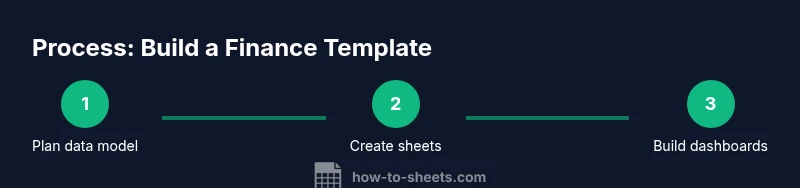
Begin by outlining your data model. Decide which accounts you will track (Checking, Savings, Credit Card) and which categories you will use (Housing, Transportation, Food, Utilities, Subscriptions, Revenue). Create a Transactions sheet with date, description, account, category, amount, and a sign convention. Then add an Accounts sheet listing each account with opening balances and current balances. Name each sheet clearly and label columns consistently so formulas can reference them reliably. Finally, set up a simple Summary sheet that uses SUMIF/SUMIFS to pull totals by category and month. This layout makes it easier to add new accounts or categories later.
Structuring data for accuracy: accounts, categories, and dates
Consistency is critical for reliable reporting. Use a fixed list of accounts and a fixed taxonomy of expense and income categories. Store dates in YYYY-MM-DD format to simplify sorting and monthly roll-ups. Consider adding a Currency column if you expect multi-currency data. Use data validation to restrict entries to predefined accounts and categories, preventing typos and mis-categorizations. This consistency will pay off when you build dashboards or perform comparative analyses across months or quarters.
Formulas to automate calculations: SUMIF, VLOOKUP, and more
Automation is the backbone of a finance template. Use SUMIFS to aggregate totals by date range and category, and VLOOKUP or INDEX/MATCH to translate code-like category IDs into human-friendly names. Create a Dashboard that uses dynamic ranges such as OFFSET or named ranges so charts update as you add data. For cash-flow estimates, create a Projection sheet with simple growth assumptions and linked formulas that pull last month’s actuals. Keep formulas modular to reduce the risk of cascading errors.
Data validation, error checking, and data integrity
To prevent mistakes, implement strict validation rules. Use dropdowns for accounts and categories, restrict the amount column to numbers with two decimals, and require dates to be valid. Enable Google Sheets’ error-checking features and set up conditional formatting to highlight outliers (e.g., expenses above a threshold). Regularly run a quick audit: check that the sum of transactions matches monthly closes and that the dashboard numbers align with the raw data. A small amount of upfront validation saves hours of reconciliation later.
Use case patterns: personal budget, freelancer, and small business
A template scales across scenarios. For a personal budget, you may track monthly income and essential expenses with a one-year horizon. For a freelancer, you’ll want project-based income tracking, billable vs non-billable hours, and client-level reporting. For a small business, you’ll separate revenue streams, fixed vs variable costs, and multiple projects or departments. The template remains relevant by allowing you to add or rename categories and income streams while preserving the core calculations and dashboards.
Automation and integration: imports, exports, and dashboards
Automations save time and reduce manual entry. Use IMPORTRANGE or CSV imports to bring data from external sources, such as bank statements or expense apps, into the Transactions sheet. Schedule monthly exports to PDFs or CSVs for archiving. Build an interactive dashboard with slicers for month, category, and account so you can drill down into trends. If you handle sensitive data, set appropriate sharing permissions and protect critical sheets.
Maintenance, scalability, and ongoing improvement
A template should evolve with your needs. Periodically review your categories and accounts for relevance, archiving old data to keep the workbook fast, and updating formulas to accommodate new reporting requirements. Create a version history and document any changes so teammates understand the schema. By keeping your structure clean and well-documented, you’ll reduce technical debt and make the template usable for months or years to come. The How To Sheets team recommends scheduling quarterly check-ins to review data integrity and usability.
Tools & Materials
- Google account with Google Sheets access(Use a Google account; Workspace recommended for collaboration)
- Computer or mobile device with browser(Chrome or a modern alternative; stable internet)
- Stable internet connection(For syncing and real-time collaboration)
- CSV or bank statement files (optional)(For importing historical data or transactions)
- Starter template or blank sheet(Use a clean sheet as the base)
- Backup plan (versions or Drive backups)(Automatic version history helps recovery)
Steps
Estimated time: 60-90 minutes
- 1
Define accounts and categories
List all accounts you will track and create a fixed set of expense/income categories. This ensures consistent tagging across all transactions.
Tip: Use a canonical naming convention (e.g., 'AWS - Project X' for clarity). - 2
Create a data entry sheet
Set up a Transactions sheet with columns for date, description, account, category, amount, and a sign convention. Validate choices to minimize typos.
Tip: Turn on data validation for account and category fields. - 3
Build an accounts table
Create an Accounts sheet listing each account with opening balances and current balances to drive reconciliation.
Tip: Use named ranges to simplify formulas. - 4
Set up core calculations
Add SUMIFS-based totals by month and category, and build a simple cash-flow formula to project balances.
Tip: Keep formulas modular with clear named ranges. - 5
Create a dashboard
Design a Summary sheet with charts and slicers to visualize spending by category and month.
Tip: Use conditional formatting to highlight areas needing attention. - 6
Test with sample data
Enter representative transactions and verify that totals, dashboards, and forecasts reflect the data accurately.
Tip: Do a mini-reconciliation run to catch mismatches.
FAQ
What is a google sheets finance tracking template?
A Google Sheets finance tracking template provides a ready-made structure to log income, expenses, and budgets. It includes data entry fields, calculated summaries, and dashboards to visualize financial health.
A ready-made structure to log income, expenses, and budgets in Google Sheets.
Can I customize the template for personal vs business use?
Yes. You can rename categories, add accounts, and tailor dashboards. The core calculations stay intact, so you preserve overall accuracy while adapting to your needs.
Yes, you can customize categories, accounts, and dashboards.
Is Google Sheets enough for financial reporting?
For basic budgeting and cash-flow tracking, Google Sheets is suitable. For formal accounting or audits, pair Sheets with dedicated software or export data for accountants.
Good for basic budgeting; for audits, consider additional tools.
How do I protect sensitive financial data in Sheets?
Use sharing controls, protect ranges, and enable version history. Limit access to trusted collaborators and avoid exposing sheets containing sensitive details.
Control sharing and protect sensitive ranges.
Where can I find ready-made templates?
How To Sheets provides practical, step-by-step templates and guidance for Google Sheets finance tracking. You can adapt these templates to your specific situation and goals.
Look for practical templates from trusted sources like How To Sheets.
Watch Video
The Essentials
- Define stable accounts and categories
- Automate calculations for consistency
- Use dashboards for quick insights
- Maintain clear documentation