Financial Spreadsheet in Google Sheets: A Step-by-Step Guide
Build a robust financial spreadsheet in Google Sheets with budgeting templates, formulas, and charts. A practical, step-by-step guide for students, professionals, and small business owners.


You will build a robust financial spreadsheet in Google Sheets that handles budgeting, cash flow, and scenario planning. This guide uses structured templates and built-in formulas to speed up forecasting. According to How To Sheets, having a clear data model and reusable templates saves hours while keeping collaborators aligned. It also shows how to customize dashboards and generate quick cash-flow projections.
Why financial spreadsheets matter in Google Sheets
A robust financial spreadsheet in Google Sheets helps you plan budgets, monitor cash flow, and forecast scenarios. With a single workbook, you can track income sources, recurring expenses, debt obligations, and investments. This clarity reduces late payments, missed savings, and overspending. The design choices you make at the start influence accuracy, speed, and the usefulness of dashboards later.
Key advantages:
- Collaboration: multiple people can edit simultaneously, with comments and version history.
- Accessibility: works from any device, offline capabilities, and automatic syncing to Drive.
- Reuse: templates and named ranges speed future planning.
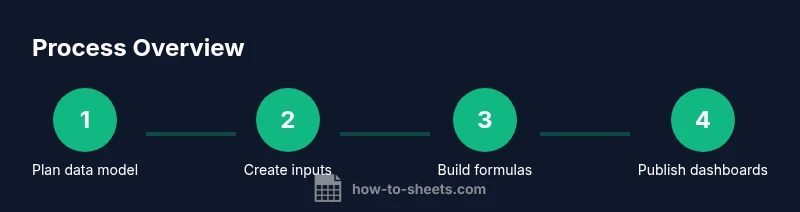
How To Sheets notes that starting with a well-defined data model pays dividends. A typical financial workbook separates inputs (the raw data you enter), calculations (formulas that compute totals), and outputs (reports and dashboards). Keeping these layers distinct makes debugging easier and ensures changes in one area don’t ripple uncontrollably through the sheet.
A simple data model includes:
- Inputs: monthly income, recurring expenses, one-time costs.
- Calculations: monthly totals, year-to-date sums, and variance against budget.
- Outputs: monthly cash flow, annual summary, and visual dashboards.
In practice, you should define a clear naming convention for your sheets, ranges, and named constants. For CSV imports or bank feeds, structure the source data to align with your input sheet (same column order, same headers).
According to How To Sheets, investing in a solid data model and reusable templates saves time and reduces errors, especially when you scale your budgeting to multiple projects or teams.
Tools & Materials
- Google account(Needed to sign in and save files to Drive)
- Google Sheets access(Use the web app or mobile app with editing permissions)
- Starter workbook or templates(Optional templates to accelerate setup)
- Data sources(Bank statements, invoices, receipts for imports)
- Currency and locale settings(Set consistent currency and date formats)
- Reference data list(Categories, accounts, vendors for drop-downs)
- External data import tools(CSV/Excel uploads, or API feeds if available)
- Backup storage(Regular backups to prevent data loss)
Steps
Estimated time: 60-90 minutes
- 1
Create a new Google Sheet and set the file name
Open Google Sheets, click Blank, and create a new workbook. Name it descriptively (e.g., “Financial Workbook 2026”) and set the locale and currency to match your region. This establishes the foundation for consistent formatting and calculations.
Tip: Use a consistent naming convention for all finance files to simplify searches later. - 2
Create core tabs and establish roles
Add three primary tabs: Inputs, Calculations, and Outputs. Color-code tabs and lock header rows so collaborators can’t accidentally modify formulas. Define the purpose of each tab to prevent cross-referencing errors.
Tip: Consider a ReadMe sheet that documents the model and naming conventions. - 3
Set up income and expense data entry tables
Design structured tables for monthly income and recurring expenses. Include headers like Date, Category, Amount, and Notes. Use data validation to ensure consistent categories and numeric data.
Tip: Use a drop-down for categories to maintain uniform analysis. - 4
Define categories and apply data validation
Create standardized budgeting categories and apply data validation rules to prevent typos. This is crucial for reliable grouping in dashboards and reports.
Tip: Name your categories and reference them in formulas to avoid hard-coded text. - 5
Add core formulas for totals and summaries
Implement SUM for monthly totals, and SUMIF or FILTER/QUERY for category-based totals. Build a basic cash-flow formula set that shows net income each month.
Tip: Prefer named ranges over absolute cell references to simplify maintenance. - 6
Build a monthly cash-flow forecast
Create a timeline for 12 months and link income and expense entries to monthly totals. Use EOMONTH to align dates and forecast future periods.
Tip: Label the forecast with a clear header and protect the forecast cells. - 7
Create dashboards and visualizations
Add charts (line, bar, and pie) to depict cash flow, budget variance, and category breakdowns. Use conditional formatting to highlight overspending or positive variances.
Tip: Keep dashboards focused; avoid crowded visuals that obscure insights. - 8
Share, protect, and maintain the workbook
Set permissions for collaborators, lock cells that contain formulas, and schedule periodic audits of data and formulas. Create a simple maintenance plan to keep data fresh.
Tip: Enable version history and consider a monthly audit routine.
FAQ
What is a financial spreadsheet in Google Sheets?
A financial spreadsheet in Google Sheets is a workbook that organizes income, expenses, assets, and liabilities to help you budget, forecast, and report cash flow. It uses formulas and charts to translate raw data into actionable insights.
A financial spreadsheet in Google Sheets is a budget and forecast tool that uses formulas and charts to turn income and expenses into insights.
Which templates work best for budgeting in Sheets?
Templates that separate inputs, calculations, and outputs—while offering predefined categories and validation—tend to be easiest to adapt for personal or business budgets. Start with a simple monthly budget before scaling to annual or multi-project planning.
Predefined templates that separate input data, formulas, and reports are easiest to customize for budgets.
How do I import transactions from my bank?
Bank transactions can be imported via CSV export from your bank or financial software. Clean the data to match your input table (columns, headers) and then map it to your income and expense categories.
You can import bank data by exporting a CSV, cleaning it, and mapping it to your budget categories.
How can I protect data in shared Sheets?
Use protected ranges, lock cells with formulas, and set appropriate sharing permissions. Regularly review access and enable version history to track changes.
Lock important cells and control who can edit the sheet to prevent accidental changes.
Can I automate updates from external sources?
Yes. You can set up imports from CSVs, use Apps Script for scheduled data pulls, or connect to external data sources via add-ons to refresh values automatically.
Automations can fetch data from outside sources to keep your sheet up to date.
What should I test before using the workbook for decisions?
Test sums, category totals, and forecast projections with known data. Validate that dashboards reflect the underlying numbers and that updates propagate correctly.
Run checks on totals and dashboards to ensure everything aligns with the input data.
Watch Video
The Essentials
- Plan data first; build a clean data model.
- Reuse templates and named ranges to speed setup.
- Visualize data with charts for quick insights.
- Protect sensitive data and maintain a clear audit trail.