Project Budget Template Google Sheets: A Practical How-To
Create a reusable project budget template in Google Sheets with clear categories, formulas, dashboards, and sharing rules. This guide covers setup, core calculations, forecasting, collaboration, and automation to keep projects on track in 2026.


Learn how to build a practical project budget template google sheets that tracks all costs, forecasts cash flow, and supports collaboration. This step-by-step guide shows setup, core formulas, validation rules, and reusable templates you can adapt for any project size. By the end, you’ll have a ready-to-share spreadsheet you can reuse across multiple initiatives, with clear visuals and accurate variance reporting.
Why a project budget template in Google Sheets matters
According to How To Sheets, using a dedicated project budget template google sheets reduces miscommunication and keeps stakeholders aligned. A centralized, living document makes it easier to capture all costs, forecast spending, and spot variances early. With Google Sheets, you gain accessibility and real-time collaboration, ensuring team members work from a single source of truth. This approach scales from small projects to multi-phase initiatives and supports quick scenario planning across different departments. The How To Sheets team has found that templates reduce back-and-forth and speed up stakeholder approvals, especially when teams rely on repeatable structures rather than ad-hoc spreadsheets.
A well-crafted budget template also acts as a learning tool. As you populate actuals, you’ll begin to notice patterns—seasonal cost spikes, recurring supplier charges, or underestimated labor hours. Recording these insights inside the same Google Sheets file lets you build a bank of institutional knowledge that new team members can lean on. By standardizing fields, currencies, and date formats, you prevent common data-entry mistakes that derail forecasts and reporting in real-world projects. In short, a good template turns data into actionable decisions and saves time during reviews and audits.
Getting started: prerequisites and design principles
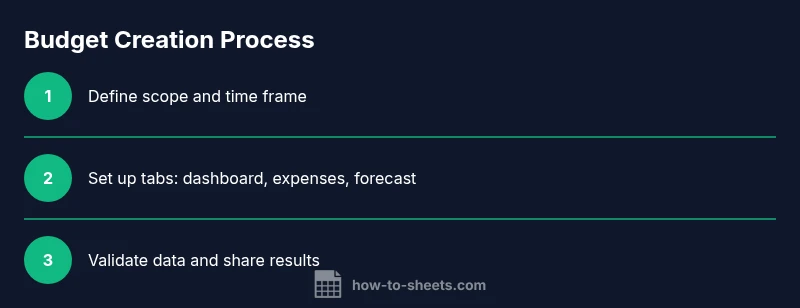
Before diving into formulas, outline the project’s scope and time frame. Decide which cost categories you will track—labor, materials, equipment, travel, overhead, and contingency—and establish a baseline currency and date format to avoid regional confusion. Plan for a lean set of tabs: Dashboard for visuals, Expenses for line-item tracking, Forecast for future spending, Variances to compare forecast against actuals, and a Notes tab for assumptions. Use clear naming conventions and protect key cells to prevent accidental edits. Consider how the sheet will be used by teammates with different roles: project manager, accountant, and sponsor. Finally, document data-entry rules and update frequency so the budget remains current as the project evolves.
Core structure: tabs, tables, and formulas
A robust budget template Google Sheets relies on a modular structure. Create a Dashboard with summary metrics, an Expenses tab for line-item tracking, a Revenue/Benefits tab if applicable, a Forecast tab for future periods, and a Variances tab to highlight deviations. Each tab should share a consistent layout: a header row with clear labels, a currency column formatted for the locale, and a hidden row for meta-data if needed. Use named ranges for totals and categories to keep formulas readable, and link each tab with a central summary so changes propagate automatically. This approach minimizes manual consolidation and makes auditing straightforward. A thoughtful structure also makes the template scalable for larger programs or portfolios.
Core formulas and data validation you should include
Establish reliable calculations with a few core formulas. Totals use SUM across cost categories, while SUMIF or SUMIFS aggregates by category. Use IFERROR to gracefully handle missing data and avoid ugly error messages. For cross-tab references, XLOOKUP or VLOOKUP can fetch category details from a master list. A QUERY-based summary can consolidate multiple tabs into a single view, and an ARRAYFORMULA can simplify repetitive calculations across rows. Add data validation to restrict dates, currency inputs, and category selections. These practices protect accuracy and keep the budget template google sheets robust as you scale.
Forecasting and scenario planning
Forecasting empowers better decision-making. Add a scenario selector (a dropdown) that drives a separate set of inputs for growth rates, price changes, and expenditure assumptions. Link the scenario inputs to your forecast section so you can flip between scenarios instantly. Visualize outcomes with lightweight charts that compare cash flow, costs, and net position across scenarios. Document assumptions on a dedicated sheet to ensure reviewers understand why numbers change and how decisions were made. This setup supports proactive risk management and smoother stakeholder conversations.
Collaboration, sharing, and version control
Google Sheets excels at collaboration, but multi-user editing requires governance. Protect critical formulas with protected ranges, assign view or comment-only access where needed, and maintain a simple changelog on a notes tab. When sharing, use a naming convention that includes project name and date to identify the correct file quickly. Consider creating archival copies for major revisions to preserve a history of changes. Encourage teammates to leave comments rather than editing directly in sensitive areas, and set expectations for update frequency and review cycles.
Best practices and automation ideas
Keep the budget template evergreen by documenting every assumption and providing a user guide within the sheet. Use data validation to minimize errors and limit manual data entry. If you’re comfortable with automation, explore Google Apps Script to automate data imports, generate monthly reports, or email stakeholders with a summary. Build a small library of reusable modules—templates for new projects that can be copied and adjusted. Always test automation in a closed copy before deploying to live budgets to avoid unintended consequences.
Common mistakes and how to avoid them
Avoid overcomplication by maintaining a lean set of categories and relying on rollups to summarize. Don’t neglect regular backups and formula checks after structural changes. When sharing, set permissions carefully to protect critical cells and prevent unauthorized edits. Finally, remember to explain the numbers in the narrative: correlate changes in assumed inputs with forecast outcomes and decisions. A clear story makes the budget credible and easy to defend during reviews.
Tools & Materials
- Google account with Google Sheets access(Ensure you have permission to edit shared files)
- Stable internet connection(Required for real-time collaboration and cloud autosave)
- Device with spreadsheet app (desktop or laptop)(Prefer desktop for editing large sheets)
- A sample project scope or dataset(Helps calibrate the budget template to your context)
- Optional: pre-built budget templates or example datasets(Used to speed up setup and testing)
- Budget guidance or policy documents (optional)(Aligns the template with organizational standards)
Steps
Estimated time: 30-60 minutes
- 1
Define budget scope and time frame
Determine what the project will cover and the period you will forecast. Decide on currencies, major cost drivers, and any capacity constraints. This step sets the inputs for all other steps and reduces later rework.
Tip: Capture key milestones and cost drivers up front to guide category structure. - 2
Create core tabs and data structure
Set up tabs for Dashboard, Expenses, Forecast, and Variances. Use consistent headings, and link all tabs to a central summary table. A clean structure makes formulas robust and auditing easier.
Tip: Name tabs consistently and use a single source of truth for totals. - 3
Set up categories and currency formats
Define a lean chart of accounts for the budget. Apply currency formatting and data validation to prevent mis-entry. Include a contingency line item to handle uncertainties without inflating base costs.
Tip: Use a dropdown for categories to minimize typos and ensure consistent reporting. - 4
Implement core formulas and validations
Add totals per category, a forecast section, and a variance calculation. Use SUMIF/SUMIFS for category-based totals, IFERROR to clean up errors, and a simple lookup for reference data. Validate inputs to keep data clean.
Tip: Test edge cases, like zero values and missing months, to ensure stability. - 5
Create dashboard and forecasting inputs
Build a concise dashboard with key metrics: total forecast, actuals, variances, and burn rate. Add a forecast input area to alter growth rates and see results instantly. Keep visuals simple and interpretable.
Tip: Prefer sparing visuals with clear labels over cluttered charts. - 6
Test, review, and share with teammates
Populate the sheet with sample data and verify all calculations. Invite teammates to review and add comments. Maintain version history and document any decisions in the notes tab.
Tip: Collect feedback early and refine categories or formulas as needed.
FAQ
What is a project budget template in Google Sheets?
A project budget template in Google Sheets is a structured spreadsheet that organizes all project costs, forecasts, and variances in a single collaborative file. It standardizes categories, formulas, and reporting so teams can monitor spend and adjust plans quickly.
A project budget template in Google Sheets is a structured, collaborative file that tracks costs and forecasts, with standardized categories and formulas for clear reporting.
How do I customize categories in my budget sheet?
Start with a core list of cost categories and add subcategories as needed. Use a data validation drop-down for category cells to keep entries consistent, and update the chart of accounts in one place to reflect changes across the sheet.
Begin with core categories, add subcategories as needed, and use drop-downs to keep entries consistent and easy to audit.
Can I link this budget to live data sources?
Yes. You can pull data from CSV imports, Google Finance, or connected project management tools, then refresh as needed. Keep a separate data import tab and validate imports before updating the main budget to avoid cascading errors.
You can import data from CSVs or tools, refresh regularly, and validate before updating the budget to avoid errors.
What protects sensitive financial data in shared sheets?
Apply protected ranges to critical formulas, limit editing rights to trusted users, and enable version history. Consider using separate view-only copies for stakeholders and keep sensitive inputs on protected cells.
Protect critical cells, limit edits, and use version history to safeguard sensitive data.
How do I share the budget without giving full edit rights?
Share the file with view or comment access for most stakeholders, and grant edit rights only to those who need it. Use a dedicated notes tab for questions and ensure a clear change log is visible to all reviewers.
Give most people view access, add edits only for trusted teammates, and keep notes and a change log visible.
Watch Video
The Essentials
- Define scope and timeframe up front to set expectations.
- Structure tabs clearly for scalable budgeting.
- Use data validation to prevent entry errors.
- Build a dashboard that communicates reality at a glance.
- Document assumptions and maintain version control.