Best Shopping List in Google Sheets: A Practical Guide
Learn to build a reusable shopping list in Google Sheets with automatic totals, category sorting, and sharing for students, professionals, and small businesses.


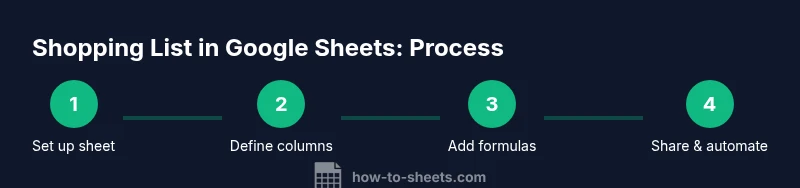
Goal: you’ll build a reusable shopping list in Google Sheets that auto-calculates totals, supports item categories, and is easy to share. In a few steps, add items with quantities and prices, let formulas compute subtotals and the grand total, and enable data validation and color-coded alerts for stock and budget.
Why this approach matters for a shopping list in Google Sheets
A digital shopping list built in Google Sheets offers instant accessibility, real-time collaboration, and automatic calculations that adapt as your plans change. For students, professionals, and small business owners, a centralized sheet reduces miscounts, duplicate entries, and forgotten items. The keyword of this guide, shopping list google sheets, signals the practical, hands-on utility of a lightweight yet powerful solution that scales from a simple weekly shop to a multi-store procurement workflow. Beyond convenience, Sheets lets you tailor data fields, apply consistent formatting, and share updates with teammates or family without emailing CSVs back and forth. The How To Sheets team emphasizes a template-driven approach: start with a clear data model, then layer in automation and validation to keep the list accurate over time.
Core structure: columns and data types
Design a simple, scalable header row. Core columns should include Item, Category, Store, Quantity, Unit Price, Total, Need-By Date, Purchased, and Notes. Use plain text for item names, a predefined category list for consistency, and numeric fields for quantities and prices. Total should be a calculated field (Quantity × Unit Price). Consider an optional Stock column to mark items you already have, which informs remaining shopping needs. A dedicated Needs column helps separate essential purchases from nice-to-have items. The structure keeps the sheet readable while enabling powerful filters and summaries.
Formulas for totals and auto-calculation
Auto-calculation is the heart of a dependable shopping list. In the Total column, use a simple multiplication formula that references Quantity and Unit Price. At the bottom, compute the grand total with a SUM over the Total column. For weekly planning, add a separate Summary row that filters totals by Category or Store. If you want to flag overspending, include a Budget cell and a comparison formula that shows the difference between Grand Total and Budget. Keep your formulas simple and document them in the Notes column so teammates understand how the sheet works.
Data validation and drop-down menus
Standardize inputs with data validation. Create a Category list (e.g., Produce, Dairy, Bakery) and a Store list (e.g., Grocery A, Grocery B) in a hidden sheet or a named range. Apply drop-downs to the Category and Store columns so every item uses the same labels. This improves sorting, filtering, and overall data integrity. Data validation also helps prevent typos that would otherwise fragment analytics or break pivot tables. When you add new categories or stores, update the source lists in one place to keep the system consistent.
Organizing items by category and store
Use filters to focus on a single category or store, which is especially helpful when planning weekly trips or multi-store shopping. Consider a tiny pivot or a separate Dashboard sheet to summarize totals by Category, Store, or Need-By date. If you manage a pantry or inventory, you can turn on a conditional format to highlight items that are close to running out. A well-organized sheet reduces cognitive load and makes it easier to act on your shopping plan.
Starter templates and customization options
Starting with a ready-made template accelerates onboarding. Copy a clean template into a new Google Sheet and customize the column labels, drop-down values, and default budgets to fit your routine. You can also clone this structure for different households or team projects. As you gain confidence, add features like multiple price tiers, coupon tracking, or a CSV export for offline records. Templates save time and provide a dependable baseline for future shopping lists.
Sharing and collaboration tips
Google Sheets shines when teams collaborate in real time. Share the shopping list with family members or colleagues, then set permissions to view or edit as appropriate. Use comments to discuss item choices or price changes without altering the sheet’s data. For sensitive budgets or price data, consider protecting specific cells or ranges while leaving the rest of the sheet editable. Regularly review who has access and update permissions as needed.
Automation ideas: reminders and conditional formatting
Add lightweight automation to keep the list current. Conditional formatting can highlight items with low quantities or overdue Need-By dates. For more advanced users, Apps Script can trigger reminders when the list hasn’t been updated after a set period or when Grand Total exceeds the Budget. Even without scripting, you can set up simple email notifications via Sheets add-ons to stay on top of purchases. These automations save time and reduce the chance of forgetting essential items.
Troubleshooting common issues and maintenance
If totals don’t compute, check that Quantity and Unit Price are numeric and that the Total formula references the correct cells. If categories don’t sort correctly, verify that all items use valid category values from your drop-down list. When sharing, confirm that collaborators are editing the same sheet version and that there isn’t an accidental duplicate copy. Regular maintenance—updating drop-down lists, refreshing budgets, and validating formulas—keeps the workflow reliable.
Tools & Materials
- Google account with Sheets access(Needed to create and edit the shopping list)
- Computer, tablet, or smartphone with internet(For editing and reviewing the sheet on the go)
- Starter template or sample data(Optional to speed setup)
- Access to a shared drive or folder(Useful for team collaboration and version control)
Steps
Estimated time: 60-90 minutes
- 1
Create and name the sheet
Open Google Sheets and start a new blank spreadsheet. Rename it to a clear title like 'Shopping List – [Date]'. This ensures you can track changes over time and keeps future lists organized.
Tip: Organize in a dedicated folder to simplify sharing. - 2
Define core columns
Add columns for Item, Category, Store, Quantity, Unit Price, Total, Need-By Date, Purchased, and Notes. Layout should be simple and scalable, allowing for additional fields later.
Tip: Keep column order consistent to simplify formulas. - 3
Enter a sample item
Populate a test row with a realistic item, category, store, quantity, and unit price. This helps validate the data model and formulas before you scale.
Tip: Use a small set of representative items first. - 4
Add the per-row Total formula
In the Total column, input a formula that multiplies Quantity by Unit Price. Copy the formula down to all rows that will hold items.
Tip: If you insert new rows, ensure the formula auto-fills with the correct references. - 5
Create a grand total
At the bottom, use a SUM to aggregate all item Totals. This gives you the overall shopping cost at a glance.
Tip: Label the grand total clearly and consider a Budget value nearby. - 6
Add category and store drop-downs
Define lists for Category and Store on a hidden helper sheet or in named ranges. Apply data validation so items are entered consistently.
Tip: Update the source lists in one place when new categories appear. - 7
Set up a simple today/need-by view
Add a Need-By date column and use a date filter to create a weekly or monthly view. This helps prioritize what to buy this trip.
Tip: Consider conditional formatting to highlight overdue items. - 8
Enable sharing and permissions
Click the Share button and set who can edit or view. Use comments for discussions to avoid altering core data.
Tip: Review sharing settings regularly to prevent unwanted edits. - 9
Experiment with a dashboard
Create a small dashboard sheet that shows totals by Category or Store. This improves visibility and decision-making during shopping.
Tip: Keep the dashboard lightweight to avoid performance issues. - 10
Introduce basic automation
Add simple conditional formatting for low stock and consider Apps Script for reminders or status alerts.
Tip: Start with built-in features before moving to scripts. - 11
Test and refine
Run a mock shopping trip to ensure all flows work: addition, total calculation, filtering, and sharing.
Tip: Document any refinements so teammates can follow. - 12
Publish and train teammates
Share the final sheet, provide a short how-to, and collect feedback for future tweaks.
Tip: Offer a quick cheat sheet with key formulas and data validations.
FAQ
Why should I use Google Sheets for a shopping list instead of a paper list or a dedicated app?
Google Sheets offers real-time collaboration, automatic calculations, and easy customization. It scales from a simple weekly list to a multi-store procurement workflow, and you can share and edit with others without sending files back and forth.
Sheets lets you edit together in real time and automatically totals items, making collaboration seamless.
Can I customize categories and stores easily?
Yes. Create category and store lists on a helper sheet and apply data validation to the main grid. Update the source lists anytime to keep behavior consistent across entries.
Yes, just update the lists in one place and your drop-downs update automatically.
How do I protect formulas from accidental edits?
Use protected ranges for cells with formulas while leaving data entry areas editable. This prevents accidental changes while still allowing collaboration on item entries.
Lock the formula cells and let others edit only the data fields.
Is there a template I can start with?
Yes. Start with a basic shopping list template, then customize columns, validations, and budgets to fit your routine. Templates save setup time and provide a reliable baseline.
There are ready-made templates you can copy and tailor to your needs.
Can I automate reminders or alerts for weekly shopping?
Yes. Use conditional formatting for low stock and, if desired, Apps Script to trigger reminders when updates are due or budgets are exceeded. Start with built-in features before scripting.
You can set up simple reminders using built-in features, with scripts for more automation if you want.
How secure is shared data in Google Sheets?
Sharing controls allow you to set view or edit permissions. Regularly review who has access and limit sensitive information to trusted collaborators.
Control who can edit and who can view to protect your data.
Watch Video
The Essentials
- Set up core columns and a totals row for clarity.
- Standardize inputs with data validation for consistency.
- Leverage formulas to automate subtotals and totals.
- Use filters and dashboards for quick weekly views.
- Share responsibly and protect key formulas.