Export Google Calendar to Google Sheets: Step-by-Step
Learn how to export Google Calendar events to Google Sheets using Apps Script or a no-code add-on. Create a live data bridge for planning and analytics.


Exporting Google Calendar to Google Sheets lets you review, filter, and analyze events in a spreadsheet. You can do this either with a Google Apps Script that pulls events directly from your calendars or with a calendar-to-sheets add-on. The result typically includes columns for Summary, Start, End, Location, and Description, plus optional attendees or reminders.
Why export Google Calendar data to Google Sheets matters
Exporting data from Google Calendar to Google Sheets is more than just moving rows of dates. It creates a centralized view you can sort, filter, and visualize alongside budgets, project milestones, and task lists. For students, it means aligning class schedules with study plans. For professionals, it enables better meeting planning and resource allocation. For small business owners, you can track client meetings, project timelines, and deadlines in one place. According to How To Sheets, consolidating calendar data into Sheets reduces manual data entry and improves consistency across planning workflows. When you export google calendar to google sheets, you gain a living data bridge that stays up-to-date as events change and new events are added. The key is choosing a method that matches your tech comfort and privacy requirements, then adopting a clear data map so every field lands in the right column.
Methods to export calendar data
There are two main paths to export calendar data to Sheets: a code-based approach using Google Apps Script and a no-code approach using a calendar-to-sheets add-on. The Apps Script method gives you granular control: you can specify calendar IDs, date ranges, column layout, and how you handle recurring events or time zones. It also enables scheduling automatic refreshes with triggers. The no-code route is faster to set up: you install an add-on, authorize access, and follow guided steps to map fields. Add-ons may offer filters, multi-calendar support, and one-click exports, but you’ll rely on the add-on’s update schedule and privacy policies. In both cases, plan for data fields such as Summary, Start, End, Location, Description, and Attendees. If you need more context, you can still extend the sheet with formulas, pivot tables, or charts to turn raw events into useful insights. This flexibility makes the export process accessible to different teams and individuals, from project managers to student tutors.
Step 1: Plan your data and permissions
Before you touch a single line of code, map out what you want to export and who will use it. Decide which calendars are included, the date range (e.g., next 30 days or a full year), and which fields to capture (subject, times, location, attendees, notes). Consider privacy and access permissions: you may be allowed to export public events, but private events or attendee emails require consent. Write down the target sheet structure: column headers and formats for dates, times, and text fields. If you’re using a no-code add-on, confirm whether it supports multiple calendars and whether it can filter past events. Finally, note any regional time-zone differences and how you want to present times in Sheets (UTC, user’s local time, or a custom zone). Clear planning saves time during setup and reduces the need for rework later.
Step 2: Set up your sheet and script
Create a clean Google Sheet dedicated to calendar exports. Establish header row with fields such as Summary, Start, End, Location, Description, Attendees, and CalendarName. Next, open Extensions > Apps Script to start a new project if you’re coding. Rename the project to reflect the export task, and set up a basic function skeleton that will log activity and validate permissions. If you opt for a no-code add-on, prepare the sheet and calendar permission prompts, then install the add-on and locate its configuration panel. Either path benefits from a consistent naming convention for calendars and a backup plan for error handling, such as a separate log sheet for export events and failures.
Step 3: Fetch calendar events programmatically
Using Apps Script, fetch events from a specific calendar ID over a defined time window with CalendarApp or the Calendar API. Convert event fields into a uniform object: {summary, start, end, location, description, attendees}. Pay attention to recurring events: you’ll often need to expand or sample them, depending on your reporting needs. Normalize date formats to ISO 8601 during extraction to minimize timezone confusion. If you’re using an add-on, follow its step-by-step prompts to select calendars, time ranges, and fields; most have a built-in date filter and error messaging to help you troubleshoot.
Step 4: Map event fields to sheet columns
Write code (or configure the add-on) to map each event’s properties to the sheet columns. Common mappings include: Summary → A, Start → B, End → C, Location → D, Description → E, Attendees → F. Format dates consistently in the sheet using Utilities.formatDate in Apps Script or the built-in date formatting options in Sheets. Consider adding derived fields like duration (End minus Start) or a timezone column if your events span multiple regions. If you use a multi-calendar export, include a CalendarName column to distinguish events from different calendars. A well-defined mapping makes dashboards and pivots far easier to build later.
Step 5: Test, debug, and refine
Run the script with a small date range to verify that the correct fields populate the expected columns. Check for time-zone mismatches, missing titles, or empty start/end values. Use the Apps Script Execution transcript or Logger.log for debugging messages, and adjust your code or add-on settings accordingly. Validate edge cases: all-day events, events without location data, long descriptions, and events with attendees. After initial tests pass, verify that the sheet updates correctly when a calendar event is edited or deleted, and confirm that the date format remains stable across changes.
Step 6: Automate refresh and scale
Set up a time-driven trigger to refresh the data at a cadence that fits your workflow—daily at a set time is common, or hourly for fast-paced timetables. If you manage multiple calendars, you can loop through a list of IDs and append or update rows accordingly. Be mindful of Google Apps Script quotas and API limits; if data volume grows, consider batching requests or exporting per-calendar ranges. For no-code users, configure the add-on’s autofresh interval if supported, and periodically review the permissions to ensure continued access. Finally, maintain a changelog to track schema changes and keep downstream dashboards in sync.
Step 7: Optional: handle privacy and security considerations
Respect privacy when exporting calendar data. Avoid sharing attendee emails or notes without consent, especially in public or team-wide sheets. Review any organizational policies on data exporting and storage. If sensitive information must be masked, implement transformations in Apps Script or add-on rules to scrub fields before writing to the sheet. Regularly audit who has access to the Google Sheet and disable access for former collaborators. This not only protects privacy but also helps you comply with data governance standards.
Step 8: Optional: enhance with analytics and visualizations
With your calendar data in Sheets, you can build dashboards using charts, pivot tables, and conditional formatting. Create a calendar heatmap of events by day, chart distribution of event types, or a timeline showing upcoming milestones. Use formulas to derive statistics like the number of events per week or average duration. If you want to propagate updates to other systems, you can connect Sheets to BI tools or export data to CSV for archival. The more you enrich your data, the more actionable insights you gain from your calendar export.
AUTHORITY SOURCES
- https://support.google.com/calendar
- https://developers.google.com/calendar
- https://developers.google.com/apps-script/guides/services/calendar
Tools & Materials
- A Google account with Calendar and Sheets access(Ensure you have permission to view calendars and to edit Sheets.)
- Google Sheets document(Create a new sheet or designate an existing one to receive data.)
- Apps Script editor(Access via Extensions > Apps Script in Sheets.)
- Calendar access and API permissions (optional)(If enabling API access in Cloud Console, configure OAuth scopes.)
- Calendar-to-Sheets add-on (optional)(Choose a trusted add-on from Workspace Marketplace if you prefer no-code.)
Steps
Estimated time: 60-90 minutes
- 1
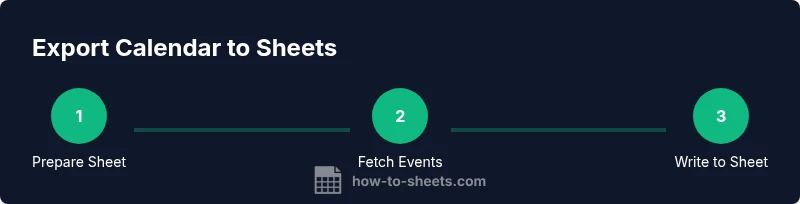
Prepare your sheet and script project
Open your Google Sheet, then go to Extensions > Apps Script to create a new project. Name it clearly to reflect the export task and set up basic permissions. This prepares the ground for a reliable data pipeline.
Tip: Use a descriptive project name and a dedicated folder for scripts. - 2
Add a function to fetch events from Calendar
In Apps Script, write a function that uses CalendarApp.getEvents(start, end) (or the Calendar API) to fetch event objects. Define calendarId, timeMin, and timeMax. Handle time zones and recurring events as needed.
Tip: Test with a short date window to validate fields before scaling. - 3
Write events to the sheet
Loop through events, extract fields (summary, start, end, location, description, attendees), and write rows to your sheet with a consistent header mapping.
Tip: Format dates once written to avoid later reformatting. - 4
Test the script and fix issues
Run the function on a test date range, review results in Sheets, and fix any null values or timezone mismatches. Use the Logger for debugging.
Tip: Add try/catch blocks to handle unexpected fields gracefully. - 5
Automate refresh and scale
Create a time-driven trigger to refresh data daily or hourly. If exporting multiple calendars, loop through a list of IDs and update existing rows or append new ones.
Tip: Check quotas and optimize batch sizes to avoid throttling. - 6
Optional no-code path
If you prefer not to code, install a Calendar-to-Sheets add-on, configure calendar sources, date ranges, and field mappings, and run the guided export.
Tip: Always review the add-on’s privacy policy before enabling access.
FAQ
Can I export all events from all calendars I own?
Yes, you can export events from multiple calendars by iterating through their IDs or using a calendar list. You can also apply filters to limit the date range or event types.
You can export multiple calendars by looping through their IDs and applying a date range.
Do I need to code to export calendar data to Sheets?
No-code options exist via add-ons, but Apps Script provides more control and flexibility if you’re comfortable with a little coding.
If you’re comfortable with a bit of code, Apps Script gives precise control; otherwise, a trusted add-on works well.
How often can I refresh the data?
Refresh frequency depends on Apps Script quotas and add-on capabilities. Daily updates are common; more frequent refreshes may require careful quota management.
You can schedule daily updates within Google quotas; higher frequencies may require plan adjustments.
How should I format dates in Sheets?
Format dates consistently using ISO 8601 in Apps Script, or apply Sheets date formats and time zones to ensure uniform display.
Format dates consistently to avoid timezone mix-ups.
Are recurring events expanded or summarized?
Recurring events can be expanded into individual rows or summarized; implement logic in Apps Script to decide based on your reporting needs.
You can choose to expand occurrences or summarize them depending on your needs.
What about calendar permissions and privacy?
Exported data should respect permissions; ensure you have consent to share attendees or notes. Use masking where appropriate.
Only export data you’re allowed to share and keep sensitive details protected.
Watch Video
The Essentials
- Choose a method that fits your skill level.
- Apps Script offers flexibility and scheduling options.
- No-code add-ons provide quick, low-effort exports.
- Regular automatic refresh keeps data synchronized.