Master Calendar in Google Sheets: A Practical Guide
Learn how to build a robust calendar in Google Sheets with templates, formulas, and automation. Plan events, track reminders, and share with teammates for streamlined scheduling.


In this guide you will learn how to create a functional calendar inside Google Sheets. You'll import or enter events, set up a monthly view, and use formulas to auto-fill dates, highlight overlaps, and track reminders. By the end you'll have a reusable calendar template you can adapt for school, work, or personal planning.
Why Build a Calendar in Google Sheets
A calendar in Google Sheets gives you a simple, customizable planner that you can share, audit, and extend. For students, professionals, and small teams, integrating calendar data into Sheets makes it easier to visualize schedules alongside tasks, budgets, and resources. This approach keeps all planning data in one place and helps you avoid juggling multiple apps. In this guide, we’ll show you how to design a reusable calendar google sheets workflow that you can adapt for school semesters, project sprints, or personal planning. We’ll discuss data models, templates, formulas, and views, with practical tips for color-coding and reminders. The result is a flexible calendar google sheets workflow you can tailor to your needs and scale over time.
Getting Started: Planning Your Data Model
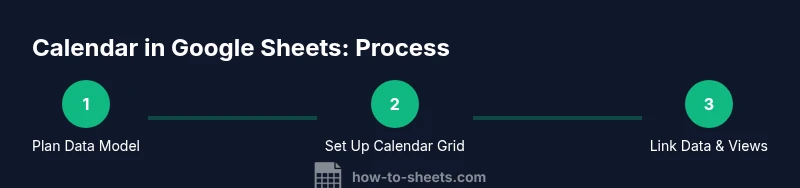
The first step is to decide what data each event will contain. At minimum you’ll want Date, Start Time, End Time, Title, Location, and Category. A well-thought data model keeps future automation straightforward and reduces rework. Create two sheets in your Google Sheet: one named "Events" for your data, and another named "Calendar" for the visual monthly view. Use a consistent date format (YYYY-MM-DD) and a clear time format. Plan for filters by category, status, or location so you can slice calendar data later. By laying out fields now, you’ll unlock easier lookup, reminders, and cross-sheet calculations.
Core Formulas for Dates, Highlights, and Reminders
Dates are the backbone of a calendar view. Use simple date math and built-in functions to pull events for a given day. For example, you can pull events for a date cell with a FILTER formula, and count them with COUNTA. To highlight today’s date, apply conditional formatting based on a comparison to TODAY(). You can also generate a dynamic date list for a month with SEQUENCE and EOMONTH. While exact formulas vary by locale, the general approach remains stable: derive a date grid, fetch events for each date, and visually flag key items. This is the heart of the calendar google sheets workflow.
Designing Views: Monthly, Weekly, and Daily Layouts
A single calendar sheet can support multiple views. The monthly view uses a calendar grid with days of the week along the top and a 6x7 grid to accommodate all months. Weekly and daily views can be produced by adjusting the grid and adding small summary panels. Use color-coding to distinguish categories, and include a side panel for upcoming events. By layering views, you create a versatile calendar google sheets portal that serves students, professionals, and small business owners alike.
Automation and Reminders: Syncing with Calendar Apps
Automation is where a calendar google sheets workflow truly shines. You can set up Google Apps Script triggers to scan your Events table and create Google Calendar events, send reminder emails, or update a shared status field. For non-developers, built-in features like FILTER, QUERY, and conditional formatting provide strong automation without code. When you do introduce Apps Script, keep changes small and well-documented, so teammates can review and adapt the logic as needs evolve in 2026.
Sharing, Security, and Maintenance
Because calendars are often collaborative, decide early who can edit and who can view the Google Sheet. Use protected ranges for formulas, and introduce data validation to prevent accidental changes to core fields. Regular maintenance—such as archiving past events, refreshing data sources, and testing formulas with edge cases—ensures the calendar google sheets template remains reliable. If you’re sharing externally, consider exporting a read-only snapshot or locking sensitive data.
Practical Template Walkthrough: Step-by-Step Application
This section walks through a concrete example you can replicate. Start by creating an Events table with Date, Start, End, Title, Location, Category, and Reminder columns. Create a Calendar grid for the current month, and pull in events with FILTER(Events!A:G, Events!A:A = Calendar!A2). Apply conditional formatting to highlight today and weekends. Add a simple color scheme for categories and build a summary panel that counts events by category. Finally, test with a few sample events (class, meeting, deadline) to verify the layout remains clean and responsive across different months.
Common Pitfalls and Troubleshooting
Date handling is the most frequent source of issues. Mismatched locales can flip date formats and ruin calculations. If your calendar grid shows incorrect days, double-check the first-day calculation and the WEEKDAY setting. Large event datasets can slow sheets; consider splitting data into multiple sheets or using Apps Script to batch process. Always work on a copy when trying new formulas or scripts to protect your production calendar google sheets.
Real-World Scenarios and Next Steps
A practical calendar google sheets template scales with your needs. For a student schedule, map class times and assignment due dates; for a small business, track client meetings and project milestones. Extend the calendar with dashboards that visualize upcoming events, overdue tasks, or resource availability. By starting with a solid data model and gradually layering views, you’ll have a robust system that remains adaptable as your planning requirements evolve in 2026.
Tools & Materials
- Google account with Sheets access(Needed to create, edit, and share the calendar template)
- Starter calendar Google Sheet(Can be a fresh sheet or an existing project template)
- Event data for import(Include Date, Start, End, Title, Location, Category)
- Color palette for categories(Helpful for quick visual scanning)
- Basic knowledge of Sheets formulas(Familiarity with FILTER, DATE, EOMONTH, and IF is beneficial)
Steps
Estimated time: 90-180 minutes
- 1
Plan your data model
Map the fields you’ll store for each event, then sketch how those fields feed the calendar view. Decide which filters you’ll need (category, location, status) to support quick viewing.
Tip: Create a rough diagram on paper before translating it to sheets to avoid reorganizing later. - 2
Create the Events table
On a sheet named 'Events', add columns for Date, Start, End, Title, Location, Category, and Reminder. Use consistent data types for each column to simplify formulas later.
Tip: Use data validation for Category to maintain consistency. - 3
Set up the Calendar grid
On a second sheet named 'Calendar', create a monthly grid with days of the week as headers. Reserve a 6x7 grid to accommodate all months.
Tip: Label the month with a date cell for dynamic updates when the month changes. - 4
Fill dates with simple date logic
Populate the grid with dates that match the chosen month. Use date math or a simple first-day reference to align the grid correctly.
Tip: Keep a separate cell for the current month and draw dates from a single source to avoid drift. - 5
Pull in events for each date
For each date cell, use FILTER or QUERY to show relevant events from the Events table. Consider a summary column that counts events per date.
Tip: Avoid duplicating events by using UNIQUE where appropriate. - 6
Apply conditional formatting
Highlight today, weekends, and category colors. This makes the calendar easy to scan at a glance.
Tip: Use a separate rule for today to ensure it stays prominent even when other formats apply. - 7
Create multiple views
Add weekly and daily views by reconfiguring the grid or adding side panels with focused data. Keep core formulas intact for consistency.
Tip: Use named ranges to make switching views easier across sheets. - 8
Test, refine, and share
Populate with sample events, test across months, and adjust formulas. Share with teammates with appropriate permissions and protect critical ranges.
Tip: Always test on a copy before deploying to a live project.
FAQ
How do I import events from Google Calendar into Google Sheets?
You can export events as CSV from Google Calendar and import them into Sheets, or automate the transfer using Apps Script. Ensure the date and time fields line up with your Events table for seamless integration.
You can export events from Google Calendar and import them into Sheets, or automate with Apps Script. Make sure dates and times map to your table.
Can I sync Google Calendar with Sheets automatically?
Yes. Use Google Apps Script to schedule periodic data fetches from Calendar or create a trigger-based workflow. Alternatively, explore add-ons designed for calendar-to-sheet synchronization.
Yes. Apps Script can schedule syncing, or you can use an add-on for calendar data in Sheets.
What’s the best way to handle date formats in the calendar?
Choose a single locale and format (YYYY-MM-DD for data, and a consistent time format). Use DATE and TEXT appropriately to normalize inputs for consistent calculations.
Set a single locale, keep a consistent date and time format, and normalize inputs with DATE and TEXT.
How do I create a monthly calendar grid in Sheets?
Create a 6x7 grid, populate it with dates for the selected month, and hide cells outside the month with conditional formatting or formulas. Use a header row for weekdays.
Make a 6 by 7 grid, fill with the month’s dates, and hide days outside the month.
Can I share the calendar with teammates?
Yes. Share the Google Sheet with collaborators, applying either view or edit permissions. Protect critical ranges to prevent unintended changes.
Yes, share the sheet with teammates, and control access levels to protect important data.
What are common limitations of a Sheets calendar?
Sheets calendars rely on manual data entry and may slow with large datasets. For heavy use, augment with Apps Script to automate data processing and integration with other tools.
Limitations include manual data entry and potential slowdowns with big calendars; consider Apps Script for automation.
Watch Video
The Essentials
- Plan the data model before building the view
- Create a monthly calendar grid with date logic
- Use FILTER to fetch events by date
- Apply conditional formatting for clarity
- Add multiple views (monthly, weekly, daily)
- Protect formulas and test changes on copies