Automate Google Form to Google Doc: A Practical Step-by-Step Guide for 2026
Learn to automatically generate Google Docs from Google Form responses using Apps Script and templates. This practical guide covers setup, scripting, and validation to create reliable form to doc workflows in 2026.


This guide shows you how to turn Google Form responses into a Google Doc using Apps Script and a templated output. You'll connect a Form to Sheets, create a Doc template with placeholders, and run a script that fills each doc from responses. The key requirements are a Google Form, a connected sheet, and a Docs template.
Why automating google form to google doc saves time
Automating the transfer of data from Google Form submissions into a formatted Google Doc reduces manual copy paste, eliminates errors, and streamlines reporting workflows for students, professionals, and small business owners. When you implement a google form to google doc workflow, you create a living document that updates with new submissions or generates a fresh doc per submission according to your needs. According to How To Sheets, the most effective automations start with a clear data map and a templated output. This approach lets you control layout, styles, and data placement, ensuring consistency across reports, receipts, or project summaries. You can also combine this with Sheets to validate data or perform calculations before populating Docs. The goal is to create a repeatable, auditable process that saves time and reduces errors. This article provides practical, step by step guidance for building a reliable google form to google doc workflow in 2026, with cautions and best practices.
In many organizations, form to document automation is not a one person job but a collaborative effort. You will benefit from thinking about who needs access, who will review the generated docs, and how often the templates should be updated as the form evolves. A well crafted workflow reduces manual interventions, lowers the risk of inconsistent outputs, and speeds up reporting cycles for projects, orders, or client communications. As you read, keep the goal in mind: a dependable google form to google doc pipeline that produces accurate, polished docs with minimal manual steps.
Readers who implement these practices report faster turnaround times for deliverables and easier audit trails when forms feed directly into templated docs. This block lays the foundation for the practical steps that follow and helps you choose the right path for your organization in 2026.
Core approaches to connect forms to docs
There are several paths to achieve form to doc automation. The most direct method uses Apps Script to read form responses and write them into a new Docs document from a template. Another popular approach is to use Sheets as an intermediary, where you validate data and then populate Docs in batches. A third option is to use add-ons or integrated connectors that offer templates and run automation without much code. For teams just getting started, starting with a simple template in Docs and a single trigger can validate the concept before scaling to multiple templates and complex mappings. In the context of google form to google doc workflows, plan for consistent placeholders, predictable data types, and a clear output layout to ensure reliable results across submissions.
If you are new to this, begin with a one form one doc approach and then scale out by adding conditional sections or multiple templates. This allows you to test data integrity, layout fidelity, and permission scopes before expanding the automation. A well defined data map helps maintain alignment as your form questions change over time. The goal is to balance simplicity with future needs so that your google form to google doc workflow remains maintainable for months or years.
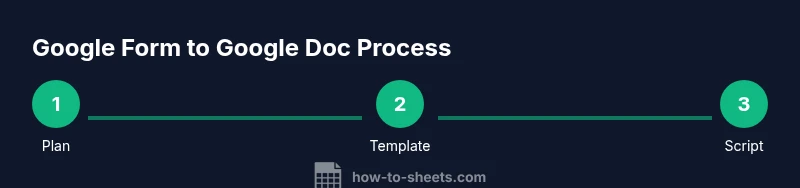
Step 1 plan your template and data mapping
Before you touch code, map every form question to a position in your Doc template. Decide which fields are essential, which require validation, and where to place computed results. A good plan reduces later debugging and helps you scale. Use the keyword google form to google doc to refer to this flow as you design your template and mapping. Start with a rough sketch on paper or a whiteboard, then translate it into a template structure that is easy to maintain. Consider how line breaks and section headers will render in the final document and decide which sections will be generated unless certain optional fields are missing. This planning step prevents backtracking and makes the coding phase smoother. In 2026, alignment between input fields and document sections is the single most important factor in producing clean, professional docs.
Step 2 prepare form sheet and doc template
Set up your form to feed a Sheets document or enable responses to be collected there. Create a Google Docs template that uses distinct placeholders such as name, email, date, and other fields. Name placeholders clearly and consistently, for example using double curly braces like {{name}} to avoid collisions. Keep the template simple at first and expand as you validate the data flow. This step creates the foundation for a smooth google form to google doc workflow. Use a conservative layout that tolerates missing fields and still looks professional. If you plan to include computed values, specify where those calculations belong in the template. When you finalize templates, test with a dummy submission to confirm the mapping holds across different inputs.
Step 3 implement Apps Script to populate the document
Write a script that runs when a form is submitted or on demand. The script should read the form values, open a Doc template, replace placeholders with actual responses, and save a new document in a chosen Drive folder. Use a robust replacement strategy to avoid partial matches and preserve formatting. Test with sample responses to verify all mapping works correctly and adjust as needed. Depending on your needs, you may add error handling, logging, and fallback paths if certain fields are missing. In a well designed google form to google doc flow, the script should be idempotent so repeated runs do not create duplicate docs.
Step 4 test verify and refine
Testing is essential. Simulate multiple submissions with different data sets to ensure placeholders are replaced correctly, formatting holds, and the final documents meet your layout requirements. Check for edge cases such as long names or missing optional fields and handle them gracefully. Document any exceptions and update the template and code accordingly. It is helpful to build a small test suite that covers the most common input patterns and unusual values. Iteration here saves headaches later when your form evolves.
Step 5 security permissions and governance
Automation interacts with Forms Sheets Docs and Drive. Review sharing settings to protect data, assign appropriate permissions, and monitor access. Ensure the Apps Script project runs under a service account or the owner's credentials and that you have a clear process for revoking access when projects end. Regular audits prevent leakage of sensitive information. Use principle of least privilege and keep credential scopes as narrow as possible. If you plan to publish or share templates, consider duplicating templates and keeping the source templates private.
Step 6 maintenance and scaling
As forms evolve, you may need to add new fields or adjust the Doc layout. Plan a versioning approach for templates and update mapping rules accordingly. For larger teams, consider creating multiple Doc templates to handle different submission types and add error handling so batch runs do not fail mid process. Establish a maintenance calendar to review placeholder names and formatting every few months. When a form changes, update both the mapping and the template to prevent drift between input data and output documents.
Troubleshooting common issues
If placeholders don t replace correctly, recheck your mapping and ensure placeholder names match exactly. If new responses come in while a Doc is being created, consider using a queue or batch processing. Examine script logs for errors and adjust error handling to provide meaningful messages to users. If you see permissions errors, verify that the script is running with the right OAuth scopes and that the target Drive folder exists. Always test changes in a safe environment before deploying to production.
Tools & Materials
- Google Form(Source of responses)
- Google Sheet (optional intermediary)(Auto-collect form responses or validate data)
- Google Doc template(Placeholders like {{name}})
- Google Apps Script(Access via Script Editor from Sheets or Docs)
- Google Drive access(Permission to create and save Docs)
- Sample dataset(Optional for testing)
- Google account credentials(With edit rights on Forms, Sheets, Docs)
Steps
Estimated time: 60-90 minutes
- 1
Define output template
Plan the final document layout and placeholder mapping to ensure all fields appear in the correct places.
Tip: List every placeholder and align them with form questions. - 2
Connect form to sheet
Enable form responses to feed a Google Sheet or validate data before doc generation.
Tip: Turn on responses in the form settings and link to a dedicated sheet. - 3
Create doc template
Build a Doc with clear placeholders like {{name}} and ensure consistent styling and sections.
Tip: Use distinct placeholder syntax to avoid accidental replacements. - 4
Write the Apps Script
Create a script that reads form values, duplicates the template, replaces placeholders, and saves the new doc.
Tip: Test replacements with a sample response before enabling triggers. - 5
Test and debug
Run tests with varied inputs to catch edge cases and verify formatting.
Tip: Check for long names, missing fields, and special characters. - 6
Set up triggers
Add a form submit or time-driven trigger to automate doc creation.
Tip: Use a form submit trigger for immediate generation. - 7
Deploy and monitor
Publish the project and monitor execution logs; adjust as data evolves.
Tip: Regularly review permissions and update templates.
FAQ
Can I generate a separate Google Doc for each form submission?
Yes. By duplicating the Doc template and filling placeholders for each submission, you can create a unique document per form entry.
Yes. You can create a new document for each submission by duplicating the template and filling in the data.
Do I need to know Apps Script to implement this?
A basic understanding helps, but you can start with a guided template and adapt it. You can also explore add-ons, though Apps Script offers full control over formatting.
A basic knowledge of Apps Script is helpful, but you can start with templates and grow from there.
Can this handle edits after submission?
You can set additional triggers to regenerate docs on edits or use a revision flow. This requires extra logic to track changes.
Yes, with extra logic you can regenerate docs when submissions change.
Where is the generated doc saved?
Generated docs are saved to a chosen Google Drive folder you specify in the script settings.
The new documents are saved in your Drive folder you specify.
What about data privacy and permissions?
Control access carefully. Run scripts under a controlled account, restrict sharing, and audit permissions regularly to protect sensitive data.
Manage access carefully and audit permissions to protect data.
How do I trigger generation automatically?
Use a form submit trigger or a time-based trigger to automate doc creation without manual steps.
Set up a form submit trigger to automate doc creation.
Watch Video
The Essentials
- Map form questions to stable placeholders
- Choose between direct Docs templates or Sheets as intermediary
- Test thoroughly before deployment
- Automate with reliable triggers and monitoring
- Secure data and manage permissions