Google Smartsheet Integration: A Practical How-To Guide
A comprehensive step-by-step guide to integrating Google Sheets with Smartsheet, enabling seamless data sync, automated updates, and cross-tool workflows for students, professionals, and small businesses.


With this guide you will learn how to connect Google Sheets and Smartsheet to sync data, automate updates, and streamline cross-tool workflows. It covers prerequisites, setup steps, and practical templates. According to How To Sheets, a well-structured integration reduces manual data entry and accelerates project updates across teams and environments.
Why Google Smartsheet Integration Matters
When teams use Google Sheets for data collection and Smartsheet for execution, a direct integration bridges the gap between data capture and action. The result is faster decision-making, improved visibility, and fewer manual handoffs. Real-time or near real-time syncing ensures dashboards reflect current numbers, while automated updates minimize lag between a data change and its downstream impact. A thoughtful integration also centralizes governance—data definitions, column mappings, and ownership stay consistent across tools. For organizations juggling reports, surveys, and project plans, the combined power of Google Smartsheet means stakeholders can rely on a single source of truth rather than scattered exports. As you plan, consider data latency, update direction, and audit trails. According to How To Sheets, starting with a clear data model and a defined sync direction is the strongest predictor of long-term success for any google smartsheet workflow.
Prerequisites and Planning
Before you connect Google Sheets to Smartsheet, set clear objectives and collect the necessary access. You’ll need active Google and Smartsheet accounts with permissions to create sheets, access integrations, and run automations. Prepare a small dataset for testing and a simple data map that lists source columns in Sheets and destination fields in Smartsheet. Decide on one-way vs. two-way sync and note which changes should trigger alerts or updates. Create a folder structure in Google Drive and Smartsheet workspace to house test sheets and templates. Document your intended workflows, including who approves changes and how conflicts will be resolved. A written plan reduces scope creep and keeps stakeholders aligned.
Setting up the connection between Google Sheets and Smartsheet
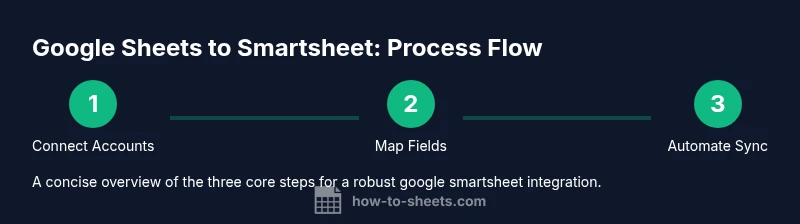
To establish the bridge, start in Smartsheet: open the Integrations center or the admin console and locate Google Workspace or Google Drive integrations. Initiate the connection and authorize access to the Google account you’ll use for Sheets. Choose the Smartsheet workspace and the specific sheet(s) that will participate in the flow. Configure authentication scopes carefully to minimize exposure and ensure your organization’s security policies are observed. Once connected, set default behavior: preferred direction of data flow, refresh frequency, and any data validation rules that should run during sync. It’s wise to perform a dry run with a test sheet to confirm permissions and connectivity before proceeding with live data.
Designing a Robust Data Model
A solid data model makes the integration reliable and scalable. In Smartsheet, align columns with the fields in your Google Sheet and define data types (text, date, number, dropdown) consistently. Consider mandatory fields, optional fields, and default values. Use clear naming conventions, such as prefixed IDs (GS- for Google Sheets entries) and consistent status codes. Create a master mapping that translates Sheets columns to Smartsheet columns, including any transformation rules (for example, date formats or currency conversions). To reduce errors, implement data validation lists in Smartsheet and enforce trimming of whitespace in Sheets. How you structure the map will determine how smoothly updates propagate, so invest time here. How To Sheets analysis shows that teams that map fields carefully reduce reconciliation time, resulting in calmer rollouts and fewer post-launch fixes.
Automating Sync and Notifications
Automation is the heart of a successful google smartsheet workflow. In Smartsheet, define rules that trigger when specific changes occur in Sheets, such as a status update or a new row addition. Decide whether updates should be one-way (Sheets → Smartsheet), the other way around, or bidirectional. Configure notifications so stakeholders receive alerts when critical fields change, and consider using conditional alerts (for example, only notify if a task is behind schedule). For ongoing reliability, enable incremental sync to minimize data transfer and reduce the chance of conflicts. Tracking the automation history helps you quickly spot when rules fail and why.
Testing, Validation, and Quality Checks
Testing is essential to catch edge cases before production. Start with a small, representative dataset that includes typical values and boundary conditions (empty fields, long text, special characters). Validate that all mapped fields receive expected values after a sync, with date formats and numeric data preserved. Check time zones, currency formats, and any user-defined validations. Run repetitive cycles to confirm stability under multiple updates and ensure that circular references are avoided. Document any deviations found during tests and adjust the mapping or automation rules accordingly. Finally, validate error handling: when a row is missing required data, the system should flag the issue rather than silently failing.
Real-world Use Cases and Templates
Budget tracking, project status dashboards, and procurement trackers are common starting points for google smartsheet integrations. For budgets, map currency, cost centers, and fiscal dates from Sheets to Smartsheet and use automations to alert owners of overruns. For project tracking, pull task lists from Sheets into Smartsheet so managers see live progress and adjust timelines automatically. Templates help accelerate onboarding; create a reusable Smartsheet sheet template and a corresponding Sheets template with preconfigured mappings. How To Sheets recommends starting with a simple template before expanding to more complex scenarios, ensuring your core flow remains stable as you scale.
Troubleshooting Common Issues and Pitfalls
No integration is perfect out of the box. Common issues include permission errors, mismatched data types, and timing conflicts between updates. If a sync fails, check API quotas, authentication tokens, and the exact field mappings involved in the failed transaction. Review field lengths, date formats, and time zones to ensure compatibility. When two-way sync creates conflicts, establish a priority rule (which system wins on conflicts) and implement a reconciliation workflow. Finally, document every change to automation rules and mappings so you can trace the source of issues more quickly in the future.
Next Steps, Templates, and Long-term Best Practices
After you’re comfortable with a minimal integration, scale with additional sheets and broader templates. Create a library of mappings for common data flows (e.g., time tracking, inventory, client intake) and standardize naming conventions across teams. Establish governance: who updates the mappings, where changes are logged, and how version control is handled. Consider combining this guide with ongoing skilling: schedule quarterly reviews of integration performance, share best practices, and refine templates. The How To Sheets team recommends keeping a living documentation of your mappings and automations, and revisiting them whenever processes or data sources evolve. This approach keeps your google smartsheet workflow robust, auditable, and easy to hand off to new team members.
Tools & Materials
- Google account with Sheets access(Admin rights to create/edit sheets and share as needed)
- Smartsheet account with integrations permissions(Ensure you can authorize external apps and access the workspace)
- Web browser (latest version)(Chrome or Edge recommended for best compatibility)
- Stable internet connection(Prefer wired or reliable Wi‑Fi; plan for occasional outages)
- Test Google Sheet and Smartsheet sheet(Contains representative fields to map during setup)
- Clear data governance plan(Optional but recommended for larger teams)
Steps
Estimated time: 1-2 hours
- 1
Prepare accounts and permissions
Verify both Google and Smartsheet accounts are active and have the necessary permissions for sheet creation and integration setup. Create a dedicated test project to avoid disrupting live data. Confirm you can log into both platforms with a test user, and document the expected data flows.
Tip: Doing a dry run with a test dataset avoids risking production data. - 2
Enable and authorize integration
In Smartsheet, navigate to Integrations and start the Google Workspace connection. Grant the minimum required permissions for reading Sheets and writing to the target Smartsheet workspace. Use a dedicated account for the integration to simplify auditing.
Tip: Limit permissions to only what’s necessary to minimize security risk. - 3
Create and prepare the data map
Draft a mapping between Google Sheets columns and Smartsheet columns, including data types and transformations. Prefer explicit, consistent names for fields. Build a small sample mapping to test during the next step.
Tip: Document any transformation rules (dates, currencies) to prevent drift later. - 4
Configure a one-way sync from Sheets to Smartsheet
Set the flow direction (Sheets → Smartsheet) and specify which changes trigger a sync. Define the schedule (e.g., every 15 minutes) or opt for a trigger-based update. Include basic validation to catch mismatches before they commit.
Tip: Start with a conservative schedule to monitor behavior without overwhelming the system. - 5
Set up automations and alerts
Create alerts for key events (e.g., task completion, overdue items). Map Smartsheet statuses back to Sheets if needed and confirm recipients. Keep notification fatigue in check by limiting the audience and using concise messages.
Tip: Test each alert path with a simulated event to ensure delivery. - 6
Run a controlled test
Use the test dataset to trigger a full sync cycle and review results in both Sheets and Smartsheet. Check for field mismatches, missed updates, and formatting issues. Iterate the mapping and rules as needed until you get clean parity.
Tip: Log all test outcomes in a shared doc for future reference. - 7
Validate data quality and edge cases
Introduce edge cases such as blank fields, extra-long text, and unusual characters to ensure the integration handles them gracefully. Confirm time zones, date formats, and numeric precision remain consistent after syncing.
Tip: Create a checklist for edge cases and re-run tests after each change. - 8
Launch and monitor
Move the integration to production with a small initial dataset and gradually expand. Monitor the first week for errors, performance, and user feedback. Update templates and mappings as needed based on real-world usage.
Tip: Set up a quarterly review to reassess performance and data rules.
FAQ
What is Google Smartsheet integration?
Google Smartsheet integration connects Google Sheets with Smartsheet to share data, automate updates, and coordinate tasks across tools. It enables a single source of truth and reduces manual data entry.
Google Sheets and Smartsheet can be connected to share data and automate updates, reducing manual work.
Can I synchronize data in real time?
Real-time capabilities depend on the setup and the chosen refresh cadence. Most workflows use scheduled or trigger-based syncs rather than continuous streaming.
Synchronization typically happens on a set schedule or when a trigger fires, not continuously in real time.
Do I need a paid plan to use this integration?
Some advanced features or higher data volumes may require a paid Smartsheet or Google Workspace tier. Start with a basic plan and upgrade only if you hit limits.
You may need a paid plan if you exceed feature limits or data volumes.
What are common causes of sync failures?
Common causes include permissions issues, mismatched data types, and conflicting rules. Verify credentials, review field mappings, and inspect automation logs for errors.
Check permissions, mappings, and logs to diagnose sync failures.
What are typical use cases for this integration?
Common use cases include budget-to-dashboards, project status updates, and inventory or issue tracking that feed from Sheets into Smartsheet for execution and reporting.
Use cases include budgets, project tracking, and inventory updates.
Watch Video
The Essentials
- Define a clear data model before connecting tools
- Map fields precisely to prevent sync errors
- Test with representative data and document results
- Use controlled rollouts to catch issues early
- Keep mappings and automations well-documented