Macros in Google Sheets vs Excel: A Practical Comparison
Explore macros in Google Sheets vs Excel: compare scripting, automation, compatibility, and best practices for creating reliable macros across both platforms.


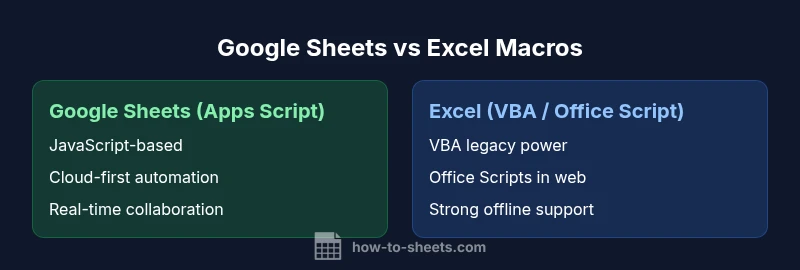
Both Google Sheets and Excel support macros, but their implementation and scope differ. Google Sheets relies on Apps Script (JavaScript) and cloud-first automation, while Excel uses VBA, plus Office Scripts for modernization. In practice, Excel offers richer macro power and offline reliability, whereas Google Sheets shines in collaboration and cross-file sharing.
Macro ecosystems: Google Sheets vs Excel
Macros drive automation, but the underlying ecosystems diverge in language, tooling, and deployment. When evaluating macros in google sheets vs excel, the most visible distinctions are: the scripting language (Apps Script based on JavaScript in Google Sheets vs VBA in Excel, with Office Scripts in the web version), the editor environments, and where automation lives (cloud vs desktop). For teams, these factors influence how easily you can author, test, deploy, and share automated workflows. Google Sheets emphasizes collaborative, multi-user environments and frictionless sharing across Google Workspace, while Excel offers deeper scripting power and established macro practices for desktop-first workflows. Understanding these foundational differences helps determine whether you should build a macro in Sheets or in Excel, or adopt a hybrid approach across platforms. In practical terms, the decision hinges on your collaboration needs, the complexity of automation, and the required offline reliability.
From a practical standpoint, macros in google sheets vs excel are not merely a language choice; they reflect how your organization consumes data, who edits the scripts, and how securely you govern automation. For example, Sheets scripts can be deployed via bound scripts to a specific spreadsheet or bound to a Google Workspace domain for easier governance. Excel macros, particularly in the desktop client, can leverage advanced VBA libraries and an established macro ecosystem that dates back decades. The choice between cloud-first automation and desktop-rich automation shapes everything from error handling to version control and testing practices. This article will unpack each aspect—languages, editors, deployment, performance, and governance—to help you decide which macro strategy best fits your goals.
wordsApproximatelyEstimated
Comparison
| Feature | Google Sheets macros (Apps Script) | Excel macros (VBA / Office Script) |
|---|---|---|
| Language | JavaScript-based Apps Script with modern web APIs | VBA for legacy tasks; Office Scripts uses TypeScript in the web version |
| Editor | Apps Script editor inside Google Sheets; browser-based | VBA Editor in Excel desktop; Office Script editor in Excel for the web |
| Platform | Cloud-first, real-time collaboration, cross-device access | Desktop-first with strong offline capability; Office 365 adds cloud options |
| Automation scope | Cloud-centric triggers, simple to moderate automation | Broad automation with VBA; Office Scripts expanding capabilities in the web client |
| Best for | Teams needing cloud collaboration and rapid sharing | Power users needing deep automation and offline workflows |
| Security model | OAuth-based permissions for Apps Script; domain-level controls in Google Workspace | Macro security prompts; VBA trusted locations; Office Script permissions in the web environment |
The Good
- Cross-device collaboration and real-time editing
- No local installation required beyond a browser or Sheets client
- Modern scripting platforms with active ecosystems
- Seamless integration with other cloud tools in each suite
The Bad
- Excel VBA remains unmatched for highly complex desktop automation
- Migration between platforms can be time-consuming and brittle
- Macro security prompts can disrupt automated workflows
- Office Scripts, while growing, is still maturing compared to VBA
Excel generally offers deeper macro capabilities; Google Sheets excels in cloud collaboration
Choose Excel for heavy automation and offline work. Choose Google Sheets when collaboration and sharing across a team are the priorities.
FAQ
What are macros in Google Sheets vs Excel?
Macros automate repetitive tasks in both platforms. Google Sheets uses Apps Script (JavaScript) while Excel uses VBA; Office Scripts is a modern alternative in the web environment. Each ecosystem has its own APIs, triggers, and constraints.
Macros automate tasks in Sheets with Apps Script and in Excel with VBA; Office Scripts adds TypeScript support in the web version.
Can I run macros offline in both platforms?
Excel desktop macros run offline and are well-suited for local data. Google Sheets macros rely on the online environment, with limited offline macro capabilities via Sheets offline mode.
Excel supports offline macros on the desktop; Sheets works best with online access, though some offline features exist.
Which language should I learn for macro development?
If you work primarily in Sheets, learn Apps Script (JavaScript). For Excel, VBA remains essential for legacy automation, while Office Scripts uses TypeScript for the web.
Learn Apps Script for Sheets, VBA for classic Excel tasks, or TypeScript with Office Scripts for the web.
Is migrating macros between Google Sheets and Excel feasible?
Migration is not automatic. You’ll rewrite logic in the target platform's scripting language and adjust APIs, data access patterns, and triggers.
Migration isn’t automatic—you’ll rewrite the logic for the new platform and adapt APIs and data flows.
What security concerns exist with macros?
Macros can access sensitive data and execute code with broad permissions. Enable only trusted scripts, review permissions, and enforce least-privilege access.
Be mindful of script permissions and only enable trusted macros.
Which is better for team collaboration?
Google Sheets excels at real-time collaboration and sharing. Excel is strong for automation but may require structured workflows to support multi-user collaboration.
Sheets is great for collaboration; Excel works well with controlled access in Office 365 contexts.
The Essentials
- Define your automation goals before choosing a platform
- Evaluate language familiarity when migrating between Sheets and Excel
- Prioritize collaboration with Sheets for team workflows
- Plan migration carefully to minimize data loss and rework
- Consider Office Scripts as a modernization path for web-based Excel