Google Sheets Pie Chart: Create, Customize, and Share
Learn how to create, customize, and share a Google Sheets pie chart with practical, step-by-step guidance and best practices for clear data visualization in 2026.


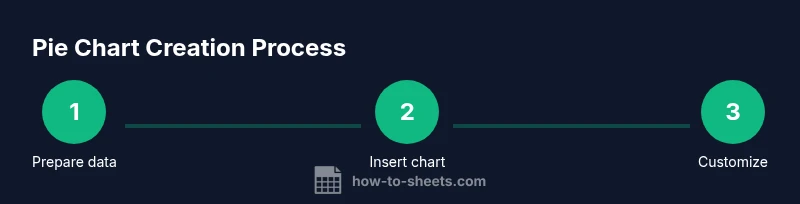
By following these steps, you will create a clean Google Sheets pie chart that clearly shows category proportions. You'll prepare data in two columns, insert a pie chart, and customize labels and colors for readability. This guide covers essential setup, best practices, and quick tips to avoid common pitfalls. No advanced scripting required.
Why Google Sheets Pie Chart Matters
A pie chart is a compact way to show how parts relate to a whole. In Google Sheets, you can transform a simple data table into a visual that highlights the largest categories at a glance and communicates proportions quickly. The How To Sheets team notes that when data is clean, a pie chart can be an accessible, familiar visual for students, professionals, and small business owners. Use it when you have a small set of categories and you want an immediate sense of distribution. In this section we explore best practices for making your google sheets pie chart readable and trustworthy, from data preparation to labeling and color choices.
Key point: keep the dataset small, labels clear, and colors distinct to maximize readability. According to How To Sheets, the most effective pie charts rely on tidy data and thoughtful labeling, not excessive detail.
When to Use Pie Charts vs Other Visuals
Pie charts excel at showing parts of a whole for a small number of categories. If you have fewer than seven categories and clear percentage values, a pie chart can be compelling. For large category sets, or when exact comparisons matter, consider a bar chart or column chart; they support precise comparisons and prevent misinterpretation. Additionally, for trend data, line charts or area charts may be better. Remember to align chart choice with your audience: executives might prefer high-level visuals, while data analysts may require more granular displays. Use pie charts for snapshot comparisons, not for tracking changes over time.
Preparing Your Data for a Pie Chart
Before you create a chart, structure data so Google Sheets can interpret it correctly: two columns or a single column with a separate labels list. The first column should contain category labels, the second column numeric values representing each category’s share. Ensure there are no blank rows in the range you choose for the chart, and check that all values are non-negative. If you’re including a total row or subtotal, exclude it from the chart range. Finally, consider adding a simple header row and using it as chart labels. Clean, labeled data leads to accurate, easy-to-read charts.
Interpreting and Labeling Your Pie Chart for Clarity
Reading a pie chart effectively hinges on clear labeling and legible data labels. Place category names adjacent to slices or rely on a legend with concise color mappings. Display percentages to convey proportion, but avoid clutter—limit labels to the most important slices or enable data labels selectively. Explaining the largest slice and annotating the chart with a short note helps readers quickly grasp the takeaway. If you need to emphasize a specific category, consider exploding that slice or using a donut variant for emphasis while keeping readability intact.
Accessibility and readability considerations
Accessible charts use high-contrast colors and descriptive labels. When choosing colors, favor colorblind-friendly palettes (e.g., blues and oranges with sufficient contrast). Add alt text for screen readers and ensure that the legend is logical and easy to scan. Keep font sizes legible and avoid tiny percentages. For shared documents, consider providing a text summary of the chart’s key figures to complement the visual.
Donut charts, exploded slices, and color palettes
A donut chart is a useful variant of the pie chart, with a hollow center for additional labeling or a title. Exploded slices can highlight a single category, but use sparingly to avoid distracting the reader. When selecting a color palette, aim for consistency with other visuals in your report and maintain accessible contrast. If you have many categories, consider simplifying the chart or switching to a different chart type to maintain clarity.
Common Pitfalls and How to Avoid Them
Avoid overcrowding the chart with too many slices; aim for 5–7 categories for readability. Do not rely solely on slice size; include data labels or a legend to map colors to categories. Ensure your data labels reflect the correct percentages or values and update ranges when data changes. Finally, don’t force a pie chart for data that is better shown with a bar chart or histogram; choose the visualization that tells the story most clearly.
Real-world example: Visualizing market share
Suppose you run a small business and want to show market share across product lines. Gather quarterly sales by product, create a two-column dataset (Product, Sales), and insert a Pie chart. Add data labels showing percentages for the top products and a legend for all slices. This approach gives stakeholders a quick snapshot of composition, helps identify leading products, and can be updated automatically as new data arrives.
Tools & Materials
- Device with internet access(Desktop, tablet, or mobile browser; ensure you can access Google Sheets.)
- Google Sheets access(Signed in to a Google account with edit rights.)
- Data prepared in Google Sheets(Two columns: Label and Value; headers optional but helpful.)
- Optional: color palette ready(If you have brand colors, prepare hex codes for consistency.)
- Optional: chart title(Have a concise title if the chart is to be reused.)
Steps
Estimated time: 10-15 minutes
- 1
Select data range
Highlight the cells containing your category labels and values. Include headers if you plan to use them as chart labels, but exclude any totals or footers that would skew the chart.
Tip: Verify there are no blank rows within the selected range to prevent gaps in the chart. - 2
Insert chart
Go to Insert > Chart, or use the Chart button in the toolbar. Google Sheets will generate a default chart based on your data.
Tip: If the default chart isn’t a pie chart, continue to the Chart editor to switch chart types. - 3
Choose Pie chart type
In the Chart editor, select the Setup tab and choose Pie chart from the Chart type options. Ensure your data range is correct and that labels align with categories.
Tip: For larger datasets, consider using a Donut chart variant for better readability. - 4
Adjust chart range
Confirm the chart range captures all categories you want displayed. Remove any extraneous rows or columns that could skew results.
Tip: Use a named range if your data grows over time to keep the chart dynamic. - 5
Customize colors
Open the Customize tab in the Chart editor and adjust Slice colors to improve contrast and readability. Consider colorblind-friendly palettes.
Tip: Apply a consistent color scheme across related charts for coherence. - 6
Add data labels
Enable data labels to show percentages or values directly on slices. Decide whether to show all labels or only for the largest slices.
Tip: If labels crowd the chart, toggle off some labels or move to a legend. - 7
Position and share
Move the chart to an appropriate location on the sheet, resize for readability, and share or export as needed.
Tip: Export as PNG/SVG for embedding in presentations or reports.
FAQ
How do I create a pie chart in Google Sheets?
To create a pie chart, select your data, go to Insert > Chart, and choose Pie chart in the Chart editor. Adjust labels and colors as needed.
Select your data, insert a chart, choose Pie chart, then customize labels and colors.
What data should I include for a pie chart?
Pie charts typically require two columns: category labels and numeric values. Each category should have a non-negative value to ensure correct percentages.
Use a category column and a corresponding value column; keep values non-negative.
Can I show percentages on slices?
Yes, enable data labels in the Chart editor and set them to display percentage values for each slice.
Turn on data labels and pick percentage display for each slice.
Why not use a pie chart for many categories?
Pie charts become hard to read with many categories; consider a bar chart or a stacked chart for clarity.
Too many slices makes it hard to read; switch to a bar or stacked chart.
How do I keep the chart updated automatically?
Pie charts in Google Sheets update automatically when the source data changes, as long as the chart range remains correct.
The chart updates as you edit data if the range stays correct.
How can I export or share the chart?
Copy the chart, download as PNG/SVG, or publish to the web. Use sheet sharing options to control access.
Copy or export the chart, or publish it and share the sheet.
Watch Video
The Essentials
- Prepare clean, labeled data before charting.
- Prefer pie charts for few categories with clear proportions.
- Label clearly and use accessible colors.
- Update chart ranges automatically when data grows.