How to know if you are anonymous on Google Sheets
Discover how to determine whether your activity in Google Sheets is anonymous, how identity appears in version history, and how to adjust sharing settings to protect privacy for students, professionals, and small business owners.


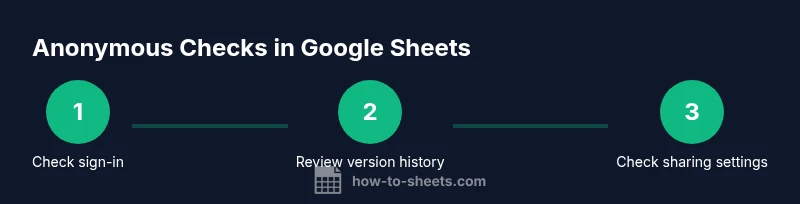
You’re anonymous in Google Sheets when you are not signed in or when edits are made in a mode that doesn’t reveal your identity. To confirm, check your sign-in status, inspect the sheet’s version history for names or the label ‘Anonymous,’ and review sharing settings to see who has access or edit permissions. This quick check aligns with How To Sheets Analysis, 2026.
how to know if you are anonymous on google sheets
In collaborative environments, your identity in Google Sheets is determined by two things: whether you are signed in to a Google account and how the sheet's sharing settings are configured. If you are not signed in, or you open the sheet in a private browsing session, any edits you make can be attributed to an 'Anonymous' user or appear as coming from an unidentified source. The How To Sheets team has observed that many users underestimate how quickly identity becomes visible through revision history and access logs. Recognizing when you are anonymous helps you protect personal data, meet privacy requirements, and avoid unintentional disclosure of sensitive information. This article walks you through practical checks you can perform to determine your anonymity state before you edit a critical dataset. We cover sign-in verification, version history interpretation, and sharing controls with concrete steps for desktop and mobile. By the end, you will know exactly where to look to confirm your identity state and how to switch it if needed.
The anatomy of anonymity in Google Sheets
Anonymous activity in Sheets hinges on two layers: authentication (sign-in) and authorization (who has access). When you are signed in with a Google account, identifiable information (like your name or email) can appear next to edits in version history. If you’re not signed in, Google may label edits as Anonymous. Even with a signed-in account, you can maintain a degree of privacy by controlling who can edit or view the sheet. Modern collaboration tools emphasize access controls, so understanding these layers helps you manage visibility without compromising data integrity. HowTo Sheets emphasizes routinely auditing your own status before making sensitive changes.
Practical takeaway
Always verify your sign-in state, review who has access, and understand how changes are attributed. This triad is the foundation of staying aware of your anonymity in Google Sheets when collaborating on projects that involve confidential information.
Tools & Materials
- Google account(Be signed in with the correct account when verifying identity in sheets.)
- Web browser or mobile Sheets app(Use the latest version for accurate visibility of features like version history.)
- Access to the target Google Sheet(You need edit or view access to inspect identity details.)
- Private/Incognito mode (optional for testing)(Helps you test what happens when you are not signed in.)
Steps
Estimated time: 12-22 minutes
- 1
Check your sign-in status
Open the Google Sheet and look at the top-right corner. If your avatar or initials appear, you are signed in. If you see a generic profile icon or the word Sign in, you are not authenticated to a specific account. Signing in with the intended account helps establish or deny anonymity.
Tip: If you must test anonymity, try opening the sheet in an incognito/private window to see how edits appear when not signed in. - 2
Review version history
From the menu, choose File > Version history > See version history. Look for entries labeled with names or emails. If you see 'Anonymous' or 'Guest' entries, those edits were made without a signed-in identity. This confirms whether your edits are anonymous or attributed.
Tip: Click individual versions to see who made each change and when; this helps you trace accountability. - 3
Inspect the current editor indicators
Check the list of current editors in the Share settings. If your name appears there, you are not anonymous to those collaborators. If you see only generic terms like 'Anyone with the link,' then identity visibility may be broader or limited depending on permissions.
Tip: Revoke or adjust editors if you require tighter privacy for sensitive work. - 4
Assess share links and permissions
Open Share settings and verify who can view or edit. Prefer restricted sharing (specific people) over broad links. If a link is public or anyone with the link can access, your edits can be traced to a broader audience.
Tip: Turn off link sharing or switch to 'Restricted' to reduce anonymous interaction. - 5
Test in a controlled session
Sign out and reopen the sheet to observe how appearance changes in anonymous mode. Then sign back in with your regular account and compare the difference. This test clarifies what viewers or collaborators see.
Tip: Document the steps you took so you can repeat the test if needed. - 6
Review Activity Dashboard access (where available)
If you’re using Google Workspace, Activity Dashboard can reveal who has viewed or edited a document. Admins may control visibility, but many users can see basic activity if allowed by policy.
Tip: If you are a sheet owner, ensure policy settings align with privacy requirements. - 7
Understand IP and logs limitations
Even when anonymous from the user perspective, Google can log IP addresses and device data. Anonymity in Google Sheets does not guarantee full privacy from the service provider.
Tip: Avoid exposing sensitive data or formulas that could reveal identities in shared environments. - 8
Document your findings
Keep a short log of what you checked and your conclusions about anonymity for future reference. This helps standardize privacy checks across projects.
Tip: Create a small checklist you can reuse for every shared sheet.
FAQ
What does 'Anonymous' mean in Google Sheets version history?
In version history, 'Anonymous' labels indicate edits were made without a signed-in Google account. Signing in with a known account will attribute changes to that user. This distinction helps you track accountability in collaborative sheets.
Anonymous edits appear when you’re not signed in; signing in will attribute changes to your account.
How can I keep my activity private while still collaborating?
Use restricted sharing, assign specific editors, and avoid public links. Sign in with a dedicated account for work, and regularly review who has access to sensitive sheets.
Use restricted sharing and sign in with a dedicated account to control who sees edits.
Can Google Analytics or IP data reveal who edited a sheet?
Google’s servers log some metadata like IP addresses for security and diagnostics. Identity inside the sheet is separate from these logs, but you should not assume complete anonymity in any shared document.
IP data can be logged by Google, so anonymity isn’t guaranteed even if edits appear anonymous.
What should I do if I need to audit access after sharing?
Open the Share settings to review who has access, adjust permissions, and revoke links if needed. Regular audits help ensure only authorized people can view or edit.
Review who can access the sheet and adjust permissions as needed.
Is the Activity Dashboard available to all users?
Activity Dashboard availability depends on account type and policy settings. In many cases, owners can see broader activity, while viewers may have limited visibility.
Activity insights depend on your account and policy settings; owners often see more details.
Where can I find a quick check for anonymity state?
Begin with sign-in status, review version history, and inspect sharing settings. This trio gives you an accurate snapshot of your anonymity in the sheet.
Check sign-in, then version history, then sharing settings for a quick privacy check.
Watch Video
The Essentials
- Verify sign-in status before editing.
- Use version history to detect identity and edits.
- Limit access with restricted sharing policies.
- Test anonymity in controlled sessions to understand visibility.