Delete Google Sheets History: A Practical Guide to Clearing
Learn how to delete Google Sheets history, clear edit trails, and protect privacy. A practical, step-by-step guide with tools, tips, and safety notes for students, professionals, and small businesses.


You will learn how to delete Google Sheets history, including clearing version history, editing activity, and associated logs. This quick guide covers privacy implications, practical limits, and safe methods for individuals and teams. Understand what gets deleted, what remains, and how to document changes for audits. No special tools beyond your Google account are required.
Why deleting Google Sheets history matters
For students, professionals, and small business owners, managing digital footprints in Google Sheets is important for privacy and security. When you share or collaborate on sensitive data, past edits, version notes, and audit trails can expose information you’d rather keep private. According to How To Sheets, a deliberate approach to history management reduces risk and helps you comply with privacy policies and data-retention guidelines. This section explains why you might want to delete or minimize traces and what that means in practice for everyday workflows. While you cannot erase every trace from Google’s servers, you can take concrete steps to limit exposure and control access, especially for documents containing personal identifiers, financial data, or confidential formulas. In this guide, you’ll learn the realistic options, the limits you’ll encounter, and the best practices to balance transparency with privacy.
How Google Sheets history is stored
Google Sheets collects several layers of history, including version history, edit history, and activity logs. Version history lets you see who changed what and when; edit history tracks modifications at the cell or sheet level; and Drive activity logs capture file-level events like sharing and movement. Some of these traces may persist even after you clear content, and some are retained for compliance and auditing. It's important to note that, in most cases, personal or organizational users cannot delete revision history directly from the interface. Understanding what is stored and where helps you decide where to focus your cleanup efforts. Remember that any action that alters who can access the file can indirectly influence what history is visible to future viewers.
What you can and cannot delete in Google Sheets
- You cannot delete the complete revision history of a Google Sheet from the editor; Google’s design preserves a record of changes for collaboration and recovery.
- You can delete or remove sensitive data from cells or sheets, but that does not erase the underlying version history, only the current content.
- You can create a fresh copy of the sheet to start a new history, effectively isolating new edits from the old history.
- You can adjust sharing settings and move the file to different folders, which changes who can access historical information.
- Clear browser cache or sign out/in to reduce client-side traces, but this won’t remove server-side history.
Practical takeaway: targeted cleanup is possible, but total deletion of all history is not supported in Google Sheets. The How To Sheets team emphasizes using a fresh copy to reset the narrative of the document owner’s contributions.
Practical approach: reset history by creating a clean copy
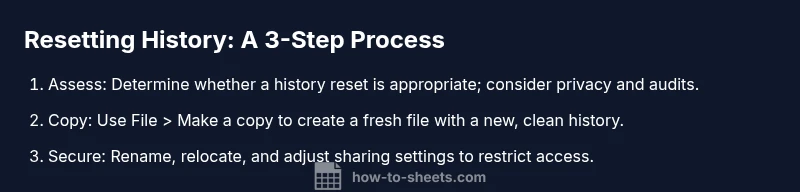
This practical approach is widely used when you want a fresh history without the old edits. It involves making a copy of the sheet, then replacing the original with the copy or archiving the old file. Steps you’ll typically follow include creating a copy with File > Make a copy, giving the new file a clear name, and moving it to the appropriate folder. After that, configure sharing so that only intended collaborators have access, and link or replace references as needed. This method does not delete the old history from the original file, but it allows a new file to start with a clean slate, useful for onboarding, reorganizations, or sensitive cleanup scenarios. If you’re managing data retention policies, document this process for audits and future reference.
Privacy, compliance, and sharing considerations
- Decide whether to keep the original file for audit purposes or archive it separately; consider regulatory requirements and organizational policies.
- When you copy to reset history, communicate with collaborators about the change and any access updates.
- Use restricted sharing settings on the new file and review who has access periodically.
- Maintain a data-retention policy that specifies how long history is kept and under what circumstances it is retained or discarded.
- For high-sensitivity data, consider using separate workspaces or data rooms with strict access controls.
This section emphasizes that deletion of history is not a silver bullet; the goal is to reduce exposure while maintaining necessary accountability. In the context of How To Sheets guidance, privacy-conscious users should approach history with a plan rather than a one-off cleanup.
Common pitfalls and quick fixes
- Pitfall: Copying a sheet without updating links or references can break workflows. Quick fix: use Find and Replace to update references after copying.
- Pitfall: Not updating sharing settings; fix: review and adjust collaborators on the new file.
- Pitfall: Relying on browser cache to hide history; fix: clear cache and sign out/in.
- Pitfall: Deleting content without considering dependencies (formulas linked to other sheets); fix: audit dependencies first.
- Pitfall: Failing to document the change; fix: log the action in a team changelog.
By anticipating these issues, you can maintain data integrity while improving privacy for sensitive sheets.
Tools & Materials
- Google account with edit access to the sheet(Login to your Google account and locate the target sheet)
- Stable internet connection(Needed for online editing and Drive operations)
- New destination folder in Google Drive (optional)(Helps organize the replaced copy)
- Backups of sensitive data(Create a local or Drive backup before cleaning history)
- Checklist of sharing permissions(Record current access before changing sharing)
Steps
Estimated time: 20-40 minutes
- 1
Assess necessity and scope
Determine whether a history reset is appropriate for your document. Clarify if the goal is privacy, compliance, or workflow simplification. This sets expectations and avoids unintended access changes.
Tip: Document the decision rationale for audits and future reference. - 2
Open the target sheet and review version history
Navigate to File > Version history > See version history to understand past edits. Identify which versions contain sensitive data you want to minimize exposure.
Tip: Note timestamps and editors to decide what to preserve or discard. - 3
Decide on reset method: copy or archive
If the goal is a fresh history, creating a copy is the most straightforward method. Archiving preserves old history separately for compliance needs.
Tip: Choose the method before starting to prevent mixed histories. - 4
Create a fresh copy with File > Make a copy
In the copy dialog, choose a clear name and destination. The new file starts a new revision history from scratch.
Tip: Uncheck or minimize inherited sharing controls if possible; then re-set access on the new file. - 5
Rename and relocate the copy
Give a distinct, descriptive name (e.g., Project X – Clean) and place it in an appropriate folder to avoid confusion with the original.
Tip: Update bookmarks or references pointing to the old file. - 6
Secure the new file and adjust sharing
Set restricted sharing; invite only essential collaborators. Review permissions to ensure no unintended readers gain access.
Tip: Consider using a shared drive with access controls for sensitive data. - 7
Archive or delete the old file if appropriate
If you own the original and it’s no longer needed for audits, archive or delete it. If you don’t own it, request the owner to adjust access or delete.
Tip: Keep a note of retention decisions for compliance records. - 8
Verify results and update references
Open the new file, test sample workflows, and verify that formulas and links still function. Replace any references in other documents to point to the new file.
Tip: Run a quick data integrity check to catch broken references early.
FAQ
Can I delete Google Sheets history completely?
No, Google Sheets does not offer a built-in option to permanently delete all revision history from a file. A practical approach is to create a fresh copy to start a new history and limit access to sensitive data.
You can’t completely erase revision history in Google Sheets; create a fresh copy to reset history and adjust access.
What is the difference between clearing data and clearing history?
Clearing data removes cell values but does not remove previous versions. Revision history persists for recovery and collaboration. To reset, create a fresh copy.
Clearing data does not erase history; to reset history, start with a fresh copy.
Will copying a sheet reset its history?
Yes, making a copy starts a new revision history for the new file, giving you a clean slate. The old file retains its history.
A copy starts a new history, but the old file keeps its history.
How can sharing settings affect history visibility?
History visibility depends on access. Restrict access on the new file and archive or delete older files when appropriate.
Access controls determine who can see history; limit access on the new file.
Is there an API to erase revision history via Apps Script?
There is no public API to erase revision history in Google Sheets. Use a fresh copy and manage permissions to control exposure.
There isn't a script-based way to erase revision history; use a new copy.
How should I handle history for compliance purposes?
Follow your organization's data-retention policy, document the change process, and retain any records required for audits.
Adhere to retention rules and document history changes.
Watch Video
The Essentials
- Start with a fresh copy to reset history.
- Revision history cannot be fully deleted via the interface.
- Limit access on the new file to reduce exposure.
- Document the change for audits and compliance.