Google Sheet Visit History: A Practical Step-by-Step Guide
Learn how to track google sheet visit history, log access times, identify collaborators, and audit activity with templates and formulas. This educational How To Sheets guide covers setup, logging, analysis, and best practices for secure, actionable records.


By the end of this guide, you’ll be able to track google sheet visit history, log access times, identify frequent collaborators, and audit activity within a sheet. You’ll use a practical template, essential formulas, and safe logging practices to keep records organized and actionable. This approach helps you monitor changes while maintaining data privacy and integrity.
What is google sheet visit history and why it matters
google sheet visit history refers to a lightweight audit trail that captures when a Google Sheet is opened, edited, or shared, and by whom. For teams, this visibility supports data integrity, helps resolve disputes, and strengthens governance by showing who touched which cells and when. According to How To Sheets, creating a simple, rules-based log inside a shared spreadsheet can provide actionable insight without requiring complex software. In practical terms, you’ll log events like opening a file, editing a cell, adding comments, or changing permissions. Connecting these events to a consistent template ensures you can search, filter, and aggregate activity later for audits, monthly reviews, or project retrospectives. This section sets up the core idea: activity history in a Google Sheet is a lightweight yet powerful data-tracking tool that scales with your team.
Getting started: data you need
Before building a visit history, list the fields you want to capture. A minimal yet effective schema includes: User name or email, Timestamp, Event type (open, edit, comment, share), Affected range or sheet tab, and a short description. Consider adding a unique Visit ID for each event to simplify tracing. Decide where this log lives—ideally in a dedicated tab called VisitLog within the same workbook, so teammates can access both the source data and its history without switching files. For privacy, ensure the log does not store sensitive personal data beyond emails used for access, and establish a retention policy to prune stale records after a defined period.
Building a logging template in Google Sheets
Create a tab named VisitLog with columns: VisitID (auto-generated), UserEmail, Timestamp, EventType, SheetName, AffectedRange, Description. Use a robust timestamp approach: in the Timestamp column, set up an automated timestamp that records the exact time of the event (shared edits or openings). A practical setup is to use Apps Script (onEdit) to append a new row with the current time whenever a relevant change occurs. If you only need to track edits, log the event type as Edit and capture the edited cell range. This template forms the backbone for reliable auditing and subsequent analysis.
Automating logs with Apps Script
To automate logging, add a simple script in the Script Editor (Extensions > Apps Script) that runs onEdit and appends a log row. Example (conceptual):
function onEdit(e) {
  const sheetName = 'VisitLog';
  const ss = e.source;
  const updatedSheet = e.range.getSheet().getName();
  if (updatedSheet !== 'MainData') return; // adjust to your data tab
  const log = ss.getSheetByName(sheetName);
  const row = [new Date(), Session.getActiveUser().getEmail(), 'Edit', ss.getName(), e.range.getA1Notation(), 'User edited data'];
  log.appendRow(row);
}
This approach ensures timestamps are recorded at the exact moment of the event, reducing manual entry errors. If users don’t have permission to run scripts, rely on built-in version history to infer activity, then supplement with a manual log for key events. Always test scripts on a copy of the workbook before deploying widely.
Analyzing and visualizing visit history
With VisitLog in place, you can summarize activity using pivot tables and charts. Create a Pivot Table that groups by EventType and UserEmail, counting occurrences to show who did what and when. Add a date histogram to observe daily or weekly activity trends. Visualizations like bar charts (events by user) or line charts (activity over time) provide quick, interpretable insights for stakeholders. To keep dashboards clean, filter by a date range and export charts to reports for teammates who don’t use Sheets daily.
Privacy, security, and governance
Tracking access and edits raises privacy considerations. Store only necessary identifiers (for example, email addresses used for access) and avoid recording sensitive data such as passwords or confidential content in the log. Restrict who can view VisitLog using standard Sheets sharing settings, and enable data protection features like protected ranges and view-only access where appropriate. Regularly review permissions, rotate access when people leave teams, and document your data-retention policy. Following these practices aligns with privacy guidelines and helps maintain trust across the organization.
Common mistakes and troubleshooting
Common pitfalls include relying on manual entries, which can be inconsistent, and overcomplicating the log with unnecessary fields. Another issue is time-zone mismatch when teams are distributed; standardize on a single time zone for all timestamps. If scripts fail, check simple issues like trigger permissions, the correct sheet name, and whether the script is bound to the right project. Always keep a backup copy of your VisitLog and test changes in a sandbox workbook before applying them to production data.
AUTHORITY SOURCES
This guide draws on established data-management principles and practical Google Sheets workflows. For governance and privacy best practices, consult official resources from major authorities to reinforce safe data handling and audit readiness. The following sources provide additional context on privacy, data handling, and best-practice auditing relevant to spreadsheet activity logs. Use these references to strengthen your own policies and processes.
Tools & Materials
- Google account(Needed to access Sheets and log activity across devices)
- Google Sheets(Create VisitLog tab and main data tabs)
- Visit history template (timestamped log)(Initial layout with VisitID, UserEmail, Timestamp, EventType, SheetName, AffectedRange, Description)
- Google Apps Script editor(Optional for automated logging via onEdit trigger)
- Data privacy guidelines document(Optional reference for governing access and retention)
- Backup strategy(Regular backups of VisitLog to prevent data loss)
Steps
Estimated time: 60-90 minutes
- 1
Create a VisitLog template
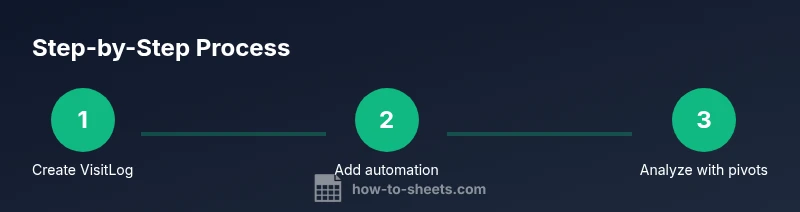
Add a dedicated VisitLog tab with columns for VisitID, UserEmail, Timestamp, EventType, SheetName, AffectedRange, and Description. Define VisitID as an auto-generated unique key and ensure the sheet name is clearly labeled. This provides a consistent schema to capture all events.
Tip: Use data validation for EventType to keep entries consistent (Open, Edit, Comment, Share). - 2
Set up automatic timestamps (optional)
If you enable Apps Script, attach an onEdit trigger to append the current timestamp and user email whenever relevant edits occur. This reduces manual entry and improves accuracy.
Tip: Test your script on a copy of the workbook before deploying. - 3
Capture key events from your main data tab
Identify which actions you want to log (e.g., edits, comments). Ensure your template references the sheet and range affected to provide precise traceability.
Tip: Limit the fields to essential data to keep the log readable. - 4
Configure a pivot table for analytics
Create a Pivot Table on a new sheet to summarize events by UserEmail, EventType, and date. This helps you see who did what and when at a glance.
Tip: Add a date filter to focus on a specific period. - 5
Visualize activity with charts
Create a few charts (bar chart by user, line chart over time) to present activity trends in meetings or reports. Align colors with your brand for consistency.
Tip: Keep charts linked to the Pivot Table data to reflect updates automatically. - 6
Enforce privacy and sharing controls
Apply protection to the VisitLog cells, restrict who can edit the log, and set file sharing permissions to view-only for most teammates. Document retention limits and review cadence.
Tip: Regularly audit access and remove former collaborators.
FAQ
What is meant by google sheet visit history?
It is a log of user activity in a Google Sheet, including openings, edits, shares, and comments. It helps you audit who did what and when.
A visit history is a log of who accessed or edited a sheet and when.
How can I automatically log visits?
Use Google Apps Script with an onEdit trigger to append a timestamped entry to a VisitLog tab whenever edits occur.
Use Apps Script to auto-log edits into the VisitLog.
What are best practices for sharing logs?
Limit access to the log, use protected ranges, and implement a clear retention policy to balance transparency with privacy.
Keep logs secure and limit who can view or edit them.
Can I export visit history to CSV?
Yes. You can export the VisitLog to CSV or copy data to another Sheets file for reporting.
You can export the log to CSV for offline sharing.
What common mistakes should I avoid?
Relying on manual logging, inconsistent event types, and failing to protect privacy can undermine trust and accuracy.
Avoid manual reliance and keep privacy controls strict.
Watch Video
The Essentials
- Log visits consistently with a defined template
- Automate timestamps where possible to improve accuracy
- Pivot and visualize activity for quick insights
- Prioritize privacy and secure access to logs
- Review and revise the process regularly