Protect Google Sheets: A Practical Security Guide
Learn practical, step-by-step methods to protect Google Sheets from unauthorized access. Tighten sharing, lock sensitive ranges, enable version history, audit add-ons, and implement governance for teams, students, and small businesses.


This guide shows you how to protect Google Sheets by tightening sharing, locking ranges, enforcing access controls, and monitoring changes. You'll need admin access (if using Google Workspace), a current sheet with edit rights, and a plan for ongoing auditing. How To Sheets provides practical steps, templates, and checklists to protect Google Sheets.
Why protecting Google Sheets matters
According to How To Sheets, many accidental data exposures in Google Sheets happen when sharing settings aren’t reviewed regularly or when access is inherited from a parent folder. In 2026, How To Sheets Analysis highlights that teams often underestimate the risk of external collaborators or misconfigured protected ranges. The consequence can be sensitive data viewed by unintended people, or accidental edits that disrupt workflows. By taking a proactive stance, you create a safer collaboration environment for students, professionals, and small business owners who rely on Google Sheets for budgeting, project tracking, and data analysis. The goal here is not to stop collaboration but to ensure that the right people have the right level of access at the right time. Implementing layered protections—starting with who can access the file, then what they can do, and finally how activities are monitored—gives you an auditable, resilient structure that scales with your team.
Beyond basic sharing, consider the context of your data. A financial tracker may require stricter controls than a shared list of to-dos. The strategies in this article are designed to be practical, actionable, and adaptable to different roles—from students sharing class projects to small business owners coordinating with freelancers. Throughout, you’ll see concrete steps, checklists, and templates you can adopt or customize. As you implement protections, you’ll also build a transparent governance model that makes it clear who can change protections and how changes are validated. The How To Sheets team emphasizes that consistency matters: use standardized protections across files to reduce risk and confusion.
noteId”:null},
Tools & Materials
- Google account with edit access to the target sheet(Needed to apply protections and review sharing settings.)
- Google Workspace Admin Console access (for domains using Workspace)(For organization-wide controls, user provisioning, and audit trails.)
- Current backup strategy (version history, snapshots, or manual backups)(Ensure you can recover data if protections block legitimate edits.)
- Access to the sheet’s parent folder permissions(Protection inherits from folder or drive permissions; verify hierarchy.)
- How To Sheets templates or a ready-made checklist(Optional starter templates to speed setup.)
Steps
Estimated time: 60-90 minutes
- 1
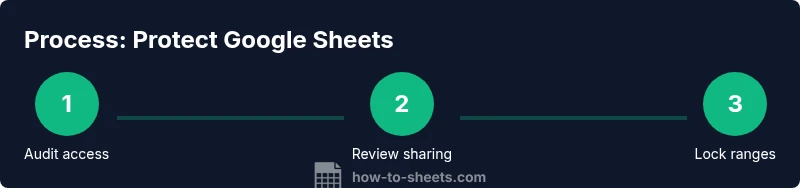
Audit access and ownership
Begin by listing all users who have access to the sheet and identifying the owner. Check who can edit, comment, or view, and note any external guests. This audit helps you tailor protections without breaking essential collaboration. Document ownership to simplify future changes.
Tip: Use the Share dialog and the “Manage access” pane to see who has what permission and revoke access for anyone who doesn’t need it. - 2
Review and tighten sharing settings
Review link sharing and folder-level permissions. If a link is accessible to anyone or to a broad group, restrict it to specific people or verified domains. Apply the principle of least privilege and avoid blanket access.
Tip: Prefer inviting individuals or groups rather than sharing with a public link; if public access is required, set it to “Viewer” only where appropriate. - 3
Lock sensitive sheets or ranges
Identify sheets or ranges with sensitive data (budgets, personal data, project codes) and apply protected ranges. This prevents edits by unauthorized users while allowing needed collaboration elsewhere in the sheet.
Tip: Test protections with a non-admin account to verify only intended edits are allowed. - 4
Enable version history and backups
Turn on and review version history regularly. Create a routine backup cadence for critical files, ensuring you can restore to a clean state after a protection change or incident.
Tip: Schedule periodic backups and keep a log of when protections were changed. - 5
Set up least-privilege access groups
If you use Google Groups, assign editors and viewers by group rather than individuals. This makes ongoing governance easier as membership changes occur.
Tip: Use domain-wide groups for consistency across multiple sheets and projects. - 6
Review scripts and add-ons
Audit any Apps Script, add-ons, or third-party integrations connected to the sheet. Disable or restrict those that could bypass protections or expose data.
Tip: Test integrations in a controlled environment before re-enabling them in production sheets. - 7
Establish ongoing governance and monitoring
Create a documented policy for protection steps, review cadence, and incident response. Schedule quarterly audits and assign ownership for maintaining protections.
Tip: Set calendar reminders for reviews and publish the policy to your team.
FAQ
What does protecting Google Sheets involve?
Protection involves controlling who can view or edit the sheet, restricting access with protected ranges, and maintaining an audit trail through version history. The goal is to prevent data leaks and unintended edits while preserving collaboration where appropriate.
Protection means controlling access, locking sensitive parts, and keeping a log of changes so you can recover easily if something goes wrong.
Who should guard sheet protections in a team?
Typically the owner or designated admin is responsible for initial protections, with formal governance for ongoing reviews. Teams can share responsibility by assigning editors to approved roles and regularly auditing permissions.
Owners or admins set the rules, and teams follow up with periodic checks so protections stay effective.
Can I protect specific cells or ranges?
Yes. You can create protected ranges that lock particular cells or areas while allowing others to edit. This is ideal for formulas, sensitive data, or critical headers.
Yes—protect specific ranges to block edits while allowing normal collaboration elsewhere.
What should I do if protections block legitimate edits?
If legitimate edits are blocked, review the permissions, check the protected ranges, and adjust as needed. Use version history to revert to a known good state if necessary.
If you’re blocked, recheck protections and use version history to undo unintended changes.
Does protecting sheets affect collaboration?
Protections can limit collaboration if misapplied. The key is targeted protections and clear communication so teammates know what can be edited and by whom.
Yes, protections affect collaboration, but they keep data safe when applied thoughtfully.
Are there ready-made templates or checklists?
Yes. Start with a standard protection checklist and adapt templates to fit your team’s needs. This speeds up consistent protection across files.
Yes—templates and checklists help you apply protection quickly and consistently.
Watch Video
The Essentials
- Audit access before changing protections
- Use protected ranges for sensitive data
- Enable and review version history regularly
- Limit sharing to specific people/domains
- Maintain an auditable governance process