Secure Google Sheets: Data Security Best Practices
Learn practical, step-by-step ways to secure Google Sheets: implement access controls, protect sensitive data, audit activity, and apply admin settings to safeguard information.


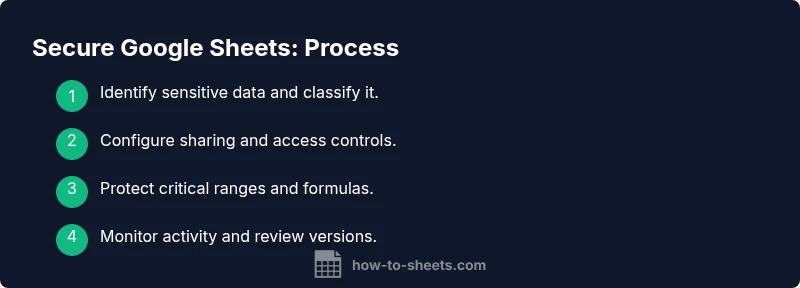
Secure Google Sheets by tightening access, protecting critical ranges, and auditing activity. This quick path shows you how to configure sharing, guard formulas, and apply admin-level controls so teams collaborate safely without hindered workflows. Implementing these steps establishes safe sharing, reduces data leaks, and maintains compliance across projects and departments.
Why securing Google Sheets matters
In organizations of any size, google sheets often hold sensitive data—budgets, client lists, project roadmaps, and personal information. Improper sharing or weak permissions can lead to accidental exposure, data leaks, or compliance failures. Securing secure google sheets isn't about slowing work; it's about building trust and enabling collaboration without sacrificing privacy. According to How To Sheets, a proactive security approach starts with a clear data inventory and disciplined access practices. When you know what needs protection and who should see it, you can apply targeted controls rather than blanket restrictions. This alignment helps teams balance safety with productivity, reducing risk while maintaining smooth workflows. By codifying a simple security routine, you create a resilient foundation for teamwork across departments and projects.
Core principles of secure sharing in Sheets
Effective security rests on a few durable principles: least privilege, need-to-know access, and ongoing visibility. The least-privilege model means users receive only the access level required for their role—viewer, commenter, or editor. Implementing domain-restricted sharing, when available, reduces exposure by preventing access from untrusted accounts. Visibility means you can see who accessed the sheet and what actions they took, which helps detect anomalies early. Finally, separation of duties—owners configuring permissions while admins enforce broader policies—minimizes the risk of accidental misconfigurations. In practice, these ideas translate into concrete steps: set precise sharing settings, avoid sharing via public links, and schedule periodic reviews of collaborators. Adopting these principles makes it easier to scale security as teams grow and projects evolve, without interrupting collaboration. For teams using Google Workspace, these controls are complementary to stored data protections and device security policies.
Access controls: sharing settings and permissions
Tighten access by using the Share dialog to assign roles carefully. Start by setting the link sharing to Restricted and avoid public links. Add only specific people or groups, and prefer viewers or commenters for readers who don’t need editing rights. Disable editors from changing access or adding new people when possible, and use the gauge of organizational groups to simplify management. If your domain supports it, enable domain-restricted sharing to prevent outsiders from joining a sheet you’re working on. Regularly review collaborators and remove anyone who no longer requires access. These steps combine to create a defensible perimeter around your data, letting teammates collaborate without widening exposure. As How To Sheets emphasizes, governance beats guesswork when teams scale up.
Protecting data within sheets: protected ranges and data validation
Protect sensitive cells and formulas using protected ranges and sheet protection settings. Lock critical columns containing personally identifiable information or financial figures, and require a password or owner approval to edit. Use data validation to prevent invalid entries that could lead to data leakage or inconsistent records. Consider hiding sensitive sheets or consolidating them into separate workbooks with stricter access. When sharing, ensure that non-essential data cannot be copied, exported, or printed by viewers. These protections act as a safety net for human error and accidental sharing, while preserving the normal editing flow for authorized users.
Data privacy in formulas and hidden content
Be mindful that formulas can reveal sensitive inputs or calculations. Where possible, move confidential calculations to protected ranges or separate sheets with restricted access. Avoid embedding secrets or API keys directly in formulas or cells; instead, reference them through secure named ranges or script properties managed by administrators. If you must share a sheet with others, review any visible formulas, comments, or notes that could disclose sensitive data. This discipline reduces the risk that a simple copy operation leads to unintended data exposure, and it complements broader data governance policies.
Audit trails and version history
Google Sheets maintains a history of edits and allows restoration to prior versions. Regularly review version history to detect unexpected changes, especially after granting temporary access. Named versions can help you track significant milestones or policy updates. If something looks off, revert to a known-good version and re-evaluate access controls. Maintain a lightweight audit routine: periodically scan recent changes, confirm responsible editors, and document any permission alterations for accountability.
Admin controls and domain policies
Administrators should enforce organization-wide sharing policies from the Google Workspace Admin Console. Configure external sharing controls, guard against third-party app access, and apply organization-level password or device security requirements. Align Sheets security with device management and data loss prevention policies to ensure a consistent security posture across tools. When users transition teams or roles, revoke access promptly and reassign ownership to prevent orphaned access. A centralized control plane makes it easier to enforce policy and reduce risk across dozens or hundreds of sheets.
Safe templates and automation
Templates should ship with clear data classifications and built-in safeguards. Avoid embedding secrets in templates or sample data; instead, use placeholders that are replaced at runtime or via secret management tools. If you use Apps Script or add-ons, review permissions and restrict scopes to the minimum necessary. For automated data flows, ensure that triggers run under restricted accounts and that all endpoints enforce authentication, encryption, and least privilege. These practices prevent accidental leakage and help maintain a consistent security model during rapid template reuse and automation.
Practical security checklist and next steps
Start with a quick, practical checklist: identify sensitive data, review access, lock critical cells, and enable version history. Schedule periodic reviews of collaborators and automate alerts for permission changes. Document your data classifications and update templates to prevent leakage. Finally, align with your organization’s security policies and share the plan with stakeholders to ensure accountability and ongoing improvement.
Tools & Materials
- Google account with owner/editor access(Ensure 2FA is enabled and recovery options are up to date)
- Secure browser and network(Use trusted devices; avoid public Wi-Fi when editing sensitive sheets)
- Access to the target sheet's sharing settings(Use the Share dialog to assign precise roles)
- Data classification policy (optional)(Pre-label data and set handling rules)
Steps
Estimated time: 60-120 minutes
- 1
Identify sensitive data and classify it
Take stock of columns and sheets that contain personal data, financial figures, or strategic information. Create a simple classification (public, internal, restricted) to guide access decisions. Document this mapping so everyone understands what needs protection.
Tip: Start with a data inventory before changing permissions - 2
Review current sharing and revoke unnecessary access
Open the Sheet’s Share settings, confirm who has access, and remove anyone who no longer needs entry or view. Turn off link sharing where possible and switch to restricted access for external users.
Tip: Use the “advanced” settings to see groups and nested permissions - 3
Assign precise roles to collaborators
Assign viewers for read-only needs and editors only where edits are essential. Avoid granting comment-only access if users must modify data. Document roles to keep a policy reference.
Tip: Prefer groups over individual users for easier management - 4
Protect critical ranges and formulas
Set protected ranges around sensitive cells or formulas. Require the sheet owner’s approval to edit protected zones and consider hiding columns with data that should not be revealed.
Tip: Combine with data validation to prevent bad entries - 5
Enable version history and named versions
Turn on and review version history regularly. Create named versions after major policy changes or data migrations to facilitate rollback.
Tip: Use named versions to mark policy or access-control updates - 6
Leverage admin controls and domain policies
If you’re in Google Workspace, use the Admin Console to enforce external sharing restrictions and device security policies that apply to Sheets.
Tip: Synchronize with your security team for consistency - 7
Design templates and automation securely
Build templates with clear data domains and avoid embedding secrets in formulas or scripts. Review Apps Script permissions and limit their access to only required scopes.
Tip: Audit automations for security before deployment - 8
Run ongoing security checks
Set up a repeating security check: verify classifications, review access logs, and test that data cannot be extracted by non-privileged users.
Tip: Automate alerts for permission changes where possible
FAQ
How do I restrict access to a Google Sheet?
Use the Share dialog to assign roles and keep link sharing restricted. Remove collaborators who no longer need access and audit permissions periodically.
Use the Share dialog to assign roles and keep link sharing restricted; remove unnecessary collaborators and audit access regularly.
What are the differences between viewer, commenter, and editor roles?
Viewers can only view content, commenters can leave feedback, and editors can modify data. Choose the minimal role needed for each person to reduce risk.
Viewers see data, commenters can provide feedback, editors can change data; assign only what's needed.
How can I audit who accessed or edited a sheet?
Rely on version history to see changes and restore previous states. Use the activity panel to detect unusual edits and review permissions after changes.
Version history shows edits; use the activity panel to spot unusual changes and review who had access.
Should I enable domain-restricted sharing?
Yes, when available, domain-restricted sharing limits access to your organization’s accounts, reducing risk from external users.
Domain restricted sharing helps keep access inside your organization.
What can I do to protect formulas or hidden content?
Place sensitive formulas in protected ranges and hide sheets when appropriate. Avoid exposing keys or secrets in visible cells.
Protect formulas and hide sensitive content to prevent exposure.
Is Apps Script secure for Sheets?
Use Apps Script with restricted scopes and review permissions before deployment. Treat external script access as a potential risk and limit it accordingly.
Apps Script can be secure if you limit permissions and review access.
Watch Video
The Essentials
- Define and enforce access roles.
- Prefer domain-restricted sharing over public links.
- Use protected ranges for sensitive data.
- Regularly review activity and restore versions.
- Limit API access; monitor automation.