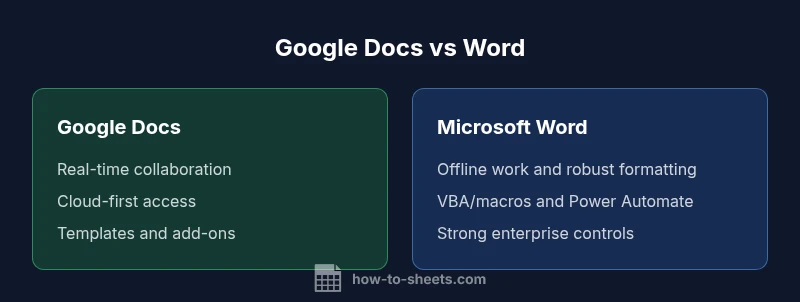
Google Docs vs Word: A Practical 2026 Comparison
An in-depth, analytical comparison of Google Docs and Microsoft Word for students, professionals, and small businesses, covering collaboration, offline access, formatting, templates, cost, and security.


For most teams in 2026, Google Docs excels at real-time collaboration, cloud accessibility, and low-friction onboarding, while Microsoft Word remains the strongest choice for offline work, advanced formatting, and enterprise-grade features. The optimal approach is a hybrid workflow that leverages both tools where each shines, aligning with your organization’s infrastructure and goals.
what is google docs vs word: Quick primer
In 2026, understanding what is google docs vs word helps teams decide how to allocate time and money. Google Docs is a cloud-native word processor that emphasizes real-time collaboration, auto-saving, and cross-device access. Microsoft Word remains the de facto standard for robust desktop publishing, advanced formatting, and offline reliability. For many organizations, the best choice is not one tool but how they blend both into a workflow. This article examines the core differences, strengths, and trade-offs so you can make an informed decision. According to How To Sheets analysis, the most impactful distinction lies in the collaboration model and the way content is stored and shared. The guidance here aims at students, professionals, and small business owners seeking practical, step-by-step insights on how to maximize productivity while preserving data integrity.
Collaboration and workflow differences
Both Google Docs and Word offer collaboration features, but they differ in approach and emphasis. Google Docs centers on real-time co-authoring with instantaneous updates, cursors from multiple users, and seamless comment threads. Word, while supporting co-authoring via OneDrive or SharePoint, often emphasizes structured editing, track changes, and version history within a more traditional document-centric workflow. For teams with distributed members, Docs can reduce friction and accelerate approvals; for teams requiring formal review cycles, Word can provide a familiar, auditable process. How To Sheets’ practical guidance suggests mapping your collaboration needs to the tool’s strengths and setting clear expectations for how edits, comments, and approvals flow through the document lifecycle.
Formatting, templates, and automation
Formatting parity matters when teams move content across platforms. Google Docs prioritizes clean, readable defaults and rapid styling appropriate for online sharing, while Word offers deeper control over typography, section breaks, and advanced layout options. Templates in Docs are plentiful for everyday tasks, while Word templates often target professional publishing, resumes, reports, and complex mail-merge workflows. Automation in Google Docs can be extended with Apps Script and add-ons, whereas Word leverages VBA and Power Automate for enterprise-scale automation. When planning templates, consider who will maintain them and how export/import will be used to preserve fidelity across platforms.
File compatibility and data exchange
Interoperability is a practical concern in most organizations. Google Docs files export to and import from DOCX, PDFs, and other common formats, but fidelity can vary with complex formatting. Word thrives on native DOCX handling and very high fidelity when exchanging with other Microsoft products like Excel and PowerPoint. To minimize surprises, establish a standard export/import workflow, test critical documents, and keep a simple versioning policy. If your team migrates content between platforms, plan for potential formatting adjustments, such as fonts, heading styles, and bullet indents.
Offline access and reliability
Offline capabilities significantly influence your work style. Google Docs offers offline mode via the Chrome browser, syncing changes when online, which suits teams prioritizing uninterrupted access. Word provides robust offline functionality through its desktop application, delivering full feature parity without internet access. The trade-off is that some cloud-centric features may be unavailable when offline in Docs, while Word users can rely on a local file system and a familiar desktop environment. For risk-averse teams, maintaining an offline fallback for critical documents is prudent.
Security, governance, and compliance
Security considerations shape tool selection in regulated environments. Google Docs emphasizes real-time collaboration with centralized admin controls, data loss prevention, and granular sharing settings within Google Workspace. Word, integrated with Microsoft 365, offers enterprise-grade security, conditional access, and rich governance policies via Azure AD and advanced data protection features. The right choice depends on your organization's compliance obligations, data residency preferences, and existing identity management. Both platforms support auditing and version history, but the depth of controls and the ease of enforcing policies can differ markedly across domains.
Cost, licensing, and access models
Cost considerations influence long-term planning. Google Docs is included in free Google accounts with limitations, with paid Google Workspace plans adding more storage and admin features. Word typically requires a Microsoft 365 subscription or a one-time purchase for standalone apps, with additional costs for business-grade features and cloud services. When budgeting, consider not only the per-seat price but also related factors like storage, support, training, and potential integration costs. For many small teams, the total cost of ownership may be lower with Docs for collaboration-focused work, while organizations needing robust offline capabilities and enterprise controls may find Word more cost-effective over time.
Platform availability and ecosystem
Both tools aim to cover multiple platforms. Google Docs is inherently web-centric with strong mobile apps and browser-based access, which makes cross-device collaboration straightforward. Word offers a mature desktop experience on Windows/macOS, with cloud and mobile apps that integrate deeply with other Microsoft products. The ecosystem matters: if your team relies heavily on SharePoint, Teams, or Exchange, Word’s integration can be advantageous; if your stack leverages Google Workspace tools (Gmail, Drive, Meet), Docs may fit more naturally. Cross-compatibility and consistency across devices should be part of your deployment plan.
Best use cases by scenario
For student assignments, joint editorial projects, and teams prioritizing low-friction collaboration, Google Docs shines. For formal documents, lengthy reports with complex formatting, and environments where offline access is non-negotiable, Word proves superior. In mixed environments, a hybrid approach—creating and collaborating in Docs, then exporting to Word for final formatting or archival storage—can deliver the best of both worlds. The key is to align tool choice with specific tasks, roles, and timelines.
Hybrid workflows and integrations
Hybrid workflows can unlock productivity by combining the strengths of both ecosystems. Use Docs for drafting, commenting, and quick revisions with automatic cloud backups; then convert to Word for professional layout, printing, or retention requirements. Both platforms offer integration points with cloud storage, email, and project management tools. Plan data handoffs carefully, define when to convert formats, and ensure that your version control remains clear to avoid duplicate edits or lost changes. A well-documented process reduces friction and enhances team alignment.
Migration tips: moving content between Docs and Word
Content migration is rarely seamless on the first try. Start with a pilot document to identify formatting breakpoints (fonts, headers, lists, tables) and adjust templates accordingly. Maintain a central repository of master styles and apply them consistently after conversion. Leverage export/import options (DOCX, ODT, PDF) and verify embedded media, footnotes, and citations. Document any quirks and share best practices with your team so future migrations are faster and less error-prone.
Practical decision framework and quick-start plan
Create a decision framework that weighs collaboration needs, offline requirements, and formatting complexity. Start with a high-level map: when to use Docs, when to use Word, and how to move content between them. Implement a short, repeatable onboarding checklist for new users including how to access templates, where to store files, and how to manage permissions. A simple three-stage plan—pilot, scale, and optimize—helps teams adopt the right balance of tools without sacrificing productivity.
Comparison
| Feature | Google Docs | Microsoft Word |
|---|---|---|
| Collaboration & sharing | Real-time co-authoring with live cursors | Co-authoring via OneDrive/SharePoint with track changes |
| Offline access | Offline mode via browser app; edits sync when online | Full offline desktop app; offline edits sync when connected |
| Formatting & styles | Cloud-based styles; simple typography controls | Advanced typography; extensive layout options and sectioning |
| Templates & automation | Templates and add-ons; Apps Script integration | Rich templates; VBA/macros; Power Automate integrations |
| File compatibility | Exports to DOCX/PDF; good interop with Word | Native DOCX; strongest in Microsoft ecosystem |
| Cost & access model | Free tier; paid Google Workspace for business | Office 365 subscription or standalone licenses |
| Platform availability | Web-first with mobile apps | Desktop-first with cross-platform apps |
| Advanced features | Comments, suggestions, version history; Apps Script | Extensive formatting, mail merge, Power BI/Power Automate flows |
| Security & governance | Admin controls, data loss prevention in Workspace | Enterprise-grade controls via Azure AD and M365 security |
The Good
- Strong real-time collaboration and cloud accessibility
- Low upfront cost for individuals; free tier available
- Automatic saving and easy access across devices
- Good cross-format import/export options
- Wide selection of templates and simple automation options
The Bad
- Advanced desktop features may be stronger in Word
- Offline functionality can be less intuitive for some users
- Macro and automation options are less mature than Word's VBA
- Enterprise controls can be more complex to configure than in Word
Word is stronger for offline work and advanced formatting; Docs excels in collaboration and cloud-first workflows
For teams prioritizing real-time collaboration, Docs is often the better starting point. If offline access, heavy formatting, or enterprise governance are top priorities, Word is typically the safer bet. A hybrid approach can capture the strengths of both tools.
FAQ
Is Google Docs better than Word for collaboration?
For teams that rely on real-time collaboration, Google Docs typically offers more fluid multi-user editing and faster feedback loops. Word also supports collaboration, but its strongest advantages lie in desktop-based workflows and controlled review processes. The best choice depends on your collaboration model and tooling ecosystem.
Docs shines for real-time team editing, while Word supports structured reviews. Your setup will determine which is better for you.
Can I work offline in Word and Google Docs?
Yes. Word has robust offline support via its desktop app, letting you work without internet. Google Docs offers offline mode, but it relies on browser capabilities and requires initial setup. Consider your internet reliability when choosing which tool to rely on offline.
Word works offline very well. Docs can work offline too, but make sure offline mode is set up.
Is there a free version of Word for students?
Microsoft often provides Word through an education license or as part of the Microsoft 365 Education package. Availability varies by institution and region. Check with your school or Microsoft account to verify eligibility and access.
Students should check their school’s license or Microsoft’s education offers for Word access.
Can content move between Docs and Word without losing formatting?
Content can be moved via DOCX and other formats, but complex layouts, fonts, and specialized styles may require manual adjustment after conversion. Plan for a formatting review post-migration and maintain versioned templates to minimize drift.
You can move content, but expect some formatting tweaks after conversion.
Should I use both tools in a hybrid workflow?
A hybrid workflow often yields the best results: draft and collaborate in Docs for speed, then finalize formatting in Word for professional output or archival purposes. Define clear handoff points and ensure consistent templates across platforms.
A hybrid approach often gives you the best of both worlds; start with Docs for collaboration, finish in Word for polish.
The Essentials
- Choose Docs for collaboration-heavy tasks
- Choose Word for offline work and advanced formatting
- Plan content migration between platforms to preserve fidelity
- Leverage templates and automation relevant to your workflow
- Assess security and licensing to fit your organizational needs