Google Docs vs Word: Practical Difference Explained
A thorough, analyst-style comparison of Google Docs and Microsoft Word, focusing on collaboration, offline access, formatting, and ecosystem impact for students, professionals, and small businesses.


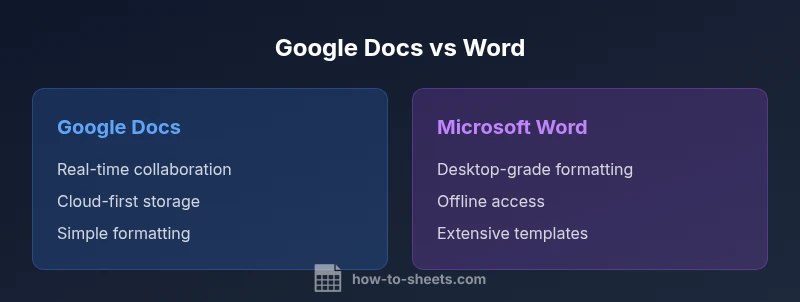
The difference between Google Docs and Microsoft Word centers on collaboration, offline access, and ecosystem alignment. Google Docs excels in real-time collaboration, cloud-first workflows, and simple sharing, while Word offers richer typography, advanced layout controls, offline productivity, and a deeper feature set. For teams prioritizing collaboration and cross-device access, Google Docs is often the better choice; for document publishing, complex formatting, and offline work, Word remains superior.
Understanding the difference between google docs and microsoft word
The difference between google docs and microsoft word is not merely about where files live; it reflects divergent design philosophies and target workflows. In a classroom, a startup, or a corporate environment, the choice you make affects how you create, edit, and share documents. The keyword difference between google docs and microsoft word becomes especially relevant when evaluating collaboration speed, offline reliability, formatting depth, and ecosystem integration. According to How To Sheets, the decision often hinges on whether your priority is cloud-native collaboration or desktop-grade publishing power. The two tools sit at opposite ends of a spectrum, with Word leaning toward traditional document publishing and Google Docs emphasizing lightweight, agile teamwork. In practice, most teams will operate in a hybrid mode, but the core trade-off remains clear: cloud-first convenience versus desktop-grade control.
For students, professionals, and small business owners, the question is not which tool is universally “best,” but which tool best fits the task at hand. If your week involves frequent co-editing, quick turnaround times, and shared documents that update in real time across devices, Google Docs offers a straightforward path. If your tasks demand advanced typography, long-form formatting, complex templates, and robust offline work, Word provides a more mature feature set. This balanced view will guide you through concrete criteria—collaboration, formatting, accessibility, and deployment—so you can pick the option that aligns with your workflow. How To Sheets’s analysis highlights that the best choice often depends on the primary use case and team dynamics.
wordCount”:238},
Comparison
| Feature | Google Docs | Microsoft Word |
|---|---|---|
| Offline Access | Best-in-class online-first experience with easy offline access via browser/mobile apps | Full offline desktop experience with local files and rich desktop features |
| Real-time Collaboration | Instant, simultaneous editing with live cursors and version history | Co-authoring exists but can be slower with complex documents; best with Office 365 integration |
| Formatting Capabilities | Simple, clean styling suitable for quick drafts | Advanced typography, layout controls, and publishing-ready formatting |
| Templates/Styles | Growing library of templates and styles; lightweight customization | Extensive templates, styles, and advanced theme management |
| File Compatibility/Export | Export to PDF, Word, and various formats; seamless Google Workspace integrations | Native DOCX support; robust export options to PDF, RTF, HTML, and more |
| Platform Availability | Web, iOS, Android; optimized for collaboration across devices | Windows, macOS, web; strongest on desktop with offline capability |
| Add-ons/Integrations | Many add-ons and Google Workspace integrations | Office add-ins and a deep Office ecosystem |
| Cost/Subscription | Free with a Google account; paid tiers mainly for storage and enterprise tools | Part of Microsoft 365; standalone Office may require purchase or subscription |
The Good
- Real-time collaboration and automatic saving in Google Docs
- Rich typography and desktop publishing capabilities in Word
- Cloud-first access enables easy sharing across teams
- Cross-platform availability with consistent experiences across devices
The Bad
- Requires internet for optimal experience in Google Docs
- Less mature offline capabilities compared to Word
- Formatting depth may be limited in Google Docs for publishing-heavy workflows
- Office ecosystem licensing can complicate budgeting for small teams
Word is best for offline productivity and complex formatting; Google Docs excels in collaboration and cloud-based workflows.
Choose Word when document publishing, advanced typography, and offline reliability are priorities. Opt for Google Docs when real-time collaboration and effortless sharing across devices drive your daily tasks.
FAQ
What is the primary difference between Google Docs and Microsoft Word in terms of collaboration?
Google Docs supports real-time collaboration with live cursors and automatic saving, while Word’s collaboration relies more on Office 365 co-authoring features and sync across devices. For teams needing instant multi-user editing, Docs tends to be smoother.
Google Docs is best for real-time teamwork; Word supports collaboration but might be slower for large co-authored documents.
Which tool is better for offline work?
Word has stronger offline functionality with a mature desktop app and local file access. Google Docs works well offline via the browser or mobile apps, but the experience isn’t as feature-rich as Word’s desktop counterpart.
If you need strong offline capabilities, Word is usually the safer bet.
Can I convert Google Docs to Word and vice versa without losing formatting?
Both directions are supported, but some formatting nuances may shift during conversion. It’s advisable to review key elements like fonts, paragraph styles, and page layout after converting.
Conversions work, but check formatting afterward.
Is Google Docs more cost-effective for students?
Google Docs is free with a Google account, which is often sufficient for students. Word/Office 365 may require a subscription for access to the full feature set.
Docs typically costs less upfront for students, unless they need advanced Word features.
Which platform runs Google Docs best on?
Google Docs is optimized for web use across browsers and mobile apps, with seamless syncing and access from any device with internet. Word runs best on Windows and macOS with a strong desktop feature set.
Docs shines online; Word dominates desktop experiences.
Are templates and styles comparable between the two?
Word has a broader library of templates and more advanced style management. Google Docs offers a solid selection of templates and styles that are quick to customize for everyday documents.
Word has more templates; Docs is simpler to customize.
What about file compatibility when sharing between systems?
DOCX is the standard for Word, while Google Docs uses its native format and can export to DOCX or PDF. Cross-compatibility is generally good, but some features may not translate perfectly.
Compatibility is strong, but some advanced features may shift during conversion.
The Essentials
- Prioritize collaboration if cloud-based editing is central.
- Assess offline needs before choosing Word for heavy document work.
- Weigh ecosystem alignment and add-ons when integrating with other tools.
- Consider licensing costs based on team size and required features.
- Test a hybrid approach for teams with mixed requirements.