Google Docs vs Word: Is Google Docs the Same as Word?
Compare is google docs the same as microsoft word across collaboration, formatting, offline access, and integrations to help you choose the right word processor.


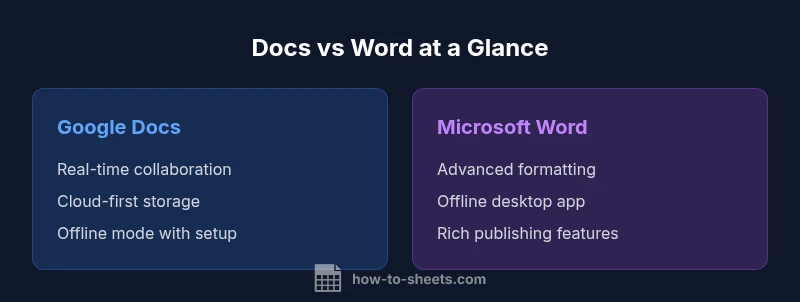
If you're wondering is google docs the same as microsoft word, the answer is nuanced: both deliver core word-processing features, but they differ in collaboration, offline access, and ecosystem. The How To Sheets team finds real-time co-authoring and cloud access in Docs, versus advanced formatting and offline reliability in Word. Your choice should align with teamwork needs and print-ready requirements.
Is Google Docs the Same as Microsoft Word? Key Considerations
If you're asking is google docs the same as microsoft word, the answer is nuanced. Both tools provide core word-processing capabilities, but they differ in how they store files, collaborate, and fit into broader workflows. According to How To Sheets, these differences matter most when you collaborate with others, need access across devices, or require advanced formatting. This section frames the distinction and sets up a practical framework for your decision.
Core Differences in Philosophy and Architecture
Google Docs is designed as a cloud-native word processor meant to live in the browser and sync across devices. Microsoft Word started as a desktop application with powerful formatting tools and a strong offline pedigree. The result is two different design philosophies: Docs prioritizes simplicity, collaboration, and live editing in the cloud; Word emphasizes feature depth, printer-ready layouts, and offline productivity. For users who frequently move between devices, the cloud-first model can reduce friction; for power users who need granular control over typography and long, complex documents, Word often provides richer capabilities. How To Sheets also notes that organizational policy and IT infrastructure often tilt teams toward one ecosystem or the other.
Real-World Use Cases: When Google Docs Shines vs when Word Shines
In group projects or classrooms with distributed teams, Google Docs shines with real-time collaboration, comments, and instant sharing. For research reports, proposals, and legal drafts with intricate formatting, Word's advanced styles, table of contents, and layout controls can save time. How To Sheets observes that many teams start in Docs to draft quickly and switch to Word for final formatting or client-ready deliverables, then re-export back to DOCX or PDF when needed.
Formatting, Styles, and Templates
Word offers a mature set of formatting options, nuanced typography, paragraph settings, and a broad template library for professional documents. Google Docs provides a solid baseline with clean styles, headings, and simple templates, but it tends to favor consistency and simplicity over deep typographic control. If your work involves complex page layouts, long manuals, or print-ready flyers, Word more often meets those demands; for quick, clean documents shared among teammates, Docs can be faster and easier.
Collaboration, Sharing, and Version History
Google Docs excels at collaboration: multiple people can edit simultaneously, presence indicators show who is viewing, and comments thread inline with edits. Word supports collaboration through tracked changes, comments, and sharing via OneDrive, but the live co-author experience is generally smoother in Docs. When teams require auditable version history with granular change control, Word’s Track Changes provides robust author attribution, while Docs stores versions automatically in Drive.
Offline Access and Cross-Device Experience
Offline access is a core factor. Google Docs can operate offline after enabling the feature; edits sync when online, reducing downtime during connectivity issues. Word offers strong offline capability as a desktop application with full feature parity, plus local storage and seamless re-open of large documents. If you travel frequently or work in environments with unreliable internet, Word’s offline reliability can be a decisive advantage; Docs can match this, but with a few extra setup steps.
File Formats, Interoperability, and Export/Import
Interoperability matters for teams that move documents across ecosystems. Google Docs natively uses its own format but can export to DOCX, PDF, ODT, and others, enabling smooth handoffs to Word users. Word can open DOCX and export to PDF, HTML, and other formats, and integrates with email and cloud tools. For mixed environments, a typical workflow is drafting in Docs, exporting to Word for final polishing, then sharing the Word document with stakeholders who rely on Office features.
Cost, Licensing, and Long-Term Value
Google Docs is free with a Google account, with additional features in Google Workspace. Word is traditionally bundled with Microsoft 365; teams may incur per-user licensing costs, which can scale with feature sets and enterprise requirements. The long-term value depends on how you balance collaboration needs, offline productivity, and IT infrastructure. How To Sheets emphasizes evaluating total cost of ownership alongside feature requirements when choosing between these tools.
Accessibility, Language Support, and Integrations
Both platforms emphasize accessibility features, screen-reader compatibility, and keyboard navigation, but the depth of tool integration differs. Word integrates tightly with Windows accessibility features and the broader Microsoft ecosystem, while Docs connects seamlessly with Google Workspace apps (Sheets, Slides, Gmail) and third-party add-ons. Consider your team's preferred tools, add-on needs, and accessibility standards when assessing suitability.
Migration Paths: Moving Documents Between Docs and Word
Transferring content between Docs and Word is a common workflow. You can upload Word documents to Google Drive and open them in Docs, preserving much of the structure while enabling cloud collaboration. Conversely, you can download Docs files as DOCX and continue work in Word, maintaining compatibility with desktop and print workflows. Be mindful that some advanced Word features may translate imperfectly in Docs and vice versa, requiring manual adjustments.
Decision Framework: Quick Checklist for Students, Professionals, and Small Businesses
Use this framework to decide between Google Docs and Word. For students collaborating on class projects and needing quick sharing, start in Docs and switch to Word for final formatting if required. For professionals producing client-ready documents with complex layouts, prefer Word, and leverage Docs for drafting when collaboration is paramount. For small businesses balancing cost with broad team access, a mixed approach—Docs for drafts and Word for final deliverables—often delivers the best balance.
Common Myths and Pitfalls
Myth: Docs cannot handle large, print-focused documents. Reality: Docs handles many long documents, but Word offers more advanced layout control. Myth: Word is the only option for offline work. Reality: Docs supports offline mode, though Word provides more robust offline features by default. By separating myths from reality, you can plan a practical workflow that leverages the strengths of each tool while avoiding unnecessary workarounds.
Comparison
| Feature | Google Docs | Microsoft Word |
|---|---|---|
| Accessibility/Cross-Device Access | Cloud-based, browser-first, accessible from any device with internet | Desktop-first with strong offline support; cloud options available via OneDrive/Office 365 |
| Collaboration/Editing Experience | Real-time collaboration with presence indicators and comments | Co-authoring with comments and tracked changes; smoother on desktop with richer feature set |
| Offline Availability | Offline mode requires setup but works offline | Full offline capability with desktop installation |
| Formatting Depth | Good basic formatting and web-friendly templates | Advanced typography, layout controls, and print-ready features |
| Templates/Design Features | Templates focused on quick drafting | Extensive templates and design tools for professional documents |
| Interoperability | Exports to DOCX, PDF, etc.; seamless flow to Word | Native DOCX support with high fidelity when exporting |
| Cost & Licensing | Free tier with Google account; Workspace adds features | Office 365 licensing; cost scales with team size and features |
The Good
- Strong real-time collaboration and cloud-based access
- Cross-platform availability and automatic storage
- Automatic saving and version history improve reliability
- Extensive ecosystem of add-ons and templates
- Simple sharing and permissions management
The Bad
- Feature parity gaps for advanced formatting and publishing
- Offline performance varies and may require setup
- Migration may require manual adjustments for complex layouts
- Licensing costs can accumulate in larger teams
- Dependency on internet connectivity for best experience
Choose Docs for collaboration-first workflows; choose Word for advanced formatting and offline reliability
Docs wins when teamwork and cloud access matter most. Word wins for complex documents and offline productivity. A mixed workflow often balances both strengths.
FAQ
Can Google Docs fully replace Microsoft Word for professional publishing?
Google Docs offers solid word-processing and collaboration, but Word remains superior for advanced publishing and typography. For many teams, Docs handles drafts while Word is used for final layouts, depending on the project requirements.
Docs is great for team drafting, but Word excels in publishing-ready layouts.
Is offline access available in Google Docs, and how does it compare to Word offline?
Docs supports offline mode after enabling settings; changes sync when you go online again. Word offers robust offline capability as a desktop application with full feature parity, plus local storage and seamless re-open of large documents.
Docs can work offline with setup; Word works offline out of the box.
Which tool is better for real-time collaboration?
Google Docs excels at collaboration with simultaneous editing and live presence. Word supports collaboration through tracked changes and comments, but the live experience is often smoother in Docs.
Docs shines for live collaboration; Word is good with tracked changes.
Can I move documents between Google Docs and Microsoft Word without losing formatting?
You can move content by exporting or importing DOCX files; most basic formatting transfers well, but some advanced styles may require tweaks after conversion.
Export and import preserve most content, but some formatting may need tweaks.
Who should consider a mixed Docs-and-Word workflow?
Teams with frequent collaboration but periodic need for professional formatting benefit from drafting in Docs and finalizing in Word, then re-importing if needed.
Draft in Docs, polish in Word when you need advanced layouts.
Are there notable accessibility differences between the two tools?
Both tools provide accessibility features, but Word often has deeper Windows integration, while Docs relies on browser accessibility and Google ecosystem tools.
Word integrates deeply with Windows accessibility; Docs relies on browser tools.
The Essentials
- Prioritize collaboration first if teams work remotely
- Choose Word when design and offline capability are crucial
- Use export/import to bridge between formats
- Test a mixed workflow to balance cost and efficiency
- Consider total cost beyond upfront licensing