Laundry Google Sheets: Master Your Laundry Schedule
Learn how to use Google Sheets to track laundry loads, schedule wash days, and stay organized with practical templates and step-by-step guidance for students, professionals, and households.


Build a reusable laundry tracker in Google Sheets: log loads, assign machines, and schedule wash days. This quick, repeatable system helps prevent forgotten loads and keeps family chores organized at a glance.
Why laundry management matters
Effective laundry management isn't just about clean clothes—it's about reducing wasted time, avoiding duplicate loads, and keeping your household organized. A well-structured laundry tracker in Google Sheets helps you see at a glance what needs washing, who arranged the last cycle, and when the next load is due. By standardizing how you record each wash, you prevent mix-ups, save energy, and free up mental bandwidth for other tasks. The keyword here is consistency: when you consistently log every load, you can identify patterns like peak wash times or preferred machines, which leads to smarter planning. According to How To Sheets, turning laundry chores into a repeatable system begins with a clear plan and a simple sheet template. With a minimal setup, you unlock long-term time savings and more reliable routines for students, professionals, and families.
Key templates to start with
Start with a simple, modular set of templates you can reuse week to week. A Laundry Load Log captures each item, date, owner, and status; a Weekly Schedule layout shows when machines are available; and a Summary dashboard provides counts and overdue loads. These templates form the backbone of your system and can be expanded later with automation or pivot tables. Use a clean header row and freeze it, so scrolling remains comfortable. If you want to scale, you can add a second sheet for supplies (detergent, dryer sheets) or clothes types (cotton, synthetics) to track inventory alongside washes. The goal is a low-friction start that you can grow without reworking the entire sheet.
Data structure and formulas you’ll use
Plan your columns carefully. A typical setup includes Load ID, Date, Person, Item, Fabric, Color, Machine, Cycle, Start Time, End Time, Status, and Notes. Use data validation to limit entries for Machine (e.g., Washer 1, Washer 2), Cycle (e.g., Wash, Rinse, Dry), and Status (Pending, In Progress, Completed). Conditional formatting can highlight overdue days or long-running cycles. For calculations, basic formulas like IF, and COUNTIF or SUMIF help you track counts and totals. A simple weekly summary can be built with a QUERY or pivot table that aggregates loads by date and person. You can also create a timestamp-free date column to keep data clean. This structure keeps your data reliable and easy to analyze for patterns and optimization.
Step-by-step setup in 10 minutes
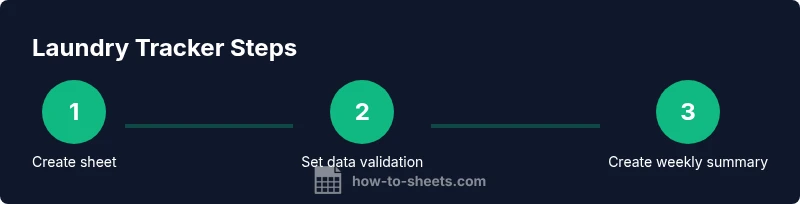
This quick-start guide walks you through creating a lean laundry tracker. First, create a new Google Sheet and name it clearly (e.g., Laundry Tracker 2026). Then, define columns as listed above and freeze the header row. Next, set up data validation for Machine, Cycle, and Status to enforce consistent entries. Add a date column with a standard date format, and create a basic summary area using a QUERY or pivot table. Finally, share the sheet with household members and set permissions. If you plan to reuse this weekly, save a copy as a template to speed future setups. Note: keep your sheet simple at first; you can add automation later as needed. Time estimate: about 15–25 minutes.
Tips for accuracy and consistency
- Pro tip: Use dropdowns for machine, cycle, and status to prevent typos and improve consistency.
- Warning: Do not mix time zones or date formats; use a single date format across the sheet.
- Note: Regularly back up the sheet and consider exporting a weekly snapshot for records.
In addition, consider adding a second sheet to store supplies and create a small dashboard that shows loads per week, average cycle duration, and machine usage. How To Sheets analysis shows that structured templates improve consistency and reduce time spent on coordination, especially when multiple people contribute to the data.
Common pitfalls and fixes
- Pitfall: Overcrowding data with too many fields. Fix: start small and add fields only when necessary.
- Pitfall: Inconsistent date formats. Fix: enforce a single date format via data validation.
- Pitfall: Sharing too broadly leading to edits confusion. Fix: adjust permissions to limit edits or track changes.
- Pitfall: Not backing up data. Fix: enable version history and periodically export the sheet.
The How To Sheets team recommends adopting a reusable laundry tracker in Google Sheets to stay organized and save time.
Tools & Materials
- Google account(Needed to access Google Sheets)
- Google Sheets(Web or mobile app; basic familiarity helps)
- Template file (DIY or ready-made)(Create your own or adapt a starter sheet)
- Optional hardware (scanner or phone)(Useful for barcode-style item IDs if used)
Steps
Estimated time: 15-25 minutes
- 1
Create and name your sheet
Open Google Sheets and create a new document. Name it clearly (e.g., Laundry Tracker 2026) to avoid confusion with other projects. This first step sets the project scope and makes future updates easier.
Tip: Use a descriptive name and freeze the first row to keep headers visible. - 2
Define data columns
Lay out the core fields: Load ID, Date, Person, Item, Fabric, Color, Machine, Cycle, Start Time, End Time, Status, and Notes. Clear definitions prevent ambiguity and make analysis simpler.
Tip: Keep column order logical: identifying information first, then status and timing. - 3
Set up data validation
Create dropdowns for Machine, Cycle, and Status to standardize entries. This reduces typos and makes filtering and totals reliable.
Tip: Use a separate sheet for dropdown lists and reference them in data validation rules. - 4
Add a date and time format
Configure the Date column for a consistent date format (yyyy-mm-dd). If you track times, set Start Time and End Time to 24-hour format. Consistency is key for analytics.
Tip: Avoid mixed locales; pick one date format and stick with it. - 5
Create a basic summary area
Use a QUERY or pivot table to summarize loads by date, person, or machine. Start simple and expand as needed.
Tip: A weekly view helps identify busy days and optimize machine usage. - 6
Share and set permissions
Share the sheet with household members or teammates and assign appropriate permissions. Consider viewer access for audit trails or editor access for active data entry.
Tip: Turn on version history to track changes over time. - 7
Test with sample data
Enter a few test loads to verify formulas, filters, and summaries. Check that totals and counts align with expected results.
Tip: Use a test dataset before going live to avoid surprises. - 8
Iterate and improve
Review the workflow after a week and adjust fields, validation, or visuals as needed. Small tweaks improve long-term usability.
Tip: Document changes so everyone stays aligned.
FAQ
How do I start a laundry tracker in Google Sheets?
Begin with a simple Load Log and a Weekly Schedule. Add data validation and a basic summary, then expand as you gain confidence.
Start with a simple Load Log and a Weekly Schedule, add validation, then grow your sheet as you get comfortable.
What columns are essential for tracking laundry?
Load ID, Date, Person, Item, Machine, Cycle, Start Time, End Time, Status, and Notes are a solid core. You can add Fabric and Color if you track those details.
Core columns include Load ID, Date, Person, Item, Machine, Cycle, Start Time, End Time, Status, and Notes.
How can I share the sheet with family members?
Use Google Sheets sharing settings to grant edit or view access. For accountability, assign specific roles and enable version history.
Share the sheet with specific people, set their roles, and use version history to track changes.
Can I automate reminders for laundry days?
You can set up simple reminders using Google Sheets scripts or by exporting data to Google Calendar. Start with a weekly view to visualize when cycles occur.
Yes, you can add reminders by syncing with Calendar or using scripts for alerts.
How do I summarize loads by week?
Create a pivot table or a QUERY that groups loads by date range and by person or item. This provides a quick snapshot of weekly activity.
Use a pivot table or QUERY to group loads by week and person.
Is Google Forms useful for data entry?
Yes. A simple Google Form can feed directly into your sheet, reducing manual entry and maintaining consistency.
A form can automatically feed data into your sheet for easier data entry.
Watch Video
The Essentials
- Define essential columns for consistent data
- Use data validation for standard entries
- Summarize weekly loads to spot patterns
- Share with household members to improve accountability
- Back up your sheet regularly