Excel vs Google Sheets vs Numbers: A Practical Comparison
Compare Excel, Google Sheets, and Numbers on features, compatibility, pricing, and collaboration to pick the best tool for students, professionals, and small teams.


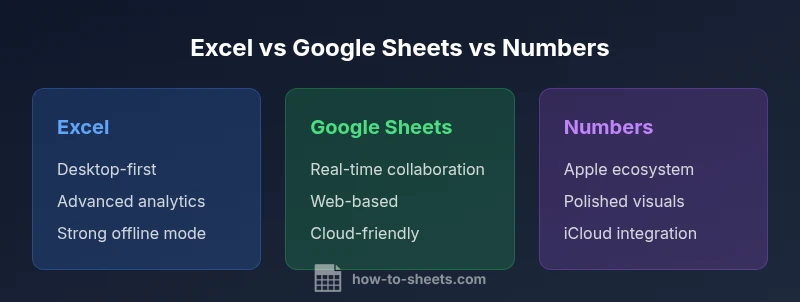
If you need real-time collaboration and cloud access, Google Sheets is often the best fit; for heavy data modeling and offline work, Excel remains strongest; if you’re deeply embedded in the Apple ecosystem, Numbers offers a polished, presentation-friendly option. In short, the best tool depends on your primary task: collaboration, analytics, or design-focused output. This comparison breaks down where each option shines and where it struggles.
The three contenders at a glance
In modern data work, teams choose among Excel, Google Sheets, and Numbers based on task scale, collaboration needs, and device ecosystems. This comparison helps you decide—whether you’re building a simple budget, running a multi-user project, or modeling complex datasets. According to How To Sheets, the most important decision factors are not only features but how you work, store data, and automate tasks across platforms. When evaluating excel vs google sheets vs numbers, you should consider data compatibility, offline access, and price. The How To Sheets team notes that in many organizations, the ability to collaborate in real time often outweighs the depth of individual formulas. By the end of this article you’ll know which tool best fits your goals, budget, and tech stack. This guide is designed for students, professionals, and small businesses who need actionable, step-by-step comparisons rather than theoretical claims. Across education, startups, and enterprise, the choice influences how you organize data, share work, and automate tasks. In this guide, we balance strengths and weaknesses, present objective criteria, and provide practical benchmarks you can apply to your own projects.
Core differences in data models and workflows
Excel emphasizes a traditional workbook model with powerful data analysis, PivotTables, and heavy numeric capabilities. Google Sheets centers on cloud-native collaboration, live editing, and seamless sharing across teams. Numbers offers a Mac-native experience with elegant templates and a focus on clean presentation. The data model shapes how you structure tables, named ranges, and cross-workbook references. The practical takeaway for most users is: map your typical tasks before choosing. If the job requires deep data modeling on a single machine, Excel is often the strongest option. If your team prioritizes real-time collaboration in a browser, Sheets has the edge. If you operate primarily within the Apple ecosystem and want polished reports, Numbers can be compelling. Each tool supports tables, formulas, and charts, but automation pathways differ: Excel leans on VBA or Office Scripts; Sheets on Apps Script; Numbers on AppleScript and Shortcuts. Your choice should reflect daily tasks, learning curve tolerance, and device inventory.
Data compatibility and import/export
Cross-compatibility is a practical reality when teams operate across platforms. Excel files can be opened directly in Google Sheets with some feature compromises; Sheets documents can be exported to Excel or CSV for use elsewhere; Numbers can import Excel files, but advanced features such as macros or complex data validations may not translate cleanly. To minimize friction, keep formulas simple, avoid features with no direct equivalent, and test conversions with representative data. A well-planned migration uses templates designed for cross-tool use, documented naming conventions, and a small set of core functions that perform identically across environments. How To Sheets recommends starting migrations with non-critical files, then gradually expanding to mission-critical spreadsheets, preserving data integrity and formatting as much as possible.
Formulas, functions and automation
Each platform supports a rich set of functions, yet the ecosystems diverge in depth and syntax. Excel has historically offered the broadest function library, advanced statistical tools, and extensive data analysis capabilities. Google Sheets shines in interoperability with other Google Workspace apps, easy sharing, and real-time updates. Numbers emphasizes readable formulas and elegant, publication-ready charts, with a focus on design clarity rather than macro-level automation. In terms of automation, Excel leverages VBA and Office Scripts, Sheets uses Apps Script, and Numbers relies on AppleScript or Shortcuts. If you expect to write sophisticated automation, you’ll likely gravitate toward the environment that already powers your organization. The best choice hinges on which automation language your team is comfortable with and how essential cross-app integration is to your workflows.
Collaboration and cloud features
Google Sheets dominates real-time collaboration: simultaneous editing, threaded comments, and robust version history are standard. Excel has closed the gap, offering co-authoring and cloud storage through Microsoft 365, with strong offline capabilities for complex workbooks. Numbers sits in the middle: excellent for Apple-device teams and iCloud sharing, but its real-time collaboration and cross-platform parity lag behind Sheets. For multi-user teams working across geographies, Sheets often provides the smoothest collaboration experience. Excel is a solid choice when you need offline robustness and heavy computation in a central file. Numbers is best when the user base is primarily on Apple devices and you want a design-forward output.
Data visualization and charts
Excel remains the gold standard for pivot tables, dashboards, and a wide array of chart types, making it a go-to for analytics-heavy tasks. Google Sheets offers solid charting capabilities with the benefit of living data and easy embedding into Slides and Docs. Numbers emphasizes clean, story-driven visuals and templates that produce publication-ready reports. When prioritizing visuals, consider whether you need rapid dashboard deployment (Sheets), advanced analytics and complex visualizations (Excel), or polished, designer-grade layouts (Numbers). Each tool provides enough options for most day-to-day tasks, but Excel’s chart ecosystem and PivotTable features generally outpace consumer-grade alternatives, while Numbers provides a focused design aesthetic.
Performance and scalability with large datasets
Excel is well known for handling sizable datasets, especially on machines with ample RAM. Google Sheets improves over time but can encounter performance slowdowns with very large files or heavy concurrent editing. Numbers performs well with mid-sized datasets on Apple hardware, yet it may slow down when pushed to the upper limits. If you routinely work with millions of rows, Excel is typically the most reliable option, provided you manage workbook complexity. For teams that rely on cloud-based collaboration and flexible access, Sheets can scale within browser constraints, while Numbers is ideal for smaller to mid-sized datasets connected to an Apple-centric workflow.
Mobile and offline capabilities
All three offer mobile apps, but their strengths differ. Excel and Google Sheets provide mature mobile experiences with offline editing and cross-device synchronization. Numbers delivers a strong Apple-native experience across macOS and iOS, with seamless iCloud integration, but its cross-platform collaboration remains comparatively limited. If you travel or work remotely often, Sheets’ offline mode and instant syncing can reduce friction; if you’re invested in Windows or macOS desktops, Excel remains a strong offline-first platform; Numbers is excellent for on-the-go design tasks within the Apple ecosystem.
Pricing, licensing, and ecosystem integration
Google Sheets starts with a free tier and expands with Google Workspace plans, offering generous storage and collaboration features. Excel comes in through Microsoft 365 subscriptions, with additional licensing options for standalone desktop use. Numbers is bundled with macOS and iOS devices, and gains extra value when used with iCloud and other Apple services. When evaluating excel vs google sheets vs numbers, consider not just the sticker price but also the value of add-ons, training, and support. Long-term cost of ownership often depends on how deeply you integrate the tool with other business apps and data flows.
Migration tips and team-wide adoption strategies
Successful migrations begin with inventory and planning. Create an asset list of mission-critical spreadsheets, identify non-translatable features, and map key formulas to equivalent functions in the target tool. Start with a pilot project in one department, gather feedback, and refine your templates before the broader rollout. Develop a shared library of cross-tool templates, and document the differences in behavior for users. Invest in practical training focusing on common tasks, core functions, and keyboard shortcuts across platforms. Finally, implement governance for naming conventions and version control to minimize confusion as teams move between Excel, Sheets, and Numbers.
Decision guidelines: which tool for which scenario
For real-time collaboration and cloud access, Google Sheets is often the best fit. For data-intensive workflows with offline work and advanced analysis, Excel remains the strongest option. If your day-to-day work centers on the Apple ecosystem and polished outputs, Numbers can be highly effective. The right choice depends on organization size, distribution of devices, data volumes, and the importance of cross-tool workflows. A hybrid approach—sharing data via Sheets while performing heavy analytics in Excel, or exporting Numbers reports for clients—can deliver the best of all worlds when properly managed.
Myths, caveats, and common pitfalls
Several myths persist: that Sheets can fully replace Excel for advanced analytics; that Numbers is only for personal budgeting; that migrations between tools are seamless. In reality, each platform has its own strengths and limitations. The best practice is to define core workflows, test with representative datasets, and implement migrations in phased steps. Avoid relying on one tool for every task; instead, align your choice with the primary activities—data modeling, collaboration, and presentation—and use a pragmatic migration strategy to minimize data loss and maintain consistency across teams.
Feature Comparison
| Feature | Excel | Google Sheets | Numbers |
|---|---|---|---|
| Core platform | Desktop-first with strong offline support and local file storage | Web-based with best real-time collaboration and offline option | Mac/iOS-native app anchored in Apple's ecosystem |
| Offline access | Excellent on desktop Windows/macOS | Good offline via Chrome offline and recent updates | Excellent on macOS/iOS with iCloud |
| Real-time collaboration | Strong co-authoring with MS 365 | Industry-leading real-time collaboration | Limited cross-platform real-time editing |
| Automation and scripting | Powerful with VBA and Office Scripts | Apps Script integration with live data | AppleScript/Shortcuts for basic automation |
| Data visualization | PivotTables and extensive charting | Charts embedded with living data | Integrated templates with publication-ready visuals |
| Pricing and licensing | Microsoft 365 licensing with various plans | Free tier plus Google Workspace for advanced features | Included on Apple devices; iCloud adds value |
| Best for | Power users and large datasets | Collaborative teams and ad-hoc analysis | Apple-centric design tasks and storytelling |
The Good
- Strong offline data modeling and advanced analytics in Excel
- Best real-time collaboration in Google Sheets
- Polished, design-friendly outputs in Numbers for Apple users
- Flexible ecosystem integrations and templates across platforms
The Bad
- Cross-tool compatibility can complicate workflows
- Scripting ecosystems differ, increasing learning curves
- Numbers is limited outside Apple devices
- Pricing can be confusing for multi-tool environments
Sheets for collaboration; Excel for heavy analytics; Numbers for Apple-centric design
For teams prioritizing cloud collaboration, Sheets is typically the best starting point. If your work hinges on data modeling and offline work, Excel remains the strongest option. Numbers serves best for Apple-centric users who want presentation-quality outputs with a clean interface.
FAQ
Which tool is best for remote teams?
For remote teams, Google Sheets often provides the smoothest real-time collaboration and cloud-based access. Excel improves collaboration with Microsoft 365, but Sheets generally edges ahead for multi-country teams. Numbers is best when Apple devices are dominant and cross-platform sharing is less critical.
For remote teams, Google Sheets usually offers the easiest real-time collaboration, with Excel catching up via Microsoft 365. Numbers works well if your group mostly uses Apple devices.
Can I move formulas between tools without losing functionality?
Some formulas translate directly, but others require reworking due to differences in function names and syntax. A cross-tool migration plan should map core calculations to equivalent functions in the target tool and test with sample data.
Most common formulas transfer, but you’ll likely need to adjust some functions when moving between tools.
Are macros/macros-like automation transferable?
Macros differ by platform: Excel uses VBA (and Office Scripts), Sheets uses Apps Script, Numbers relies on AppleScript or Shortcuts. You’ll typically rewrite automation when migrating to another tool.
Automation languages vary; you’ll usually rewrite scripts when moving across tools.
Is Numbers available on Windows or Android?
Numbers is native to macOS and iOS and does not have a Windows version. You can access Numbers files on other platforms by exporting to Excel or PDF, or by using iCloud on the web.
Numbers isn’t available on Windows; use iCloud or export when sharing with Windows users.
What’s the best approach to migration strategy?
Start with a pilot group, map features that don’t translate, and build cross-tool templates. Use a staged rollout and document differences to minimize downtime and confusion.
Pilot first, map differences, and roll out gradually with good templates.
Which tool is best for budgeting and financial modeling?
Excel is typically preferred for heavy financial modeling due to its advanced formulas and data analysis capabilities. Google Sheets can handle budgets collaboratively, while Numbers offers clean, presentation-friendly budgets for Apple ecosystems.
Excel is usually best for complex financial modeling; Sheets can work well for collaborative budgets.
The Essentials
- Define your primary workflow before choosing
- Prioritize collaboration vs. offline power
- Plan for cross-tool data migration
- Test with representative datasets first
- Leverage Numbers for Apple-centric design tasks