Microsoft Excel vs Google Sheets vs Apple Numbers: A Practical Spreadsheet Comparison
A thorough, analytical comparison of Excel, Sheets, and Numbers, covering data modeling, collaboration, automation, pricing, and ecosystem to help you pick the best spreadsheet tool for your needs in 2026.


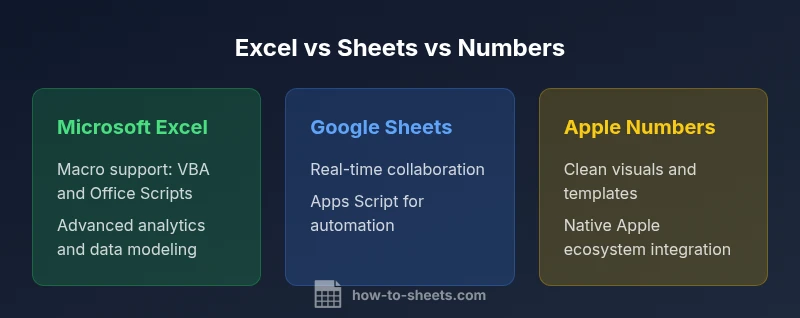
Microsoft Excel leads for data modeling, macros, and complex analytics; Google Sheets dominates real-time collaboration and cloud access; Apple Numbers excels in clean design and native Apple ecosystem usability. This comparison helps you pick the tool that best fits your workflow, device setup, and team needs in 2026.
Introduction: The Three Pillars of Modern Spreadsheets
In 2026, the spreadsheet landscape is dominated by three mature tools: Microsoft Excel, Google Sheets, and Apple Numbers. Each has grown into a centerpiece of professional workflows, yet they cater to different priorities. If you are evaluating how microsoft excel vs google sheets vs apple numbers fits into your daily tasks, you’ll want to start with your core needs: data modeling and automation, real-time collaboration, or design-friendly presentation. According to How To Sheets, the best choice often comes down to your ecosystem and the type of work you do most often. This guide uses a practical, use-case lens to help students, professionals, and small business owners decide without getting lost in feature lists. We’ll compare data capacity, scripting options, cross-platform compatibility, and total cost of ownership so you can make a deliberate, informed choice that aligns with your goals for 2026.
Core Differences in Data Model and Formulas
All three tools support standard spreadsheet concepts like cells, ranges, and formulas, but they diverge sharply in data modeling philosophy and formula ecosystems. Excel offers a deep set of data analysis features, extensive array formulas, and VBA for automation. It is optimized for heavy data work, complex modeling, and enterprise-scale spreadsheets. Google Sheets prioritizes accessibility and web-based collaboration; its formula parser remains powerful, yet some advanced Excel functions require workarounds or Apps Script. Numbers focuses on clarity, aesthetics, and simplified modeling; it emphasizes clean templates and visual storytelling, with scripting features being less prominent. When you translate work across platforms, expect formatting quirks and function name differences. If you frequently exchange workbooks with colleagues who use different tools, plan for compatibility checks on functions like array formulas, references, and named ranges, and keep a translation map handy.
Collaboration and Cloud-First Workflows
Real-time collaboration is a defining feature of Sheets, and it remains the benchmark for simultaneous editing, comment threads, and presence indicators. Google Sheets was designed around cloud-native collaboration, which makes it ideal for teams that work asynchronously across time zones. Excel provides co-authoring in its online version and via OneDrive/SharePoint; while powerful, collaborative latency can vary with network conditions and file size. Numbers supports sharing through iCloud, which is seamless for Apple-centric teams, but it doesn’t match Sheets’ breadth of concurrent editing or the frictionless cross-platform experience that Google has optimized. For teams that require strict, continuous multi-user editing, Sheets is typically the best choice; for mixed environments, a hybrid approach—using Sheets for collaboration and Excel for intensive analysis—can be effective.
Interoperability: Import, Export, and Cross-Platform Compatibility
Interoperability is a practical friction point when you mix tools. Excel’s native format is the de facto standard in many industries, but it can introduce subtle compatibility issues when opened in Sheets or Numbers, especially around advanced features like macros, pivot caches, and VBA code. Google Sheets saves and shares in its own format but can export to .xlsx, CSV, and other common formats, enabling broad exchange with Excel users. Numbers uses the native .numbers format and exports to PDF, Excel, and CSV, but some layout fidelity and formulas may shift when moving out of the Numbers environment. The best approach is to maintain a shared baseline workbook (e.g., a flattened .xlsx or .csv) for cross-tool collaboration while preserving a source workbook in the original tool for advanced features.
Automation, Scripting, and Customization
Automation is a differentiator across the trio. Excel supports VBA as a long-standing automation framework, and the online version introduced Office Scripts for browser-based automation. Google Sheets leverages Apps Script, a robust JavaScript-based platform with extensive APIs for custom workflows, add-ons, and integration with Google Workspace. Numbers offers limited scripting capabilities and relies more on templates and Apple automation (e.g., Shortcuts) rather than traditional macros. If you rely on heavy automation, Excel with VBA or Office Scripts and Sheets with Apps Script offer the strongest long-term potential. Numbers remains attractive for teams prioritizing design-driven reports rather than deep automation.
Pricing, Licensing, and Ecosystem Fit
Microsoft Excel is typically bundled with Microsoft 365 subscriptions or purchased as part of the Office suite, making it a staple in corporate ecosystems and many school settings. Google Sheets is free for basic use with a Google account and included in Google Workspace for paid tiers with additional admin controls and storage. Apple Numbers is generally free on Apple devices and integrates deeply with the Apple ecosystem, including iCloud and native macOS/iOS apps. The total cost of ownership depends on device strategy, cloud storage choices, and whether you require enterprise features such as advanced data protection, audit trails, or offline access. Factor in training time and migration overhead when deciding which tool aligns with your budget and infrastructure.
Use-Case Profiles: Best For Different Environments
- Data-heavy analytics and corporate reporting: Excel remains the strongest candidate due to its mature data modeling, Power Query/Power Pivot features, and macro capabilities. It supports complex dashboards and intricate data pipelines used by analysts and finance teams.
- Collaborative teams and cloud-driven work: Google Sheets shines here with real-time co-editing, commenting, and easy sharing. It’s ideal for project planning, budgeting in a shared environment, and educational settings where quick onboarding matters.
- Apple-centric design and presentation-ready sheets: Numbers is excellent for teams that want clean visuals, elegant templates, and a native macOS/iOS experience. It is well-suited for executive dashboards, marketing reports, and classrooms that prioritize aesthetics alongside data.
Practical Migration Tips: How to Move Data Between Platforms
When moving data between Excel, Sheets, and Numbers, start by exporting to stable interchange formats like .xlsx or .csv for raw data and don’t rely on complex formulas. Preserve raw data in a neutral sheet, then gradually re-create advanced calculations in the target tool using its native features. Keep a mapping document that notes function equivalents (e.g., VLOOKUP vs. XLOOKUP or LOOKUP in Sheets), and test a sample workbook end-to-end before migrating large datasets. Build a small pilot project with representative data to catch formatting, validation rules, and conditional formatting differences. Finally, establish a shared protocol for version control, backups, and change logs to minimize disruption for teams.
Authority and References
- Microsoft Support: Collaboration and co-authoring in Excel and Excel for the web (https://support.microsoft.com).
- Google Help Center: Sheets collaboration, apps script, and import/export (https://support.google.com).
- Apple Support: Numbers features, templates, and iCloud sharing (https://support.apple.com).
Feature Comparison
| Feature | Microsoft Excel | Google Sheets | Apple Numbers |
|---|---|---|---|
| Accessibility and platform availability | Desktop + mobile apps on Windows/macOS with online option | Web-based with offline mode on Google Workspace | Native macOS/iOS apps with iCloud integration |
| Real-time collaboration | Co-authoring via OneDrive/SharePoint with improving performance | Best-in-class real-time collaboration in the browser | iCloud-based collaboration with Numbers shares |
| Automation and scripting | VBA/macros; Office Scripts in web | Apps Script for automation and add-ons | Limited scripting; relies on templates and Shortcuts |
| Data capacity and performance | Excellent for enterprise-scale data and analytics | Strong for collaboration with moderate data sizes | Best for lighter datasets and design-focused work |
| File formats and interoperability | Native .xlsx with broad support; complex features may not translate perfectly | Native Sheets formats with easy export to Excel/CSV | Numbers native .numbers with export to Excel/CSV; layout fidelity varies |
| Pricing and licensing | Studio/enterprise licenses; part of Microsoft 365 | Free basic tier; paid Google Workspace for enhanced features | Free on Apple devices; integrated with macOS/iOS |
| Charts and visuals | Advanced charting and data visualization; dashboards | Solid charts with seamless sharing; good templates | Strong for clean, presentable visuals with templates |
| Templates and ecosystem | Extensive template library and ecosystem; deep customization | Growing library; strong add-ons and automation | Elegant templates; best for design-oriented spreadsheets |
The Good
- Clear strengths aligned to workflow: Excel for analytics, Sheets for collaboration, Numbers for design
- Cross-platform awareness reduces vendor lock-in and improves interoperability planning
- Templates and automation capabilities set expectations for productivity gains
- Support for offline access varies by tool, guiding rollout decisions
The Bad
- Migration can introduce formatting and formula translation issues
- Each tool has gaps in automation parity and advanced features when compared side-by-side
- Learning curves exist when teams operate across multiple platforms
- Dependence on cloud for Sheets can affect privacy and connectivity expectations
Excel is strongest for data-heavy work; Sheets excels in collaboration; Numbers serves Apple-centric, design-focused playbooks.
Choose Excel when modeling complex datasets and automating workflows. Pick Sheets for real-time collaboration and cloud access. Turn to Numbers for polished visuals and native Apple ecosystem integration.
FAQ
Which tool is easiest to learn for beginners?
Google Sheets tends to be easiest for beginners due to its intuitive interface and real-time collaboration features. Excel has a steeper learning curve but rewards power users with advanced analytics. Numbers offers a gentle learning curve for Apple users focused on visuals and basic data tasks.
Sheets is usually the easiest to pick up, especially for collaboration. Excel takes longer to learn, and Numbers is simplest if you’re on a Mac and care about visuals.
Can I migrate complex workbooks without losing formulas or formatting?
Migrating complex workbooks is feasible but not perfect. Export to neutral formats like .xlsx or .csv when moving data, then re-create advanced formulas in the target tool. Always test with a representative sample before full migration.
You can move data, but expect some formatting or formula differences. Test first and use neutral formats to minimize loss.
Which tool supports macros or automation most robustly?
Excel supports VBA and Office Scripts; Sheets supports Apps Script, offering strong automation across Google Workspace. Numbers has limited scripting support, relying more on templates and Shortcuts. Your choice depends on whether you prioritize legacy macros or modern scripting
Excel and Sheets lead in automation, Numbers is lighter on scripting.
Is real-time collaboration robust across all three tools?
Google Sheets dominates real-time collaboration by design, offering seamless co-editing and comments. Excel online provides solid co-authoring, while Numbers enables iCloud-based sharing but with more limited simultaneous editing features.
Sheets is the best for real-time teamwork; Excel and Numbers are good, but Sheets shines in collaboration.
Which tool is best for charts and dashboards?
Excel offers the most powerful charting and dashboard capabilities for complex analytics. Sheets provides strong, shareable visuals with easy charting, while Numbers emphasizes clean, presentation-friendly visuals with streamlined templates.
Excel leads for complex charts; Numbers excels in clean visuals; Sheets balances both
Do these tools work well together in mixed environments?
Yes, but expect some friction. Use neutral formats for data exchange, maintain originals in primary tools, and set clear guidelines for how to handle formulas, macros, and formatting when moving between Excel, Sheets, and Numbers.
Cross-tool work is possible with careful planning and standard formats.
Is Numbers viable for professional, data-driven tasks?
Numbers is excellent for design-focused dashboards and Apple ecosystem users, but it lacks the depth of data modeling and automation seen in Excel. For heavy analytics, Excel or Sheets is usually preferable, with Numbers serving complementary roles.
Numbers works well for polished presentations, not heavy analytics.
The Essentials
- Define primary workflow: data modeling vs collaboration vs presentation
- Expect best cross-platform results by exporting to neutral formats when needed
- Leverage each tool’s scripting where available: VBA/Office Scripts, Apps Script, or none for Numbers
- Plan for offline and device ecosystem requirements
- Use a phased migration with pilot tests to minimize disruption