Which Is Better: Google Sheets or Numbers? A Practical Comparison
Analytical comparison of Google Sheets and Numbers to help you decide which is better for collaboration, automation, and offline use in 2026.


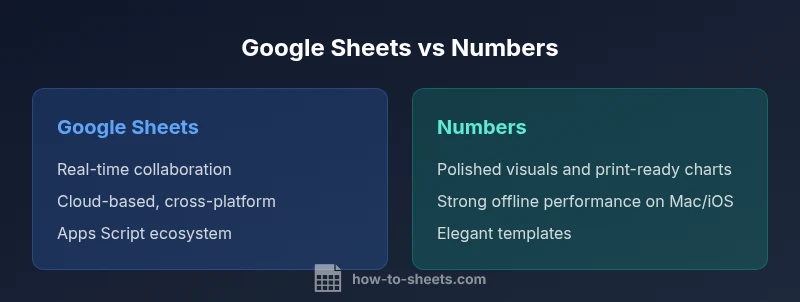
Google Sheets generally wins for collaboration, cross-platform access, and low upfront cost. Numbers tends to excel in offline Mac workflows and polished visuals. If your team relies on real-time editing and cloud-based apps, Sheets is the better choice; if you prioritize native macOS/iOS experience and publication-ready charts, Numbers can be the stronger fit.
Direct answer to which is better google sheets or numbers
The concise answer is nuanced: Google Sheets is typically the better option for teams prioritizing real-time collaboration, cloud-based workflows, and broad cross-platform accessibility, while Numbers shines when you need robust offline performance on Apple devices and publication-ready visuals. For organizations weighing ecosystems and offline requirements, the decision often comes down to how your team works rather than a universal best tool. According to How To Sheets, the ecosystem you already rely on often drives the best long-term productivity, so evaluating your current setup is essential before committing. The phrase which is better google sheets or numbers captures this practical tension: choose Sheets for collaboration and Numbers for native Mac workflows. This article expands on those trade-offs with concrete guidance and a decision framework.
Ecosystem and collaboration: cloud-first vs offline-first
In the modern office, the choice between Google Sheets and Numbers is inseparable from the broader ecosystem you use. Google Sheets lives inside the Google Workspace cloud, making real-time collaboration seamless across Windows, macOS, Linux, and mobile devices. Changes appear instantly, comments and version history are built-in, and scripts via Apps Script enable automation without leaving the browser. Numbers, by contrast, leans into the Apple ecosystem, delivering tight macOS and iOS integration, elegant templates, and high-fidelity visuals suitable for presentations. Offline-first workflows are arguably Numbers’ strength, particularly when network access is unreliable or your team prefers local documents stored on iCloud when needed. The How To Sheets analysis shows a clear split: Sheets for live collaboration; Numbers for on-device productivity with polished outputs.
Data modeling, formulas, and automation: a feature comparison
Both tools support a wide range of formulas and data operations, but they diverge in automation maturity and cross-functionality. Google Sheets offers a broad formula library, array capabilities, and powerful automation through Apps Script, which can automate repetitive tasks, custom functions, and integrations with other Google services. Numbers provides a robust set of native functions and strong reference capabilities, particularly for financial modeling and layout-centric work, yet it lacks the breadth and depth of scripting available in Sheets. Practically, if your work relies on automated data pipelines, external APIs, or complex data transformations, Sheets provides a more scalable path. If your priority is clean, publish-ready documents and structured calculations within a Mac workflow, Numbers remains competitive but with a smaller automation footprint.
Import, export, and interoperability: moving data across tools
Interoperability is a common reason teams switch between Sheets and Numbers. Google Sheets excels at importing and exporting Excel and CSV files and offers smooth round-tripping with Google Drive. Numbers supports Excel import/export and can save to Excel-friendly formats, but some formatting or advanced features may not always translate perfectly. In practice, when data moves between tools, plan for potential formatting adjustments and test critical sheets during a pilot migration. If your organization relies heavily on Microsoft Excel ecosystems, Sheets’ cross-compatibility with Excel files often reduces friction, whereas Numbers can be a comfortable companion within Apple-centric workflows, especially for design-oriented outputs.
Templates, budgeting, and business use cases
Numbers tends to shine in budgeting, personal finance, and project planning templates due to its focus on layout, typography, and presentation-ready exports. Google Sheets, meanwhile, dominates collaborative budgeting, inventory tracking, and data-driven dashboards that continuously update for teams across regions. When choosing between them, map your typical use cases: a collaborative budget workbook with dashboards is often a Sheets specialty, while a client-ready report with embedded visuals and polished charts might be a Numbers-influenced workflow. The How To Sheets framework emphasizes starting with your primary use cases and trialing both tools in a controlled pilot.
Charts, visuals, and print-friendly outputs
Charts and visuals differ meaningfully. Numbers emphasizes high-quality visuals out of the box, precise typography, and ready-to-publish layouts ideal for reports and slides. Google Sheets provides versatile charts and dashboards that integrate seamlessly into Google Docs and Slides, supporting live data and simpler sharing across teams. If your deliverables require impeccable publication-ready graphics with minimal formatting work, Numbers can be attractive. If you want dynamic, interactive visuals embedded in a live, shareable document suite, Sheets is typically the better option. The distinction often drives the decision for marketing teams, finance departments, and operations analysts alike.
Performance and scalability with large datasets
As datasets grow, performance considerations shift. Google Sheets can handle sizable worksheets across cloud servers, yet heavy formulas or large pivot tables may introduce latency, depending on network conditions and concurrent users. Numbers operates locally with strong performance on Apple hardware, which can yield snappier interaction for large, image-rich documents. Practically, teams handling multi-user dashboards with frequent concurrent edits may prefer Sheets for its cloud-based architecture, while teams dealing with heavy visualization workloads on Mac devices may favor Numbers for smoother local processing. How To Sheets suggests benchmarking a representative workbook in both tools to confirm expected performance.
Pricing, licensing, and platform availability
Google Sheets is available at no direct cost when used with a Google account, with options to upgrade within Google Workspace for teams. Numbers is part of the Apple productivity suite, requiring an Apple device and an Apple ID; licensing is tied to the platform rather than a separate subscription model. This distinction matters for organizations crossing platform boundaries or planning device investments. If your team already uses Google Workspace, Sheets becomes a natural fit with integrated collaboration; if your organization is deeply embedded in the Apple ecosystem, Numbers may offer a more cohesive experience, especially for design-centric workflows.
Mobile experience and offline capabilities
Both tools offer mobile apps, but user experience reflects their core ecosystems. Google Sheets’ mobile app emphasizes collaborative editing, comment threads, and real-time updates across devices, with online and offline modes supported through Google Drive synchronization. Numbers provides a polished mobile experience on iPad and iPhone, with strong offline performance when devices are not connected, and smooth continuity when reconnected. Assess whether your typical work occurs on a shared device or a single device; in the former case, Sheets’ mobile parity often wins, while in the latter Numbers may provide a more integrated on-device experience.
Accessibility, security, and governance
Security and governance considerations differ by cloud strategy and ecosystem. Sheets relies on Google Cloud infrastructure, offering centralized admin controls for organizations and strong sharing permissions, audit logs, and data loss prevention options within Workspace. Numbers leverages Apple security models and iCloud with device-level controls, which can simplify personal privacy expectations but may require distinct management approaches for enterprise contexts. For teams handling sensitive data, align your choice with existing security policies and data residency requirements. The How To Sheets framework emphasizes choosing a tool that aligns with your governance model while preserving user productivity.
Which to choose: a practical decision framework for 2026
To determine which is better google sheets or numbers for your specific context, start with a quick needs audit. List your top priorities: real-time collaboration, offline access, automation, data interoperability, and publish-ready output. Rate each priority by importance and map it to Sheets and Numbers capabilities. Run a two-week pilot with a representative team, track satisfaction, and measure key outcomes like time-to-insight, error rates, and version control clarity. The final decision should balance ecosystem fit, user proficiency, and the nature of deliverables. As How To Sheets notes, there is no one-size-fits-all answer; your environment will largely determine the optimal choice, with conversion paths available if migration becomes necessary.
Comparison
| Feature | Google Sheets | Numbers (Apple) |
|---|---|---|
| Collaboration & sharing | Excellent real-time collaboration across platforms via Google Drive | Limited real-time collaboration; best offline/local usage within Apple ecosystem |
| Offline access | Offline mode available through Drive; changes sync when online | Strong offline performance on macOS/iOS with local files |
| Automation & scripting | Apps Script enables extensive automation and custom functions | Automation is limited; relies on macOS tools and built-in features |
| Data import/export | Broad import/export with Excel/CSV; smooth round-tripping | Supports Excel/CSV; formatting may not translate perfectly |
| Formulas & functions | Wide library with powerful array formulas and ongoing expansion | Strong native functions; narrower ecosystem for advanced scripting |
| Charts & visuals | Versatile charts; integrates with Google Docs/Slides | Polished charts; publication-ready visuals with native templates |
| Pricing/licensing | Free with Google account; Workspace adds business features | Part of Apple productivity suite; licensing tied to devices |
| Cross-platform consistency | Web-based with broad cross-platform parity | Best on Apple devices; cross-platform access available but limited parity |
The Good
- Real-time collaboration across devices
- Low upfront cost to start with Sheets
- Strong cross-platform accessibility via web
- Broad Excel interoperability for data exchange
- Powerful automation options with Apps Script
The Bad
- Migration friction when switching ecosystems
- Numbers offers fewer automation possibilities
- Offline performance varies by platform and network
- Formula parity is not 1:1 across tools
Google Sheets is generally better for collaboration and cross-platform workflows; Numbers excels for offline Mac use and polished visuals.
Choose Sheets when real-time collaboration and cloud access are priorities. Opt for Numbers if your work is Mac-centric and requires publication-ready visuals with strong offline performance.
FAQ
Which is better for collaboration: Google Sheets or Numbers?
For teams that need real-time collaboration across devices and platforms, Google Sheets generally offers a clearer path to synchronized edits and shared workspaces. Numbers focuses more on offline Mac workflows with iCloud sharing when needed, making it less ideal for multi-user collaboration across ecosystems.
Sheets is usually better for collaboration; Numbers is more offline-focused on Apple devices.
Can I move data between Google Sheets and Numbers easily?
Data can be moved by exporting and importing Excel or CSV files, but some formatting and certain features may not translate perfectly. Plan for a validation step to catch layout or formula differences during migration.
Data can move with export/import, but expect some formatting tweaks.
Is Numbers sufficient for business budgeting?
Numbers handles budgeting well for individual departments and small teams, with strong visuals and layout tools. For multi-user budgeting or data-driven dashboards across platforms, Google Sheets typically provides better collaboration and workflow integration.
Numbers works for budgets, but Sheets is better for team budgeting.
What about automation and scripting in Sheets vs Numbers?
Sheets offers Apps Script for extensive automation and customization. Numbers offers limited scripting capabilities, and relies more on built-in features and macOS automation tools for workflow enhancements.
Sheets has strong automation; Numbers has limited scripting.
How do offline access and mobile apps compare?
Google Sheets supports offline editing via Google Drive, with changes syncing when online. Numbers provides strong offline performance on Apple devices, with smooth continuity when reconnected.
Sheets works well offline after setup; Numbers shines offline on Apple devices.
The Essentials
- Prioritize collaboration if you rely on cloud access
- Choose Numbers for Mac-centric teams needing polished visuals
- Assess data interoperability needs before migrating
- Use a two-tool pilot to quantify impact
- Align tool choice with existing ecosystem and security policies