Is Google Docs the Same as Excel? A Practical Comparison
An analytical, practical comparison of Google Docs vs Excel (and Google Sheets) to clarify their roles, strengths, and when to use each in real-world workflows.


Is is google docs the same as excel a fair comparison?
To begin, the core distinction is clear: Google Docs centers on word processing, comment threads, and simultaneous editing; Excel focuses on numerical analysis, data modeling, and complex formulas. The question "is google docs the same as excel" is not binary; instead, it reflects different tool ecosystems designed for different job roles. According to How To Sheets, most teams benefit from acknowledging task-based tool boundaries. This article uses Google Docs, Google Sheets, and Microsoft Excel as the three anchors to map capabilities, limits, and ideal use cases. The aim is not to force a single winner but to help you assign the right tool to the task at hand. The distinction becomes especially important in professional settings where accuracy, speed, and collaboration drive outcomes.
Core roles: documents vs spreadsheets
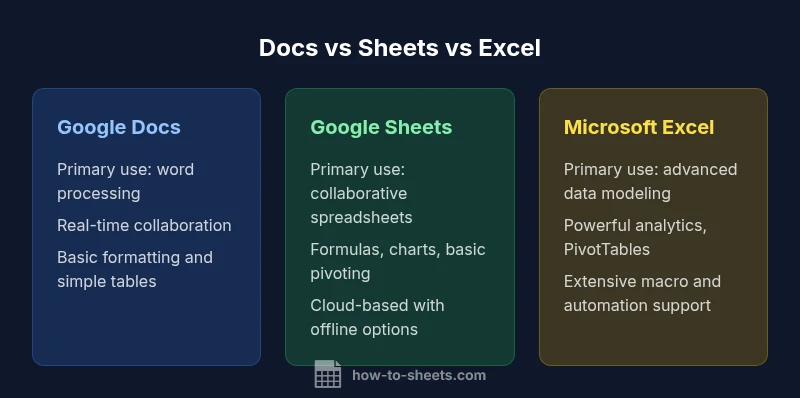
A primary starting point is purpose. Google Docs excels at creating long-form content, reports, and collaborative documents where version history and concurrent editing matter. Excel, by contrast, is optimized for numbers: financial models, dashboards, and dataset analysis rely on structured calculations, data validation, and advanced charting. Google Sheets sits between these poles, offering spreadsheet capabilities with cloud-based collaboration. When you frame the decision around the task—text production vs numerical analysis—the differences become predictable, and the choice becomes less about brand and more about function. The How To Sheets analysis highlights that aligning tool choice with task type reduces friction and improves outcomes.
When to choose Google Docs
Google Docs shines in environments where writers, researchers, and cross-functional teams need real-time collaboration without heavy setup. You can draft proposals, meeting notes, and shared outlines with ease, embed simple tables, and leave comments that flow through the document lifecycle. For multi-author documents, Docs’ cloud-native architecture minimizes confusion about versions and permissions. It also integrates smoothly with other Google Workspace tools, enabling streamlined workflows from outline to final draft. However, when you anticipate heavy formatting for print, or require sophisticated data alignment, Docs should be used in tandem with Sheets or Excel rather than as a stand-alone replacement for structured data work. is google docs the same as excel remains a contrast that underscores task-oriented tool selection.
When to choose Microsoft Excel
Excel remains the go-to for heavy data tasks. Its columnar storage, robust formula engine, and expansive ecosystem (including PivotTables, array formulas, and Power Query) support complex data modeling, budgeting, and forecasting. If your work hinges on large datasets, intricate financial models, or automation beyond basic macros, Excel’s depth outpaces most general-purpose spreadsheet tools. While Excel requires local installation or a robust cloud plan, its offline versatility is often crucial for environments with limited bandwidth or strict data governance. When a project demands precision, reproducibility, and advanced analytics, Excel is typically the strongest option. The key takeaway here is that Excel’s design is purpose-built for numbers, not word processing.
Google Sheets as a bridge between Docs and Excel
Google Sheets fills a niche that blends spreadsheet functionality with real-time collaboration and cloud accessibility. For teams that need to share data live across departments, Sheets provides essential formula support, charting, and data import/export features while remaining accessible from anywhere. Sheets has grown in capability to cover many standard spreadsheet tasks, but it remains lighter than Excel in some advanced analytics, performance with very large datasets, and in-depth pivoting. The result is a practical middle ground: use Sheets when you want cloud-based collaboration for data work without sacrificing core spreadsheet features, and pair it with Docs for the narrative components of a project.
Formulas, functions, and automation: where they differ
Formula complexity is a major differentiator. Excel offers an expansive function library, powerful referencing, and advanced data tools that support professional analysts and finance professionals. Google Sheets covers essential functions and supports add-ons and Apps Script for automation, but it generally trails Excel in large, enterprise-scale modeling. Docs, while not a spreadsheet tool, integrates with Sheets and Excel through file embedding and linked objects, enabling a more seamless dual-workflow when both narrative and data needs exist in a single project. For teams evaluating is google docs the same as excel, the practical answer is that the three tools complement one another rather than replace each other in most workflows.
Data visualization and reporting capabilities
Charts are central to communicating findings. Excel’s charting suite, coupled with PivotTables, allows nuanced storytelling with data. Sheets delivers reasonable charts and basic pivoting, which is often sufficient for day-to-day sharing and quick dashboards. Docs can present charts or tables imported from Sheets or Excel, but it is not designed to be a primary data visualization engine. When you need professional dashboards with drill-downs, Excel remains the leader; for lightweight, shareable visuals embedded in documents, Sheets provides efficient, collaborative options. The question of whether is google docs the same as excel is clarified by recognizing the distinct visualization scopes of each tool.
Collaboration, sharing, and permissions
Collaboration is where Google Docs and Sheets shine. Real-time co-authoring, comments, and cloud-based access speed up feedback cycles. Excel has improved collaboration through cloud-based workbooks and co-authoring, but the latency and feature parity can vary by platform and license. Docs and Sheets excel in scenarios where multiple stakeholders need to contribute simultaneously and asynchronously, while Excel excels in controlled environments with strict versioning and offline work. A practical approach is to assign Docs for drafting and Sheets for data work, keeping Excel for final, department-wide analytics.
Offline access and platform availability
Offline access remains a crucial consideration. Google Docs and Sheets offer offline modes, enabling continued work without reliable internet, though some features require initial online activation. Excel’s offline strength is better established, with full functionality on desktop clients and a mature desktop ecosystem. If your work is primarily offline or subject to restrictive network policies, Excel often provides more reliability for data-heavy tasks. The choice depends on your organization’s connectivity profile and how critical uninterrupted access is to your workflow.
Import/export, interoperability, and cross-ecosystem compatibility
Interoperability matters when teams share files across tools. Excel files can be imported into Sheets with varying fidelity, and Docs can host embedded charts from Sheets or Excel. The more complex your workbook (advanced macros, custom scripts, or detailed formatting), the higher the chance of small inconsistencies during conversion. For teams that operate in mixed environments, a dual-tool strategy—Docs for narrative content, Sheets for spreadsheet collaboration, and Excel for heavy data modeling—minimizes loss of fidelity while maintaining workflow flexibility. When considering is google docs the same as excel, the practical path is to define the data-output requirements and plan your export/import strategy accordingly.
Pricing, storage, and ecosystem considerations
Pricing strategies differ across these platforms. Google Docs and Sheets are packaged within Google Workspace, often on a subscription basis, with generous collaboration benefits at multiple tiers. Excel is part of the Microsoft 365 ecosystem, with licensing that targets professional users who need extensive data tools and enterprise features. Storage, retention policies, and cross-application integration all shape total cost of ownership. If you’re balancing total cost against feature depth, your decision should reflect the most critical capabilities for your team’s tasks—word processing collaborations versus advanced data analytics.
Decision framework: matching tools to tasks
A practical decision framework starts with task categorization: documents and collaboration vs data modeling and analytics. If the primary task is drafting, editing, and distributing text, Google Docs is typically preferable. If the goal is data-heavy analysis with sophisticated formulas and dashboards, Excel dominates. Google Sheets sits in the middle, ideal for collaborative spreadsheet work across teams. The framework also considers offline needs, ecosystem alignment, and training time. Remember that the strongest approach is often a blend: use Docs for narrative parts, Sheets for data tasks, and Excel when advanced analytics and offline performance are non-negotiable requirements. is google docs the same as excel becomes a question of tool purpose rather than tool identity.
Real-world scenarios: case studies and tips
Consider a marketing team preparing a quarterly report. They draft the narrative in Google Docs, compile figures in Google Sheets with live data connections, and port final, complex financial models to Excel for senior leadership review. This workflow leverages the strengths of each tool and demonstrates how the question is resolved through task-oriented choices rather than brand loyalty. Practical tips include establishing naming conventions for cross-file references, creating linked workbook templates, and standardizing export formats to minimize compatibility issues. By configuring workflows this way, teams avoid forcing a single tool to cover all use cases and instead maximize each tool’s inherent strengths.
Practical tips to use both effectively
- Build clear ownership: designate who edits texts, who performs data work, and who approves final outputs.
- Create templates that normalize layouts across Docs, Sheets, and Excel to reduce rework.
- Use embedded links and live data connections to keep documents synchronized with spreadsheets.
- Establish policy for offline work and syncing to minimize conflicts.
- Regularly review your toolset against evolving needs and adjust as necessary to maintain efficiency.
mainTopicQueryLinkUnused