How to Fix Google Sheets Calculation Limit Was Reached
Learn how to diagnose and fix the 'google sheets calculation limit was reached' error with step-by-step checks, practical fixes, and prevention tips. How To Sheets guides you through simplifying formulas, slicing data, and using Apps Script for heavy calculations.


The most likely cause is that a sheet has reached Google Sheets' internal calculation limits due to very large ranges and multiple dense formulas. The quick fix is to simplify formulas, reduce data ranges, or split work across multiple sheets or files. If issues persist, consider batching calculations with Apps Script or using QUERY over smaller slices.
Why google sheets calculation limit was reached
The phrase google sheets calculation limit was reached isn’t just frustrating—it signals that your workbook is pushing Google Sheets beyond its default calculation capacity. In practical terms, you’re asking Sheets to perform too many operations in real time: thousands of cells recalculating, heavy nested formulas, and data pulled from many ranges. According to How To Sheets, most calc-limit problems stem from sprawling formulas across large data sets, especially when the data is updated frequently. When this limit is hit, you’ll notice slow performance, partial results, or explicit error messages. To mitigate the issue, audit the workbook with a focus on formula density, data size, and recalculation triggers. A proactive approach, paired with the right techniques, can prevent future interruptions and keep your workflow smooth.
Common Scenarios That Trigger the Limit
Several common patterns can trigger the calculation limit in Google Sheets. First, very large ranges with repeated formulas—especially when those formulas reference many other cells—can cause heavy recalculation loads. Second, volatile functions such as NOW(), TODAY(), RAND(), or RANDARRAY spread across many cells will force frequent updates. Third, excessive use of array formulas or iterative calculations multiplies the work the engine must do each time a dependency changes. Finally, external data connections, queries, or custom scripts that re-run often can push the system past safe limits. If you’re combining several of these patterns in one workbook, the odds of hitting the limit rise dramatically. Regularly review dependencies and minimize cross-sheet references where possible.
Diagnostic Flow Overview
Understanding when and why the limit occurs helps you decide on a fix. In most cases, the issue emerges after a data refresh, a major formula addition, or a new import that expands calculation scope. Start by checking recent changes that introduced heavy formulas or large data pulls. Look for formulas that span entire columns or entire sheets. Then, test by reducing the scope of computations to see if performance improves. If the problem persists, you may need to apply structural changes, such as splitting tasks across multiple sheets or moving logic into scripts. This flow keeps you grounded in data-driven decisions rather than guesswork.
Practical Fixes You Can Implement Now
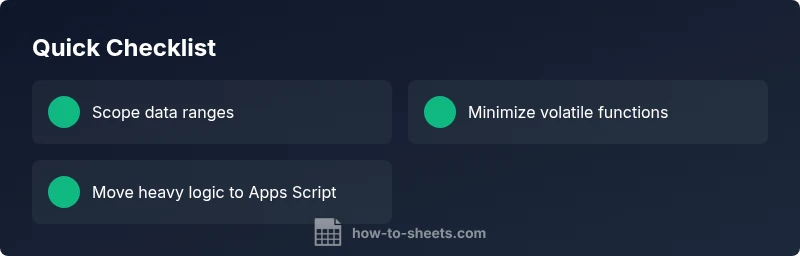
- Scope reduction: Narrow the data ranges used in formulas and avoid applying complex logic to entire columns. Use named ranges or specific ranges (A1:Z1000 instead of A:Z) to limit recalculation.
- Formula simplification: Break long, nested IFs or LOOKUP chains into smaller steps, or replace expensive functions with more efficient alternatives. Remove unnecessary array formulas and consolidate where possible.
- Sheet architecture: Split large workbooks into multiple tabs or separate files with a master summary that aggregates results. This isolates heavy calculations and reduces cross-reference complexity.
- Offload work: For heavy computation, consider Apps Script to batch updates or to perform large-scale data transformations outside the main sheet. This reduces real-time recalculation pressure.
- Caching results: Where feasible, store intermediate results as static values (copy-paste values) to avoid repeated recalculation.
- Scheduling recalculation: If your environment allows, stagger recalculation by time or event, so not all formulas recalculate on every edit.
- Testing approach: Always work on a copy of your spreadsheet when applying fixes and verify that results match expectations after each change.
Prevention and Best Practices
Adopt a modular, scalable approach to workbook design. Keep data lean, avoid wide-open ranges, and prefer query-based or script-based calculations for heavy tasks. Document data flows and dependencies so future edits don’t inadvertently reintroduce calc-heavy patterns. Regularly review sheets for orphan formulas and remove duplicates. By building with limits in mind, you reduce the chance of future interruptions and keep teams productive.
Steps
Estimated time: 25-40 minutes
- 1
Audit data size and scope
Review the workbook to identify areas where formulas reference very large ranges or entire columns. Create a smaller test sheet to replicate the issue with a subset of data and note which formulas recalculated most.
Tip: Start with the worst offenders—ranges that cover whole columns or sheets. - 2
Trim data ranges and simplify formulas
Replace broad ranges like A:A with specific limits (A1:A1000). Break long formula chains into simpler components and remove unnecessary nested IFs or LOOKUP combos.
Tip: Document each change so you can revert if needed. - 3
Split work across tabs or files
Move heavy calculations to dedicated tabs or even separate spreadsheets, then summarize results in a master sheet. This reduces cross-checks and recalculation depth.
Tip: Keep a single source of truth for raw data. - 4
Offload heavy work to Apps Script
Create scripts to batch-transform large datasets or generate intermediate results, reducing on-sheet computation. Trigger scripts with buttons or time-driven events to avoid constant recalculation.
Tip: Test scripts on sample data before using them on production files. - 5
Cache and test incremental changes
Where possible, paste static values to cache results and only recompute when necessary. Validate results after each fix to ensure accuracy.
Tip: Use version history to compare before/after results. - 6
Document and automate prevention
Create a runbook describing triggers and fixes, and set up routines to review formulas and data ranges monthly or per project. This prevents regression and keeps performance stable.
Tip: Schedule periodic reviews with teammates.
Diagnosis: User sees a calculation limit error when formulas across large ranges or heavy queries recalculate, causing slowdowns or partial results.
Possible Causes
- highExcessively large data ranges with dense formulas that trigger heavy recalculation
- mediumUse of volatile functions across many cells
- mediumExtensive array formulas or custom scripts causing frequent recalculation
- lowExternal data connections or queries pulling large datasets repeatedly
Fixes
- easyTrim data ranges and convert to static values where possible
- easyReplace or simplify volatile formulas and reduce dependency trees
- mediumSplit large sheets into smaller tabs or separate files and aggregate results
- hardUse Apps Script to batch operations or move heavy calculations off the sheet
FAQ
What does the error say about a calculation limit in Google Sheets mean?
It indicates the workbook is asking Google Sheets to recalculate too much data at once. This often happens with very large ranges, dense formulas, or heavy data imports. The fix is to reduce scope, simplify formulas, and consider offloading work to scripts or smaller sheets.
It means your sheet is recalculating too much. Try simplifying formulas or splitting the work into smaller sheets.
How can I tell which formulas are causing the calculation limit?
Start by examining formulas that span entire columns or rely on volatile functions. Use the Formula Auditing tools to identify long dependency chains and test by temporarily removing or replacing suspect formulas with simpler equivalents.
Look for formulas that reference whole columns or use volatile functions, and test them individually.
Will upgrading to Google Workspace fix this issue?
A Workspace upgrade does not directly remove calculation limits. The issue is structural—solutions involve optimizing formulas, data ranges, or moving heavy work to scripts or separate sheets rather than relying on more powerful licensing.
Upgrading won’t automatically fix the calculation limit; optimization and re-architecture are needed.
Is there a hard limit on the number of formulas in a sheet?
Google Sheets does not publish a hard, user-facing formula count limit. Instead, performance constraints arise from recalculation complexity, the size of ranges, and the number of volatile functions. Optimizing structure typically resolves issues.
There isn’t a simple formula-count cap; performance depends on recalculation load.
When should I seek professional help?
If you manage critical dashboards with frequent updates and cannot reduce the calculation load, consider a specialist who can architect scalable sheets or port heavy logic into Apps Script or external databases.
If the workbook is mission-critical and you can’t fix it quickly, get expert help.
Watch Video
The Essentials
- Identify root cause before changing formulas
- Break tasks into smaller, modular components
- Prefer efficient formulas and reduce volatile functions
- Move heavy computations to Apps Script when appropriate