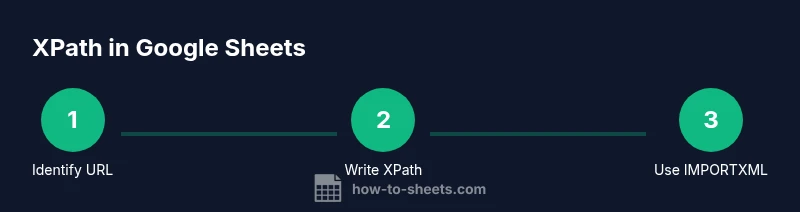
Google Sheets XPath: A Practical Guide to IMPORTXML
Learn how to use XPath within Google Sheets with the IMPORTXML function. This step-by-step guide covers XPath syntax, practical examples, error handling, and best practices for extracting data from XML and HTML sources.


You will learn how to use XPath in Google Sheets by leveraging IMPORTXML to extract data from XML or HTML sources. This guide covers locating data with XPath expressions, testing them outside Sheets, and implementing robust queries inside your spreadsheet. You will also see practical examples, common pitfalls, and strategies to handle errors and large datasets.
What is XPath and why it matters in Google Sheets
XPath is a language for navigating structured data in XML and HTML documents. In Google Sheets, you can harness XPath through the IMPORTXML function to pull specific nodes from a web page or XML feed directly into your spreadsheet. This capability lets you build live dashboards, compare data across pages, and automate data collection with minimal manual copy-paste. When you know how to craft precise XPath expressions, you can extract titles, links, prices, meta tags, or any repetitive pattern from structured sources. The keyword google sheets xpath serves as a bridge between data structure concepts and practical spreadsheet formulas, enabling targeted data capture rather than broad, error-prone scraping.
Understanding IMPORTXML and its XPath integration
IMPORTXML is a Google Sheets function that fetches data from an XML or HTML document via a URL and returns a structured array of values. The XPath you provide tells Sheets which nodes to extract. This integration is powerful for pulling data from public feeds, product pages, or any page with clean, parseable HTML or XML. However, results depend on the source's accessibility and the page structure. When you combine IMPORTXML with XPath, you gain a flexible, code-light method to automate data collection directly in Sheets without external automation tools.
XPath basics: syntax you'll use in Sheets
XPath expressions resemble a tiny query language for tree-like data. In Sheets, you typically use expressions that select elements by tag name, attributes, and positions. For example, //h1 extracts all top-level H1 elements, and //div[@class='price']/text() pulls text nodes from divs with a price class. Predicates [ ] help filter nodes, while axes like /child:: and /parent:: refine navigation. As you gain comfort, you’ll create expressions that capture multiple fields in a single run, returning a two-dimensional array your sheet can display as a table.
Common XPath expressions for HTML and XML
HTML and XML share XPath syntax, but HTML often contains namespaces or inconsistent structure. Useful expressions include:
- //title/text() — retrieves the document title text
- //a/@href — collects all link URLs
- //table/tr/td[1]/text() — gets the first column of a table
- //div[@id='content']//p/text() — grabs all paragraph texts inside a specific container
- //meta[@name='description']/@content — pulls a meta description value
If you encounter namespaces, you may need to strip prefixes or adjust the expression to target non-namespaced nodes. Practice with different pages to see how structure changes affect results.
How to test XPath expressions outside Sheets
Before plugging expressions into IMPORTXML, verify them on a known document. You can paste the XML/HTML into an online XPath tester or use browser developer tools to run your XPath against the page's DOM. This helps catch common mistakes—like missing quotes, incorrect predicates, or misplaced slashes—so your Sheets implementation will be more reliable. Testing also clarifies whether the data is rendered server-side or via client-side scripts, which IMPORTXML cannot always access.
Step-by-step example: scraping book titles from a sample page
Suppose you want to extract all book titles from a public page such as https://example.com/books. In Sheets, you would use: IMPORTXML("https://example.com/books", "//h2[@class='title']/text()") This extracts text from h2 elements with class title. If you need the author names, you might use IMPORTXML("https://example.com/books", "//div[@class='author']/text()"). Practice with a few pages to understand how the results populate as a grid in your sheet. These examples illustrate the power of combining URL access with precise XPath selection.
Handling spaces, namespaces, and HTML id/class nuances
Namespaces require careful handling because XPath queries may need a namespace prefix that Sheets doesn’t provide by default. If your target HTML uses namespaces, you can try removing the namespace prefix (e.g., //ns:div becomes //div) or use more general paths. ID and class attributes in HTML are helpful anchors: //div[@id='main'] or //section[@class='summary']. When an element appears multiple times, XPath returns all matching nodes in the resulting array, which you can shape with array formulas or by selecting specific positions.
Dealing with errors and limits of IMPORTXML
IMPORTXML can fail for several reasons: the source URL may be blocked, the page may require authentication, or the data may be loaded with JavaScript after the initial HTML render. You might see errors like #N/A or partial results. In many cases, wrapping the formula with IFERROR helps provide fallback values, while testing with multiple URLs helps confirm consistency. Remember that IMPORTXML fetches static content; dynamic pages may not provide the data you expect.
Best practices for robust XPath queries in Google Sheets
To build reliable imports, keep XPath expressions simple and explicit, test against multiple sources, and avoid overfitting to a single page structure. Use descriptive comments or notes in your sheet to document what each XPath extracts. When possible, prefer sources with stable HTML structure and minimal dynamic content. If results become inconsistent, revalidate the page’s structure and adjust your XPath accordingly.
Alternatives to XPath: Apps Script and other methods
If you frequently work with changing pages or require more control, Google Apps Script offers a programmable alternative to IMPORTXML. You can write scripts to fetch a URL, parse HTML or XML with a library, and write results into your sheet. Third-party add-ons can also extend Sheets’ scraping capabilities. Use Apps Script for dynamic data, error handling, or when you need to bypass some of the limitations of IMPORTXML.
Security and privacy considerations when scraping data
Always respect the terms of use of the data source and avoid scraping private or protected content. Minimize data exposure by fetching only the necessary fields and avoiding credential leakage in your sheets. If you’re sharing the sheet, consider using data masking or separate data sources for different audiences. Regularly audit sources to ensure ongoing compliance and avoid unintended data sharing.
Next steps and further resources
Continue practicing XPath expressions with real pages, compare results across sites, and document your queries in a dedicated notes sheet. Explore related topics such as data validation, basic web scraping ethics, and the limits of client-side data extraction. For deeper learning, consult authoritative references on XPath and how Google Sheets handles external data imports.
Tools & Materials
- Google Sheets (web or mobile app)(Access to IMPORTXML function and network connectivity)
- Public XML/HTML source URL(A URL that returns parseable content without login)
- XPath reference guide(Helpful for crafting expressions (see links below))
- XPath tester or browser DevTools(For validating expressions before Sheets use)
- IFERROR formula(Wrap IMPORTXML to handle missing data gracefully)
- Basic text editor(Draft expressions before pasting into Sheets)
Steps
Estimated time: 15-30 minutes
- 1
Identify source URL
Find a public XML or HTML page whose structure you understand. Confirm that the content is accessible without authentication and that the data you need is present in a static HTML/XML form.
Tip: Test the URL in a browser first to ensure it loads without prompts. - 2
Open a Sheets document
Create or open a blank Google Sheet where you will place the IMPORTXML formula. Decide which sheet and cell will host the results and plan a small data region for testing.
Tip: Use a dedicated tab for imports to keep your workbook organized. - 3
Enter the IMPORTXML formula
In the target cell, enter IMPORTXML(url, xpath). Use quotes around both url and xpath as shown in examples.
Tip: Start with a simple XPath to verify basic behavior before adding complexity. - 4
Provide a valid XPath expression
Craft an XPath that returns the exact data you want, such as //title/text() or //div[@class='price']/text(). Ensure you escape quotes properly for Sheets.
Tip: Test on a smaller, stable page to ensure reliability. - 5
Extend the formula for multiple results
If the XPath yields multiple nodes, Sheets will populate a grid. Drag the formula or use array-friendly patterns to capture full results.
Tip: Be mindful of how many rows the source can realistically return. - 6
Add error handling
Wrap the IMPORTXML call in IFERROR to provide fallback values when the data is unavailable or the page blocks fetches.
Tip: Example: =IFERROR(IMPORTXML(...), "N/A") - 7
Test with additional sources
Try another URL and different XPath to confirm consistency and to understand how page structure affects results.
Tip: If results vary, inspect the page structure to adapt the XPath. - 8
Consider alternatives for dynamic data
For pages that rely heavily on JavaScript, IMPORTXML may not see the rendered data. In such cases, Apps Script or APIs can fetch the data server-side.
Tip: Start simple and progressively add logic to your script.
FAQ
What is XPath and how does it work in Google Sheets?
XPath is a language for selecting nodes in XML/HTML documents. In Google Sheets, you use the IMPORTXML function to apply an XPath expression to a URL and return matching nodes as a table.
XPath lets you select data from XML or HTML, and Sheets uses IMPORTXML to fetch those selected nodes into your spreadsheet.
Can IMPORTXML fetch data from dynamic pages?
IMPORTXML retrieves static HTML or XML content. Data loaded by JavaScript after the initial page load may not be accessible via IMPORTXML.
IMPORTXML can’t reliably fetch data that’s added by scripts after the page loads.
What should I do if IMPORTXML returns an error?
Check the URL for accessibility, verify the XPath, and use IFERROR to provide a fallback. If the page blocks requests, try a different source or consider Apps Script for more control.
If IMPORTXML errors, confirm URL and XPath, then add IFERROR or switch approaches for reliability.
How do I test an XPath expression outside Sheets?
Use an online XPath tester or browser developer tools to evaluate your expression against sample XML/HTML before deploying it in Sheets.
Test your XPath on XML/HTML first to avoid surprises in Sheets.
Are there alternatives to XPath in Sheets?
Apps Script can fetch and parse data with more control, and some add-ons provide enhanced scraping capabilities beyond IMPORTXML.
If IMPORTXML isn’t enough, Apps Script offers more control and options.
Does XPath support namespaces in HTML/XML?
Namespaces can complicate XPath. You may need to simplify paths or remove prefixes to target the correct nodes.
Namespaces can complicate queries; simplify paths where possible.
Watch Video
The Essentials
- Learn XPath basics tailored for Sheets
- Use IMPORTXML to pull data from static pages
- Test expressions outside Sheets before importing
- Wrap with IFERROR for stability
- Consider Apps Script for dynamic or complex tasks