How to use Google Sheets IF statement: A complete step-by-step guide
Learn how to use the Google Sheets IF statement, nest conditions, and explore related functions like IFS and SWITCH. Includes practical examples, pitfalls, and templates to apply in your work or study.


In Google Sheets, the IF statement evaluates a condition and returns a value if true or another if false. This guide covers writing a basic IF, nesting IFs, and using related functions like IFS and SWITCH to handle multiple conditions. You’ll gain practical, copy-ready examples you can apply to grades, quotas, dates, and more.
Why the IF statement is a cornerstone of Google Sheets logic
In this guide on how to use google sheets if statement, you’ll discover how the IF function evaluates a condition and returns a value based on true/false outcomes. Mastering this simple tool unlocks reliable data validation, dynamic dashboards, and scalable analysis. According to How To Sheets, the IF function is the gateway to building robust formulas that you can reuse across projects, saving time and reducing errors. You’ll see how a single IF can tidy up lists, categorize data, and drive conditional formatting rules. With the right approach, you can replace manual filtering with automated, rule-driven workflows that scale as your data grows.
- Use IF to create basic pass/fail checks, grade ladders, and simple decision trees.
- Pair IF with text, numbers, or dates to produce human-friendly results.
- Combine IF with other functions to power more complex logic without clutter.
Basic syntax and writing a simple IF
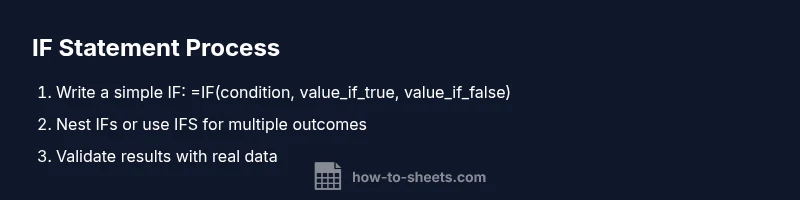
The standard IF syntax in Google Sheets is IF(logical_test, value_if_true, value_if_false). The logical_test is a condition that evaluates to TRUE or FALSE, such as A2>100 or B2="Yes". The value_if_true and value_if_false can be numbers, text, or references to other cells. For example: =IF(A2>50, "Pass", "Fail"). Note that arguments are typically separated by commas, but locale settings may require semicolons. Testing a few simple inputs helps confirm that your condition behaves as expected. If you want to keep your sheet tidy, consider using named ranges for readability.
Logical tests and comparison operators
IF evaluates a logical test that can use any standard comparison operators: >, <, >=, <=, =, and <> (not equal). For instance, =IF(B2>=18, "Adult", "Minor") classifies ages. You can combine tests with AND and OR to handle multiple criteria: =IF(AND(A2>50, B2<100), "Group A", "Other"). Remember to honor your locale’s separator rules, as some regions require semicolons instead of commas.
Nested IFs and the IFS function
When you have more than two outcomes, nesting IFs is the traditional approach: =IF(A2>90, "A", IF(A2>80, "B", IF(A2>70, "C", "D"))). A cleaner alternative is the IFS function (if your Sheets version supports it): =IFS(A2>90, "A", A2>80, "B", A2>70, "C", TRUE, "D"). IFS eliminates the need for deep nesting and is easier to read, but remember that only the first true condition is returned.
Working with text, numbers, and dates
IF handles various data types. For text, use comparisons like =IF(A2="Yes", "Approved", "Pending"). For numbers, arithmetic can be embedded: =IF(SUM(B2:B5)>100, "Over threshold", "Under threshold"). For dates, you can check ranges: =IF(EDATE(C2,1)<=TODAY(), "Past due", "Current"). If you expect potential errors, wrap your IF in IFERROR to provide defaults.
Real-world use cases
- Grade thresholds: =IF(A2>=90, "A", IF(A2>=80, "B", IF(A2>=70, "C", "D"))).
- Eligibility: =IF(AND(A2="Employee", B2>1000), "Eligible", "Not eligible").
- Date-based flags: =IF(TODAY()>D2, "Overdue", "On time").
- Text-driven routing: =IF(ISNUMBER(SEARCH("urgent", C2)), "Priority", "Standard").
These patterns demonstrate how a simple IF can drive decision-making across spreadsheets.
Troubleshooting common errors and debugging tips
IF formulas can produce errors if inputs are unexpected. Common issues include #VALUE!, #NAME?, or mismatched separators. Start by testing the logical_test in a separate cell, then verify the value_if_true and value_if_false. Use IFERROR to smooth out trouble spots: =IFERROR(IF(A2>0, "Positive", "Non-positive"), "Unknown"). Keep your data types consistent and avoid implicit coercion by explicitly converting when needed.
Alternatives and advanced conditional functions
For multi-way branching without nesting, SWITCH and IFS offer clean alternatives. SWITCH(criterion, case1, result1, case2, result2, default). IFS(condition1, value1, condition2, value2, default). For dynamic filters, wrap IF with FILTER or use ARRAYFORMULA to apply a condition across ranges. When performance matters, minimize nesting depth and consider restructuring logic into helper columns that compute intermediate results.
Building reusable templates and best practices
Create templates with clear comments: =IF(...). Name helper columns with descriptive headers, reuse them across sheets, and document any locale assumptions (comma vs semicolon). Consider modular approaches: a base IF for core logic, additional columns for edge cases, and a separate validation sheet to audit outcomes. The goal is consistent results, easy maintenance, and fast onboarding for teammates.
Putting it all together: best practices and next steps
As you build your IF-based logic, test with diverse datasets and document assumptions. The How To Sheets team recommends starting with a simple, well-named IF, then progressively adding nested logic or alternative functions as your data demands grow. Finish by validating results against manual checks and sharing a short how-to note in your workbook so collaborators can follow the reasoning.
Tools & Materials
- Computer or mobile device with internet access(Open Google Sheets in your browser or mobile app)
- Google account with access to Google Sheets(Needed to access and edit Sheets)
- Data-ready worksheet(A sheet containing text, numbers, or dates to test IF statements)
- Optional: sample dataset (CSV or Excel file)(Use to import data into Sheets for practice)
- Reference cheat sheet or quick reference(Helpful for syntax and nesting levels)
Steps
Estimated time: 20-30 minutes
- 1
Open your sheet and plan the logic
Open the target Google Sheet. Identify the condition you need to test, what constitutes 'true' versus 'false', and what results should appear in each case. Sketch a quick decision tree to guide your IF structure.
Tip: Draft the logic on paper first or in a separate helper column to avoid disrupting your main data. - 2
Write a basic IF formula
In a blank cell, enter a simple IF formula using a clear test, such as =IF(A2>50, "Pass", "Fail"). Check that the outputs align with your expectations across multiple rows.
Tip: Test edge cases where the condition is exactly on the threshold to ensure correct results. - 3
Test with real data
Apply the formula to a range of cells to verify consistency. If needed, copy the formula down or use array-like behavior (ARRAYFORMULA) to apply to many rows at once.
Tip: Watch for mixed data types (text vs numbers) that can affect comparisons. - 4
Handle errors and missing data
If inputs may be blank or invalid, wrap the IF in IFERROR to provide defaults or messages. Example: =IFERROR(IF(A2>50, "Pass", "Fail"), "No data").
Tip: Proactively define a default result to keep your sheet clean. - 5
Introduce nesting for more outcomes
Extend your logic with nested IFs or switch to IFS for readability when you have multiple thresholds.
Tip: Prefer IFS or SWITCH when you have three or more distinct outcomes to reduce complexity. - 6
Combine IF with related functions
Enhance your conditions by using AND, OR, SEARCH, or TEXT comparisons to broaden the scope of your test.
Tip: Use named ranges to improve readability and maintainability. - 7
Copy, audit, and document
Copy the final formula into other columns or sheets and document the logic with comments or a dedicated guide sheet.
Tip: Add a short explanation above the column so teammates understand the intent. - 8
Validate with real-world scenarios
Run through common scenarios your data will encounter, ensuring the outputs match expectations under different inputs.
Tip: Create a small test dataset covering typical cases and edge cases. - 9
Optimize for performance
Avoid excessive nesting in a single formula; split tasks into helper columns if needed to keep formulas responsive.
Tip: Limit the use of volatile functions inside IF when performance matters. - 10
Refine, share, and reuse
Refine your templates, save as a reusable module, and share with teammates to promote consistency.
Tip: Keep a versioned copy of your template to track changes over time.
FAQ
What is the basic syntax of the IF function in Google Sheets?
The basic syntax is IF(logical_test, value_if_true, value_if_false). The logical_test must evaluate to TRUE or FALSE. You can nest IFs or use IFS for more complex logic.
The IF function uses three parts: a test, the result if true, and the result if false.
Can I nest IF statements, and is there a better alternative?
Yes, you can nest IF statements to handle multiple conditions. For readability and scalability, consider using IFS or SWITCH when you have several distinct outcomes.
You can nest IFs, but IFS or SWITCH is often easier to read for many conditions.
What’s the difference between IF and IFS?
IF evaluates a single condition (or a chain of nested tests), while IFS checks multiple conditions in order and returns the first true result.
IF handles one or a nesting of tests; IFS checks multiple conditions in sequence.
How do I handle errors in IF formulas?
Wrap the IF in IFERROR to provide a default when inputs are missing or invalid. For example, =IFERROR(IF(A2>50, 'Pass','Fail'), 'No data').
Use IFERROR to avoid messy error messages and provide defaults.
Are there locale differences to consider when writing IF formulas?
Some locales require using semicolons as argument separators instead of commas. Adjust formulas accordingly or set spreadsheet locale to your region.
Some regions use semicolons; check your locale settings if formulas don’t parse.
Can IF be combined with other functions like VLOOKUP?
Yes. You can gate a VLOOKUP result with IF or use IF to decide when to perform a lookup depending on conditions.
IF can wrap around VLOOKUP to run it only when needed.
Watch Video
The Essentials
- Master basic IF syntax for quick decision rules
- Nest and combine IF with AND/OR for multi-criteria tests
- Use IFS or SWITCH to simplify many conditions
- Handle errors with IFERROR to keep data clean
- Document formulas for long-term maintainability