Z Score in Google Sheets: A Practical Guide
Learn how to compute z scores in Google Sheets, interpret standardized data, and spot outliers using mean and standard deviation with practical formulas and real-world examples.


The z score google sheets technique standardizes data by expressing each value as the number of standard deviations from the mean. This quick guide covers the essential formula, when to use STDEV.P vs STDEV.S, and how to apply the result to your datasets. You’ll learn to spot outliers and benchmark performance across sheets.
What is a z score and why it matters in Google Sheets
A z score measures how far a value is from the mean, expressed in units of standard deviation. In Google Sheets, z scores provide a consistent way to compare data that use different scales, making horizontal comparisons possible. This standardization is especially useful for identifying outliers, benchmarking performance, and preparing data for visualization. By converting each value into a z score, you translate raw numbers into a common language that supports fair ranking and meaningful dashboards. The term z score google sheets appears frequently in tutorials because the technique is central to many statistical workflows in Sheets. When you adopt z-score calculations, you gain a versatile tool that scales from a single column of test scores to an entire sales dataset. As you’ll see, the core idea is simple: normalize values so they can be compared on the same axis across your spreadsheets.
Preparing your data for z-score calculation
Before calculating z scores you need clean, well-structured data. Start by selecting a contiguous numeric range (for example, A2:A100) and verify there are no blanks, text, or error values inside. If your data includes headers, exclude them from the range. Decide whether you’re treating the data as a population or as a sample; this choice affects the standard deviation function you’ll use. In Google Sheets, keep the input range consistent across the entire analysis and consider creating a named range for simplicity. It’s also helpful to temporarily hide nonessential columns to prevent accidental edits. Finally, remember to lock your range with absolute references when you copy formulas so the inputs don’t drift as you fill down. With clean data in place, your z-score calculations will be reliable and easy to audit, which is critical when you share results with teammates or instructors.
The math behind z scores: mean and standard deviation
A z score answers the question: how many standard deviations away is a value from the mean? The formula is z = (X - μ) / σ, where X is the data point, μ is the mean, and σ is the standard deviation. In Google Sheets you have two standard deviation options: STDEV.P for a population and STDEV.S for a sample. The mean is computed with AVERAGE(range). Because σ depends on your data context, choosing the right function matters for interpretation. If your data are a complete census, use STDEV.P; if they’re a sample, use STDEV.S. This distinction keeps your z scores interpretable and prevents misinterpretation during analysis or reporting.
Step-by-step: calculating z score in Google Sheets using formulas
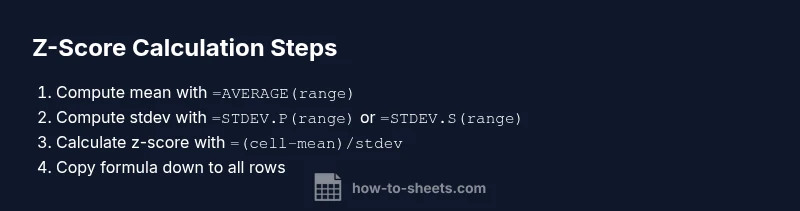
In Sheets you can compute z scores with a compact formula that you can copy down a column. Suppose your data is in A2:A100. First calculate the mean and standard deviation in two helper cells (for example, B1 for mean and B2 for stdev): B1: =AVERAGE($A$2:$A$100), B2: =STDEV.P($A$2:$A$100). Then in C2, enter the z-score formula: =(A2 - $B$1) / $B$2. Copy the formula down to C100. If you’re using STDEV.S, replace $B$2 with the appropriate stat. This approach keeps the calculations transparent and easy to audit, which is useful when validating results with peers.
Using built-in functions vs custom formulas
Google Sheets provides straightforward functions for mean and standard deviation, and a direct approach to z scores. The built-in functions keep formulas readable, auditable, and easy to adjust if you expand your dataset. If you prefer more control or need to handle complex data structures, you can wrap the z-score computation in a named range or use an array formula to process multiple columns at once. Either way, consistency is the priority; standardize your inputs and choose one standard deviation method for the entire analysis. The main benefit is reproducibility and clarity when you share results.
Handling outliers and non-normal distributions
Z scores assume a roughly normal distribution, so extreme skew can affect interpretation. When data are heavily skewed or contain many outliers, consider data transformation or robust standardization methods. You can also cap scores beyond a chosen threshold, or compute z scores within subgroups to preserve context. In practice, comparing by subgroup (e.g., by class, region, or product line) often yields more meaningful insights than applying a single, global z-score across a heterogeneous dataset. This mindset helps you tell more accurate stories with your Sheets data.
Practical examples: homework scores, sales data, and experiments
Example 1: A teacher wants to standardize homework scores to compare students fairly. After collecting scores in column A, compute the mean and standard deviation, then apply the z-score formula to each score. Example 2: A small business tracks monthly sales; z scores reveal which months underperform or overshoot the mean. Example 3: An experiment records measurements with natural variation; z scores highlight results that deviate significantly from the average. By applying the same approach across datasets, you develop a consistent, scalable method for analysis.
Visualizing z-scores: charts and dashboards
To make z scores actionable, visualize them with charts. A simple line or column chart of z-scores reveals clusters around zero and highlights outliers. Pair the chart with conditional formatting (e.g., red for |z| > 2) to draw attention to extreme values. This combination supports quick decision making in dashboards, reports, and slide decks. In Google Sheets you can combine your z scores with other metrics to build a compact, interpretable visualization that communicates standardization at a glance.
Troubleshooting common issues
If your z scores look off, double-check the input range and confirm you used the correct standard deviation function (STDEV.P vs STDEV.S). Ensure there are no non-numeric values slipping into the range, and verify that absolute references are used when copying formulas. If you’re combining arithmetic with text, you may encounter #VALUE! errors. Finally, confirm that you’re interpreting z scores against the intended population or sample context, not mixing both in the same analysis.
Authority sources
For rigorous grounding on standard deviation, normalization, and statistical practice, consult authoritative sources: https://www.census.gov, https://www.nist.gov, and https://www.bls.gov. These references provide foundational context that supports best practices when applying z scores in Google Sheets and other analytics environments.
Extending the concept: dynamic z-scores and automation
As your datasets grow, consider automating z-score calculations with dynamic ranges, named ranges, or array formulas. You can set up a dynamic named range that expands as new rows are added, or use FILTER to keep calculations strictly on numeric data. For dashboards, link z-scores with visuals like sparklines or charts that update automatically. This extension makes z-score analysis in Google Sheets more robust and scalable, supporting ongoing data collection and reporting without manual rework.
Tools & Materials
- Google Sheets account(With internet access and a worksheet containing numeric data)
- Numeric dataset (range like A2:A100)(Include only numbers; blanks removed or handled)
- Optional sample data for practice(Use if you’re practicing or demonstrating)
Steps
Estimated time: Estimated total time: 20-40 minutes
- 1
Identify data range
Select the numeric range you’ll analyze (e.g., A2:A100). Ensure all values are numeric and blanks are excluded.
Tip: Use a header row and lock the range when copying formulas. - 2
Choose standard deviation method
Decide between STDEV.P (population) or STDEV.S (sample) based on your data context.
Tip: If unsure, start with STDEV.S and document your assumption. - 3
Compute the mean
In a spare cell, compute mean with =AVERAGE($A$2:$A$100) and note the value for your reference.
Tip: Anchor the range with $ to keep it fixed while you copy formulas. - 4
Compute the standard deviation
In another cell, compute standard deviation with =STDEV.P($A$2:$A$100) or =STDEV.S($A$2:$A$100) depending on your choice.
Tip: Consistency matters; don’t mix STDEV functions within the same analysis. - 5
Create the z-score formula
In a new column, enter the formula = (A2 - mean) / stdev using absolute references for mean and stdev cells.
Tip: Replace 'mean' and 'stdev' with the actual cell references you computed earlier. - 6
Fill down the z-score column
Drag or copy the z-score formula down to cover all data rows.
Tip: Double-check edge rows for correct references. - 7
Validate results
Recompute mean and stdev after adding all z-scores to confirm consistency.
Tip: Compare a few z-scores by manual calculation for sanity. - 8
Visualize and interpret
Plot z-scores and consider thresholds (e.g., |z| > 2) to flag outliers.
Tip: Link z-scores to your main metrics for actionable insights.
FAQ
What is a z-score and why is it useful in Google Sheets?
A z-score measures how many standard deviations a value is from the mean. In Google Sheets, it helps standardize data, compare values across different scales, and identify outliers. This makes interpretation and dashboards more reliable.
A z-score shows how far a value is from the mean in standard deviation units, which helps you spot outliers. It's a powerful standardization tool in Sheets.
Which functions should I use for mean and standard deviation in Sheets?
Use AVERAGE for the mean and STDEV.P or STDEV.S for standard deviation depending on whether your data is a population or a sample. Keep the choice consistent across the dataset.
Use AVERAGE for the mean and STDEV.P or STDEV.S for standard deviation, keeping it consistent.
How do I handle blanks or non-numeric values when calculating z-scores?
Exclude blanks and non-numeric values by filtering or wrapping formulas in IFERROR. Clean data first, or apply the z-score formula on a cleaned range to avoid errors.
Filter out non-numeric values so your z-scores are based on valid data.
Can I visualize z-scores in a chart?
Yes. You can plot z-scores as a column or line chart and apply conditional formatting to highlight outliers for quick interpretation.
Absolutely—charts and highlighting help you see the spread of z-scores at a glance.
What are common mistakes when computing z-scores in Sheets?
Common errors include mixing population and sample stdev, using the wrong range, or forgetting to anchor references when copying formulas.
Common mistakes include mixing stdev types and failing to anchor ranges.
How can I apply z-scores to new data automatically?
Use dynamic ranges or named ranges, and consider array formulas to extend calculations as you add new rows.
You can set up dynamic ranges to auto-extend z-score calculations.
Watch Video
The Essentials
- Standardize data by calculating z-scores for each value.
- Choose the correct standard deviation function (STDEV.P vs STDEV.S).
- Lock ranges with $ when copying formulas for consistency.
- Use z-scores to spot outliers and compare across datasets.
- Visualize z-scores to tell a clearer data story.