BigQuery to Google Sheets: A Practical Guide
Learn to connect BigQuery with Google Sheets, pull live results, and refresh data on demand. A practical, task-focused guide using built-in connectors and Apps Script for scalable reporting.


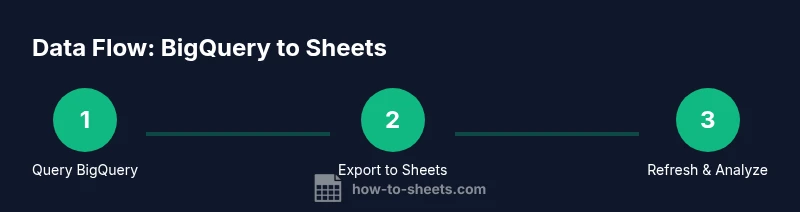
According to How To Sheets, you can connect bigquery google sheets data to Google Sheets, pull live results with a click, and refresh data on demand. By using the built-in BigQuery data connector, Apps Script, or the API, you surface query results for dashboards and collaborative reporting. This approach supports ad-hoc analysis and sharing across teams.
Why bigquery google sheets integration matters
In data work today, teams rely on spreadsheets as a universal interface for analysis, sharing, and rapid decision-making. Integrating bigquery google sheets creates a bridge between a scalable data warehouse and a familiar front-end. This blend empowers analysts to build dashboards, run ad-hoc queries, and collaborate in real time without exporting data between tools. The integration also supports data governance by keeping queries centralized in BigQuery while allowing stakeholders to surface results in Sheets. For most organizations, the combination reduces manual data juggling and accelerates insight generation. Expect faster iteration when you can prototype visuals and calculations directly on live data, while preserving governance through access controls in BigQuery.
Sustainable reporting hinges on repeatable workflows. When users can reproduce the same query against the same dataset and refresh results with a click, you create a reliable basis for team decisions. This is especially valuable for operations dashboards, weekly KPI reviews, and client-ready reports. As you scale, the Sheets layer becomes a lightweight yet powerful canvas for turning BigQuery outputs into shareable insights, charts, and pivot-driven analyses. The result is a workflow that remains approachable for students and professionals while staying robust enough for small teams.
In this guide, we use the lowercase term bigquery google sheets to reflect the common search intent and workflow across educational and practical contexts. This phrasing also reinforces a core concept: Sheets as your front end, BigQuery as your data engine, connected through a consistent, auditable data path.
TBD
Prerequisites and safety considerations
Before connecting BigQuery to Google Sheets, ensure you have the right access and a clear plan for costs and governance. You’ll need a Google account with access to Google Sheets and a Google Cloud project with BigQuery enabled. Make sure you have the necessary permissions to run queries against the dataset and to export results into Sheets. Review your organization’s data-sharing policies to avoid exposing sensitive information to unauthorized collaborators. Costs can accrue from data scanned by queries, so keep queries efficient and pay attention to quota usage. If you’re working with sensitive data, consider extracting only aggregated results and applying row-level protections in Sheets where appropriate.
Security is a shared responsibility. Treat the Sheets document as an access-controlled surface, and limit sharing to teammates who require it. When using Apps Script or external connectors, verify OAuth scopes and ensure script permissions align with your governance policies. Finally, validate that data lineage is clear: document which queries are used and which tables feed your visualizations. With proper safeguards, the BigQuery to Sheets workflow remains both powerful and responsible.
Method 1: Using the built-in BigQuery data connector in Google Sheets
The built-in BigQuery data connector is the quickest path to surface BigQuery results in Sheets without writing code. You authenticate with your Google account, select the target project, dataset, and table, and then construct a SQL-like query within the Sheets UI. The connector returns a live table of results that you can filter, sort, and visualize using Sheets features. This method is ideal for dashboards and exploratory analysis where you want to refresh results with a single click or on a set schedule.
To start: open a new or existing Google Sheet, go to Data > Data connectors > BigQuery, and authorize. Choose your project, dataset, and table, then build your query using the query editor. You can either paste a SQL statement or use the UI to select fields, filters, aggregations, and grouping. The results populate as a dynamic table, and you can format columns, apply conditional formatting, and export charts from Sheets. Limit the amount of data returned by your query to keep Sheets responsive and avoid hitting row limits.
Pros: fast setup, no code, direct integration with BigQuery, straightforward refresh. Cons: fewer customization options for complex data transformations, and you’ll depend on a live connection.
Tools & Materials
- Google account with access to Google Sheets(Ensure you’re logged into the correct org/account)
- Google Cloud project with BigQuery enabled(Enable BigQuery API and billing if needed)
- BigQuery dataset and table you plan to query(Have a representative sample query ready)
- A target Google Sheet for import(Create a clean destination sheet or tab)
- Internet connection(Stable connection for live data pull)
- Apps Script editor (optional)(Use if you plan to extend with custom scripts)
- Billing awareness(Understand that queries may incur costs)
- Governance plan(Data access rules and sharing policies)
Steps
Estimated time: 40-60 minutes
- 1
Open a destination sheet
Create or open the Google Sheet where you want to import BigQuery results. Set up a dedicated tab or named range for your data. This helps keep the imported data organized and makes downstream formulas easier to manage.
Tip: Use a separate sheet named 'BigQuery Import' to keep imports isolated. - 2
Access the BigQuery data connector
In Google Sheets, navigate to Data > Data connectors > BigQuery. You’ll be prompted to authorize access to your Google account and the connected Cloud project. This step establishes the secure channel for data retrieval.
Tip: If you’re asked to choose an account, pick the one tied to your Google Cloud project. - 3
Choose your project and dataset
In the connector dialog, select your Google Cloud project, then the dataset and table you want to query. Confirm that you have permission to access these resources and that the dataset isn’t restricted by IP or domain policies.
Tip: If you don’t see your project, ask your admin to grant BigQuery access or to verify permissions. - 4
Build or paste your SQL query
Use the query editor to either paste a SQL statement or specify fields and filters through the UI. When working with large tables, add a LIMIT clause to maintain sheet performance and readability.
Tip: Start with a small LIMIT, then remove it as you validate results. - 5
Import results into Sheets
Click Import to pull the results into the selected sheet. Review the data types and ensure numeric fields align with your formulas and charts. You can apply formatting, conditional formatting, and create charts directly from these results.
Tip: Format numeric columns (e.g., decimals, currency) early to avoid later rework. - 6
Configure refresh behavior
Decide whether to refresh manually or on a schedule. The BigQuery connector supports on-demand refresh; you can also set up a periodic refresh if you need near real-time data.
Tip: Use a conservative schedule to control costs and quota consumption. - 7
Validate results against source data
Cross-check a sample of rows with the original BigQuery query to ensure accuracy. Look for mismatches in aggregates, groupings, and date formats that could affect downstream dashboards.
Tip: Automate a quick diff check in Sheets for ongoing validation. - 8
Advance to dashboards and sharing
Use Sheets charts, pivot tables, and conditional formatting to build dashboards. Share with teammates and set access levels to protect sensitive data while promoting collaboration.
Tip: Use named ranges for stability in charts and formulas.
FAQ
Can I automate data refresh from BigQuery to Sheets?
Yes. The built-in connector supports manual refresh and can be configured with a schedule in some workflows. For Apps Script, you can trigger refreshes via time-driven triggers or on-demand scripts.
Yes. You can schedule refreshes or trigger them with a script for automation.
Do I need a paid BigQuery plan to use Sheets integration?
BigQuery is a pay-as-you-go service. You will incur costs for processed data and storage based on your queries and dataset size. Use filters and limits to control expenses.
Charges apply based on data scanned and stored; plan queries carefully.
What permissions are required to query BigQuery from Sheets?
You need permission to run queries on the dataset and to access the Google Cloud project. The exact roles depend on your organization but commonly include BigQuery User and BigQuery Job User.
You’ll need project and dataset access to run queries.
How large can the result set be before Sheets performance suffers?
Google Sheets has practical row limits. Return a reasonable number of rows and use aggregations or sampling for large datasets to keep performance acceptable.
Very large results can slow Sheets; filter or sample where possible.
Is real-time querying possible from Sheets?
Real-time querying is possible through live connectors, but it may impact costs and performance. For heavy dashboards, balance refresh frequency with user needs.
You can refresh in near real-time, but plan for costs and performance.
Can Apps Script push data back to BigQuery?
Yes, Apps Script can interact with BigQuery's API to insert or update data if you have appropriate permissions. This enables more complex workflows beyond simple reads.
Apps Script can write to BigQuery if you have access.
Watch Video
The Essentials
- Enable BigQuery to Sheets data flows with a few clicks
- Choose between built-in connector and Apps Script for customization
- Keep queries efficient with filters and LIMIT
- Design dashboards in Sheets with stable data sources
- Regularly review access and governance for shared reports