Can You Hide Sheets in Google Sheets? A Practical Guide
Learn how to hide and protect sheets in Google Sheets, when to use this feature, and best practices for collaboration and data governance.


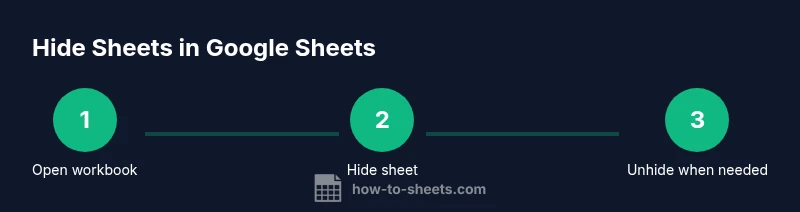
Yes—Google Sheets lets you hide individual sheets to keep workbooks tidy or protect sensitive calculations. To hide, right-click the tab and choose Hide; unhide via View > Hidden sheets or right-click a tab and select Unhide. For shared files, combine hiding with protected ranges for extra security.
Why hiding sheets matters in Google Sheets
In many projects, especially when you collaborate with teammates, you need to keep your workbook tidy without sacrificing data integrity. The simple act of hiding a sheet can reduce cognitive load by removing clutter while preserving underlying formulas, data sources, and references. The keyword here is balance: hiding is a display choice, not a security barrier. For anyone asking can you hide sheets in google sheets, the short answer is yes—and done correctly it becomes a powerful workflow enhancer. In practice, you’ll often hide helper sheets that contain intermediate calculations, version histories, or data sources that don’t need to be visible to all viewers. This keeps the primary dashboards focused on outcomes and metrics, which helps students, professionals, and small business owners avoid confusion. When you hide, Google Sheets does not delete the data; it simply removes it from the tab bar, making it invisible by default. This means formulas referencing hidden sheets will still compute, and scripts or add-ons can access them if permissions allow. The result is a cleaner interface without compromising capability. Keep in mind: if someone has edit access, they can unhide; if they only have view access, they may not be able to unhide. So use hiding in combination with proper sharing settings when privacy matters. In balancing the approach with protection of ranges and sheets for access control, you can guard data while keeping the workbook navigable. The bottom line: hiding sheets is a practical, low-friction way to manage workbook complexity while preserving full data potential.
Tools & Materials
- Google account(Needed to access Google Sheets and adjust sharing settings)
- Target Google Sheets file(The workbook where you will hide sheets)
- Edit permission(Required to hide/unhide sheets and apply protections)
- Optional: Protection features(Use Protect sheets/ranges to enforce write restrictions)
Steps
Estimated time: 20-30 minutes
- 1
Open the Google Sheets file
Launch Google Sheets and open the workbook containing the sheets you want to manage. Verify you have editing rights before proceeding, so you can hide or unhide as needed.
Tip: Tip: Use Ctrl/Cmd + O to quickly open recently edited files. - 2
Decide which sheets to hide
Review the tabs and identify helper sheets, intermediate calculations, or data sources that should not clutter the main view. Clarify which sheets can be hidden without breaking references.
Tip: Tip: Create a simple naming convention to flag hidden-worthy sheets, like ending names with _hidden. - 3
Hide a single sheet
Right-click the tab of the target sheet and choose Hide. The tab will disappear from the bottom bar but the data remains intact and formulas referencing it stay functional.
Tip: Tip: If you hide by mistake, use the Unhide option under the tab menu to recover quickly. - 4
Hide multiple sheets efficiently
Select several tabs by holding Shift and clicking the first and last tabs, then right-click and choose Hide. This batch action saves time when hiding several sheets at once.
Tip: Tip: After hiding, verify dashboards still update by recalculating dependent cells. - 5
Unhide a hidden sheet
Right-click any visible tab and select Unhide. In the dialog, choose the sheet to restore. This makes it visible again while preserving your workbook structure.
Tip: Tip: Keep an index sheet to track which sheets are hidden for quick restoration. - 6
Add protection for stronger control
If you need to restrict edits, use Data > Protected sheets and ranges to lock the content. You can require a share permission level to edit a protected sheet.
Tip: Tip: Protect only the necessary ranges to minimize user friction. - 7
Document your visibility rules
Maintain a simple log describing which sheets are hidden and why. This helps teammates understand the workbook’s structure and reduces confusion during reviews.
Tip: Tip: Add a hidden sheet index that lists visible vs hidden tabs with status indicators. - 8
Review sharing settings regularly
Periodically audit who can view, comment, or edit the workbook. Align sharing settings with your hiding and protection strategy to avoid leakage of sensitive data.
Tip: Tip: Schedule a quarterly access review for important workbooks. - 9
Test end-to-end workflows
Test formulas, scripts, and add-ons that reference hidden sheets to ensure nothing breaks after changes. Adjust as needed based on test results.
Tip: Tip: Run a quick check in a copied backup file before applying changes to the live workbook.
FAQ
Can you hide sheets in Google Sheets without admin access?
Yes—if you have edit access to the file, you can hide sheets. Without edit access, you won’t be able to perform the hide/unhide actions. Collaboration settings determine what each user can do.
Yes, you can hide sheets if you have editing rights; without edit permissions, you won’t be able to hide or unhide.
What happens to hidden sheets in shared workbooks?
Hidden sheets are only invisible in the UI. If someone has edit access, they can unhide them. They are not deleted and can be restored when needed.
Hidden sheets stay in the workbook but aren’t visible to that user unless they unhide them, so cooperation and permissions matter.
Is hiding the same as protecting sheets?
No. Hiding only affects visibility. Protecting sheets or ranges enforces editing restrictions and can require permission to edit. Use both when you need to restrict access and preserve a clean interface.
Hiding hides from view; protecting restricts edits. They’re different security controls.
How do you unhide a hidden sheet?
Right-click any visible tab and select Unhide. In the dialog, choose the sheet to restore from the list. This is the quickest way to bring back hidden data.
Right-click a tab, pick Unhide, and select the sheet you want to show again.
Can you hide sheets programmatically?
Yes. Apps Script can hide or unhide sheets using methods like hideSheet and showSheet. This is useful for automating workbook setup in templates.
You can hide sheets with Apps Script if you’re automating a process.
Do hidden sheets print or export?
Hidden sheets are not printed or exported by default. Ensure your print settings and export scope match your intended visible content.
Hidden sheets aren’t printed unless you include them explicitly.
Watch Video
The Essentials
- Hide sheets to reduce UI clutter without losing data
- Hiding is not secure protection—use protections for sensitive content
- Unhide quickly via the tab menu when needed
- Combine hiding with clear documentation for teams
- Audit sharing settings regularly to prevent data exposure