Can You Put Google Sheets into Folders? A Practical Guide
Learn how to organize Google Sheets by using folders in Google Drive. This guide covers setup, step-by-step moves, permissions, and best practices for students, professionals, and small businesses.


Yes. In Google Drive, you can organize Sheets by placing them inside folders; you can create folders, move existing sheets, and nest folders for better structure. To move, select the file and drag into a folder or use the Move to option. This keeps Sheets organized across projects and teams.
Can You Put Google Sheets into Folders? A Practical Overview
Yes, you can put Google Sheets into folders in Google Drive. This simple organizational approach helps students, professionals, and small business owners keep related spreadsheets together, control access, and quickly locate work across projects. When you ask, can you put google sheets into folders, the answer sits in Drive: folders are a first-class citizen for organizing file types, including Sheets. By combining folders with descriptive naming and a consistent color scheme, you can reduce search time and minimize misplacement. As you read, you’ll see how to plan, execute, and maintain a folder structure that scales with your needs, without losing accessibility for collaborators. This article keeps the focus on practical steps you can implement today and demonstrates how this approach aligns with everyday Google Sheets workflows.
Why this matters for different users
- Students gain clarity for course work, lab data, and shared homework assignments.
- Professionals keep project spreadsheets in a clear hierarchy aligned to teams or clients.
- Small business owners centralize budgets, forecasts, and dashboards in named folders for quick access. The core idea is that folders in Drive complement Sheets’ features, not replace them. If you’re asking can you put google sheets into folders, remember: it’s Drive organization that unlocks faster access and better permission control. Consistent folder naming and a predictable structure save time during audits, reporting, and collaboration.
How Google Drive folders differ from in-Sheet organization
Folders live in Google Drive and do not modify any content inside a Google Sheet. They are metadata in the cloud that help you group files, set permissions, and apply search filters. In contrast, organizing inside a sheet (like named tabs or sections) is a workbook-level organization. While you can use multiple sheets within a single file, folders are about file-level grouping. When asked can you put google sheets into folders, think of folders as the container, while the individual sheets inside remain the content.
Planning a scalable folder structure before you move
Before you start moving files, sketch a high-level folder map. Consider top-level folders by project, client, or department, and subfolders by year, phase, or data source. For example, a consulting team might have a top folder named Projects, with subfolders for 2026, and within those, client A, client B folders. This upfront planning makes it easier to answer can you put google sheets into folders with confidence, because you’ll know exactly where each sheet should live. A simple naming convention (e.g., 2026_ProjectName_SheetType) aids both humans and search algorithms.
Step-by-step implementation approach (conceptual before you move)
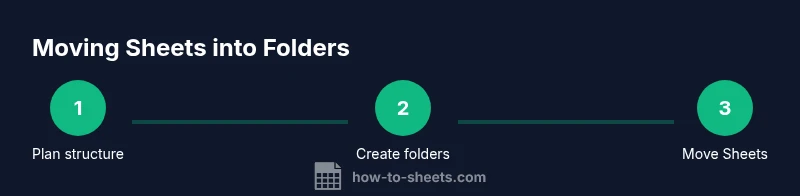
- Define the destination structure you want. 2. Create new folders in Drive, mirroring your plan. 3. Prepare Sheets for moving: identify which files need to be relocated and which should stay in their current locations. 4. Move files with care, testing a small batch first to validate permissions and access. 5. Establish a routine to review the folder map quarterly and adjust as projects evolve. 6. Communicate the new structure to teammates to avoid future misplacements. This approach answers can you put google sheets into folders with practical, repeatable steps.
Executing the move: practical actions and tips
Drag-and-drop is the fastest method to move Sheets into folders, but the right-click menu > Move to option also works well, especially when handling many files. To improve accuracy, filter by file type in Drive (Sheet icon) and select all relevant files. If you’re collaborating, think about permissions: moving a sheet can alter access if the folder’s sharing settings differ from the file’s original location. Maintain a consistent owner and sharing policy to avoid confusion.
For teams, assign a folder steward who approves new files and periodically reviews structure; this reduces the “where did it go?” moments and preserves the Can You Put Google Sheets into Folders workflow from getting tangled.
Permissions and sharing: important considerations
Folders carry inherited permissions from their parent folders, which means moving a Sheet into a folder with restricted access can restrict or grant access to others. If you need the sheet accessible to a broader audience, adjust the folder’s sharing settings or apply a custom access policy at the file level. Regularly verify that critical files aren’t locked behind outdated access rules. When asked can you put google sheets into folders again, remember: you’re not editing the content of the sheets by moving them—you're organizing access for teams.
Maintenance: keeping folders healthy over time
Set a reminder to review folder structures at least quarterly. Archive stale sheets by moving them to an Archive subfolder rather than deleting them. Use color tags or emoji in folder names to quickly identify projects, clients, or data types. Create a short SOP (standard operating procedure) that describes how new sheets get placed in folders, how updates to the folder map are approved, and who handles exceptions. With a defined process, can you put google sheets into folders becomes a repeatable, scalable practice rather than a one-off task.
Tools and automation to assist large-scale folder organization
For large teams, consider automation like Google Apps Script to standardize naming, or use Google Drive’s “Priority” and “Quick Access” features to surface relevant folders. You can also build templates that pre-create a folder structure for new projects and copy the template sheets into the correct location. While automation can help, start with a solid manual plan to avoid misplacing sheets or over-automation that ignores human workflows. By combining planning, careful moving, and ongoing governance, you can confidently answer can you put google sheets into folders with a scalable system.
AUTHORITY SOURCES
- https://support.google.com/drive/answer/2424368 (Google Drive Help: Organize files in folders)
- https://www.google.com/intl/en_US/drive/ (Google Drive Overview and Help)
- https://www.edutopia.org/ (Education-focused organizational strategies and tools)
Tools & Materials
- Google Drive account(Needed to access Drive, create folders, and move Sheets)
- Web browser or Google Drive app(Ensure internet access and up-to-date software)
- List of Sheets to organize(Optional: pre-compile the set to move for a smooth start)
- Folder naming convention(Optional but helpful for consistency (e.g., Project_Year_Type))
- Backup copy of critical files(Advisable before large reorganizations)
Steps
Estimated time: 30-45 minutes
- 1
Plan folder structure
Outline a high-level map of top-level folders and subfolders that align with projects, teams, or clients. Define naming conventions to ensure consistency across new and existing Sheets.
Tip: Draft the structure on paper or a shared doc before touching Drive to avoid rework. - 2
Create folders in Drive
In Drive, create the top-level folders and the necessary subfolders. Use descriptive names and consider color-coding to make folders visually scannable.
Tip: Use batch creation for multiple folders to save time and reduce drift from the plan. - 3
Filter Sheets to organize
Search Drive for files with the type Google Sheets and prepare a list of candidates to move. Verify ownership and current sharing settings before moving.
Tip: Filter by type (Sheets icon) to avoid moving non-sheet files accidentally. - 4
Move files to target folders
Select the Sheets and use Move to to place them in the appropriate folders. For many files, use multi-select and apply the same destination to all.
Tip: Move in small batches first to validate permissions and access for collaborators. - 5
Check inherited permissions
After moving, review the folder’s sharing settings and ensure required teammates still have access. Adjust as needed at the folder or file level.
Tip: Prefer folder-level permissions when the team structure is stable to simplify management. - 6
Document the structure
Create a short SOP describing where to place new Sheets and how to update folder structure. Share this with the team.
Tip: A documented process reduces ambiguity and future rework.
FAQ
Can I have multiple folders for Sheets within Drive?
Yes. You can create and nest folders to reflect your projects, teams, or clients. This makes organizing Sheets easier and aligns with your workflow.
Yes. You can create and nest folders to reflect projects or teams, making Sheets easier to organize.
Will moving Sheets affect sharing or access?
Moving a Sheet into a folder can inherit the folder’s sharing settings. If access needs to be broadened or restricted, adjust at the folder or file level.
Moving can change access. Check folder sharing, and adjust if needed.
How often should I audit my folder structure?
Schedule a quarterly review to prune old files, rename misclassified folders, and align new projects with the map.
Do a quarterly audit to keep folders tidy and aligned with projects.
Can I revert a move if I relocate the wrong file?
Yes. You can move the file back to its original location or to a different folder if needed. Keeping a small backup helps in accidental moves.
You can move files back if needed, and having a backup helps avoid mistakes.
What about permissions when folders change owners?
If folder ownership changes, ensure the new owner has the appropriate access policies and that collaborators retain necessary permissions.
If ownership changes, verify access policies to maintain needed permissions.
Are there best practices for naming folders and files?
Use a consistent convention like Project_Year_Type and avoid spaces or ambiguous abbreviations. Clear names prevent confusion when searching for sheets later.
Use consistent, descriptive names for folders and files.
Watch Video
The Essentials
- Plan a scalable folder structure before moving files
- Folders control access and improve findability
- Move sheets carefully to preserve sharing settings
- Review and update regularly to prevent drift
- Document a simple SOP for ongoing organization