Checklist Google Sheets: A Practical Step-by-Step Guide
Learn to build a practical checklist in Google Sheets with a reusable template, data validation, and automation to keep tasks organized and teams aligned.


Create a reusable checklist in Google Sheets that tracks tasks, owners, due dates, and completion status. This quick answer outlines the essential setup, a share-friendly template, and core formulas to automate status, filter by priority, and keep your team aligned. According to How To Sheets, starting with a clear header row and data validation yields the fastest, most reliable results.
Why checklists in Google Sheets matter
A well-designed checklist google sheets helps individuals and teams stay on top of tasks, deadlines, and ownership without switching between apps. The lightweight, shareable nature of Google Sheets makes collaboration easy, especially for students, professionals, and small businesses who need a simple, auditable trail of progress. When you standardize tasks in a single sheet, you reduce miscommunication and the time spent chasing status updates. This is particularly valuable for recurring projects, onboarding checklists, and audit-ready processes where clarity and accountability matter. By embedding checklists into Google Sheets, you gain the ability to filter by due date, owner, or priority, while keeping everything in a familiar interface.
In this guide we’ll explore a practical approach to building a checklist google sheets that scales—from a starter template to a polished, team-ready system. You’ll learn about data validation, checkboxes, and automation techniques that keep the template resilient as your needs evolve.
Core features of an effective checklist template
A robust checklist template in Google Sheets includes clear headers, consistent data types, and automation-friendly fields. Expect columns for Task, Owner, Due Date, Status, and Progress, plus optional fields like Priority, Category, and Notes. Checkboxes enable quick progress checks, while drop-down lists ensure uniform status values (Not Started, In Progress, Blocked, Completed). Filters and conditional formatting help you spot overdue items and high-priority tasks at a glance. In a checklist google sheets context, a template should be reusable, with a single data entry row that can be copied or reset for new items without breaking formulas.
A good template also supports reporting—so you can generate a snapshot of completion rates or overdue items without manual counting. You’ll often see templates that separate data entry from reporting to protect the core formulas and preserve data integrity over time.
Designing a reusable checklist template
Start with a clean, named structure: a header row, a data entry area, and a separate area for summary or reporting. Use consistent column data types and place validation rules early. Include a status column with checkboxes and a separate progress column that derives its value from the checkbox state. For teams, add an Owner column to assign responsibilities and a Due Date column to track timing. A reusable template should include sample rows that demonstrate input formats, which you can replace with real items later. Consider using named ranges for frequently referenced cells to simplify formulas and improve readability. Finally, keep a simple aesthetic—avoid clutter that makes the sheet feel intimidating to new users.
Data validation and drop-downs for consistency
Data validation enforces uniform inputs and minimizes errors in a checklist google sheets. Implement drop-downs for Status (Not Started, In Progress, Blocked, Completed) and Priority (Low, Medium, High). Use a date picker for Due Date to ensure valid dates, and restrict Owner to a list of team members if possible. Validation rules should be applied to the entire column so new rows automatically inherit the constraints. When users select a value outside the allowed list, Sheets will show a clear error message, reducing inconsistent entries and enabling reliable filtering and reporting.
Automating status updates with checkboxes and formulas
Checkboxes simplify completion tracking. Place a checkbox in the Status column and add a formula that translates checkbox state into a readable status string (for example, if a row’s checkbox is TRUE, set Status to Completed; otherwise Not Started). You can also create a Progress column that shows % complete based on how many tasks are checked in a given view. The key to a smooth checklist google sheets experience is balancing manual input with lightweight automation so users still feel in control while gain visibility into progress.
Time tracking: due dates and elapsed time
Due dates keep teams accountable, and days remaining can be shown with a simple formula contrasting Due Date against today(). Add conditional formatting to highlight overdue items in red and upcoming deadlines in yellow. A compact template might include a Days Remaining column computed as =DATEDIF(TODAY(), Due Date,
,
Tools & Materials
- Google account with access to Google Sheets(Needed to create and save the template)
- New blank Google Sheet(Starting from scratch ensures clean structure)
- Data validation rules (Drop-downs)(Status, Priority, Category fields)
- Checkboxes for completion(Insert via Insert > Checkbox)
- Named ranges (optional)(Simplifies complex formulas)
- Conditional formatting rules(Highlight overdue items and high-priority tasks)
Steps
Estimated time: 60-90 minutes
- 1
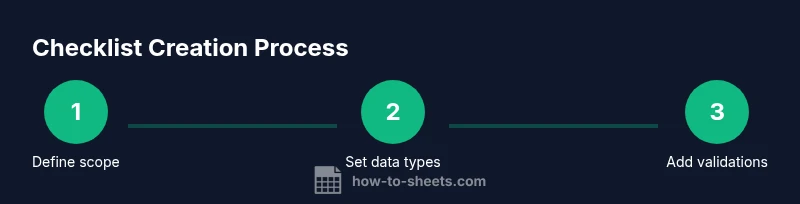
Define purpose and scope
Clarify what the checklist will track, who will use it, and how it will be shared. This ensures the template stays focused and reusable.
Tip: Write a one-sentence user story to anchor scope. - 2
Create header row and columns
Set up a clean header row with consistent data types across columns (Task, Owner, Due Date, Status, Priority, Notes). This foundation supports reliable formulas and future expansion.
Tip: Use bold headers and freeze the header row for easy navigation. - 3
Add data validation
Implement drop-downs for Status and Priority, and enable a date picker for Due Date. This prevents invalid inputs and makes filtering predictable.
Tip: Test each dropdown with sample rows before entering real data. - 4
Insert checkboxes for completion
Place checkboxes in a dedicated column and connect them to a simple status formula. This creates a visual progress tracker at a glance.
Tip: Keep checkboxes to a single column to maintain clarity. - 5
Create a progress metric
Add a Progress column that derives its value from checkbox states or completed tasks. This helps measure overall progress quickly.
Tip: Use a simple formula like =COUNTIF(StatusRange,
FAQ
What is a checklist in Google Sheets?
A checklist in Google Sheets is a structured table that tracks tasks with fields like status, due date, and owner. It uses checkboxes and validation to ensure consistent data entry and clear progress visibility.
A checklist in Google Sheets is a structured table that tracks tasks with status and due dates, using checkboxes to show progress.
How do I add checkboxes in Google Sheets?
Select the cells where you want checkboxes, go to Insert > Checkbox, and customize the range. Checkboxes link to a simple boolean value that you can use in formulas.
Select the cells, insert checkboxes, and then use the boolean values in formulas to drive status.
Can I share a checklist with teammates?
Yes. Use the Share button to grant view or edit access. For editing, consider protecting formulas while allowing data entry in specific columns.
Yes, you can share the sheet with teammates and control what they can edit.
How can I automate progress tracking?
Use a checkbox column to mark completion and a Progress formula to summarize across rows. Combine with conditional formatting to highlight overdue or high-priority items.
Use checkboxes and formulas to auto-calculate progress and highlight important items.
What are best practices for templates?
Keep the template simple, document field definitions, lock core formulas, and provide a sample row. Regularly review the template and adjust as processes change.
Keep templates simple, document fields, and protect core parts.
Where can I find ready-made templates?
Look for official Google Sheets templates in Drive or the template gallery, and adapt them with your data validations and checkboxes for consistency.
Explore templates in Google Sheets to jump-start your setup.
Watch Video
The Essentials
- Define the checklist scope and required fields.
- Use data validation to prevent inconsistent inputs.
- Leverage checkboxes for clear progress tracking.
- Protect core formulas and headers in templates.
- Test with real data and iterate for improvements.