Debt Snowball Planner for Google Sheets and Excel: A Practical Step-by-Step Guide
Learn to build a practical debt snowball planner you can use in Google Sheets or Excel to pay down debt faster with prioritized payments, payoff dates, and clear visuals.


Create a debt snowball planner that tracks each debt’s balance, interest, minimum payment, and payoff date in Google Sheets or Excel. You’ll prioritize the smallest balance first, automate monthly totals, and visualize progress with a simple chart. Basic spreadsheet skills are assumed, including data entry, simple formulas, and saving templates for reuse.
What the debt snowball planner does
A debt snowball planner is a practical template that helps you organize and pay down multiple debts by applying payments to the smallest balance first and rolling extra funds toward the next. While any debt payoff method can work, the Snowball approach builds psychological momentum by showing faster wins early. This guide uses the phrase debt snowball planner for google sheets and excel to emphasize cross-platform usability, so you can switch between Sheets and Excel without rebuilding your model. According to How To Sheets, a well-structured template reduces cognitive load and keeps you focused on the payoff path, not the math itself. The planner also supports optional visualizations, monthly progress summaries, and a reusable structure for future debt cycles.
By the end of this section you’ll understand the core goals: (1) maintain a clean debt list, (2) allocate payments according to the Snowball order, and (3) produce a clear payoff timeline. The template is designed for students, professionals, and small business owners who want a practical, transparent method to get out of debt. The discipline of updating the sheet weekly helps you stay committed and informed about your finances.
Core components of the planner
The planner revolves around a few essential data points and calculations. At minimum you’ll track debt name, current balance, interest rate, minimum payment, due date, and payoff status. You’ll also include a field for extra monthly payments that can be applied to the smallest balance first. As you grow confident, you can extend the template with: payoff month, total interest paid, cumulative payments, and trend visuals. A well-designed structure keeps data consistent across Google Sheets and Excel, which is important for people who switch between the two platforms. This section outlines the key blocks you’ll need and why they matter for a debt snowball planner for google sheets and excel. With a stable data model, you minimize errors and improve decision-making about your monthly budget and payoff strategy.
Differences between Google Sheets and Excel
Both Google Sheets and Excel can run the same debt snowball planner, but there are small pros and cons to consider. Google Sheets shines with real-time collaboration, automatic cloud saves, and easy sharing, which is ideal for households or teams. Excel offers powerful local performance, advanced data analysis tools, and robust offline access. The template uses universal formulas and standard functions (SUM, IF, MIN, VLOOKUP/HLOOKUP, and simple arithmetic) so you can copy the model across platforms without worrying about compatibility. In practice, you should maintain identical column orders and numbering, and use a single currency to ensure consistent results when you switch between Sheets and Excel. This cross-platform compatibility is what makes the debt snowball planner for google sheets and excel truly practical.
If you expect to work on the sheet offline, start in Excel and then upload to Google Sheets when collaboration is needed. Conversely, begin in Sheets if you plan to share updates with family or teammates in real time. The core payoff logic remains the same; only the file storage and live editing approach change.
Data model and worksheet layout
A clear data model is the backbone of any reliable planner. Your workbook should include: a Debt List sheet with columns for Debt Name, Balance, Interest Rate, Minimum Payment, Due Date, and Status; a Payment Schedule sheet that shows monthly allocations, remaining balances, and a running total of payments; and a Summary sheet with visuals like a payoff timeline and a progress bar. Use a hidden control cell to store the total monthly available funds for debt payments if you want to simulate different budget scenarios. The template arranges these sections so you can start with a clean slate and scale up as you add more debts or adjust your plan. The goal is a module that is easy to audit and adjust each month—especially when interest rates or income changes occur.
In practice, you should keep the template lean: only the essential fields necessary to compute payoff dates and progress. This keeps the sheet responsive and easy to audit. As you gain confidence with the model, you can add extra features like charts, conditional formatting to highlight paid-off debts, and a dedicated notes column for each debt.
Core formulas you’ll use
You’ll rely on a handful of standard formulas that work in both Google Sheets and Excel. For example, use SUM to total payments and balances, MIN to identify the next debt to attack, and IF to implement conditional logic for applying extra payments. A typical payoff calculation can be built by first determining the payment applied to the smallest debt, reducing its balance, and moving the remaining amount to the next debt in line. Use a simple structured approach so formulas don’t become tangled as you scale.
Other useful formulas include: INDEX/MATCH (or VLOOKUP) to retrieve debt attributes, AVERAGE to smooth monthly data, and a dynamic named range to reference the debt list. If you want to go further, you can implement a PAYOFF function in Google Apps Script or Office Scripts to automate multi-step calculations. Remember to prioritize readability over cleverness; a clean, well-documented set of formulas will pay off in time savings and fewer errors.
Step-by-step setup (from scratch)
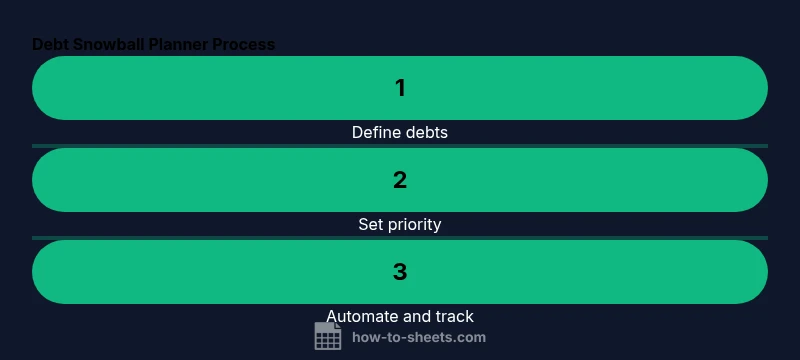
This section provides a high-level overview of the end-to-end process for building the debt snowball planner for google sheets and excel. You’ll follow the numbered steps below to create a maintainable template, with a focus on practicality and clarity. You can adapt the steps to match your own debt profile, but keep the data model stable so you can reuse the template for future debt cycles.
First, gather all debts and set up the Debt List sheet with the required columns. Next, establish the Payoff Schedule by month, ensuring you can link each month to the relevant debt balances. Then, set up the Summary sheet with a payoff date forecast and a live progress bar. Finally, test the model using a few sample debts and adjust any formulas until the outputs look correct. This process ensures you end up with a robust, reusable framework that works in Google Sheets and Excel alike.
Refer to the diagrams in the related visuals for a quick sanity check of the data flow. If something looks off, re-check data types (numbers vs text) and confirm that the currency values are consistent across the workbook.
Automation, visuals, and improvements
Automation can reduce manual updates and keep you focused on payoff progress. Add a simple input area for extra monthly payments and connect it to the debt payment allocation logic. Visuals such as a progress bar and payoff timeline help you see how close you are to debt freedom. A few optional upgrades include: sparklines to track balance trends, conditional formatting to highlight the current target debt, and a dashboard that summarizes total interest paid to date. These enhancements are optional but highly effective for motivation and clarity.
To maximize reuse, save your workbook as a template and share it with teammates or family. A well-structured template reduces the time needed to set up a new plan and minimizes the risk of data-entry errors. Regularly updating the sheet — for example, weekly rather than monthly — helps keep your payoff trajectory accurate and actionable.
Common mistakes and how to avoid them
Avoid common pitfalls that derail payoff progress. Do not mix currencies; always use a single currency to prevent rounding errors. Don’t neglect to record actual payments and dates; missed entries lead to misleading projections. Keep the debt order intact (snowball by balance) unless you intentionally switch to a different method. Finally, back up your workbook and maintain version control to prevent data loss. By staying disciplined and using a clean template, you’ll avoid confusion and stay on track toward your payoff goal.
Reuse, sharing, and next steps
The debt snowball planner for google sheets and excel is designed to be reusable. Save a clean copy as your template, then duplicate it whenever you add new debts or need to redo a payoff cycle. If you plan to share the workbook with others, ensure cell protection is in place on critical calculation cells and that data-entry sheets are clearly labeled. As you gain confidence, consider adding more advanced analytics like debt-to-income ratios or a year-over-year visualization to better understand long-term trends.
Tools & Materials
- Computer with internet connection(Essential for accessing Google Sheets or Excel online/offline apps)
- Google account or Microsoft account(Needed to access Sheets or Excel online features)
- Debt details (balances, interest rates, minimum payments, due dates)(All debts you want to include in the snowball)
- Blank Google Sheet or Excel workbook(Starting point for your template setup)
- Optional: pre-built debt snowball template file(Can speed up initial setup if you prefer starting from a template)
Steps
Estimated time: 60-120 minutes
- 1
Gather your debt details
Collect every debt: balances, interest rates, minimum payments, monthly due dates, and current balances. This creates a complete data set for the planner and ensures accuracy when applying the Snowball method.
Tip: Use one currency and verify figures against recent statements to avoid input errors. - 2
Define the data structure
Create a Debt List with columns for Debt Name, Balance, Interest Rate, Min Payment, Due Date, and Status. Add a column for Extra Payment if you plan to allocate more than the minimum each month.
Tip: Keep column order consistent across Google Sheets and Excel to simplify cross-platform use. - 3
Set up the payoff model
Decide how you’ll allocate your monthly funds: always apply extra toward the smallest balance first, then roll remaining funds to the next debt. Create a Payoff Schedule that shows month-by-month updates.
Tip: Document the priority rule in a note cell so future editors remember the approach. - 4
Input initial balances and payments
Enter the starting balances, interest rates, and minimum payments for each debt. Label the current month clearly so calculations reflect the right period.
Tip: Double-check that the sum of all minimum payments matches your known total monthly obligation. - 5
Apply the snowball logic
Configure formulas to apply the extra monthly payment to the smallest balance first, then cascade to the next debt as balances reach zero.
Tip: Test with a single debt before scaling to multiple debts to validate the logic. - 6
Add payoff date calculation
Create a payoff date field that estimates when each debt will be paid off given current payments. Update as balances change monthly.
Tip: Use a conservative estimate and round up to the nearest month to avoid overly optimistic predictions. - 7
Build visuals and a dashboard
Add a progress bar or sparkline to show overall debt reduction and a simple chart of remaining balance over time. A dashboard helps you see the big picture at a glance.
Tip: Keep visuals lightweight to preserve sheet performance as you add more debts. - 8
Test, save, and reuse
Run a dry run with sample data, verify outputs, then save as a template for future use. Share the template with collaborators if needed.
Tip: Lock calculation cells to prevent accidental edits and protect data integrity.
FAQ
Can I use this planner with both Google Sheets and Excel?
Yes. The template uses universal formulas (SUM, IF, MIN, INDEX/MATCH) that work in both Google Sheets and Excel. Save changes in one platform and open the file in the other to continue tracking your payoff progress.
Yes. It works in both Sheets and Excel, using universal formulas for cross-platform compatibility.
How do I handle a new debt that arrives during the payoff period?
Add the new debt to the Debt List with its balance, interest rate, and minimum payment. Reorder the Snowball if you want to include it in future targets, and recompute the payoff timeline with the updated data.
Add the new debt to the list and recalculate the plan to see its effect on payoff dates.
What if interest rates change mid-plan?
Update the interest rate fields for affected debts and rerun the payoff calculations. The Snowball method focuses on the balance, but accurate interest rates improve the overall cost picture.
Update the rates and recalculate; payoff timelines adjust accordingly.
Can I export results or share the plan with others?
Yes. You can export to CSV or share the Google Sheet/Excel file with collaborators. Ensure critical cells are protected to prevent accidental edits.
You can export or share the plan, keeping protections in place.
How often should I update the planner?
Aim for a weekly update during payoff, and monthly during maintenance. Regular updates maintain accuracy and motivation as balances change.
Update weekly during payoff and monthly after payoff is underway.
Watch Video
The Essentials
- Define the payoff target and timeline clearly
- Rank debts by balance for Snowball order
- Automate totals to avoid manual errors
- Test with sample data before real use
- The How To Sheets team recommends saving and reusing a clean template