Free Debt Snowball Spreadsheet in Google Sheets: A Step-by-Step Guide
Learn how to build and use a free debt snowball spreadsheet in Google Sheets. This practical guide covers setup, tracking, and strategies to pay off debt faster using a templates-based approach.


With a free debt snowball spreadsheet in Google Sheets, you’ll list every debt, rank them by balance, and allocate extra payments to the smallest balance first. Track payments weekly, monitor payoff dates, and update as balances post. This free template keeps you organized and motivated, while remaining accessible from any device.
Why use a free debt snowball spreadsheet Google Sheets
According to How To Sheets, starting with a clear plan and a reusable Google Sheets template dramatically increases your odds of paying off debt. A free debt snowball spreadsheet in Google Sheets gives you a single source of truth for every balance, payment, and payoff date. It helps you visualize progress, stay accountable, and avoid scattered notes in multiple apps. When you keep everything in Sheets, you can access your plan from any device, share it with a partner, and track how your strategy evolves as you pay down debt.
The debt snowball emphasizes momentum: list debts from smallest to largest balance, then allocate any extra payments to the smallest balance first, regardless of interest. The simplicity reduces cognitive load and makes consistent action more likely. A template that’s free for Google Sheets lowers barriers to starting, and a well-structured sheet prevents drift. Our templates are designed to be adaptable, so you can customize fields, colors, and formulas without breaking the core logic.
Visibility is another big win. You can see all debts at a glance, update balances in real time, and let formulas recalculate totals as payments post. This transparency helps students and small business owners turn budgeting into a concrete plan. How To Sheets analysis shows that centralized, shareable spreadsheets keep people engaged longer than scattered notes or PDFs.
Before you start, confirm you have a Google account and access to Google Sheets. Then copy a free debt snowball template or build your own with clear column headers and consistent data types. A solid template sets the groundwork for success and makes the payoff journey feel manageable.
Core features to look for in a debt snowball template
A robust debt snowball template in Google Sheets should include a clean debts table with essential fields (creditor, balance, minimum payment, due date, and optional notes). It should automatically rank debts from smallest to largest balance, so extra payments are applied where they matter most. Look for dynamic totals that update as you log payments, and a payoff date estimate that recalculates when balances change. Visual aids like progress bars or charts can boost motivation and clarity. Finally, ensure you can customize headers, currency formats, and formulas without breaking the core logic.
From a usability perspective, handy features include data validation to prevent incorrect entries, conditional formatting to flag overdue payments, and filters to view subsets (e.g., only high-priority debts or those with interest). The template should also be shareable, so a partner or advisor can view or edit in real time. A mobile-friendly sheet helps you update on the go. For people juggling multiple debts and varying payment schedules, these features turn a complex scenario into a manageable plan.
How To Sheets analysis shows that users who adopt a centralized, shareable debt-tracking spreadsheet stay more engaged with their payoff plan than those who rely on scattered notes. This underscores the practical value of a well-designed Google Sheets template for debt reduction.
To get started, ensure you have a Google account with access to Google Sheets, then import or create a template tailored to debt snowball workflows. A clean starting point with consistent data types saves time and reduces errors as you scale.
How to customize for your debt profile
Every financial situation is different, so tailor your debt snowball spreadsheet to fit your real-world needs. If you have debts with varying interest rates, you can still apply the snowball method by maintaining a separate column for the payoff priority (e.g., smallest balance first) while optionally highlighting higher-interest debts for awareness. Add a column to capture minimum payments, due dates, and optional notes about payment methods. Color-code entries to visually distinguish secured debts, medical bills, or small business loans. Use conditional formatting to flag when a due date is approaching or when a balance is paid off.
Set up a flexible payment rule that reflects your income schedule. If you receive irregular income, create a “monthly target” column and a separate “actual payments” column. You can also add an “extra payment” input field that you adjust each month, so your payoff trajectory stays aligned with real cash flow. For transparency, include a summary section that shows total debt, total minimums, and the amount you’ve allocated toward the smallest balance. This helps you see progress at a glance and maintain motivation.
If you’re sharing with a partner or advisor, ensure edit permissions are set appropriately and consider locking critical formulas. Keep a backup copy and periodically review formulas to catch any accidental changes. The goal is a steady, repeatable process you can rely on month after month.
Step-by-step: building your sheet from scratch
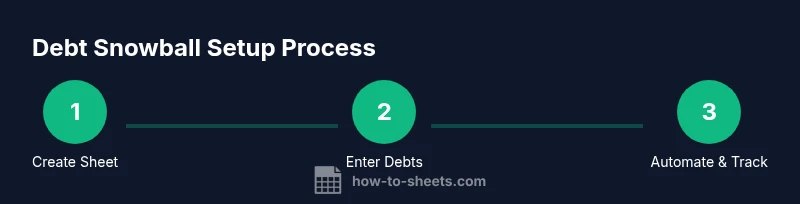
Building a debt snowball spreadsheet in Google Sheets involves a sequence of concrete actions. Start by creating a new sheet and naming it clearly. Then set up a debts table with columns for Creditor, Balance, Min Payment, Interest Rate (optional), Due Date, and Notes. Add a helper column to rank debts by balance and a field for tracking extra payments. Create a payoff tracker that sums applied payments and updates a projected payoff date. Finally, add a summary that shows totals and a simple chart to illustrate progress. If you want, include a monthly reset section to migrate balances and payments to a fresh sheet.
After laying out the data, implement formulas that automate calculations. Use SUM to total balances, MIN to capture minimums, and a custom RANK or SORT function to order debts by balance. Link the payoff tracker to the debts table so updating a payment automatically updates the payoff date. Add data validation to ensure only numeric values enter balance and payment fields. This reduces errors and keeps the sheet reliable over time.
Examples and scenarios
Example A: A single credit card debt of $3,500 with a $100 minimum. You create a row for the debt and a payoff plan that allocates any extra payments to this balance after listing zero other debts. As you log payments, the balance shrinks and the payoff date automatically updates.
Example B: Three debts with balances of $2,000, $5,500, and $1,200. You rank them by balance and apply $200 extra each month to the smallest ($1,200). Once that is paid, you roll the extra payment to the next smallest balance, maintaining momentum until all are paid. This demonstrates the psychological boost of the snowball while keeping the math transparent.
Common pitfalls and how to avoid them
Common mistakes include failing to update balances regularly, forgetting to log extra payments, and neglecting to account for new debt. Another pitfall is not validating data entries, which leads to incorrect totals and mistaken payoff projections. To avoid these issues, set a recurring reminder to update the sheet, lock critical formulas, and establish a simple monthly routine where you review the sheet, confirm all balances, and adjust targets. Keep copies of the template and document any changes so you can reverse mistakes quickly.
Finally, beware of overcomplicating the sheet with too many fields or overly fancy formulas. A focused, clean template that you can actually use every week will outperform a perfect but unused model.
Maintaining momentum and scaling your sheet
To sustain momentum, keep the template lightweight but informative. Use a weekly cadence to log payments, adjust balances, and review progress toward payoff. If you start paying more aggressively, reflect those changes by updating the extra-payment field and re-running payoff dates. Consider adding visual indicators such as progress bars and color-coded debt groups to reinforce achievements. As you grow more confident, you can scale the sheet by adding more debts, integrating with bank CSV exports, or building a dashboard with charts that display payoff trends over time. The How To Sheets team recommends keeping the sheet simple and shareable so you stay accountable and collaborative throughout the journey.
Tools & Materials
- Google account(Access Google Drive and Google Sheets)
- Google Sheets template(Prebuilt or from scratch; ensure core fields exist)
- Debt data(Current balances, minimum payments, due dates)
- Optional extras(Interest rates, notes, and payment method details)
Steps
Estimated time: 60-90 minutes
- 1
Create a new Google Sheet
Open Google Sheets and name the file clearly, e.g., Debt Snowball Template. This establishes a dedicated workspace and prevents cross-contamination with other projects.
Tip: Name conventions matter: include date/version for easy tracking. - 2
Define the debts table
Add columns for Creditor, Balance, Min Payment, Due Date, and Notes. This structure ensures you capture essential data in a consistent format.
Tip: Use data validation for numeric fields to prevent entry errors. - 3
Add payoff-rank logic
Create a helper column that ranks debts by balance (smallest first). This enables automatic targeting of the smallest balance with extra payments.
Tip: Keep formulas simple and test with mock data first. - 4
Set up totals and progress
Implement SUM formulas to total balances and payments. Add a payoff tracker that updates when you log new payments.
Tip: Link the payoff tracker to the debts table so updates flow automatically. - 5
Input your first debts
Enter actual debts into the table. Include a few example scenarios to validate the logic before real use.
Tip: Double-check due dates and ensure currency formats are consistent. - 6
Create a summary and visual aids
Add a summary section showing total debt, minimum payments, and time to payoff. Insert a simple chart to visualize progress.
Tip: A visual view helps maintain momentum and clarity. - 7
Test and maintain
Test the sheet by logging hypothetical payments and verifying payoff dates. Set a weekly reminder to update data and review results.
Tip: Document changes so you can revert if something breaks.
FAQ
What is a debt snowball method?
The debt snowball method focuses on paying off the smallest balance first while making minimum payments on larger debts. Once a balance is paid off, you roll its payment into the next smallest debt, creating momentum as you progress.
The debt snowball method pays off the smallest balance first, building momentum as you go.
Do I need to include interest rates in the sheet?
Including interest rates is optional for the snowball's math, but you can add an interest column to help you decide if you want to switch to a hybrid strategy.
Interest rates are optional for snowball math; you can add them for awareness.
Can I use this template for irregular income?
Yes. Create a monthly target and a separate actual payments column to reflect variable income. Adjust extra payments when cash flow changes.
Yes, you can adapt it for irregular income by tracking targets and actuals.
Is it safe to share the sheet with a partner?
Sharing is fine if you set proper permissions. Use edit access for trusted collaborators and view-only for others to protect formulas.
Share only with trusted people and set permissions carefully.
How often should I update the sheet?
Update at least weekly, especially after a payment is made. More frequent updates improve accuracy and motivation.
Update weekly for the best results.
Watch Video
The Essentials
- Define debts clearly in the sheet.
- Rank debts by balance to maximize momentum.
- Automate totals and payoff dates with simple formulas.
- Update weekly to keep the plan realistic and motivating.